
How to Activate Your Subscription
Step-by-step guide to activate your ChatGPT to Notion subscription using your email
After purchasing a subscription, you need to activate it using the email address you used during checkout. This guide shows you two ways to access the activation page.
What You Need
- The email address you used when purchasing the subscription
- ChatGPT to Notion extension installed in your browser
Activation Method 1: From Extension Popup
This is the quickest way to activate your subscription.
Steps
-
Open the Extension Popup
- Click the ChatGPT to Notion extension icon in your browser toolbar
- If you don’t see the icon, click the puzzle piece icon and find “ChatGPT to Notion”
-
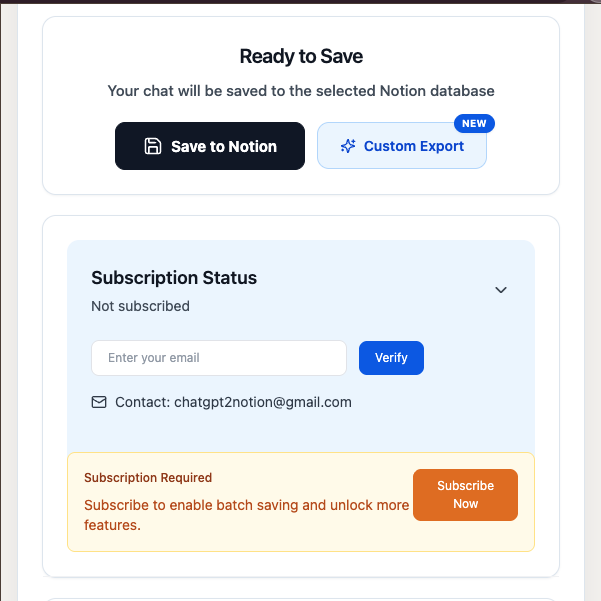
Locate the Subscription Status Section
- Scroll down in the popup window
- Find the “Subscription Status” section
- It will show “Not subscribed” if you haven’t activated yet
-
Expand the Activation Form
- Click on the “Subscription Status” section to expand it
- You’ll see an email input field and a “Verify” button
-
Enter Your Email and Activate
- Type the email address you used when purchasing
- Click the “Verify” button
- Wait a few seconds for verification
-
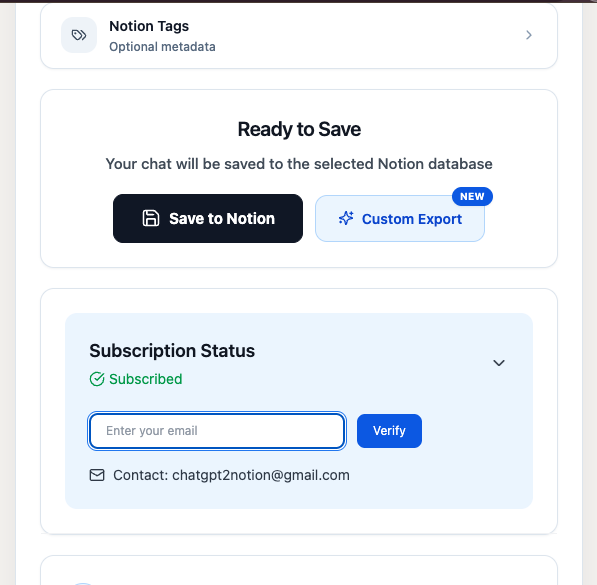
Activation Complete
- The status will change to “Subscribed” with a green checkmark
- You can now use all premium features
Activation Method 2: From Batch Sync Page
You can also activate from the Batch Sync (Options) page.
Steps
-
Open the Batch Sync Page
- Click the ChatGPT to Notion extension icon
- Click the “Batch Sync” button at the top right
Reuse
extension-popup-v10-overview-2026-07.png; the Batch Sync button should be visible in the popup header.Alternative way:
- Right-click the extension icon
- Select “Options” from the menu
-
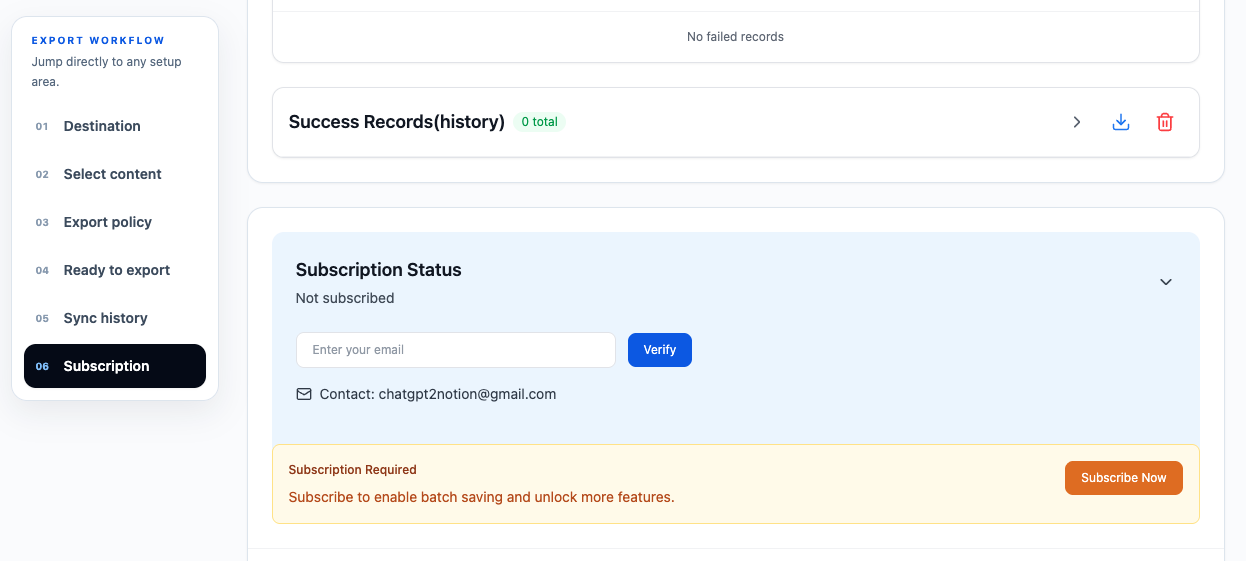
Find the Subscription Status Section
- The Batch Sync page will open in a new tab
- Scroll down to find the “Subscription Status” section
- It appears below the sync configuration area
-
Expand and Activate
- Click on “Subscription Status” to expand it
- Enter your subscription email address
- Click the “Verify” button
-
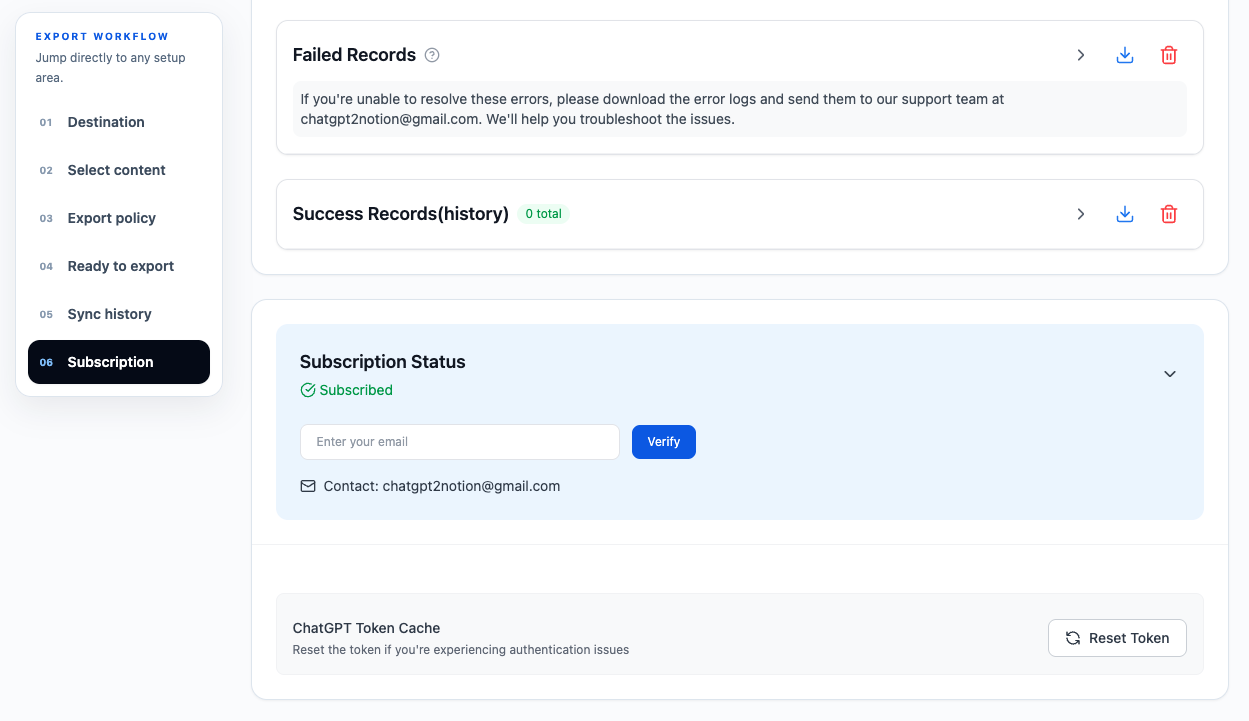
Verification Complete
- Status changes to “Subscribed”
- All premium features are now unlocked
Reuse
extension-popup-v10-subscription-active-2026-07.pngif the status component is visually identical, or providebatch-sync-v10-subscription-active-2026-07.pngif the wider layout is materially different.
What Happens After Activation
Once activated, you’ll get:
- Unlimited Saves: No daily limits on conversation exports
- Batch Sync: Export multiple conversations at once
- Group Chat Sync: Unlimited group chat exports
- Auto-Sync: Schedule automatic backups (Daily/Hourly)
- Shared Activation: The verified subscription status is stored by the extension and reused by Popup, Batch Sync, and Auto Sync
Troubleshooting
”Email not found” Error
Problem: The system can’t find your subscription.
Solutions:
- Double-check the email address for typos
- Make sure you’re using the exact email from your purchase
- Wait 5-10 minutes after purchase for the system to update
- Check your spam folder for the purchase confirmation email
”Verification failed” Error
Problem: Unable to verify your subscription.
Solutions:
- Check your internet connection
- Try again in a few minutes
- Make sure you completed the payment successfully
- Contact support at [email protected] with your order details
Status Shows “Checking subscription…”
Problem: Verification is taking too long.
Solutions:
- Wait up to 30 seconds for the check to complete
- Refresh the page and try again
- Check if you’re connected to the internet
- Close and reopen the extension popup
Already Activated But Shows “Not subscribed”
Problem: Extension lost your activation status.
Solutions:
- Simply enter your email and click “Verify” again
- Your subscription is still active, just needs re-verification
- This can happen after browser updates or extension updates
Need Help?
If you’re still having trouble activating:
-
Check Purchase Confirmation
- Look for the confirmation email from the payment provider
- Verify the email address used in the purchase
-
Contact Support
- Email: [email protected]
- Include your purchase email and order number
- We typically respond within 24 hours
-
Visit FAQ
- Check our FAQ guide for more help
- Browse common issues and solutions
Important Notes
- One Email, Multiple Devices: You can use the same subscription email on multiple browsers/devices
- Email Privacy: Your email is only used for subscription verification and support
- No Password Required: Activation only needs your email, no account creation necessary
- Instant Activation: Verification usually takes less than 5 seconds
- Subscription Period: Access remains active for the paid subscription period
Next Steps
After activation, you’re ready to:
Ready to try Chatgpt To Notion?
Open the product page for feature details, screenshots, pricing, and the Chrome Web Store install link.