
Custom Export Preview
Preview ChatGPT messages, select exactly what to keep, adjust export settings, and save the result to Notion
Custom Export opens the current conversation in a dedicated extension page before anything is written to Notion. Use it to review formatting, keep a custom mix of messages, include or hide timestamps, and adjust long-conversation settings.
It supports standard ChatGPT conversations and /gg/ Group Chats.
Open the Preview
- Open a ChatGPT conversation.
- Open the ChatGPT to Notion popup.
- Confirm that Notion is connected and a destination is selected.
- Click Custom Export in Ready to Save.
The extension reads the current conversation, creates a local preview cache, and opens the preview in a new extension tab. All previewable messages are selected initially.
Review the Conversation
The preview renders Markdown content including headings, lists, tables, links, quotes, and code blocks. Images and supported files are represented in the message so you can keep or remove the message that owns them.
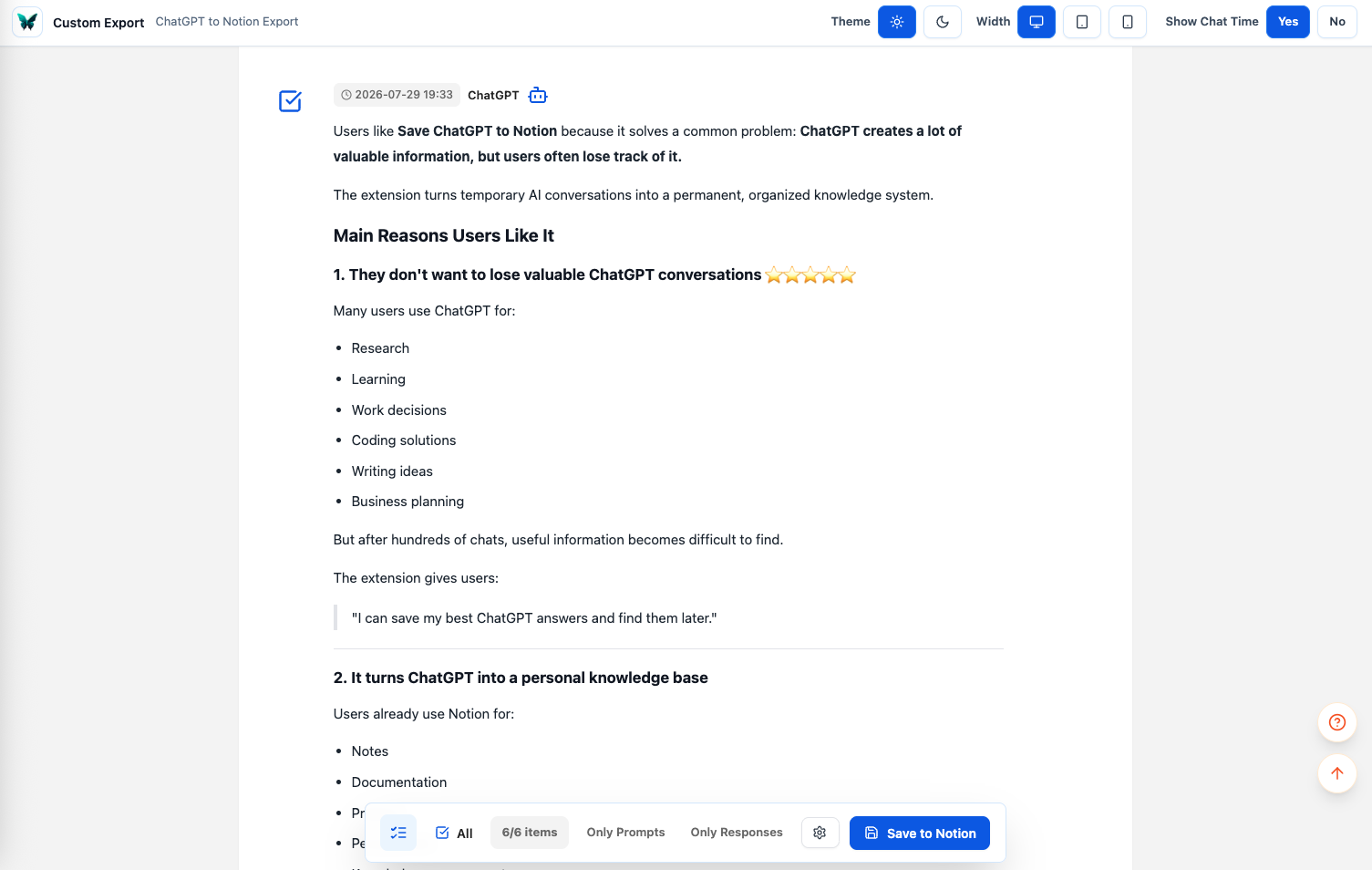
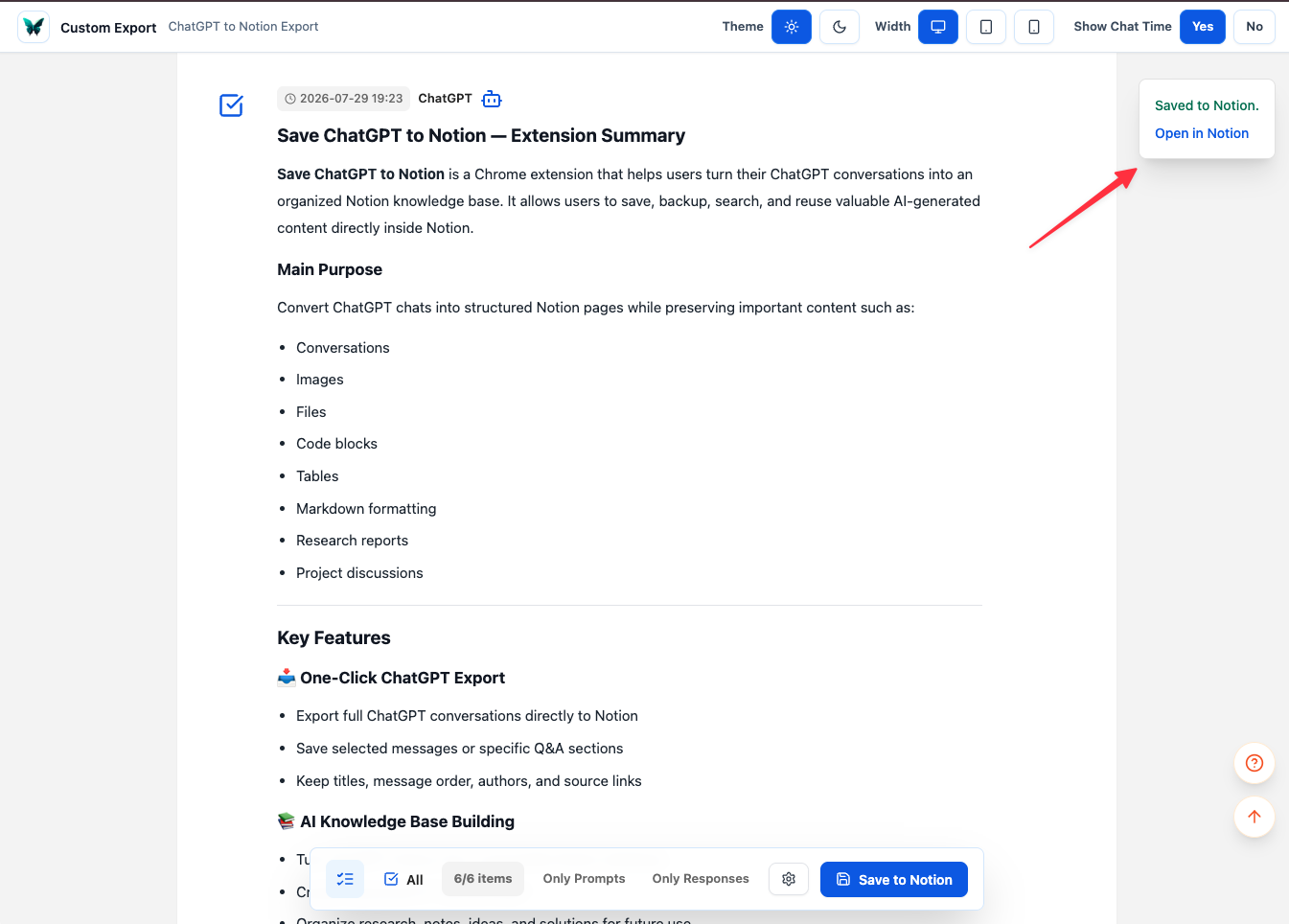
The top bar provides:
- Light and dark themes
- Desktop, tablet, and mobile preview widths
- Show Chat Time on or off
These controls change the preview only, except Show Chat Time, which also controls whether message timestamps are included in the export.
Select Messages
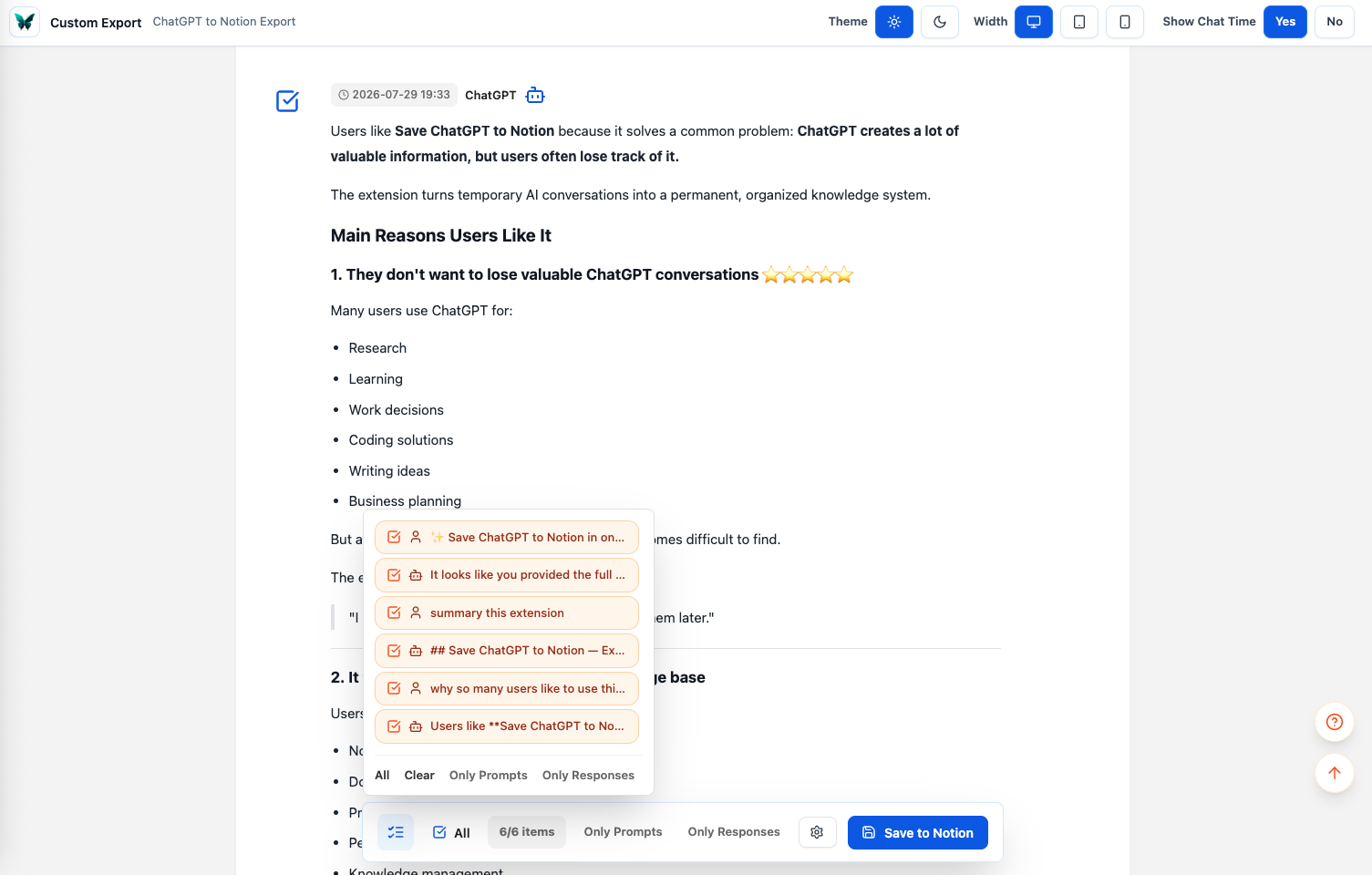
Use the checkbox beside any message to include or exclude it.
The bottom bar provides:
- All to select all or clear all
- Only Prompts to keep user messages
- Only Responses to keep assistant messages
- A selected/total item count
- Export Settings
- Save to Notion
The list button opens a compact message index. Click an item to jump to that message, or use its checkbox without leaving the index.
No export is started when zero messages are selected.
Adjust Export Settings
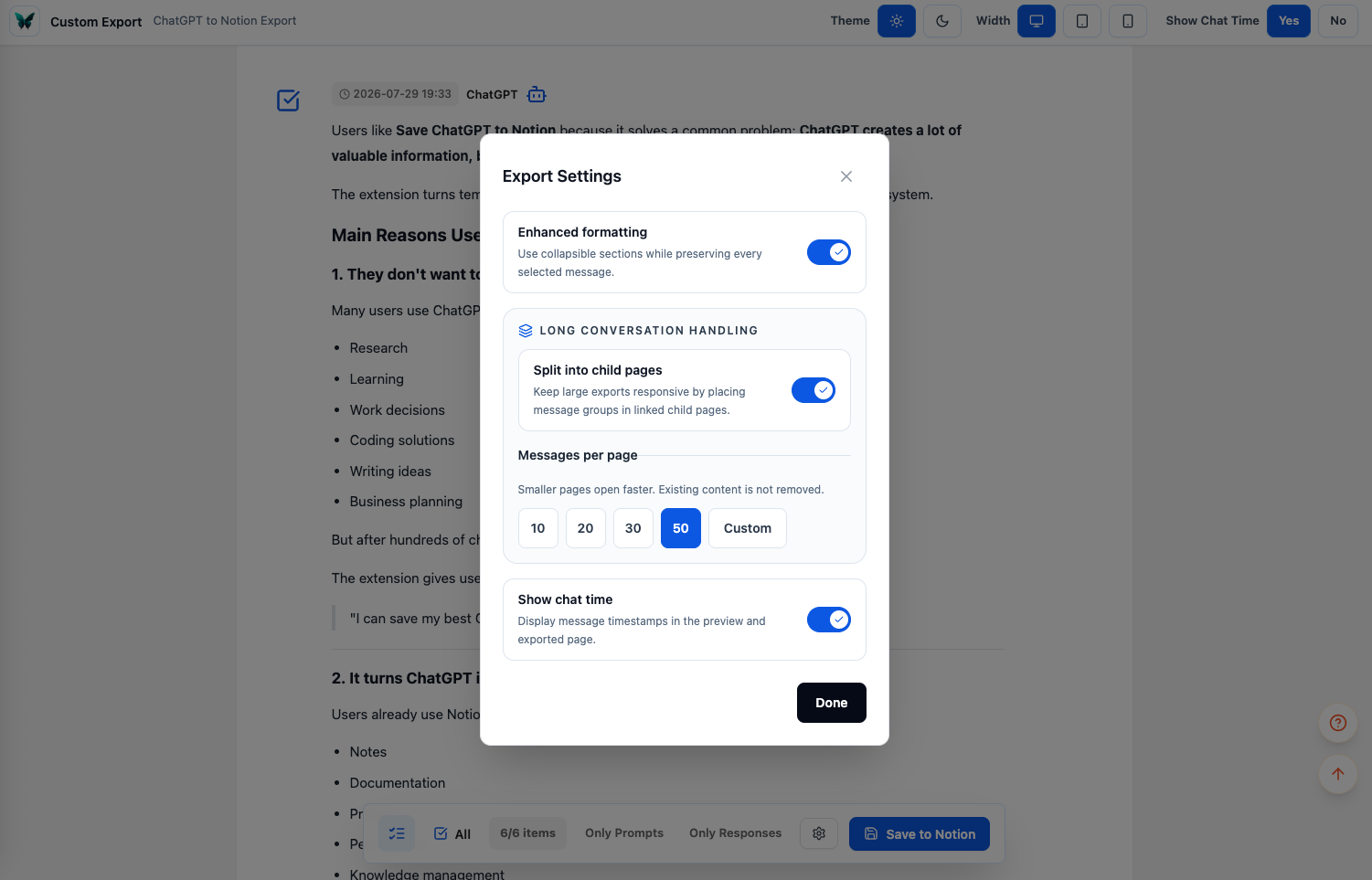
Click the settings button in the bottom bar to change:
- Enhanced formatting: use collapsible Notion sections.
- Split into child pages: divide the selected messages into linked child pages.
- Messages per page: use 10, 20, 30, or 50, or enter 1–200.
- Show chat time: include or omit timestamps.
Enhanced formatting and child-page settings are shared with the popup and Batch Sync. Changes made here are saved for those workflows too.
The summary near the conversation title shows the current format, page structure, and timestamp choice.
Save to Notion
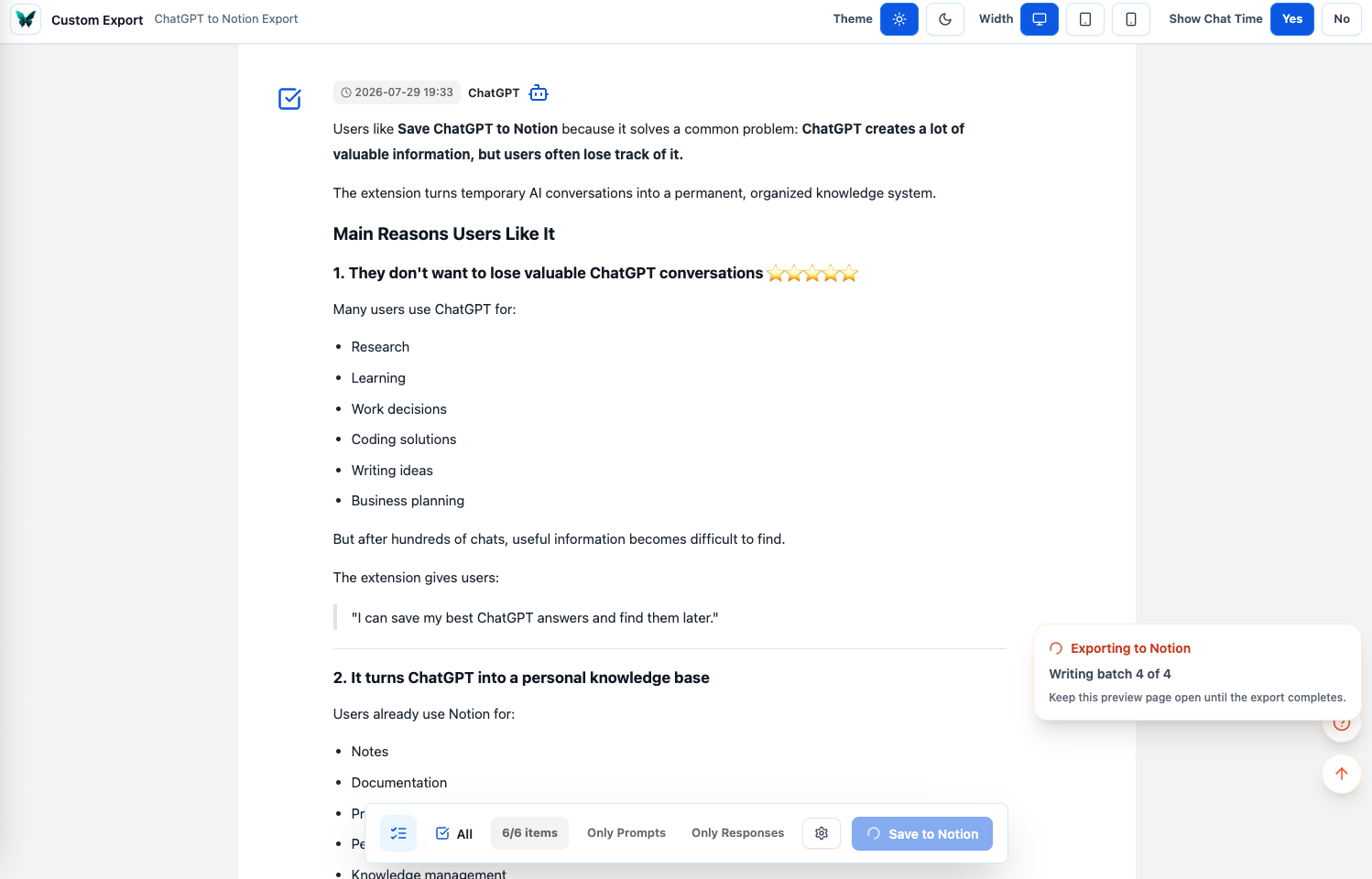
Click Save to Notion after making your selection. Keep the preview page open until the export completes.
The progress panel stays visible while the extension:
- Prepares the selected content and attachments
- Creates or resumes the Notion export
- Uploads supported media
- Writes blocks and child pages in safe batches
After a successful save, click Open in Notion in the result notification.
Images and Files
The exporter keeps structured media data instead of replacing every asset with a text placeholder. Supported images, PDFs, audio, video, and general files are uploaded as native Notion blocks.
If a specific attachment cannot be downloaded or uploaded:
- Other selected messages still export.
- A warning callout is placed near the affected content.
- The final save result includes attachment warning information.
Notion file-upload permission and workspace file-size limits still apply.
Long and Interrupted Exports
The Notion writer normalizes large or complex content to fit Notion limits, sends safe batches, retries transient failures, and can split rejected payloads into smaller requests.
Confirmed batches are recorded in a local sync ledger. A retry can reuse the same partial page when the source conversation, destination, selected content, and export settings still match.
Preview Cache
Preview data is stored only in local extension storage. The five most recent preview caches are retained, and older entries are removed automatically.
If a preview says its data cannot be found, return to the ChatGPT conversation and create a new Custom Export preview.
Troubleshooting
Custom Export Does Not Open
- Confirm that the active tab is a ChatGPT conversation or Group Chat.
- Refresh the ChatGPT tab after installing or updating the extension.
- Reopen the popup and try again.
The Preview Has No Messages
The current conversation may not expose any previewable text or media. Reload ChatGPT and retry after the conversation finishes generating.
Save Is Disabled
Select at least one message and confirm that Notion is still connected.
An Attachment Shows a Warning
Reconnect Notion if file-upload permission is missing. The source asset may also be expired, unavailable, or larger than the Notion workspace permits.
Related Guides
Ready to try Chatgpt To Notion?
Open the product page for feature details, screenshots, pricing, and the Chrome Web Store install link.