
Connect to Notion
How to connect ChatGPT to Notion extension with your Notion workspace
Connect Your Notion Account
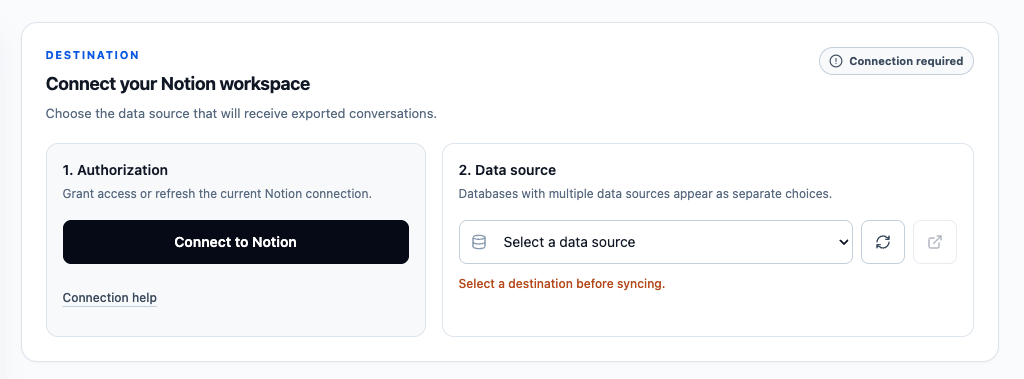
ChatGPT to Notion needs access to a writable Notion data source before it can save conversations. The current integration can also upload supported ChatGPT images and files, so review and allow the file-upload capability during authorization.
After authorization, return to the extension, refresh the destination list, and choose where exports should be saved. A Notion database with multiple data sources can appear as multiple destination choices.
Option 1: Auto-Clone the Notion Template
This is the recommended setup for most users. During Notion authorization, choose the developer-provided template option and Notion will automatically duplicate a compatible destination into your workspace.
Open the auto-clone template guide
Option 2: Use a Manually Cloned Template
Use this option if automatic template duplication fails, or if you already cloned one of the Notion templates into your workspace. You will authorize the cloned page, refresh the destination list in the extension, and select the data source you want to use.
Open the manual cloned template guide
Which Should You Choose?
Start with the auto-clone template guide if you are setting up ChatGPT to Notion for the first time.
Choose the manual cloned template guide if you already have a template database, want to use your own database, or need a fallback after automatic duplication fails.
Existing Connections
Click Connected to Notion whenever you need to:
- Add another Notion page or destination
- Authorize a template cloned after the first connection
- Restore an expired or revoked connection
- Enable file-upload permission for native image and file export
The extension supports both legacy stored database IDs and current Notion data-source IDs.
Need more help? Contact Support