
How to Activate Your Subscription
Activate Export Gemini to PDF with your purchase email or connected AIExportHub account.
After purchasing a subscription, activate Export Gemini to PDF with the email address you used at checkout. You can verify it from either the extension popup or the Bulk Export page.
What You Need
- The email address you used when purchasing the subscription
- Export Gemini to PDF installed in your browser
- An internet connection for verification
Activation Method 1: From the Extension Popup
This is the quickest way to activate premium access while viewing a Gemini conversation.
Steps
-
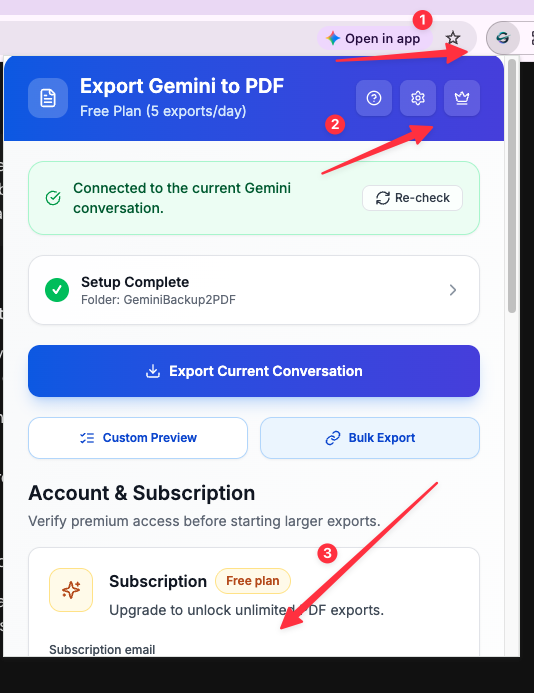
Open the extension popup
- Open a Gemini conversation in your browser.
- Click the Export Gemini to PDF icon in the browser toolbar.
- If you do not see the icon, click the extensions (puzzle) icon and select Export Gemini to PDF.
-
Find Account & Subscription
- Scroll below the export buttons to the Account & Subscription section.
- If needed, click the crown button in the popup header to jump to the section.
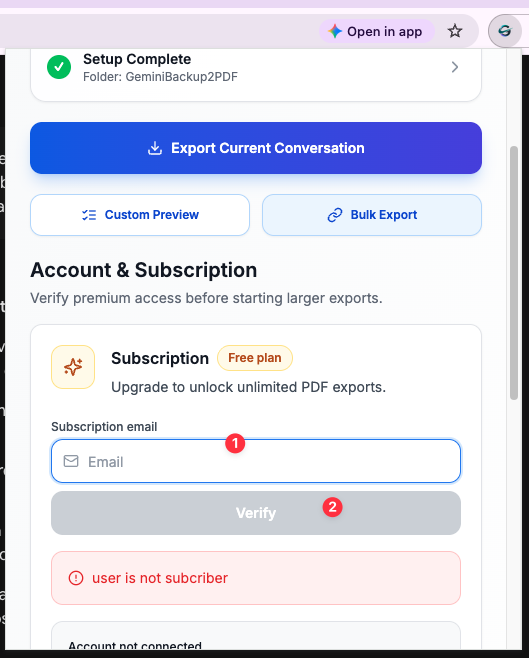
- Enter your subscription email
- Type the exact email address used at checkout in the Subscription email field.
- Click Verify and wait a few seconds for the check to finish.
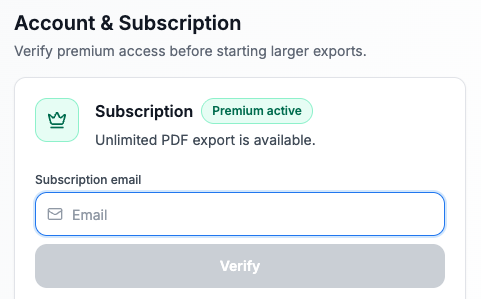
- Confirm activation
- When verification succeeds, the Subscription badge changes from Free plan to Premium active.
- Unlimited PDF export is now available.
Activation Method 2: From the Bulk Export Page
You can also activate before starting a larger backup or export run.
Steps
-
Open the Bulk Export page
- Open the extension popup and click Bulk Export.
- Or right-click the extension icon and choose the options page.
-
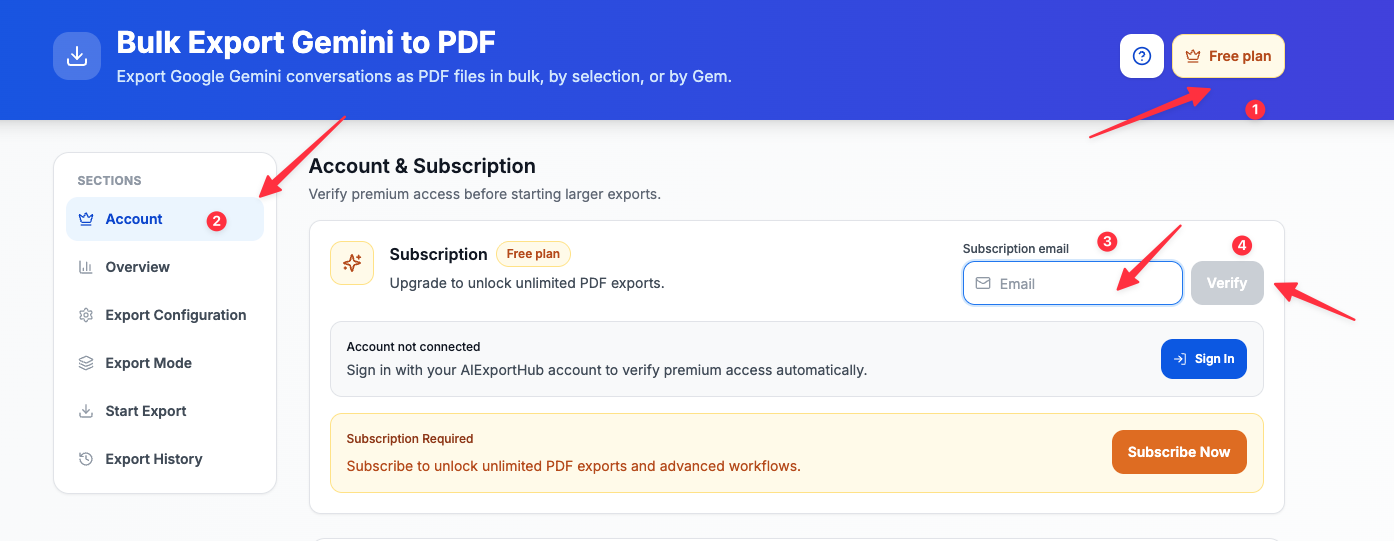
Open the Account section
- Click Account in the left-hand navigation.
- Enter the purchase email in the Subscription email field, then click Verify.
- Confirm activation
- The Subscription card and the page header show Premium active when verification is complete.
- You can then continue with your bulk, selective, or Gems export.
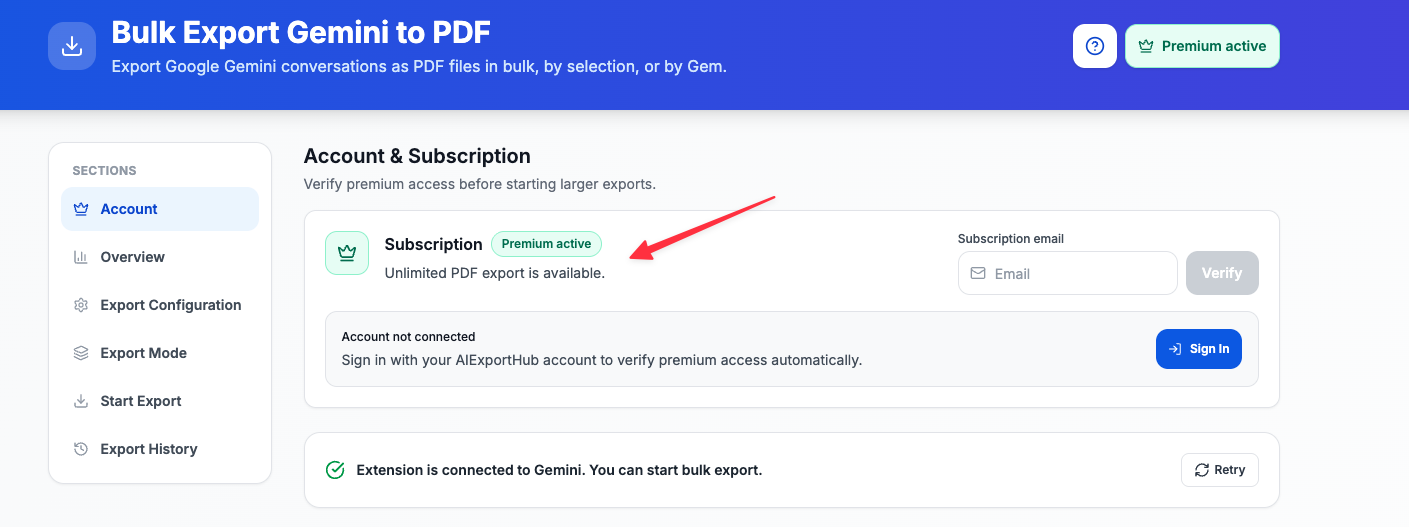
Alternative: Sign In with AIExportHub
The same Account & Subscription section also supports Sign In. If your AIExportHub account already has premium access, signing in verifies that access automatically. Otherwise, use the email verification method above.
Troubleshooting
”Email not found” or “Not subscribed”
- Check for typos and use the exact email from your purchase confirmation.
- Wait a few minutes after checkout, then try again.
- If you purchased through a different email address, verify with that address instead.
Verification fails or takes too long
- Check your internet connection and try again.
- Close and reopen the extension popup, or refresh the Bulk Export page.
- Confirm that the purchase completed successfully.
Already activated, but the extension shows Free plan
- Enter your subscription email and click Verify again.
- If you use AIExportHub, sign in again from the Account & Subscription section.
Need Help?
Email [email protected] with your purchase email and order details. You can also review Troubleshooting & FAQ.
Next Steps
Need more help? Contact Support
独立工具说明
本产品用于导出 Google Gemini 内容,为独立项目,与 Google LLC 不存在关联。