
Exporting Individual Conversations
Use popup export or Custom Preview to save the current Gemini conversation as a clean PDF with selectable messages, themes, and filename rules.
Quick path
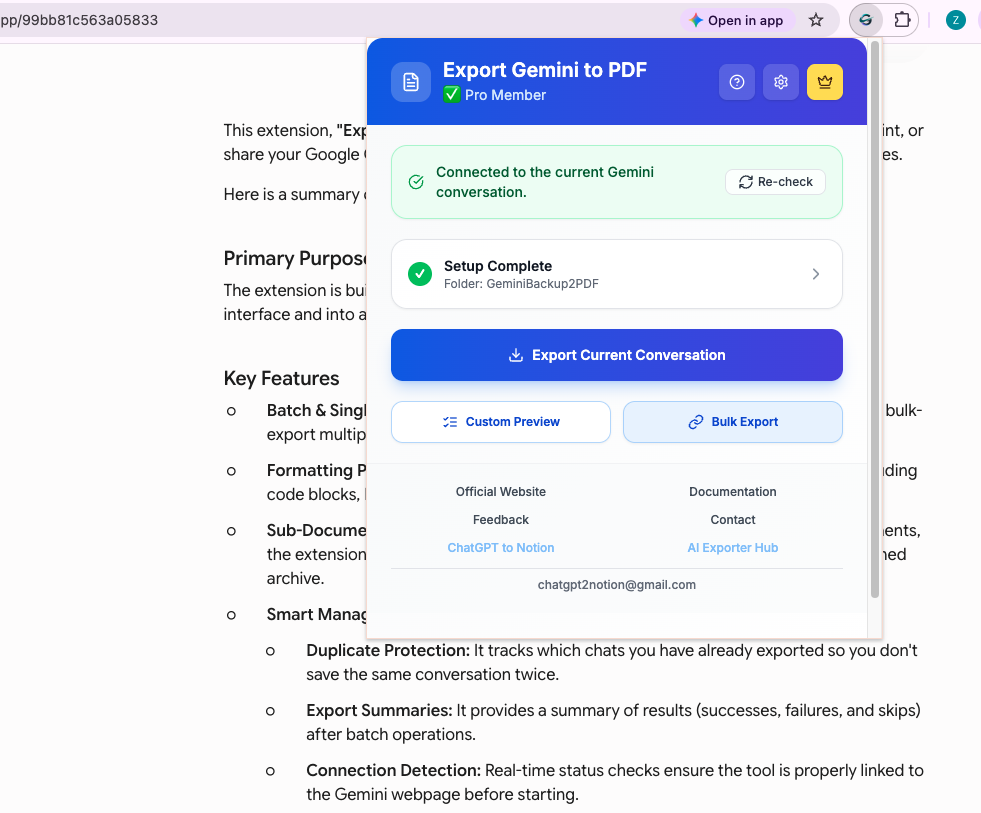
If you want the whole conversation, use Export Current Conversation from the popup.
If you want only part of the conversation, use Custom Preview.
Before you export
Make sure:
- You are on a Gemini conversation URL
- The conversation is fully loaded
- Images you care about are visible
- The popup status shows that the extension is connected
Export the full current conversation
- Open the Gemini conversation you want to save.
- Click the extension icon.
- Confirm the popup shows a ready or connected state.
- Click Export Current Conversation.
- Wait for the PDF to download.
Watch the full walkthrough
If you want to see the complete flow before installing, watch this tutorial:
Use Custom Preview when you do not want the whole chat
Custom Preview is the biggest workflow gap in the older docs. It now matters for users who want cleaner exports.
What you can do in Custom Preview
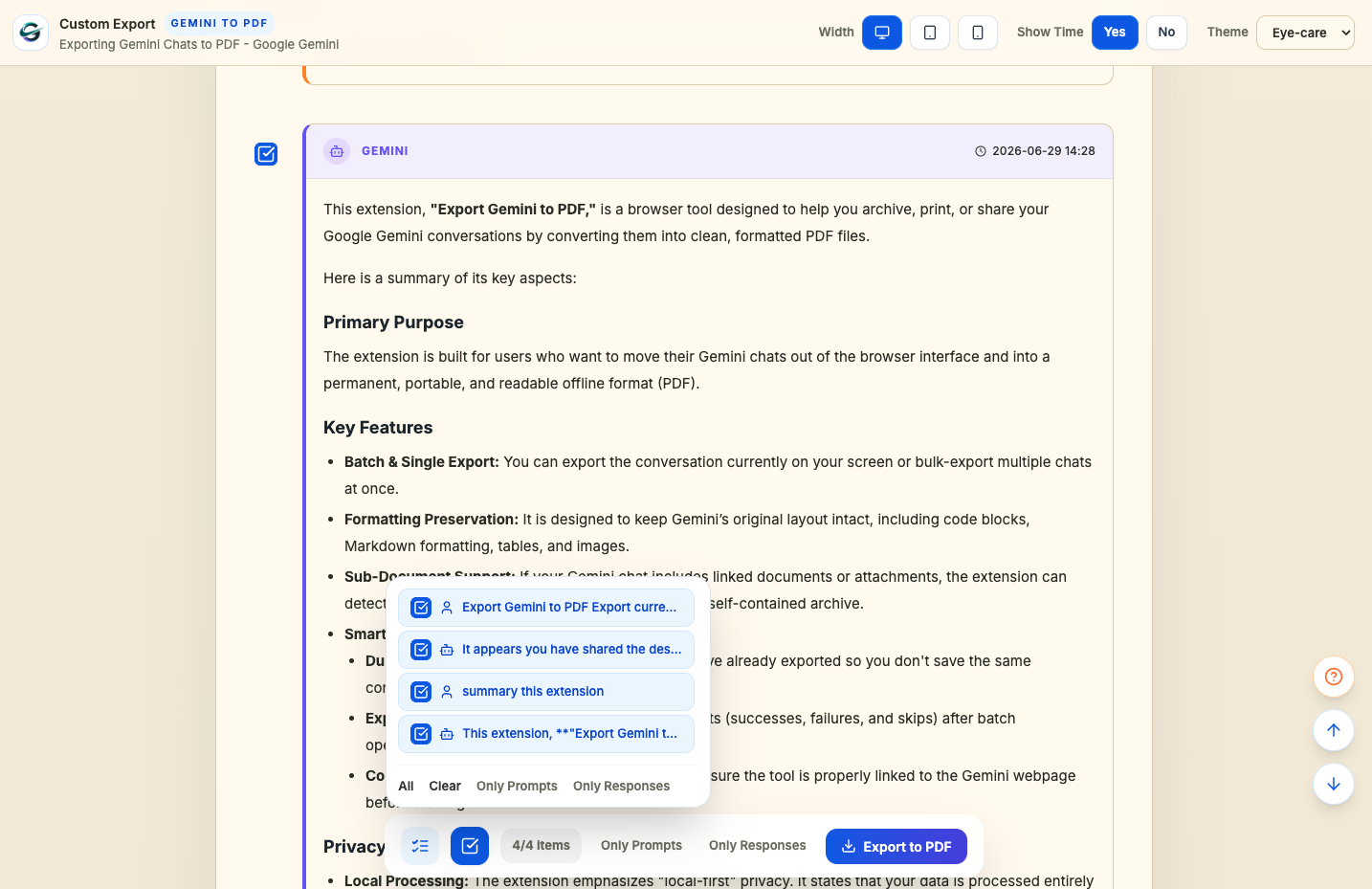
- Inspect the parsed conversation before saving
- Select only the messages you want
- Deselect filler or repeated turns
- Show or hide timestamps
- Preview the layout in desktop, tablet, or mobile width
- Save the selected result as a PDF using the same filename and theme rules as the popup
Steps
- Open the Gemini conversation.
- Click the extension icon.
- Click Custom Preview.
- Wait for the preview page to open.
- Select the messages you want to keep.
- Choose the preview width and optional timestamp display.
- Save the selected content as a PDF.
Settings that affect single exports
Single exports use the same saved configuration as batch exports:
- Download directory: files go into your browser download folder under the directory you set
- Filename pattern: choose current date or original chat date order
- PDF message style: choose the message-card layout style
- Export color theme: Light, Dark, or Eye-care
- Gem subfolders: if enabled, Gem conversations are saved into a Gem-named subfolder
What the exported PDF includes
- Conversation title
- Gemini conversation URL
- Gem name when the conversation belongs to a Gem
- Export timestamp
- User and Gemini messages
- Code blocks and markdown structure
- Tables with visible borders
- Resolved images when Gemini makes them exportable
- Attachment or linked-document sections when available
- A conversation outline for long exports
Notes for image-heavy conversations
The extension has newer handling for Gemini-generated and user-uploaded images than the old docs reflected. For the best result:
- Wait for each image to load in Gemini first.
- Keep the tab stable during export.
- If an image looks incomplete, refresh the Gemini tab and export again.
When the PDF is not what you want
Use Custom Preview if:
- You only need a subset of messages
- You want to remove back-and-forth setup messages
- You want a cleaner document for sharing
- You want to check timestamps and layout before saving
Next step
For larger backups, continue with Batch Export & Backup.
Need more help? Contact Support
独立工具说明
本产品用于导出 Google Gemini 内容,为独立项目,与 Google LLC 不存在关联。