
Overview & Getting Started
What Export Gemini to PDF can do today: popup export, Custom Preview, selective batch export, Gems export, and local-only PDF processing.
Export Gemini to PDF turns Gemini conversations into clean PDF files without copying content by hand. The current extension is built around three core workflows:
- Export the conversation you are viewing from the popup
- Open Custom Preview and export only the messages you want
- Run bulk exports from the options page, including Selective Export and Gems Export
What the extension actually supports
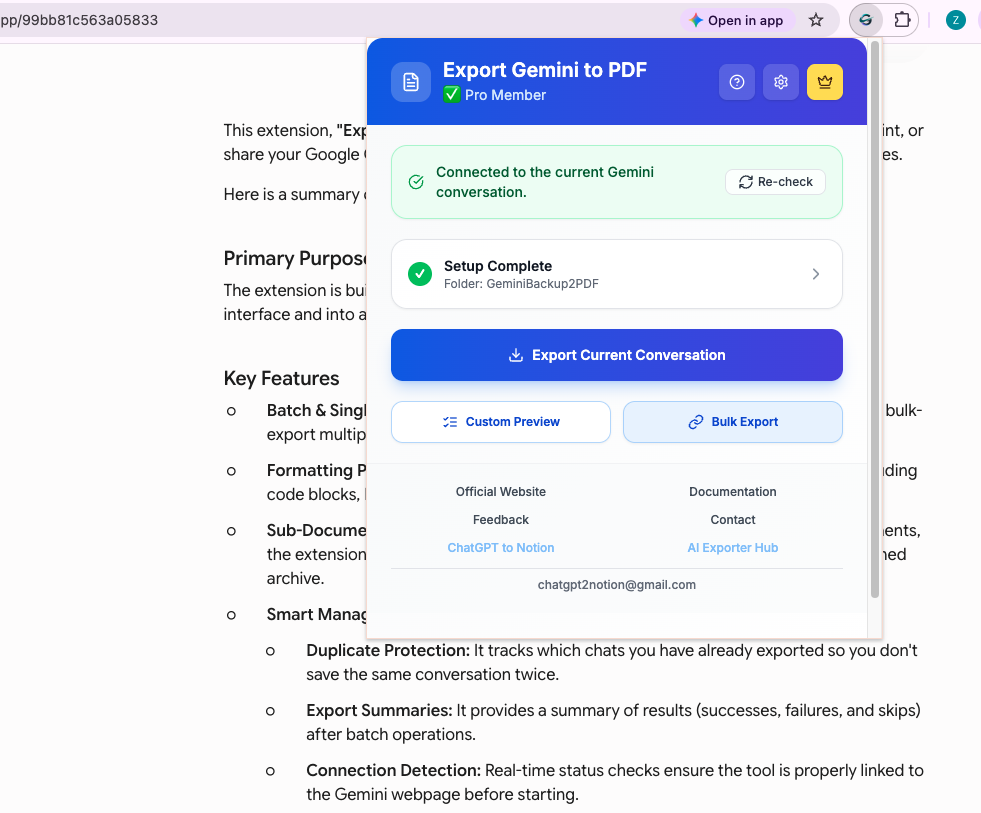
Popup export for the current conversation
Open a Gemini conversation, click the extension, and export the current chat as a PDF. The popup also shows connection status before you export, so you can catch refresh or account-slot issues early.
Custom Preview for selective export
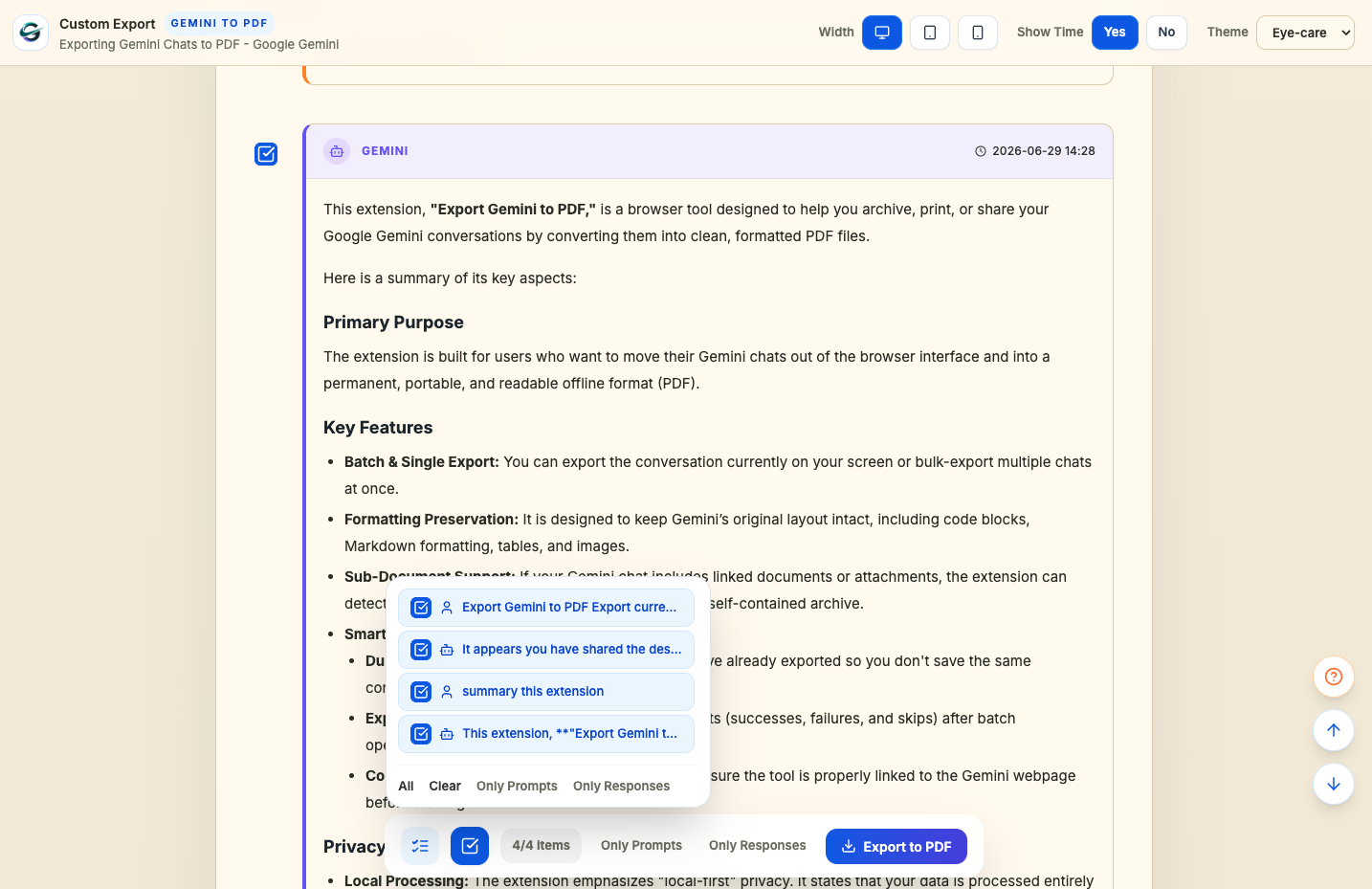
If you do not want the full conversation, use Custom Preview. It opens a preview page where you can:
- Review the parsed conversation before saving
- Select or deselect individual messages
- Keep or hide timestamps
- Preview the layout in desktop, tablet, or mobile width
- Save only the selected messages as a PDF
Bulk export, Selective Export, and Gems Export
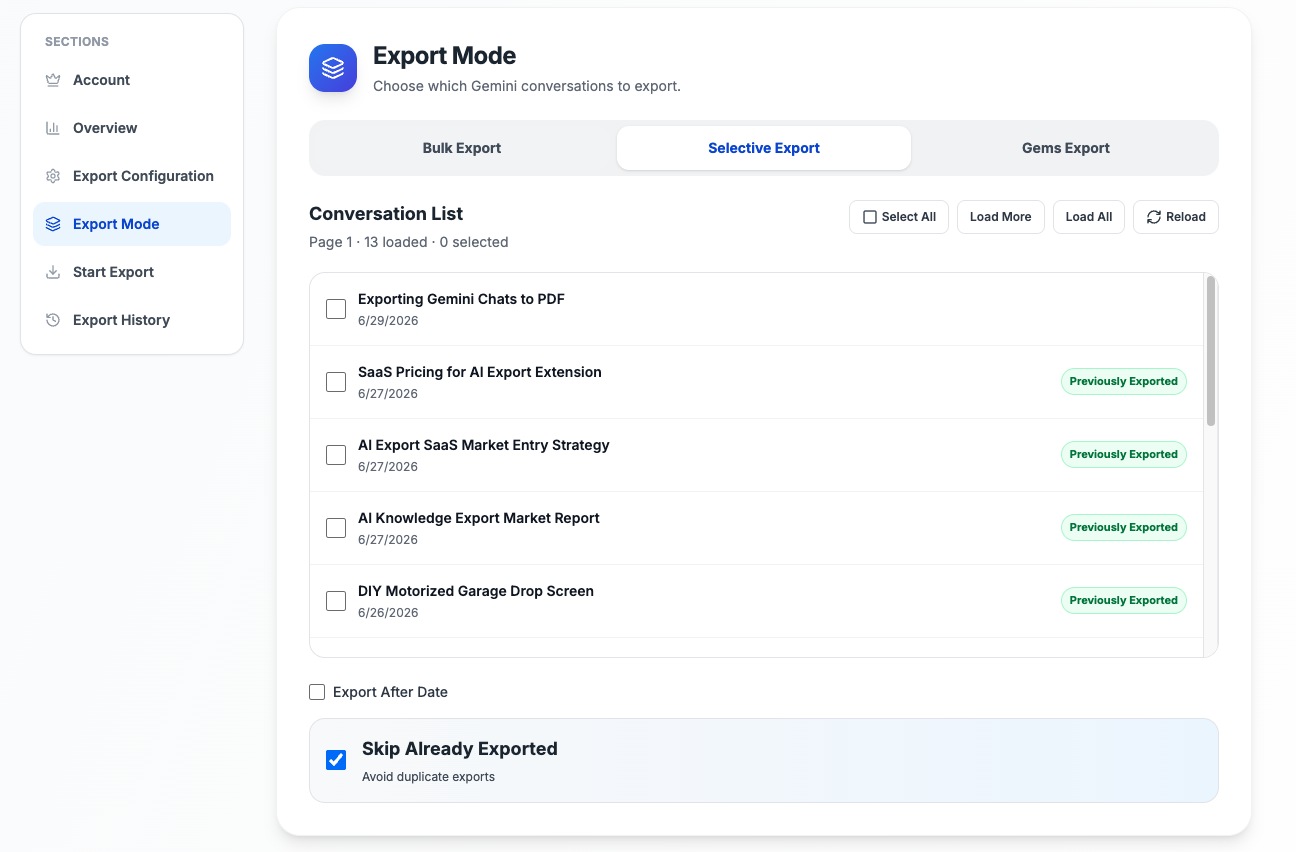
The options page is no longer just a simple “export all” screen. It now supports:
- Bulk export for recent conversations or larger backups
- Selective Export for choosing specific conversations from the list
- Gems Export for exporting conversations grouped under a Gemini Gem
- Skip already exported to avoid duplicates
- Export history with totals, success, skipped, failed, and cancelled runs
Export settings you can control
The extension includes more export controls than the older docs showed:
- Download directory under your browser downloads folder
- Four filename patterns based on current date or original chat date
- Three PDF message styles
- Three color themes: Light, Dark, and Eye-care
- Optional Gem subfolders for Gemini Gem conversations
- Automatic browser time zone handling for filename dates and timestamps
What gets preserved in the PDF
The PDF pipeline converts the conversation into structured markdown first, then renders it through a dedicated print page. In practice, that means the export is designed to preserve:
- User and Gemini message structure
- Markdown headings, lists, quotes, and code blocks
- Markdown tables with visible borders and wrapped content
- Gemini-generated images and user-uploaded images when Gemini exposes exportable image data
- Linked document content and attachment sections when available
- Conversation metadata such as source URL, export date, and Gem name
- A conversation outline for quicker navigation in long exports
Privacy and why Chrome shows a debugger prompt
PDF generation happens locally in the browser. The extension uses Chrome’s PDF printing capability, which requires the debugger permission. During export, Chrome may display a notification that the extension has started debugging the browser. That prompt is expected for this export method.
Limits and current scope
- The current user-facing workflow is centered on PDF export
- The extension has strong support for preserving images inside exported PDFs
- Free users are limited to 5 exports per day
- Batch export and current-conversation export both count toward that daily limit
Best next steps
Start with Installation, then follow:
Need more help? Contact Support
独立工具说明
本产品用于导出 Google Gemini 内容,为独立项目,与 Google LLC 不存在关联。