
Batch Export & Backup
Use bulk export, Selective Export, and Gems Export to archive Gemini conversations in larger runs with duplicate skipping, date filters, and export history.
The options page is where Export Gemini to PDF becomes a real backup tool. It supports three export modes and keeps an export history so you can see what happened after each run.
Open the bulk export page
You can get there in either way:
- Open the extension popup and click Bulk Export
- Right-click the extension icon and open the options page
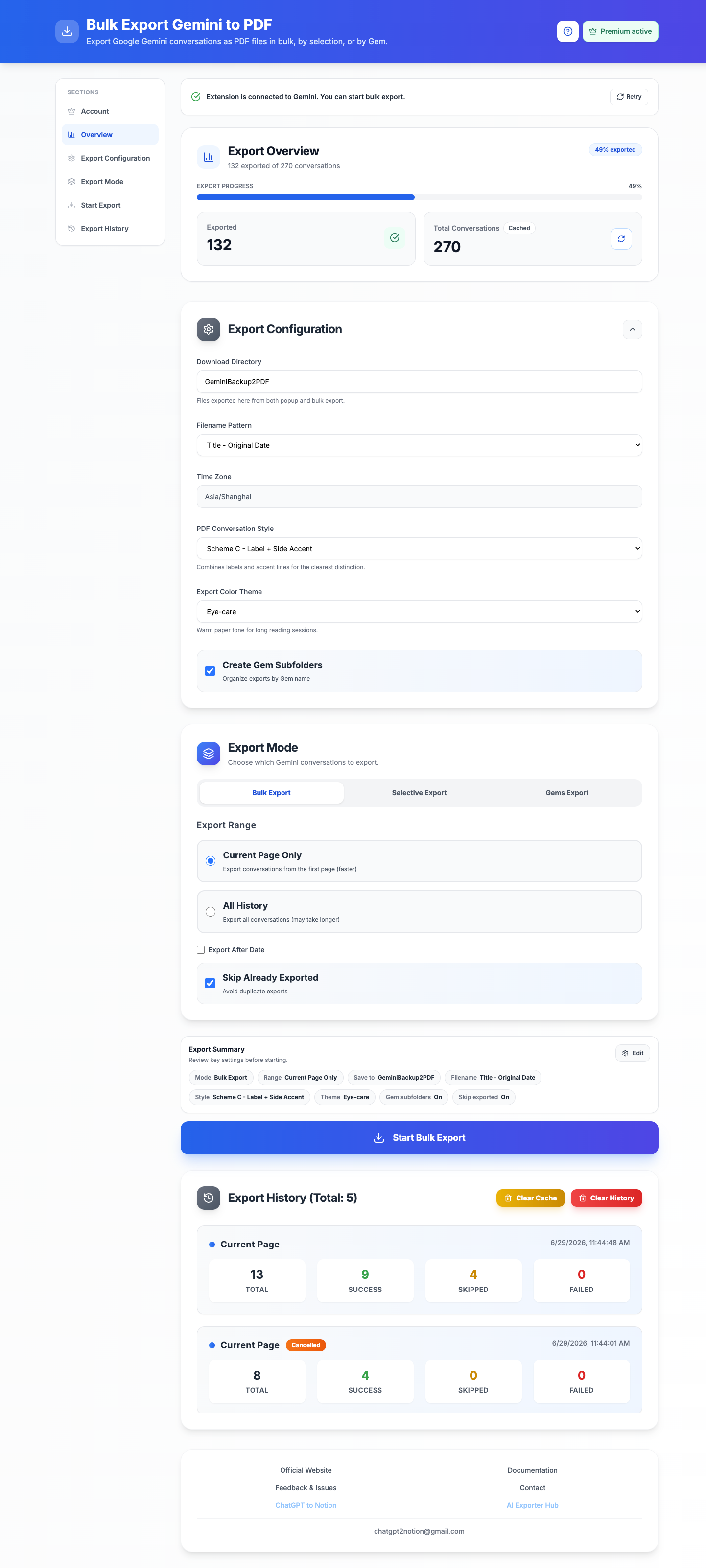
Export mode 1: Bulk export
Bulk export is the fastest path when you want a general backup.
Bulk export options
- Latest: only fetch the latest list page
- All: keep paging through the conversation history
- Skip already exported: avoids duplicate downloads
- Export after date: only export conversations on or after a chosen date
Best use cases
- Regular weekly or monthly Gemini backups
- First-time archive runs
- Saving a recent chunk of work quickly
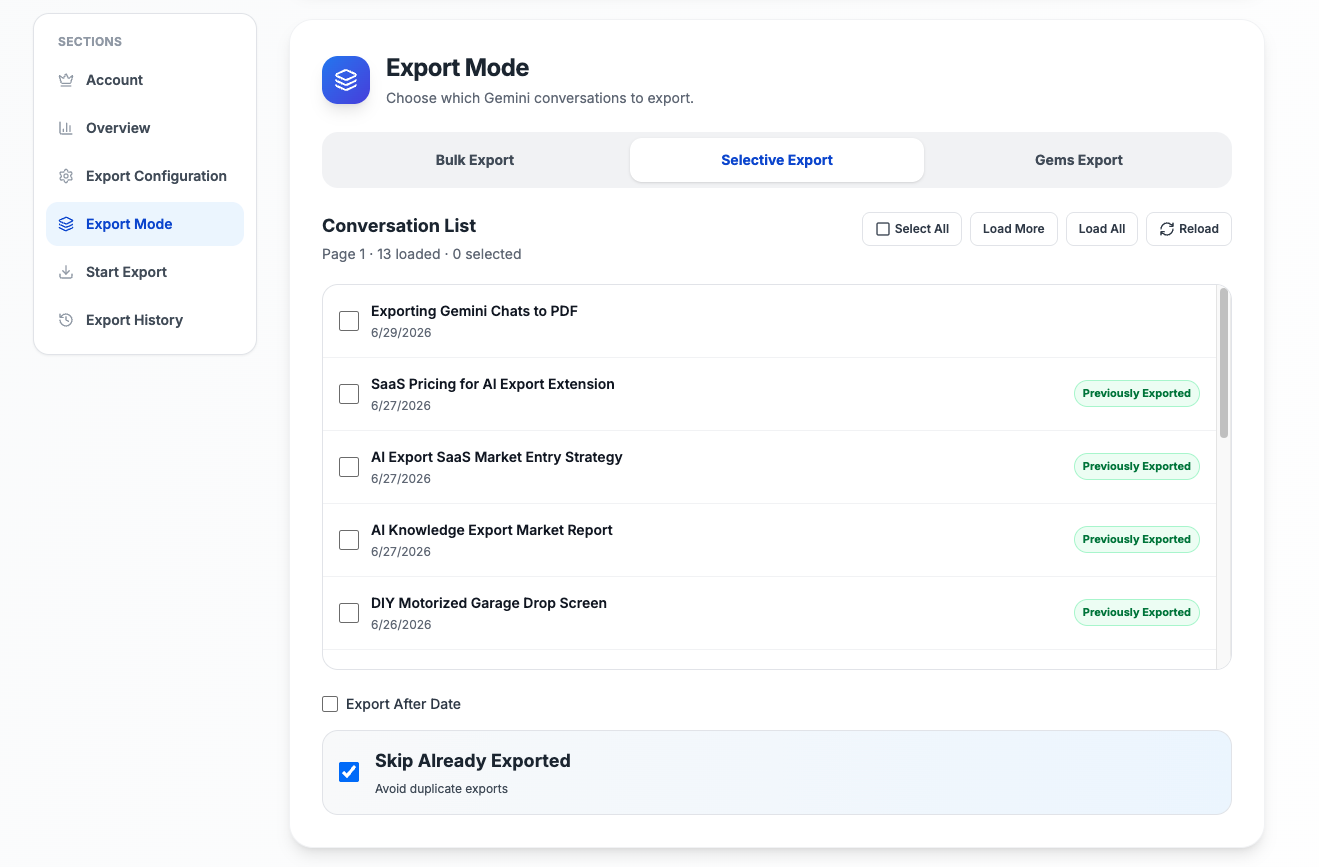
Export mode 2: Selective Export
Selective Export loads the Gemini conversation list into the options page so you can choose exactly which conversations to export.
What it supports
- Load the first page of conversations
- Load more pages when needed
- Select or deselect specific conversations
- See which conversations were already exported
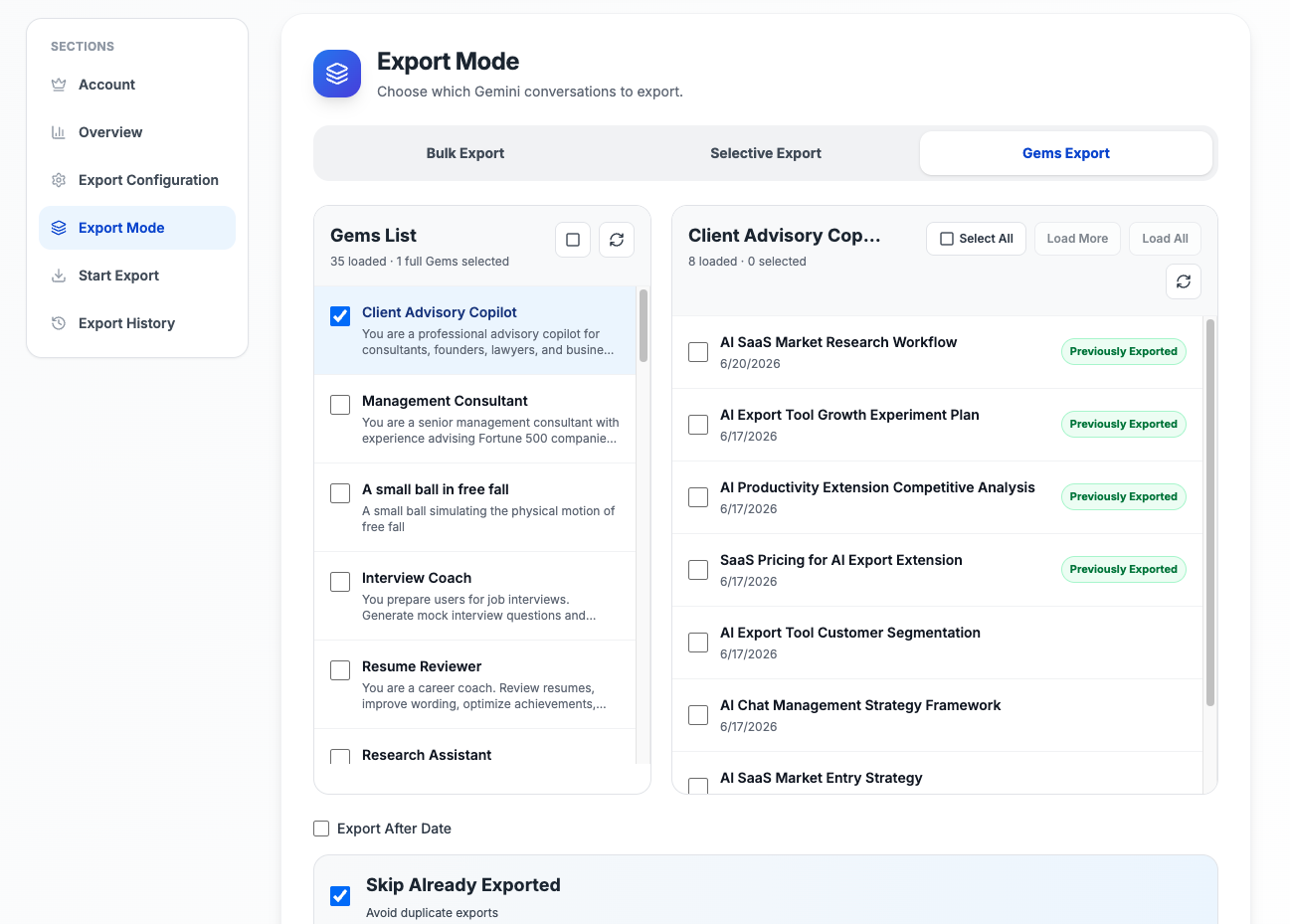
Export mode 3: Gems Export
Gems Export is one of the biggest features missing from the old docs. The extension can fetch your Gemini Gems list, then let you export:
- Whole Gems
- Conversations from one specific Gem
- A mixed set of Gem conversations from multiple Gems
If you enable Create Gem Subfolders, those exports are saved into Gem-named subfolders under your main download directory.
Shared export settings
All three export modes use the same export configuration:
- Download directory
- Filename pattern
- PDF message style
- Color theme
- Gem subfolders
- Browser time zone
During the export
The options page tracks:
- Current item number
- Total items in the run
- Current conversation title
- Success count
- Failed count
- Skipped count
If needed, you can cancel the run before it finishes.
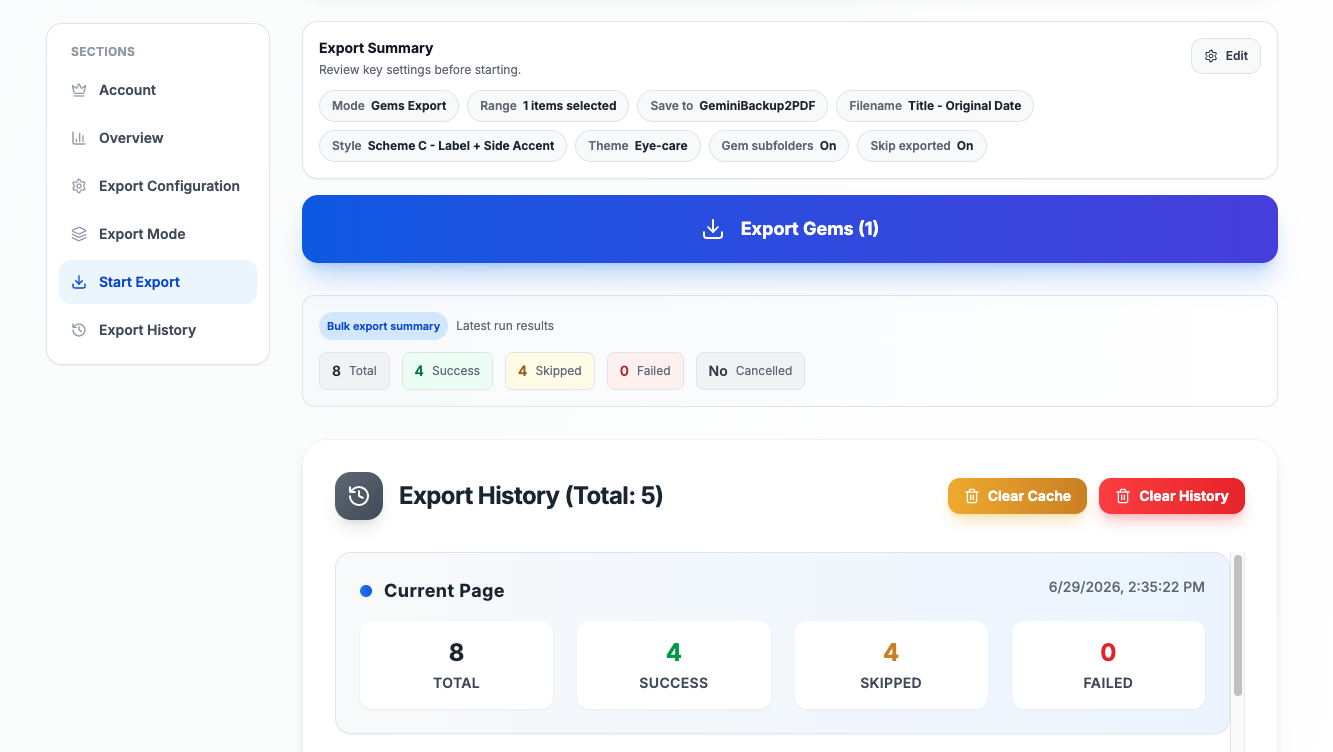
Export history and summary
After a run finishes, the extension stores an export record with:
- Export type
- Timestamp
- Total conversations considered
- Success, failed, skipped, and cancelled counts
- Failure details for conversations that did not export
Free plan limits
Free users can export up to 5 conversations per day. The extension applies that limit across:
- Popup current-conversation export
- Custom Preview saves
- Batch export runs
If you start a large batch as a free user, the extension will only export up to the remaining daily quota.
Recommended workflow
For routine backup
- Keep Skip already exported on
- Use Bulk export
- Add an Export after date when you only need new work
For cleanup exports
- Use Selective Export
- Select only the conversations worth keeping
- Run the export with your preferred filename pattern
For Gem-based research or projects
- Use Gems Export
- Turn on Create Gem Subfolders
- Export full Gems or selected Gem conversations
Next step
If something goes wrong, use Troubleshooting & FAQ.
Need more help? Contact Support
独立工具说明
本产品用于导出 Google Gemini 内容,为独立项目,与 Google LLC 不存在关联。