
Download Perplexity AI Attachments to Obsidian: A Game-Changer for Knowledge Workers
The Problem: Losing Context in AI Conversations
You’re deep in a research session with Perplexity AI. You’ve uploaded PDFs, images, and documents to get better answers. The conversation is gold—but when you export it to Obsidian, all those attachments disappear.
Your carefully curated research materials? Gone. The PDF you uploaded for analysis? Lost. The image you referenced? Nowhere to be found.
This breaks the entire knowledge management workflow. What’s the point of archiving AI conversations if you lose half the context?
The Solution: Automatic Attachment Download
We’ve just shipped a new feature that solves this problem completely: automatic user attachment download.
Now when you export a Perplexity AI conversation to Obsidian, the extension:
- ✅ Detects all files you uploaded in your questions
- ✅ Downloads them to a local attachments folder
- ✅ Generates Obsidian-compatible wiki links
- ✅ Preserves the complete conversation context
No manual downloads. No broken links. No lost files.
See It in Action
Watch this 1-minute demo showing how it works:
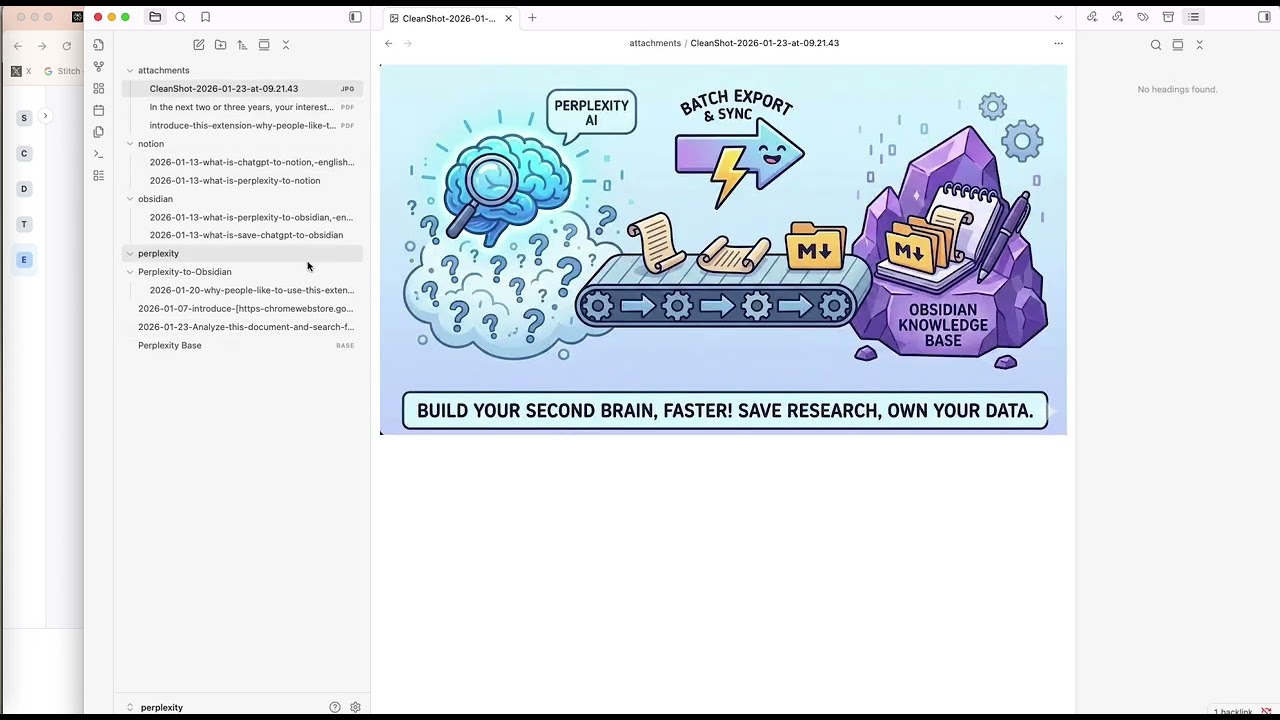
Video: https://youtu.be/LlqRpGtwM-w
How It Works
1. Enable Attachment Download
Open the extension settings and toggle “Download user attachments”. You can customize:
- Attachments folder location
- Filename patterns
- Subfolder organization
2. Export as Usual
Click the extension icon on any Perplexity AI conversation and hit “Export”. The extension automatically:
- Scans for uploaded files (PDFs, images, documents)
- Downloads each file to your configured folder
- Inserts wiki links in the markdown output
3. Access in Obsidian
Open the exported markdown file in Obsidian. All attachments are linked with ![[filename]] syntax—click to view instantly.
Real-World Use Cases
📚 Academic Research
Upload research papers to Perplexity for analysis. Export the conversation with papers intact. Your Obsidian vault becomes a complete research archive.
💼 Business Analysis
Upload financial reports, market data, or competitor documents. Export with full context preserved. Review AI insights alongside original sources.
🎓 Student Workflows
Upload lecture slides or textbook pages for Q&A. Export study sessions with all materials linked. Perfect for exam prep.
🧠 Second Brain Building
Capture AI conversations as permanent notes. All referenced materials stay connected. True knowledge graph integration.
Technical Details
Supported File Types
- Documents: PDF, DOCX, TXT, MD
- Images: PNG, JPG, JPEG, GIF, WEBP
- Spreadsheets: XLSX, CSV
- Presentations: PPTX
- Archives: ZIP (if uploaded)
File Organization
Default structure:
your-vault/
├── perplexity-exports/
│   ├── conversation-title.md
│   └── attachments/
│       ├── document-1.pdf
│       ├── image-1.png
│       └── spreadsheet-1.xlsx
Customizable via settings.
Wiki Link Format
## User Question
I uploaded this document for analysis: ![[document-1.pdf]]

Can you summarize the key findings?
Click the link in Obsidian to open the file instantly.
Why This Matters
Most AI conversation tools treat attachments as ephemeral—they exist during the chat, then vanish. But for knowledge workers, context is everything.
When you’re building a second brain, every piece of information matters:
- The question you asked
- The answer you received
- The materials you referenced
This feature completes the loop. Your Obsidian vault becomes a true archive of your AI-assisted research, not just a collection of disembodied text.
Installation & Setup
Step 1: Install Extension
- Chrome Web Store: [Link to your extension]
- GitHub: [Link to repository]
Step 2: Configure Settings
- Click extension icon → “Settings”
- Enable “Download user attachments”
- Set your attachments folder path
- Choose filename pattern (optional)
Step 3: Start Exporting
Navigate to any Perplexity AI conversation and click “Export”. Attachments download automatically.
What’s Next?
This is just the beginning. We’re working on:
- 🔄 Batch export with attachment deduplication
- 🏷️ Automatic tagging based on file types
- 📊 Attachment metadata in YAML frontmatter
- 🔗 Bidirectional links between conversations sharing files
Want to influence the roadmap? Open an issue on GitHub or join the discussion.
Try It Today
Stop losing context in your AI conversations. Start building a complete knowledge archive.
Download the extension: [PerplexityAI to Obsidian]
Watch demo: https://youtu.be/LlqRpGtwM-w
FAQ
Q: Does this work with Perplexity Pro attachments? A: Yes, works with both free and Pro accounts.
Q: What if I don’t use Obsidian?
A: The markdown files work in any editor. Wiki links are standard ![[]] syntax.
Q: Are attachments re-downloaded every export? A: No, the extension checks for existing files and skips duplicates.
Q: Can I disable attachment download for specific exports? A: Yes, toggle the setting before exporting or use the quick export option.
Q: Does this increase export time? A: Slightly, depending on file sizes. A typical PDF adds 1-2 seconds.
Q: Where are files downloaded from? A: Directly from Perplexity’s CDN using the original upload URLs.
Published: January 2026 Last updated: January 23, 2026