
Genspark conversations often contain research notes, drafts, generated visuals, code, slide outlines, and project decisions. If those chats stay only inside Genspark, they are hard to search, cite, version, or connect with the rest of your knowledge base.
Genspark to Obsidian exports those conversations as Markdown so you can keep a local archive in Obsidian, Notion, Logseq, VS Code, Git, or any other Markdown-friendly system.
Watch the full demo tutorial first, then use the written steps below as a checklist.
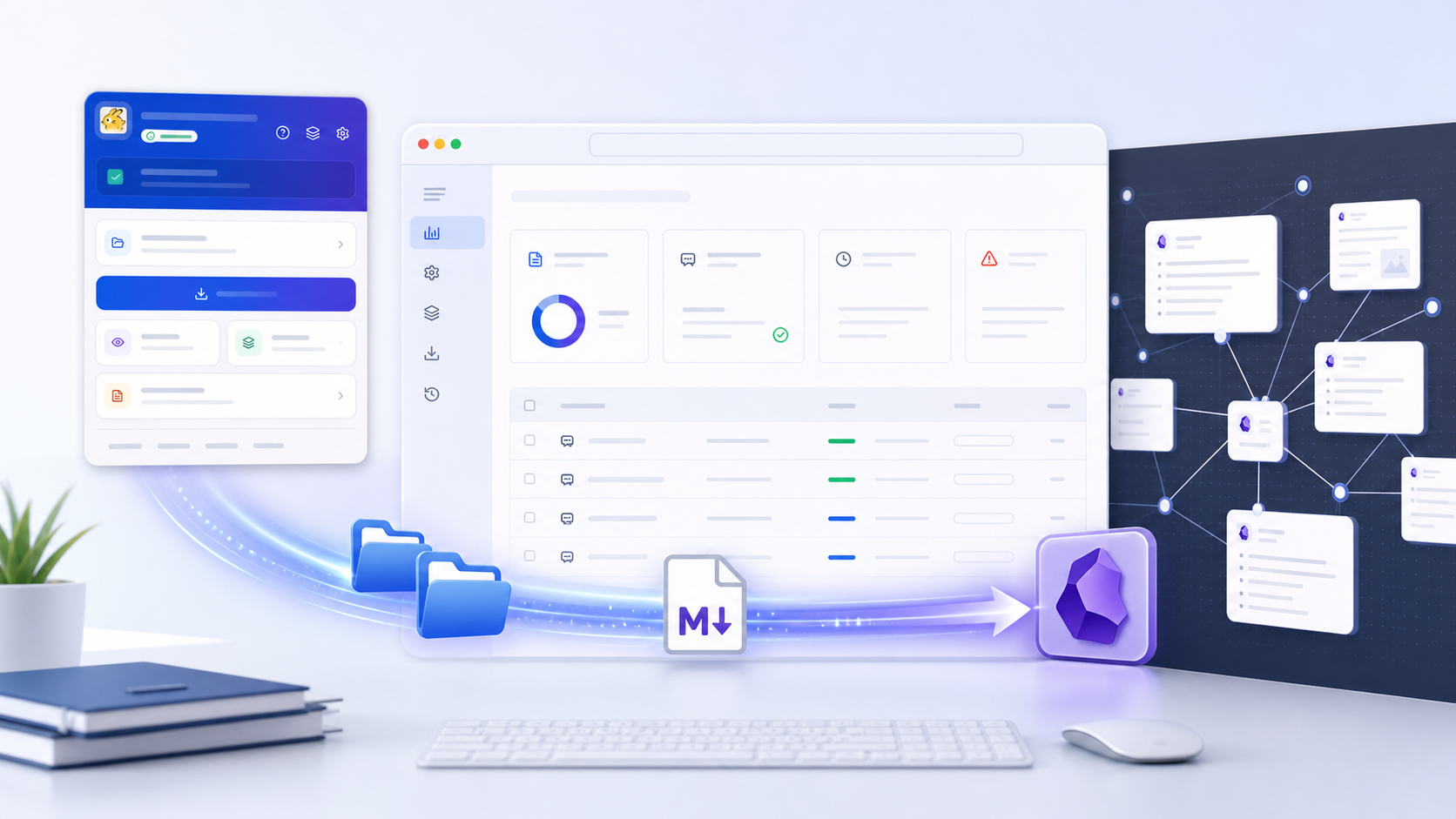
Here is the full workflow at a glance:
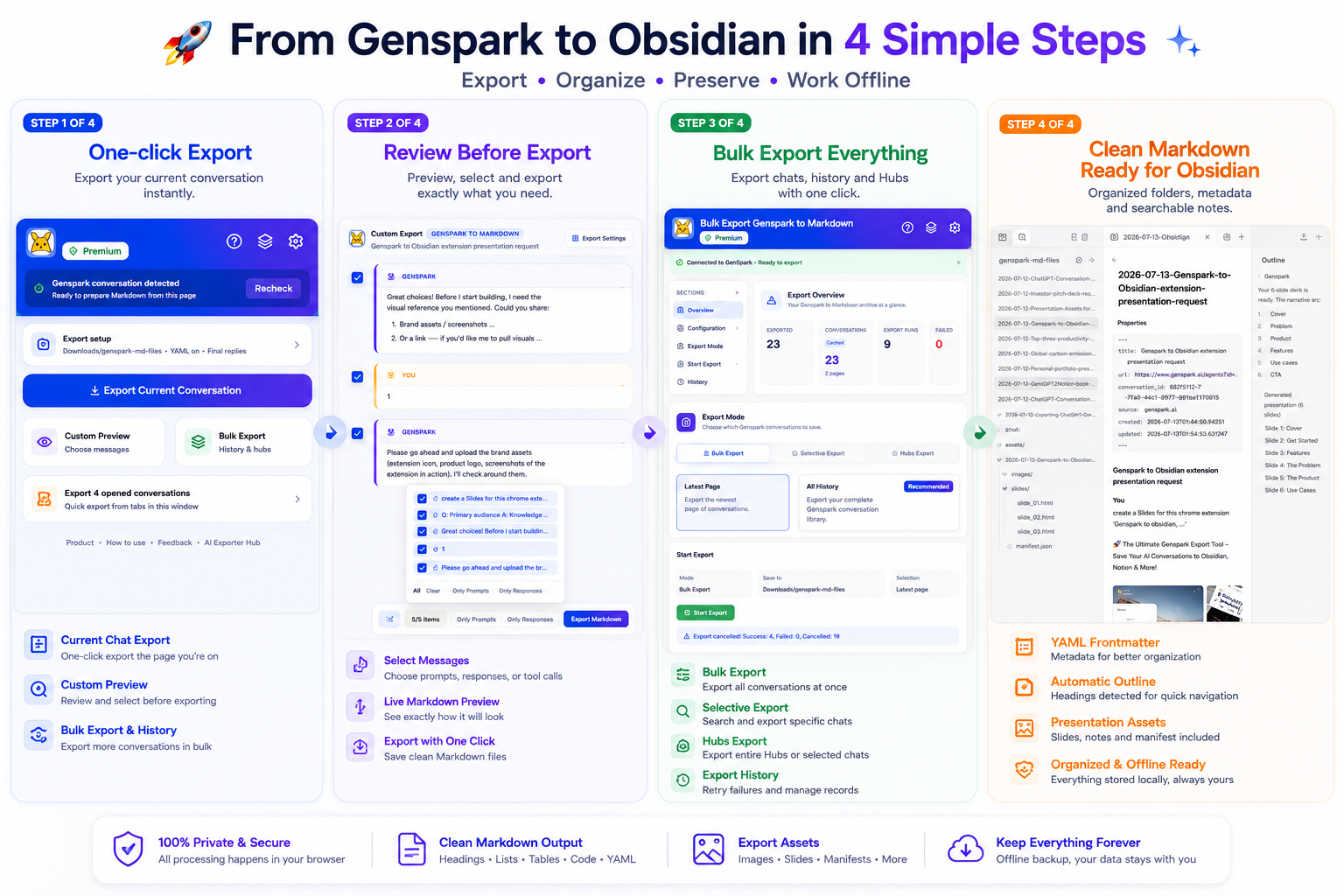
What you can export
The extension supports several Genspark backup workflows:
- Current conversation export
- Custom Markdown Preview with message selection
- Opened-tab export for conversations already open in your browser
- Bulk export for the latest page or all history
- Selective export with search and checkboxes
- Hubs export for active and archived Hubs
- Generated images when available
- Presentation notes, slide HTML files, and manifests when available
By default, exports stay clean: your prompts and Genspark’s final answers are included, while intermediate Bot progress and tool calls are optional.
Step 1: Install the extension
Install Genspark to Obsidian from the Chrome Web Store, then pin it to your browser toolbar.
Open a Genspark conversation and click the extension icon. When the page is ready, the popup shows that a Genspark conversation was detected.
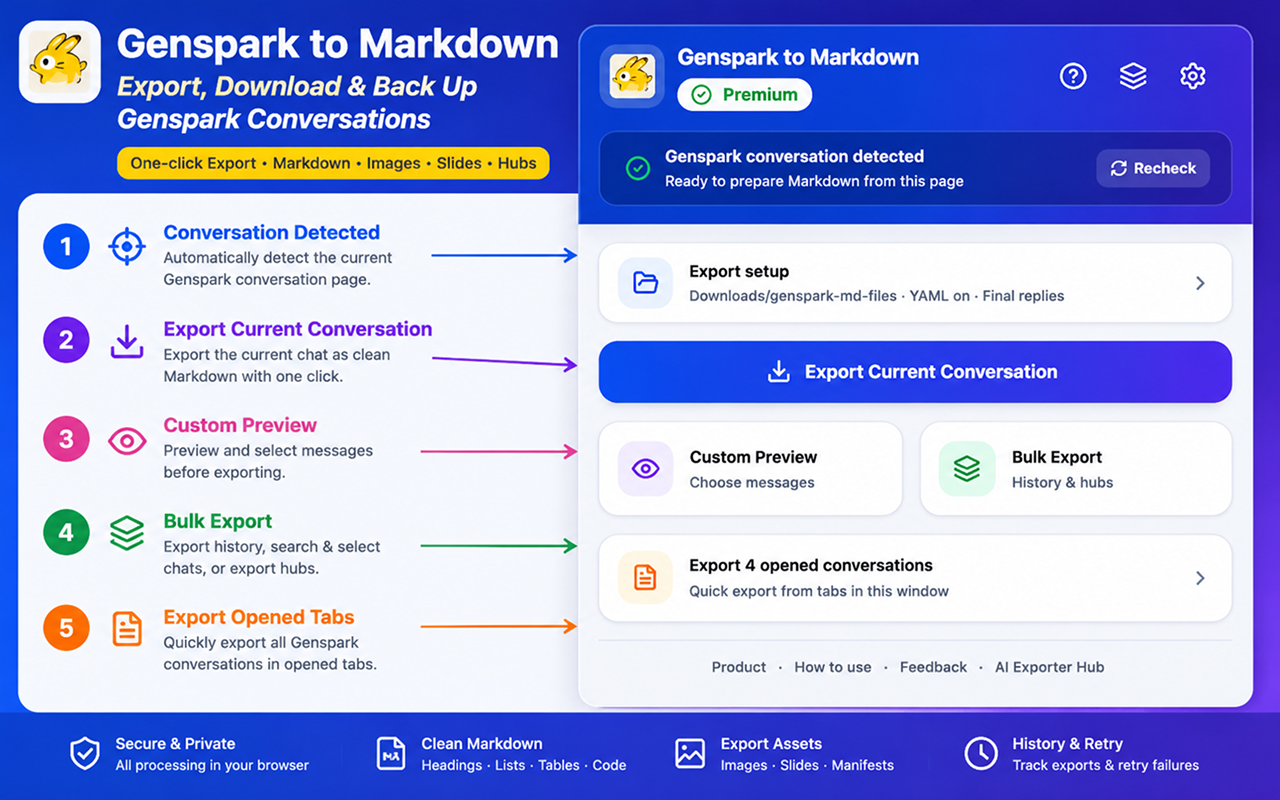
Step 2: Export the current conversation
For the fastest workflow:
- Open a Genspark conversation.
- Click the extension icon.
- Click Export Current Conversation.
- Find the downloaded Markdown file in your Chrome Downloads folder.
- Move it into your Obsidian vault.
This is best for saving one active conversation after a research session, writing session, or technical debugging thread.
Step 3: Preview and select messages
Use Custom Preview when the conversation is long or contains process details you do not want in the final note.
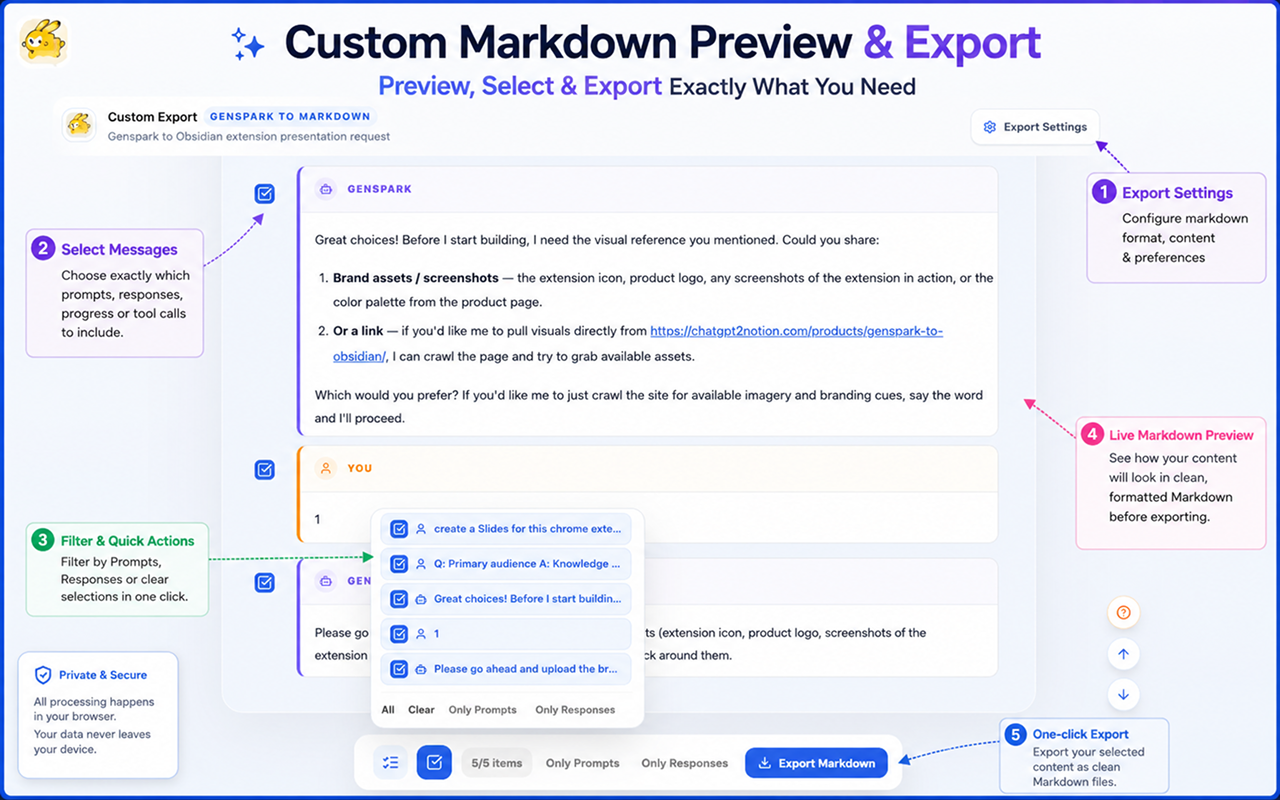
The preview lets you:
- Review rendered Markdown before downloading
- Select or deselect individual message blocks
- Keep only prompts
- Keep only final responses
- Include intermediate Bot progress when needed
- Include tool calls when you want a complete technical record
For clean knowledge-base notes, keep prompts and final Genspark answers. For audits, slide generation, coding work, and file-writing tasks, include tool calls too.
Step 4: Export many Genspark conversations
Click Bulk Export to open the full export page.
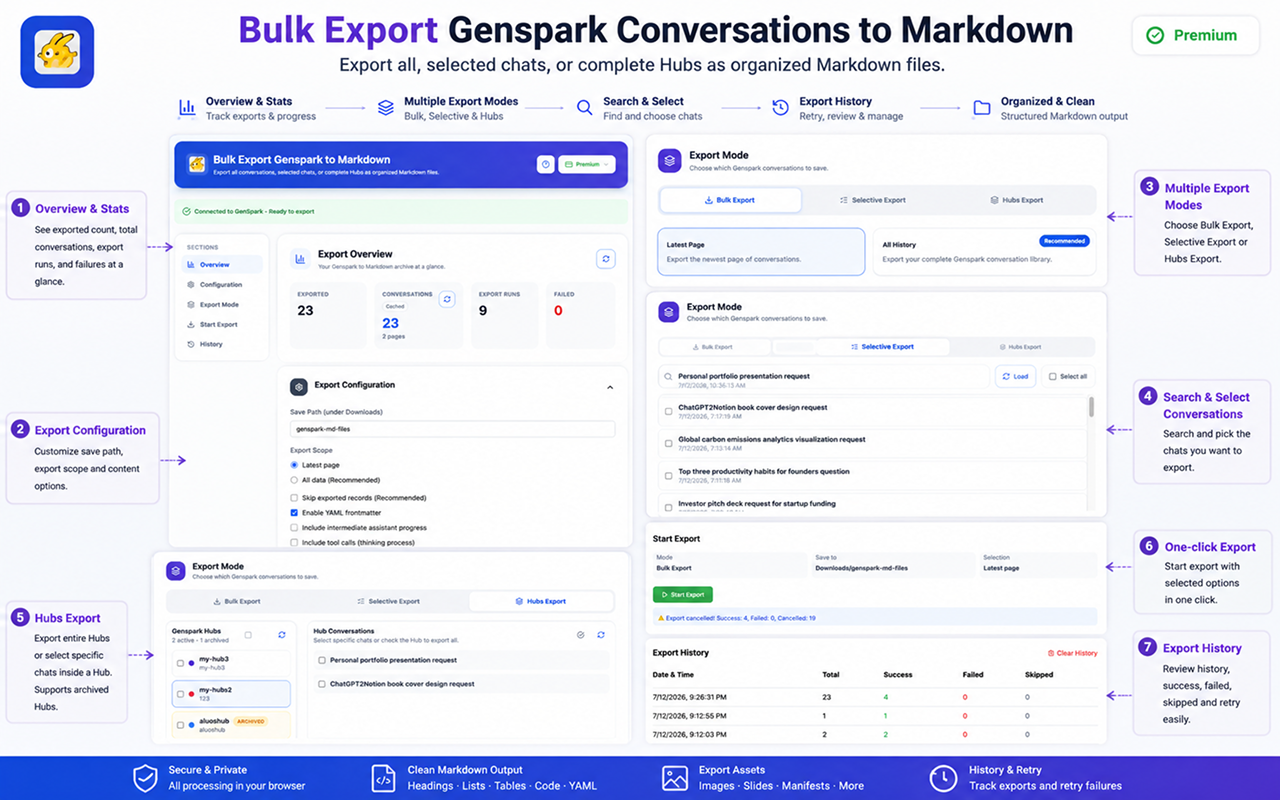
The export page shows:
- Exported conversations
- Total conversation count
- Page count
- Export runs
- Failed export count
- Cached statistics for faster future loading
Use Latest Page for a quick incremental backup. Use All History when you want to create a full archive.
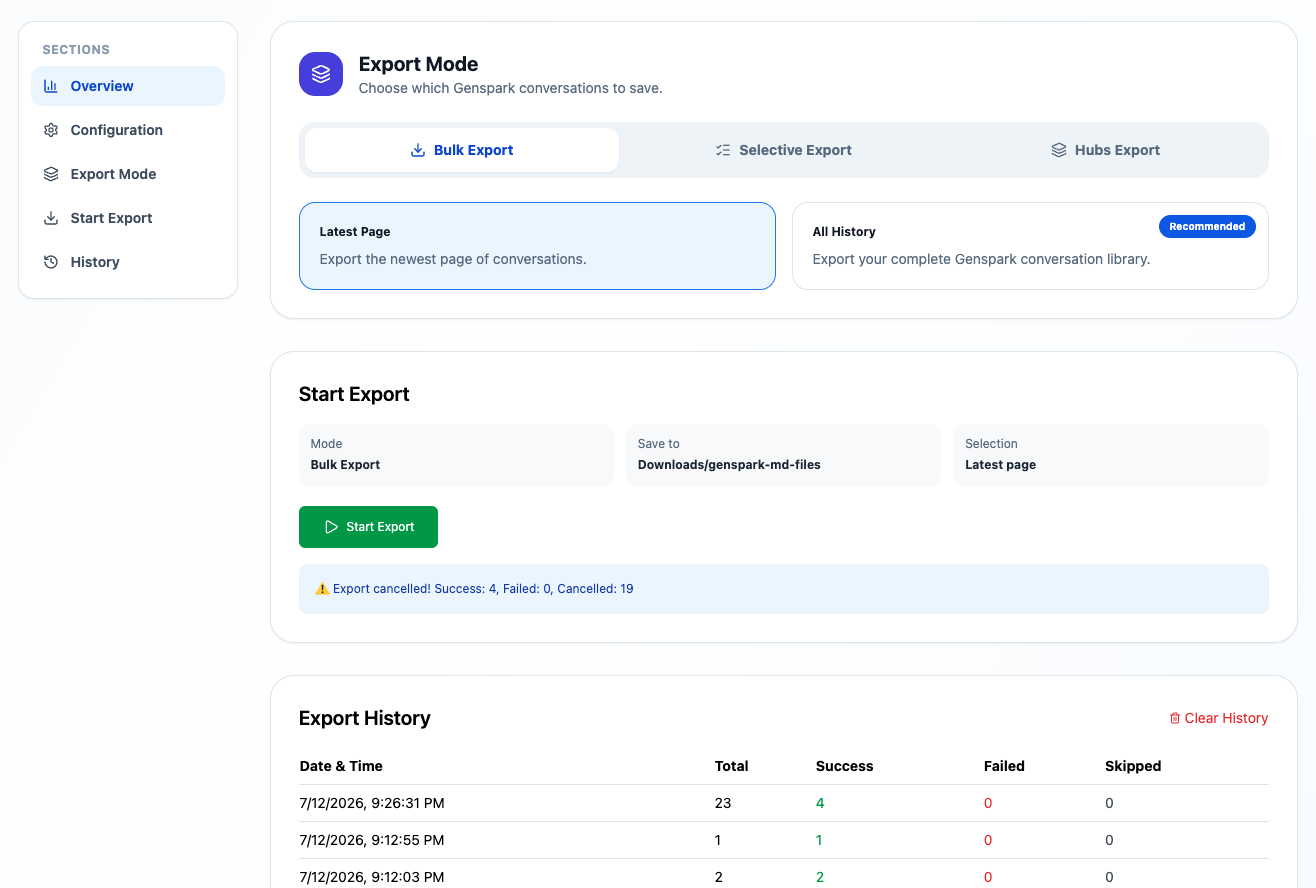
Recommended backup settings:
- Save path:
genspark-md-files - Skip exported records: enabled
- YAML frontmatter: enabled
- Intermediate progress: disabled unless you need it
- Tool calls: disabled unless you need them
Step 5: Export selected conversations
If you only need a few records, use Selective Export.
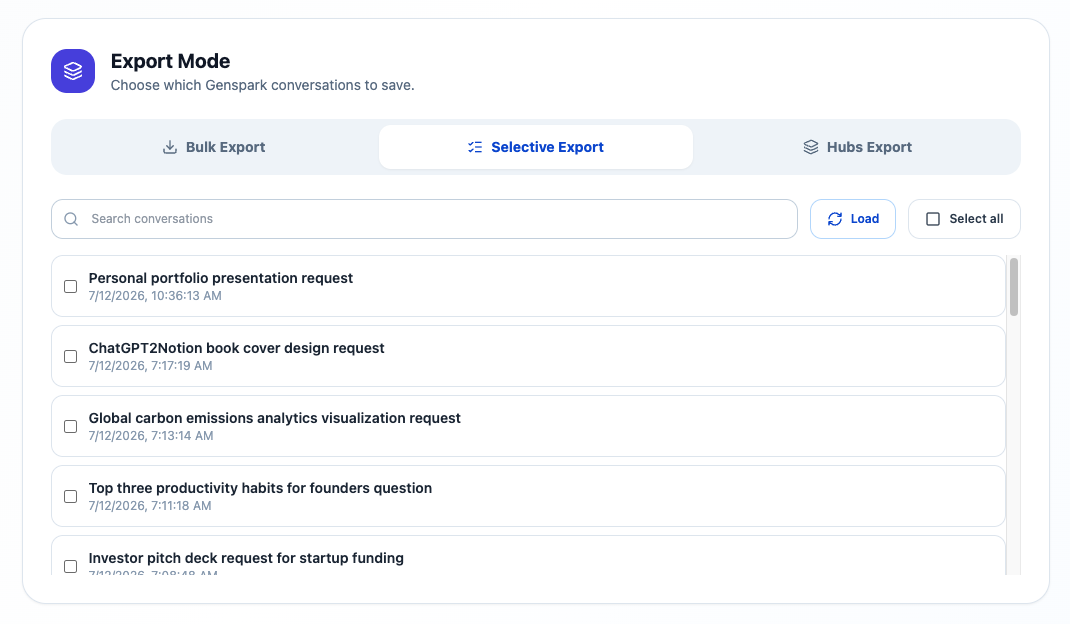
Load the conversation list, search by title, select the records you want, and start the export. This is useful for topic-based backups, client work, study sessions, and research collections.
Step 6: Export Genspark Hubs
For project-based work, use Hubs Export.
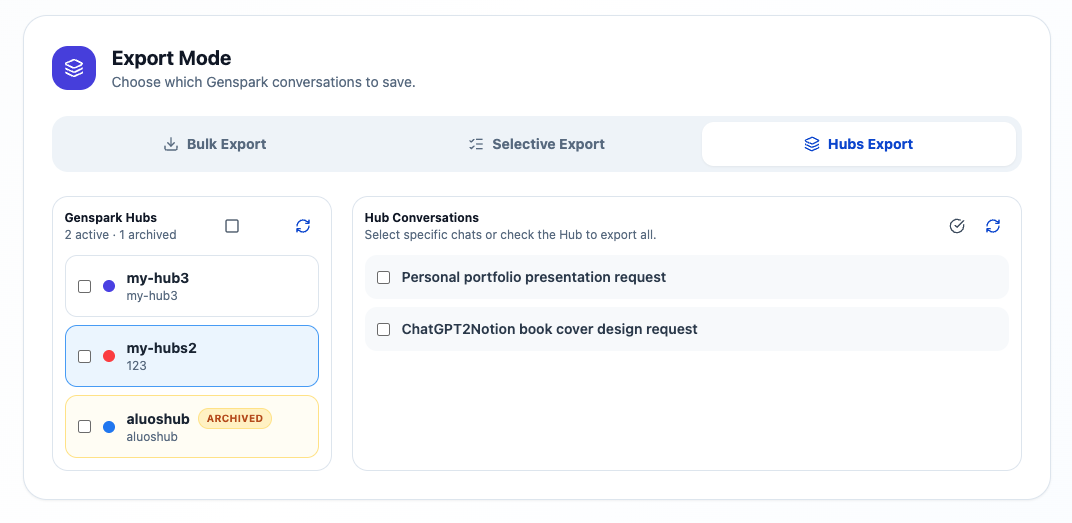
You can export:
- Active Hubs
- Archived Hubs
- Whole Hubs
- Selected conversations inside a Hub
In Obsidian, keep each Hub in its own folder:
Genspark/
  Market Research Hub/
  Presentation Projects Hub/
  Study Notes Hub/
What the Markdown looks like in Obsidian
Exported files can include YAML frontmatter with the conversation title, source URL, conversation ID, source, created time, and updated time.
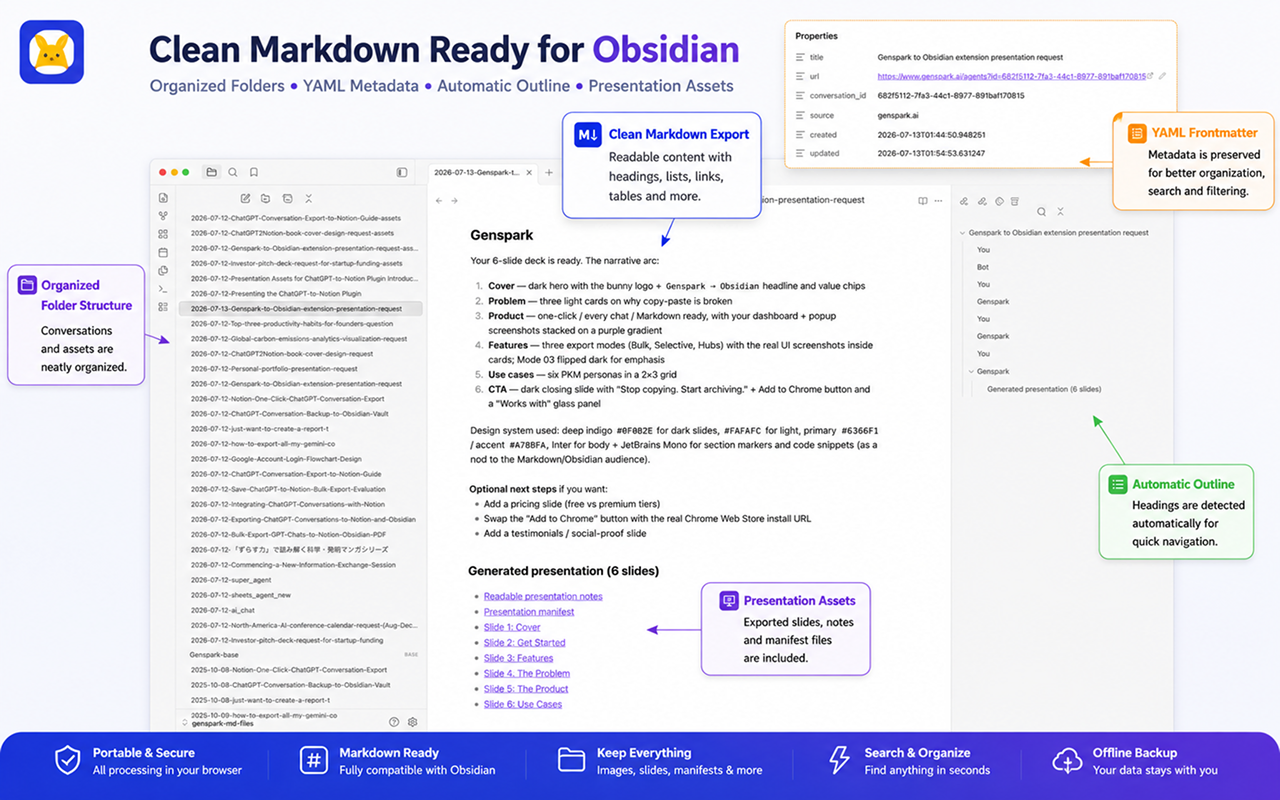
A simple export looks like this:
---
title: "Genspark to Obsidian extension presentation request"
url: https://www.genspark.ai/agents?id=example-id
conversation_id: example-id
source: genspark.ai
created: 2026-07-13T01:44:50.948251
updated: 2026-07-13T01:47:04.957649
---

# Genspark to Obsidian extension presentation request

## You

Create a presentation for this Chrome extension.

## Genspark

Here is a slide outline...
Handling generated images and slides
When Genspark exposes generated assets, the extension can download related files and link them from the main Markdown document.
Supported image formats include:
- JPEG
- PNG
- WebP
- GIF
- AVIF
- SVG
For presentations, exports can include presentation notes, individual HTML slides, and manifests when available.
Keep generated asset folders next to the Markdown files so links keep working after you move the export into Obsidian.
Common problems
If the popup does not detect the conversation, refresh the Genspark tab and reopen the extension.
If Custom Preview is empty, wait until the conversation finishes loading, then try again.
If a large bulk export has failed records, retry those records after refreshing Genspark. You can also open a failed conversation directly and export it from the popup.
If images or slides are missing, confirm the original assets still load inside Genspark, then re-export the conversation.
Final checklist
Before a full backup:
- Open Genspark and confirm you are signed in
- Set a stable save path
- Enable YAML frontmatter
- Use Latest Page for quick backups
- Use All History for a full archive
- Use Selective Export for focused sets
- Use Hubs Export for project archives
- Keep Markdown files and asset folders together
Start from the Genspark to Obsidian product page or read the installation docs for setup details.