
Obsidian Integration
How to integrate Claude to Obsidian exports with your Obsidian vault
Why Obsidian?
Obsidian is a powerful knowledge base that works on top of local Markdown files. It’s perfect for organizing your Claude conversations because:
- Local-first: Your data stays on your computer
- Markdown-native: Works perfectly with exported Claude conversations
- Powerful linking: Create connections between your AI conversations
- Search: Find any conversation or code snippet instantly
- Tags: Organize conversations by topic, project, or date
- Plugins: Extend functionality with community plugins
Setting Up Direct Export to Obsidian
You can configure the extension to save files directly to your Obsidian vault:
Step 1: Find Your Vault Path
- Open Obsidian
- Go to Settings → Files and Links
- Note your vault location (e.g.,
/Users/yourname/Documents/ObsidianVault)
Step 2: Configure Download Folder
Since the extension saves to your Downloads folder, you have two options:
Option A: Move Files Manually
- Keep default Downloads folder
- Manually move exported files to your vault
Option B: Use Relative Path
- If your vault is in Downloads, use a relative path
- Example: If vault is at
Downloads/ObsidianVault, enterObsidianVaultin the download folder field
Organizing Conversations in Obsidian
Folder Structure
Create a dedicated folder for Claude conversations:
ObsidianVault/
├── Claude/
│   ├── 2026-01/
│   │   ├── 2026-01-22 React Component.md
│   │   └── 2026-01-21 Python Script.md
│   ├── 2026-02/
│   └── Archive/
├── Projects/
└── Notes/
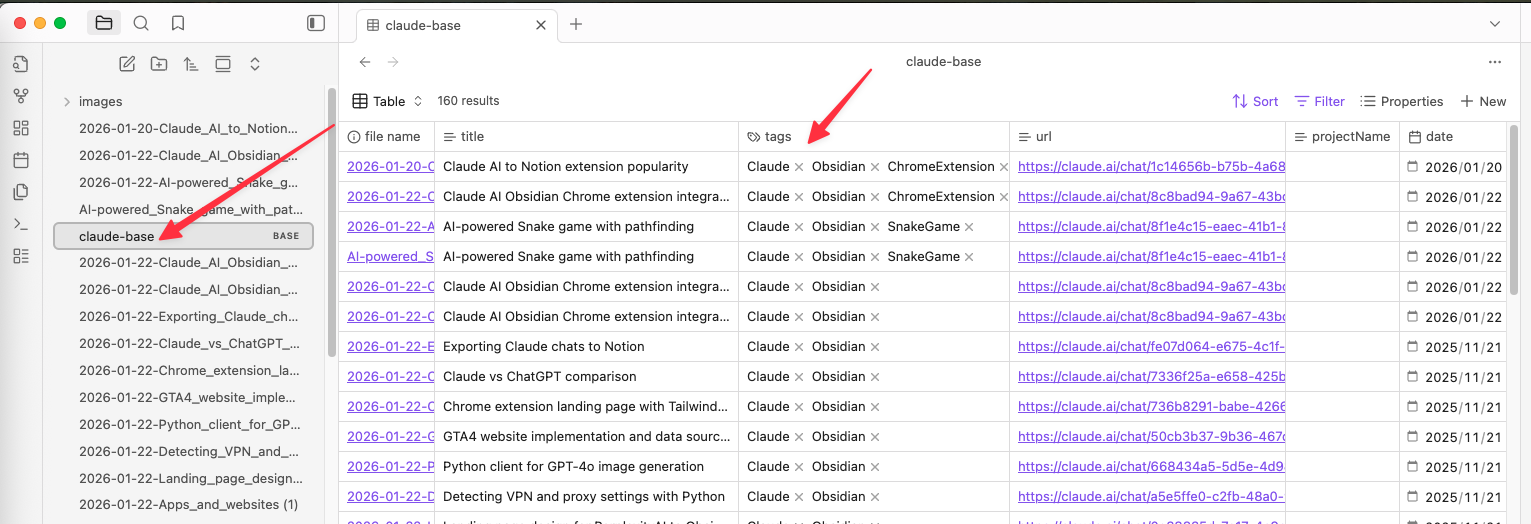
Using Frontmatter
Exported files include frontmatter metadata:
---
title: Building a React Component
url: https://claude.ai/chat/xxx
date: 2026-01-22T10:30:00Z
---
You can add custom frontmatter fields in Obsidian:
---
title: Building a React Component
url: https://claude.ai/chat/xxx
date: 2026-01-22T10:30:00Z
tags: [react, frontend, coding]
project: MyApp
status: completed
---
Tagging Strategy
Add tags to organize conversations:
- By topic:
#react,#python,#writing - By project:
#project/myapp,#project/research - By type:
#coding,#brainstorming,#debugging - By status:
#todo,#in-progress,#completed
Linking Conversations
Create connections between related conversations:
This builds on the ideas from [[2026-01-20 Initial Design]].

See also:
- [[2026-01-15 API Architecture]]
- [[2026-01-18 Database Schema]]
Searching Conversations
Obsidian’s search is powerful:
Basic Search
- Press
Cmd/Ctrl + Oto search by filename - Press
Cmd/Ctrl + Shift + Fto search content
Advanced Search
tag:#react path:Claude/ content:"useState"This finds all React-tagged files in the Claude folder containing “useState”.
Useful Obsidian Plugins
Dataview
Query your Claude conversations like a database:
TABLE date, tags
FROM "Claude"
WHERE contains(tags, "coding")
SORT date DESC
Templater
Create templates for organizing exported conversations:
# {{title}}

## Context
- Date: {{date}}
- Project:
- Tags:

## Summary
[Add your summary here]

## Key Takeaways
-

## Related Conversations
-

---
{{content}}
Calendar
View your Claude conversations on a calendar by date.
Graph View
Visualize connections between your conversations.
Workflow Examples
For Developers
Claude/
├── Coding/
│   ├── Debugging/
│   ├── Code-Review/
│   └── Learning/
├── Architecture/
└── Documentation/
Tag conversations with:
- Language:
#python,#javascript,#rust - Type:
#bug-fix,#feature,#refactor - Project:
#project/api,#project/frontend
For Researchers
Claude/
├── Literature-Review/
├── Data-Analysis/
├── Writing/
└── Ideas/
Tag conversations with:
- Topic:
#machine-learning,#statistics - Stage:
#exploration,#analysis,#writing - Paper:
#paper/thesis,#paper/journal-article
For Students
Claude/
├── Courses/
│   ├── CS101/
│   ├── MATH201/
│   └── PHYS301/
├── Homework/
└── Study-Sessions/
Tag conversations with:
- Course:
#cs101,#math201 - Type:
#homework,#exam-prep,#concept-review - Semester:
#spring2026,#fall2025
Tips for Obsidian Integration
- Use consistent naming: Choose one filename pattern and stick with it
- Add tags immediately: Tag conversations right after importing
- Create MOCs: Make “Maps of Content” to organize related conversations
- Use daily notes: Link Claude conversations to your daily notes
- Backup regularly: Use Obsidian Sync or Git for backup
- Review periodically: Go through old conversations and add connections
Troubleshooting
Files not appearing in Obsidian:
- Check that files are in your vault folder
- Refresh Obsidian (Cmd/Ctrl + R)
- Check file permissions
Formatting looks wrong:
- Obsidian should render Markdown correctly
- Check that code blocks have proper syntax highlighting
- Verify frontmatter is valid YAML
Links not working:
- Use Obsidian’s link format:
[[filename]] - Don’t include
.mdextension in links - Check that linked files exist in your vault
For more help, contact [email protected]
Ready to try Claude To Obsidian?
Open the product page for feature details, screenshots, pricing, and the Chrome Web Store install link.