
Exporting Individual Conversations
Learn how to save single Claude conversations to Markdown files for Obsidian
Quick Start
After installing the extension, pin it to your browser toolbar for easy access. Click the puzzle piece icon, find Claude to Obsidian, and click the pin icon.
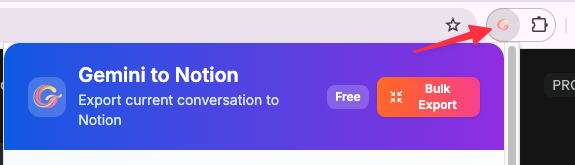
Exporting a Conversation
There are two simple ways to export a Claude conversation:
Method 1: Extension Popup (Recommended)
- Open any Claude conversation you want to save
- Click the Claude to Obsidian extension icon in your toolbar
- Click the “Save to Markdown” button
- The conversation will be downloaded as a Markdown file to your Downloads folder
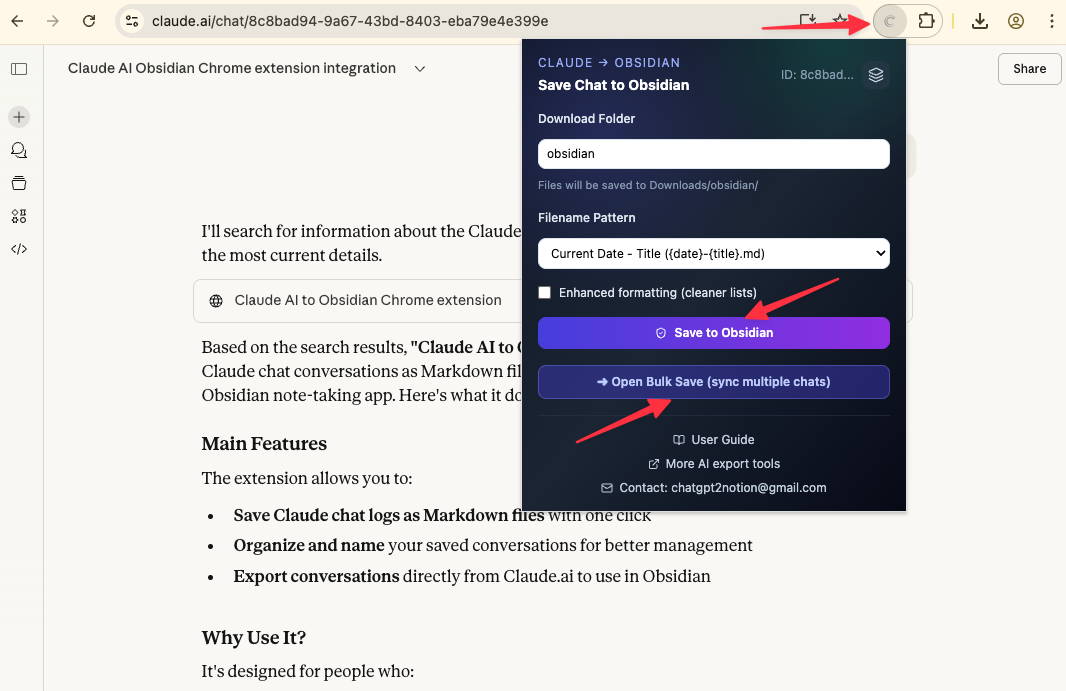
Free tier limit: 5 conversations per day
Method 2: Options Page
- Right-click the extension icon and select “Options”
- Or click “Open Options” from the popup
- In the options page, you’ll see the current conversation details
- Click “Save Current Conversation”
What Gets Exported
Each exported Markdown file includes:
Frontmatter Metadata
---
title: Your Conversation Title
url: https://claude.ai/chat/xxx
date: 2026-01-22T10:30:00Z
---
Conversation Content
- All messages in the conversation (user and assistant)
- Properly formatted Markdown
- Code blocks with syntax highlighting
- Images and attachments
- Lists and tables
Artifact History
If your conversation includes artifacts (code, documents, etc.), all versions are exported:
## Artifacts

### Artifact: Component Name

**Version 1**
[code content]

**Version 2**
[updated code content]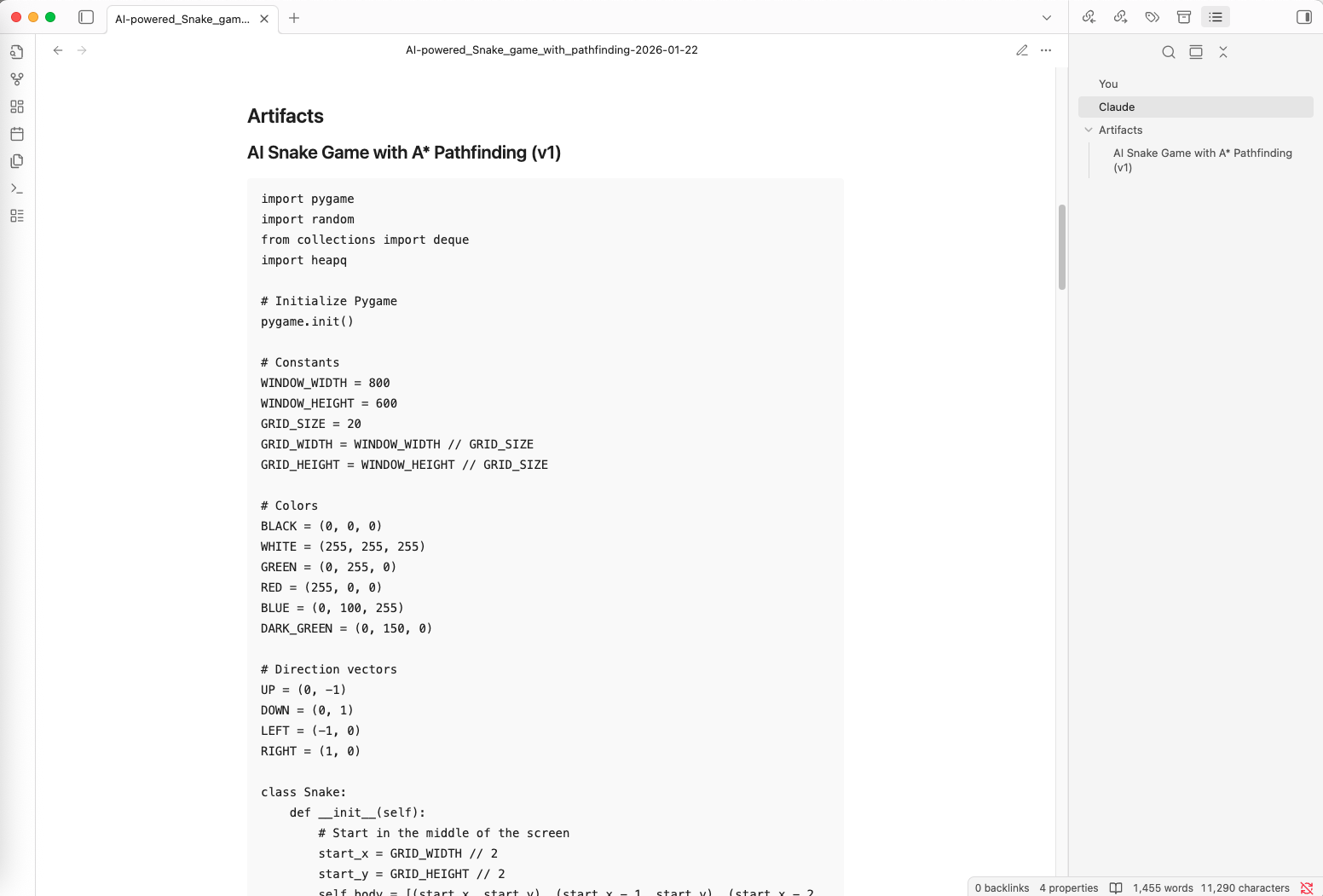
Filename Configuration
Choose how your files are named in the extension popup:
Title-based (Default)
Uses the conversation title as the filename:
Building a React Component.mdPython Data Analysis.md
Date-based
Uses the conversation date:
2026-01-22.md2026-01-21.md
Title with Date
Combines both for clarity:
2026-01-22 Building a React Component.md2026-01-21 Python Data Analysis.md
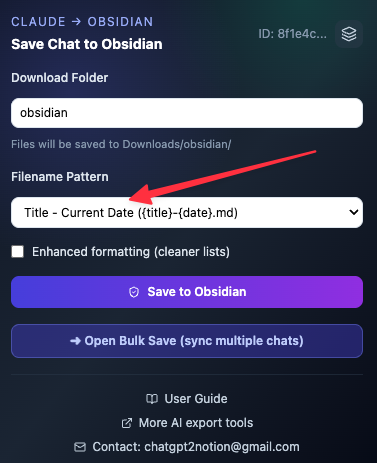
Download Folder Configuration
By default, files are saved to your Downloads folder. You can specify a subfolder:
- Open the extension popup
- Enter a folder path in “Download Folder” (e.g.,
Obsidian/Claude) - Files will be saved to
Downloads/Obsidian/Claude/
Note: The path is relative to your Downloads folder.
Conflict Handling
If a file with the same name already exists, the browser will handle it based on your settings:
- Uniquify (default): Adds a number suffix (e.g.,
file (1).md) - Overwrite: Replaces the existing file
- Prompt: Asks you what to do each time
Configure this in the extension options page.
Importing to Obsidian
After exporting:
- Open your file manager and navigate to Downloads (or your configured folder)
- Find the exported Markdown file
- Move or copy it to your Obsidian vault folder
- Open Obsidian - the file will appear in your vault
Tip: You can configure your download folder to point directly to your Obsidian vault for seamless integration.
Tips
- Pin the extension for quick access
- Use date-based naming for chronological organization
- Use title-based naming for topic-based organization
- Configure download folder to match your Obsidian vault structure
- Free tier quotas reset daily
Troubleshooting
Export button is disabled
- Make sure you’re on a Claude conversation page (claude.ai/chat/…)
- Refresh the page and try again
- Check that you haven’t exceeded the daily free limit (5 exports)
File not downloading
- Check browser download settings
- Ensure downloads are not blocked
- Try a different download folder path
- Check browser console for errors
Formatting looks wrong
- Make sure you’re viewing the file in Obsidian or a Markdown editor
- Check that code blocks are properly formatted
- Verify that images are accessible
For more help, contact [email protected]
Ready to try Claude To Obsidian?
Open the product page for feature details, screenshots, pricing, and the Chrome Web Store install link.