
Batch Export & Backup
Efficiently export multiple Claude conversations to Markdown files in one operation
Batch Export allows you to export multiple Claude conversations to Markdown files in one operation, creating a complete backup of your chat history.
Prerequisites
- Extension installed and configured
- Claude.ai page must be open in a browser tab
- At least one conversation in your Claude history
Access Batch Export
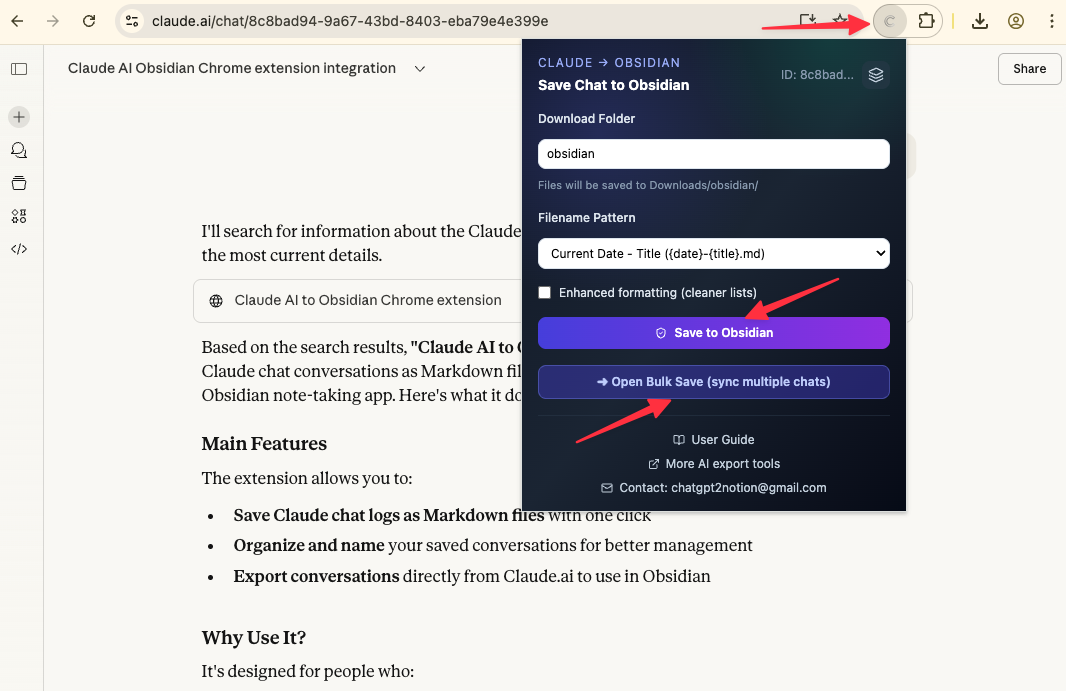
Open the extension options page by:
- Right-clicking the extension icon in your browser toolbar
- Selecting “Options”
Or:
- Click the extension icon
- Click “Open Options” button in the popup
Step 1: Configure Export Settings
Before starting the batch export, configure your preferences:
Download Folder
Specify where files should be saved (relative to Downloads folder):
- Leave empty for root Downloads folder
- Enter
Obsidian/Claudeto save toDownloads/Obsidian/Claude/ - Enter
MyVault/AIto save toDownloads/MyVault/AI/
Filename Pattern
Choose how files are named:
- Title-based: Uses conversation title (e.g.,
Building a React Component.md) - Date-based: Uses date in YYYY-MM-DD format (e.g.,
2026-01-22.md) - Title with Date: Combines both (e.g.,
2026-01-22 Building a React Component.md)
Conflict Action
Choose what happens when a file already exists:
- Uniquify (Recommended): Adds a number suffix (e.g.,
file (1).md) - Overwrite: Replaces the existing file with new content
- Prompt: Asks you what to do for each conflict
Step 2: Load Conversations
The extension needs to fetch your conversation list from Claude:
- Make sure a Claude.ai tab is open
- Click “Load Conversations” button
- Wait for the list to populate
You’ll see a list of your recent conversations with:
- Conversation title
- Date/time
- Checkbox for selection
Step 3: Select Conversations
Choose which conversations to export:
Select Individual Conversations
Check the boxes next to specific conversations you want to export.
Select All
Click “Select All” to choose all loaded conversations at once.
Deselect All
Click “Deselect All” to clear all selections.
Step 4: Start Export
- Review your selections
- Click “Start Batch Export” button
- Monitor the progress bar and status messages
- Wait for export to complete
Important: Keep the options page open during export. Do not close the browser or navigate away.
Export Results
After export completes, you’ll see a summary:
- Success Count: Conversations exported successfully
- Failed Count: Conversations that failed to export
- Total Time: Time taken for the operation
Export History
View all past export operations:
- Scroll down to “Export History” section
- See details for each export:
- Timestamp
- Number of conversations exported
- Success/failed counts
- Available actions:
- View details
- Clear history
Performance & Limits
Free Tier:
- 5 exports per day (includes both single and batch exports combined)
- Quotas reset daily at midnight UTC
Subscribed Users:
- Unlimited exports
Performance Tips:
- Average: ~2-3 seconds per conversation
- Keep Claude.ai tab active during export
- Stable internet connection required
- For large batches (50+), consider exporting in smaller chunks
What Gets Exported
Each conversation is exported as a separate Markdown file containing:
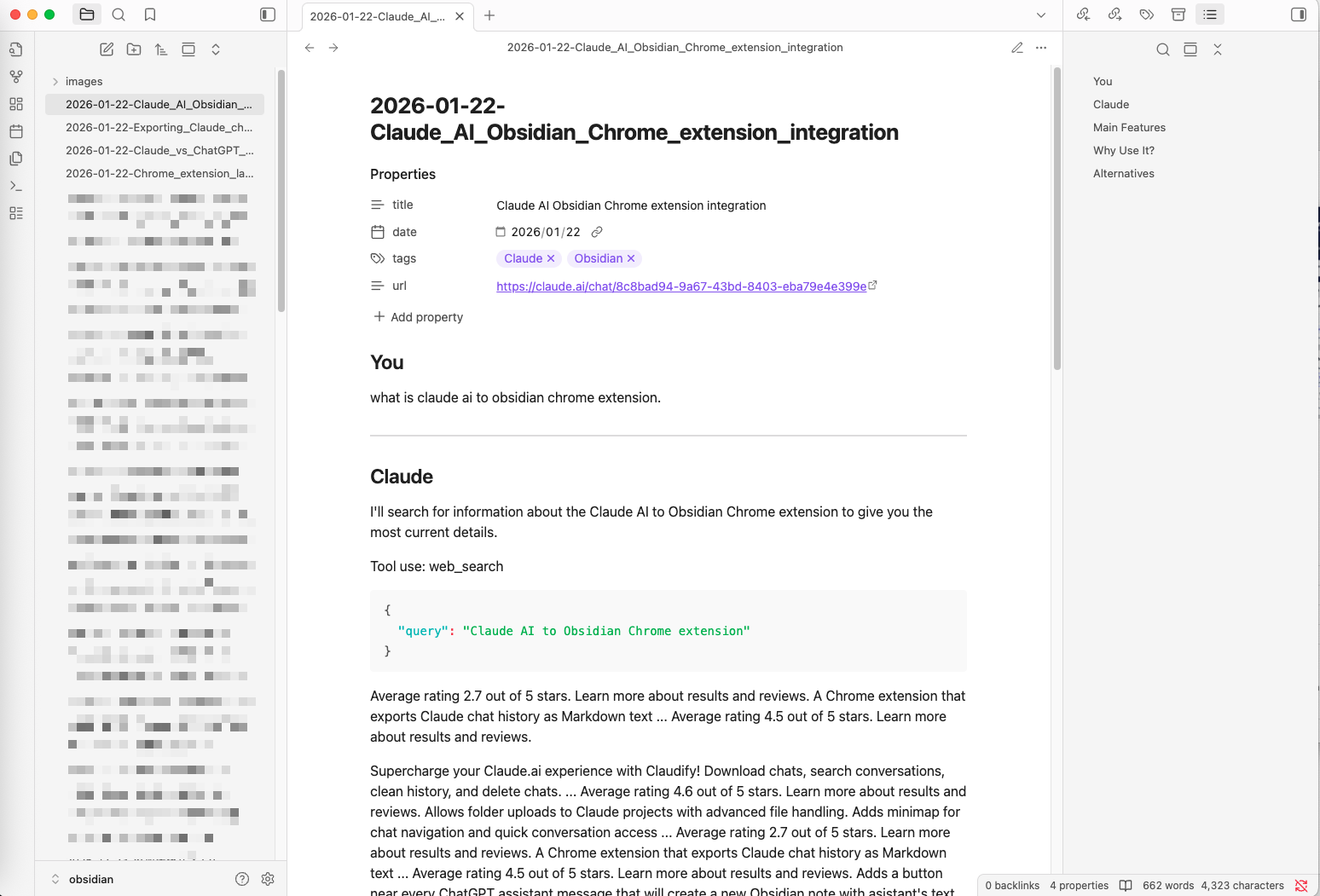
- Frontmatter: Title, URL, date metadata
- Messages: All conversation messages with formatting
- Artifacts: Complete artifact history with all versions
- Code Blocks: Syntax-highlighted code
- Images: Embedded images (if any)
Importing to Obsidian
After batch export:
- Navigate to your Downloads folder (or configured subfolder)
- You’ll see all exported Markdown files
- Move or copy them to your Obsidian vault folder
- Open Obsidian - all files will appear in your vault
Tip: Configure your download folder to point directly to your Obsidian vault for seamless integration.
Troubleshooting
“Claude page required”:
- Open https://claude.ai/ in a tab
- Refresh the page
- Try loading conversations again
“Failed to load conversations”:
- Refresh your Claude.ai tab
- Wait a few seconds
- Click “Load Conversations” again
“Some exports failed”:
- Check export history for error details
- Failed items can be retried individually
- May be due to network issues or rate limits
Export stops midway:
- Check internet connection
- Ensure Claude.ai tab is active
- Refresh Claude page and retry
Files not appearing in Downloads:
- Check browser download settings
- Verify download folder path is correct
- Check browser console for errors
Best Practices
- Start small: Test with 5-10 conversations first
- Use uniquify mode: Prevents accidental overwrites
- Monitor progress: Don’t close browser during export
- Check results: Review export history after completion
- Regular backups: Schedule periodic exports to keep your archive up to date
- Organize by date: Use date-based naming for chronological archives
- Organize by topic: Use title-based naming for topic-based organization
FAQ
Q: Can I export while using Claude? A: Yes, but keep the Claude.ai tab open. Don’t navigate away during export.
Q: What happens to existing files? A: Depends on your conflict action setting. “Uniquify” creates new files with numbers, “Overwrite” replaces them.
Q: How do I export only new conversations? A: Use “Uniquify” mode and manually select conversations you haven’t exported yet.
Q: Can I cancel a running export? A: Yes, close the options page or refresh it. Already-exported files will remain in your Downloads folder.
Q: Do I need to keep the options page open? A: Yes, the export process requires the options page to remain open. Closing it will stop the export.
For more help, contact [email protected]
Ready to try Claude To Obsidian?
Open the product page for feature details, screenshots, pricing, and the Chrome Web Store install link.