
Installation
How to install Claude to Obsidian extension from Chrome Web Store
Install from Chrome Web Store
- Visit the Chrome Web Store
- Click “Add to Chrome”
- Confirm the installation by clicking “Add extension”
Verify Installation
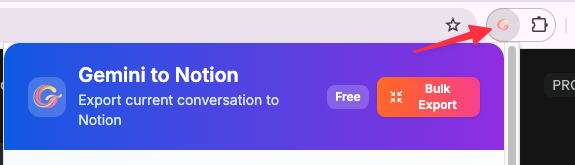
After installation, you should see the extension icon in your Chrome toolbar. Click it to open the extension popup.
Initial Configuration
Before you start exporting, you’ll want to configure a few settings:
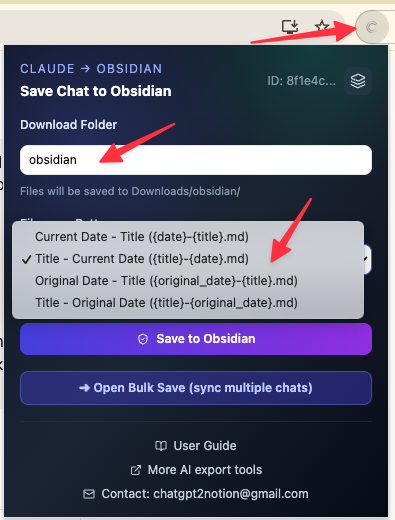
- Click the extension icon to open the popup
- Set your Download Folder path (optional - defaults to Downloads)
- Choose your preferred Filename Pattern:
- Title-based (uses conversation title)
- Date-based (YYYY-MM-DD format)
- Title with Date (combines both)
Browser Permissions
The extension requires these permissions:
- Storage: To save your preferences and settings
- Downloads: To save Markdown files to your Downloads folder
- Host Permissions: To access Claude.ai pages and read conversation content
All data processing happens locally in your browser. No data is sent to external servers.
Next Steps
Once installed, you’re ready to start exporting! Check out our guide on Exporting Individual Conversations to learn how to save your first chat.
Ready to try Claude To Obsidian?
Open the product page for feature details, screenshots, pricing, and the Chrome Web Store install link.