
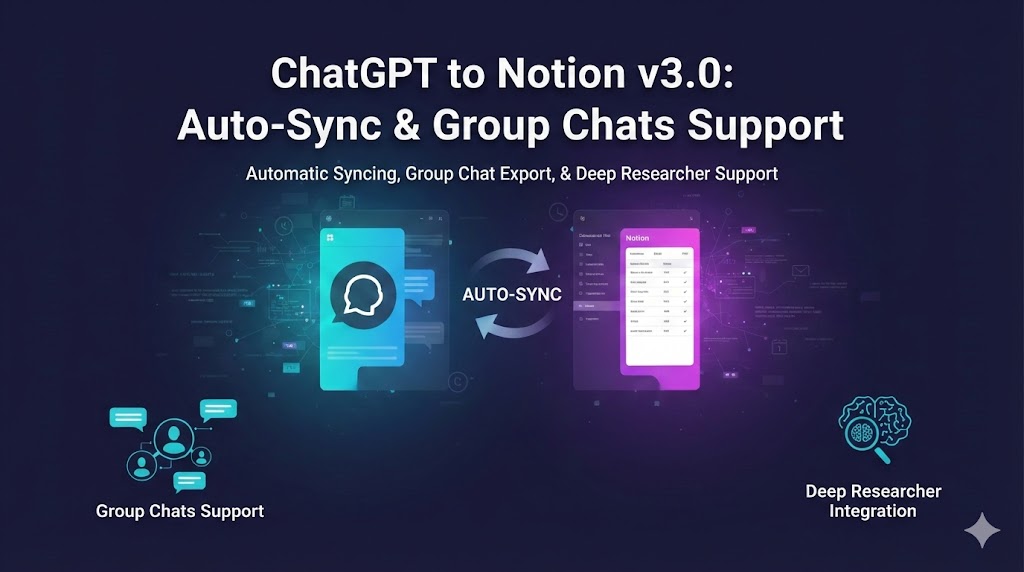
We’re excited to announce ChatGPT to Notion v3.0, our biggest update yet with the most requested feature: automatic syncing.
Auto-Sync: Never Lose a Conversation Again
The headline feature of v3.0 is Auto-Sync - a set-it-and-forget-it solution that automatically backs up your ChatGPT conversations to Notion at regular intervals.
Born from User Feedback
This feature came directly from user requests. As one user put it:
“Many users would benefit from an automatic scheduled backup feature that runs in the background without user intervention, automatically detects and backs up new conversations at regular intervals, and ensures important conversations are never lost.”
We heard you. Auto-Sync delivers exactly that - with one important technical consideration we’ll explain below.
Why Auto-Sync Matters
If you’ve ever lost an important ChatGPT conversation or forgot to manually export a breakthrough discussion, you know the pain. Auto-Sync solves this by:
- Automatic backups: Your latest 28 conversations sync automatically to Notion
- Flexible scheduling: Choose sync intervals from 1 to 24 hours based on your workflow
- Zero manual work: Once configured, it runs in the background
- Consistent settings: Uses your current sync configuration (skip/overwrite/always)
- Smart duplicate detection: Automatically skips already-saved conversations
How to Use Auto-Sync
- Open the Options page - Click the extension icon and go to Options
- Configure Auto-Sync - Click the “Auto Sync” button in the header to open settings
- Enable and set interval - Toggle on and choose your preferred sync interval:
- 1 hour - For active users who chat frequently (most requested)
- 3-6 hours - Balanced option for daily users
- 12-24 hours - For occasional users or daily backups
- Pin the tab - Pin the Options page tab in your browser to keep it open
Auto-Sync controls in the Options page header - toggle on/off and configure settings
Technical Transparency: Why the Page Must Stay Open
Auto-Sync has one key requirement: the Options page must remain open in a browser tab. Let us explain why.
The Technical Reality:
This extension retrieves ChatGPT conversation data by using your logged-in browser session. There isn’t an official public API we can safely call in the background without the page context.
If the ChatGPT page is not open or active, the extension doesn’t have the required session information to fetch and sync conversations. Trying to “force” a true background sync would require storing or handling sensitive session data in ways that are neither secure nor recommended.
In short: To sync safely and reliably, the Options page (and at least one ChatGPT page) needs to be open.
Best Practice:
Pin the Options page tab in your browser. It will stay open and consume minimal resources while keeping your conversations automatically backed up. For most users who keep ChatGPT open during work sessions anyway, this is a non-issue.
The Auto-Sync configuration dialog showing interval options and status
What Gets Synced
- Latest 28 conversations from your ChatGPT history
- Uses your current Notion database selection
- Respects your sync configuration (skip existing/overwrite/always create new)
- Honors your “Skip synced records” setting
Monitoring Your Syncs
The Auto-Sync dialog shows:
- Next sync time: Countdown to the next automatic sync (e.g., “In 2h 15m”)
- Last sync time: When the last sync completed
- Current status: Whether Auto-Sync is enabled
- Sync history: View all automatic sync records in the Sync History section
All automatic syncs are tagged as “Auto Sync (Latest 28)” in your sync history for easy tracking.
Sync history showing automatic sync records with timestamps and statistics
Other Updates in v3.0
Group Chats Support
Export full group chat history from https://chatgpt.com/gg/<roomId> with author names and message order preserved. Perfect for team collaboration and brainstorming sessions.
Features:
- Full chat history export
- Selective message export
- Batch sync for latest 5 or all group chats
- Copy individual messages to clipboard
Deep Researcher Integration
Seamlessly export Deep Researcher reports as structured sub-pages in Notion, preserving formatting and document structure.
TextDocs Tool Integration
Export TextDocs tool documents as Notion sub-pages for better organization.
Upgrade Now
The update is live on the Chrome Web Store. Existing users will be automatically updated within 24 hours, or you can manually update from the Chrome Extensions page.
What’s Next
We’re continuously improving based on your feedback. Have suggestions? Reach out at [email protected] or open an issue on our GitHub repository.
Happy syncing!