
Understanding Debugger Permission
Why ChatGPT to PDF needs debugger permission and what the yellow banner means
Why Does ChatGPT to PDF Need Debugger Permission?
ChatGPT to PDF uses Chrome’s debugger permission to generate high-quality PDFs locally in your browser. This is a technical requirement for accessing Chrome’s built-in PDF generation capabilities through the Chrome DevTools Protocol (CDP).
What is Chrome DevTools Protocol?
Chrome DevTools Protocol is Chrome’s official API that allows extensions to:
- Capture page content with perfect fidelity
- Render pages to PDF format
- Preserve all formatting, images, and styles
- Generate PDFs without external servers
This is the same technology that Chrome uses when you press Ctrl+P (or Cmd+P) and choose “Save as PDF”—but automated for batch processing.
The Yellow Banner Explained
What You’ll See
When exporting conversations to PDF, you’ll see a yellow banner at the top of your browser:
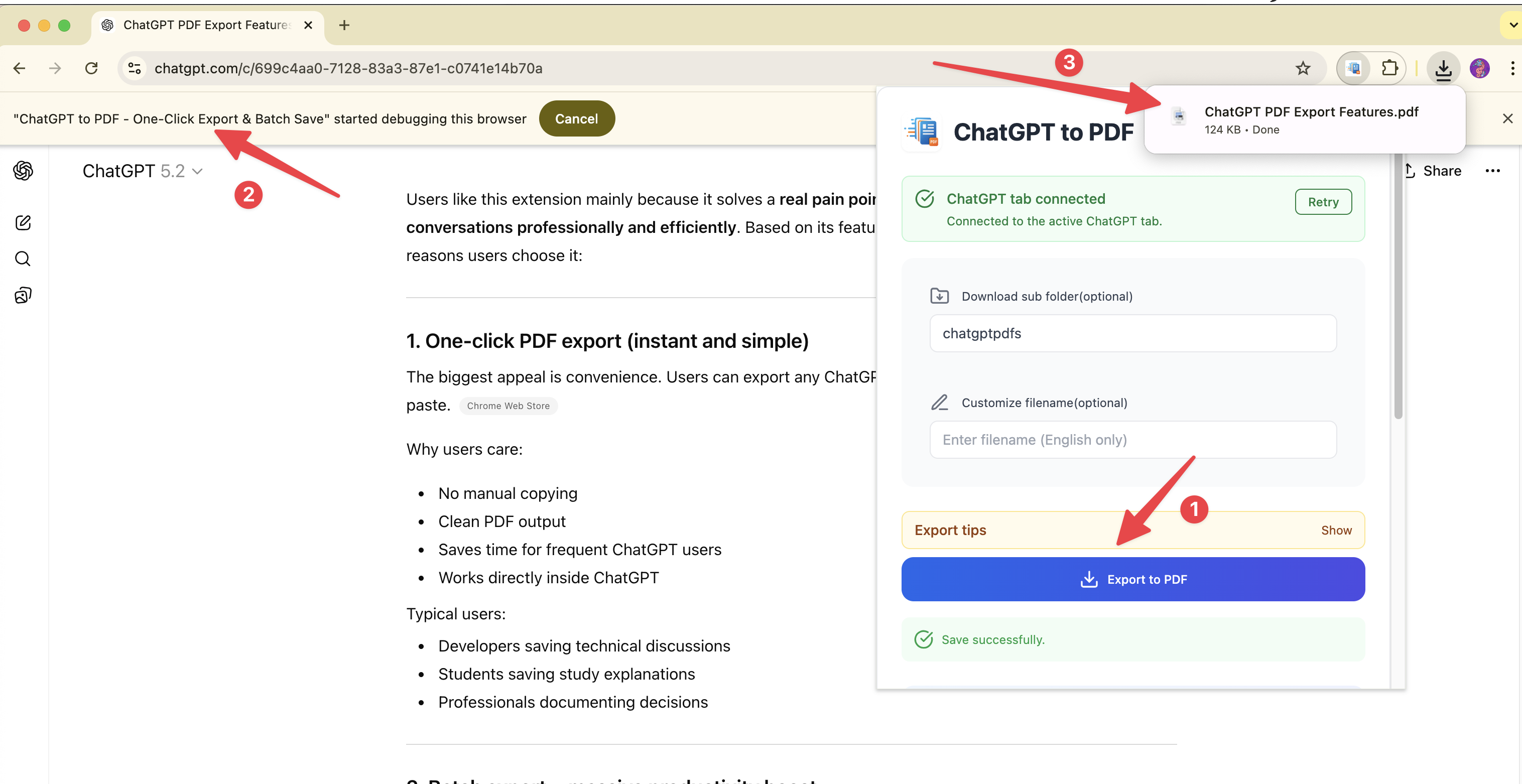
“Chrome is being controlled by automated test software”
Why This Appears
This banner is Chrome’s standard notification when any extension uses the debugger permission. It’s Chrome’s way of telling you that an extension is using advanced browser APIs.
Important: This is normal and expected behavior. It does NOT mean:
- ❌ Your browser is compromised
- ❌ Malware is running
- ❌ Your data is being stolen
- ❌ Someone is remotely controlling your browser
What Actually Happens
When you click “Export to PDF”:
- Extension activates debugger: Connects to Chrome’s DevTools Protocol
- Banner appears: Chrome shows the yellow notification
- Content capture: Extension captures the ChatGPT conversation content
- PDF generation: Chrome renders the content to PDF format
- File download: PDF is saved to your downloads folder
- Debugger disconnects: Extension releases the debugger connection
- Banner disappears: Yellow notification automatically closes
Duration: The banner typically appears for 2-5 seconds during export, then disappears automatically.
Privacy & Security Guarantees
100% Local Processing
All PDF generation happens entirely in your browser:
- ✅ No data sent to external servers
- ✅ No cloud uploads
- ✅ No third-party processing
- ✅ Your conversations never leave your device
What the Extension Does
ChatGPT Page → Extension reads content → Chrome generates PDF → Saves to your computerWhat the Extension Does NOT Do
- ❌ Upload your conversations to any server
- ❌ Send data to third parties
- ❌ Store your conversations in the cloud
- ❌ Track your browsing activity
- ❌ Access other tabs or websites
- ❌ Modify ChatGPT’s functionality
Technical Details
Why Not Use Other Methods?
You might wonder why we use the debugger permission instead of simpler methods. Here’s why:
Method 1: Screenshot-based PDF ❌
- Poor quality for long conversations
- Images are not searchable
- Large file sizes
- Loses text formatting
Method 2: HTML to PDF libraries ❌
- Requires server-side processing
- Privacy concerns (data must be uploaded)
- Inconsistent formatting
- Cannot handle complex layouts
Method 3: Chrome DevTools Protocol (CDP) ✅
- Perfect formatting preservation
- 100% local processing
- High-quality output
- Handles all content types (code, images, tables)
- Same quality as Chrome’s native “Print to PDF”
Permission Scope
The debugger permission is only used for PDF generation. The extension:
- Only activates debugger during export
- Only accesses the current ChatGPT tab
- Immediately disconnects after export completes
- Does not run in the background
Frequently Asked Questions
Is this safe?
Yes, absolutely. The debugger permission is a standard Chrome API used by many legitimate extensions for PDF generation, screenshot capture, and automation tools. The extension is:
- Published on Chrome Web Store (reviewed by Google)
- Used by thousands of users
- Does not collect or transmit your data
- All processing happens locally in your browser
Can I disable the banner?
No, the banner is a Chrome security feature that cannot be disabled. It’s designed to inform users when extensions use advanced APIs. The banner automatically disappears when the export completes.
Does this slow down my browser?
No. The debugger connection is only active during PDF export (2-5 seconds). It does not affect browser performance at other times.
Will this interfere with other extensions?
No. The debugger permission is scoped to the specific tab being exported and does not affect other tabs or extensions.
What if I don’t trust this?
We understand security concerns. Here’s what you can do:
- Check permissions: View exactly what permissions are requested in Chrome Web Store
- Test with non-sensitive data: Try exporting a test conversation first
- Read reviews: See what other users say about the extension
- Contact support: Reach out to us with any questions at [email protected]
Can I use the extension without debugger permission?
No. Chrome’s PDF generation API requires the debugger permission. Without it, the extension cannot generate PDFs locally. Alternative methods would require:
- Uploading your conversations to a server (privacy risk)
- Using lower-quality screenshot-based PDFs (poor output)
- Manual copy-paste workflows (defeats the purpose)
Comparison with Other Extensions
Many popular Chrome extensions use the debugger permission for legitimate purposes:
- Screenshot tools: Capture full-page screenshots
- PDF generators: Convert web pages to PDF
- Automation tools: Automate browser tasks
- Testing tools: Test web applications
ChatGPT to PDF uses it for the same reason: to access Chrome’s built-in PDF generation capabilities.
Still Have Concerns?
If you’re still unsure about the debugger permission:
- Contact support: Email us at [email protected]
- Report issues: GitHub Issues
Summary
- ✅ Debugger permission is required for local PDF generation
- ✅ Yellow banner is normal and appears during export
- ✅ Your data stays local and never leaves your browser
- ✅ Banner disappears automatically when export completes
- ✅ This is the safest method for generating high-quality PDFs
The debugger permission enables ChatGPT to PDF to provide you with high-quality, locally-generated PDFs while maintaining complete privacy and security.
Ready to try Chatgpt To Pdf?
Open the product page for feature details, screenshots, pricing, and the Chrome Web Store install link.