
How to Disable Download Location Prompt
Fix Chrome's repeated save location dialog when batch downloading PDFs
Problem Description
When using the ChatGPT to PDF extension to batch download PDFs, Chrome displays a “Choose save location” dialog for every single download. This severely impacts batch download efficiency, especially when exporting multiple conversations that require repeatedly selecting folders manually.
Important Note: This is not an extension bug—it’s Chrome’s default download behavior. The issue can be resolved by adjusting your browser settings.
Why Does This Happen?
Chrome has a built-in feature called “Ask where to save each file before downloading” that’s enabled by default. While this gives users fine-grained control over individual downloads, it becomes a major obstacle for batch download scenarios.
When the extension triggers multiple PDF downloads, Chrome shows a separate save dialog for each file, resulting in:
- ❌ Interrupted batch downloads
- ❌ Multiple manual “Save” clicks required
- ❌ No true automated downloading
Solution: Disable Download Prompt
Step 1: Open Chrome Settings
- Open Google Chrome browser
- Click the three-dot menu (⋮) in the top-right corner
- Select Settings
Or directly enter in the address bar: chrome://settings/
Step 2: Navigate to Download Settings
- In the settings page left sidebar, click Downloads
- Or type “downloads” in the search box for quick access
Step 3: Disable Save Location Prompt
Find the “Ask where to save each file before downloading” option and turn it off.
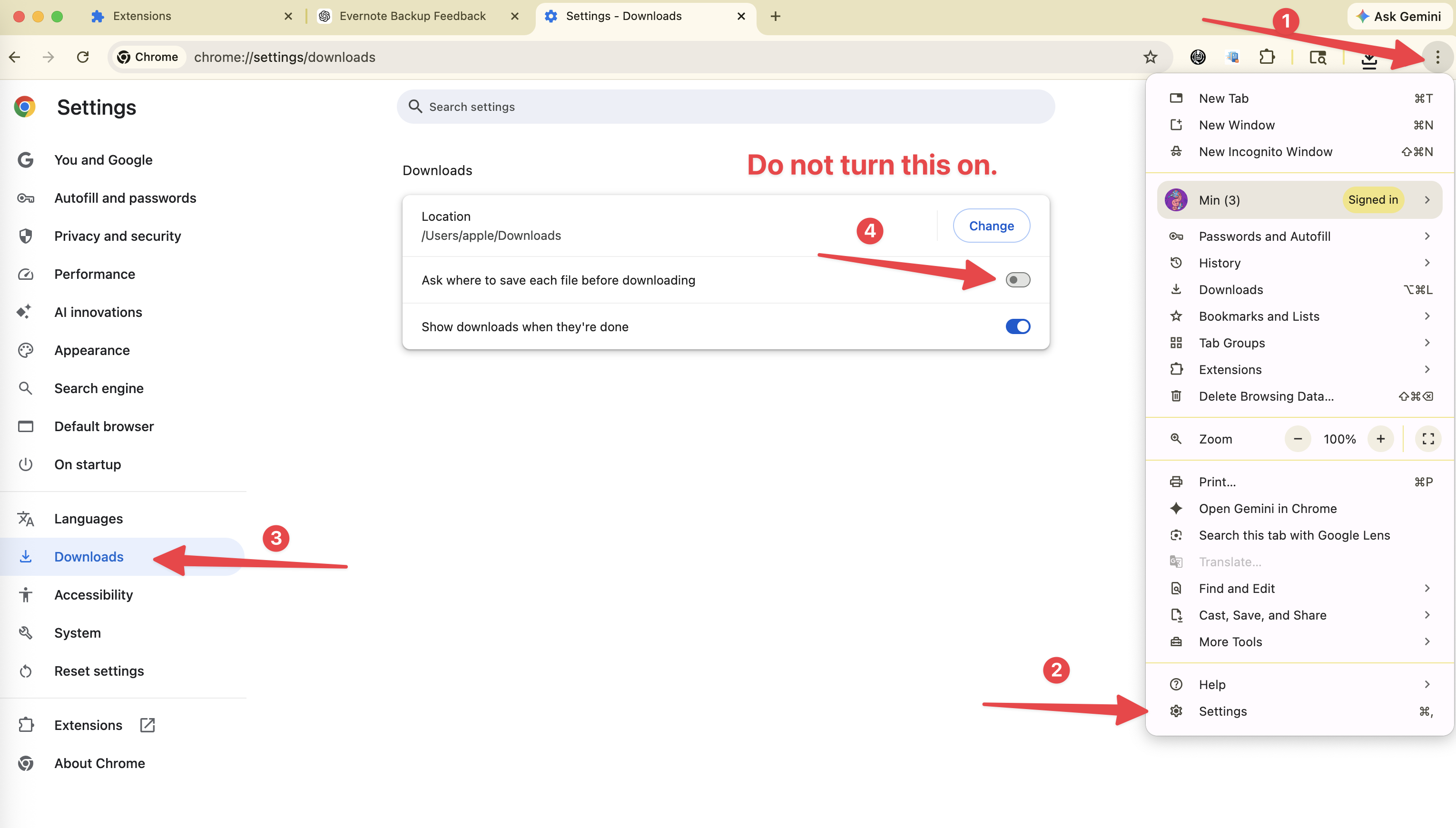
Once disabled, all downloaded files will automatically save to your default download folder without prompting for location each time.
Step 4: Verify Settings Are Active
- Return to the ChatGPT page
- Use the extension to export a conversation to PDF
- Confirm the file downloads directly to the default folder without showing a save dialog
✅ If no dialog appears, the settings are working correctly.
Customize Default Download Location
If you want to change the default save location:
- In the same Downloads settings page
- Find the Location option
- Click the Change button
- Select your preferred default download folder
Recommendation: Create a dedicated folder for ChatGPT PDFs, such as ~/Downloads/ChatGPT-PDFs/, for easier file management.
Frequently Asked Questions
Can I still manually choose save location after disabling the prompt?
Yes. When downloading, you can:
- Right-click the download item → Select “Save as”
- Or hold
Ctrl(Windows) /Cmd(Mac) before the download starts
Will this setting affect downloads from other websites?
Yes. After disabling this option, downloads from all websites will save directly to the default folder. If you only want this behavior for specific sites, consider using Chrome’s profile feature to create separate browser configurations for different scenarios.
What if the prompt still appears after changing settings?
Try these methods:
- Restart browser: Completely close Chrome and reopen it
- Clear cache: Go to
chrome://settings/clearBrowserData→ Clear cached data - Check extension conflicts: Disable other download manager extensions and test for conflicts
- Update browser: Ensure you’re using the latest version of Chrome
How do I restore the original behavior?
You can return to chrome://settings/downloads anytime and re-enable the “Ask where to save each file before downloading” option.
Settings for Other Browsers
Microsoft Edge
- Open
edge://settings/downloads - Disable “Ask where to save each file before downloading”
Brave Browser
- Open
brave://settings/downloads - Disable “Ask where to save each file before downloading”
Arc Browser
Arc doesn’t show save location prompts by default—no additional configuration needed.
Summary
- ✅ Disabling download prompts enables true batch automated downloading
- ✅ Custom download location keeps file management organized
- ✅ Easily reversible to restore original behavior
- ✅ Works for all Chromium-based browsers
With this simple setting change, you can fully leverage the ChatGPT to PDF extension’s batch export capabilities, exporting multiple conversations at once without manual intervention.
Need Help?
If you encounter other issues:
- 📧 Email support: [email protected]
- 🐛 Report issues: GitHub Issues
Ready to try Chatgpt To Pdf?
Open the product page for feature details, screenshots, pricing, and the Chrome Web Store install link.