
Batch Export & Backup
Efficiently export multiple ChatGPT conversations to PDF in one operation with batch export
Batch Export allows you to export multiple ChatGPT conversations to PDF in one operation, creating a complete offline archive of your chat history.
Prerequisites
- Extension installed with permissions granted
- ChatGPT page must be open in a browser tab
- Stable internet connection
Access Batch Export
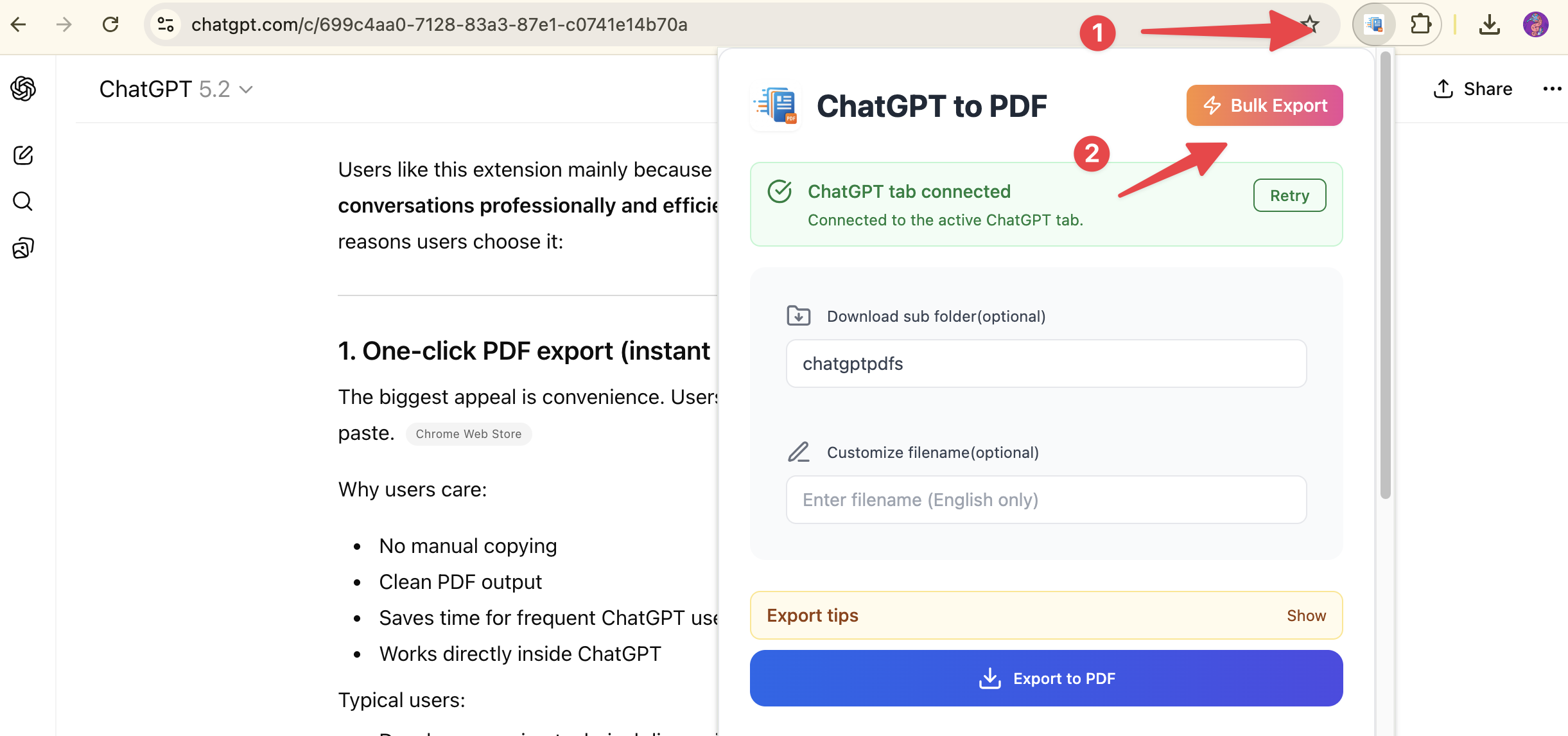
- Click the extension icon in your browser toolbar
- Click the “Bulk Export” button in the popup
- The Batch Export page will open in a new tab
Step 1: Verify ChatGPT Connection
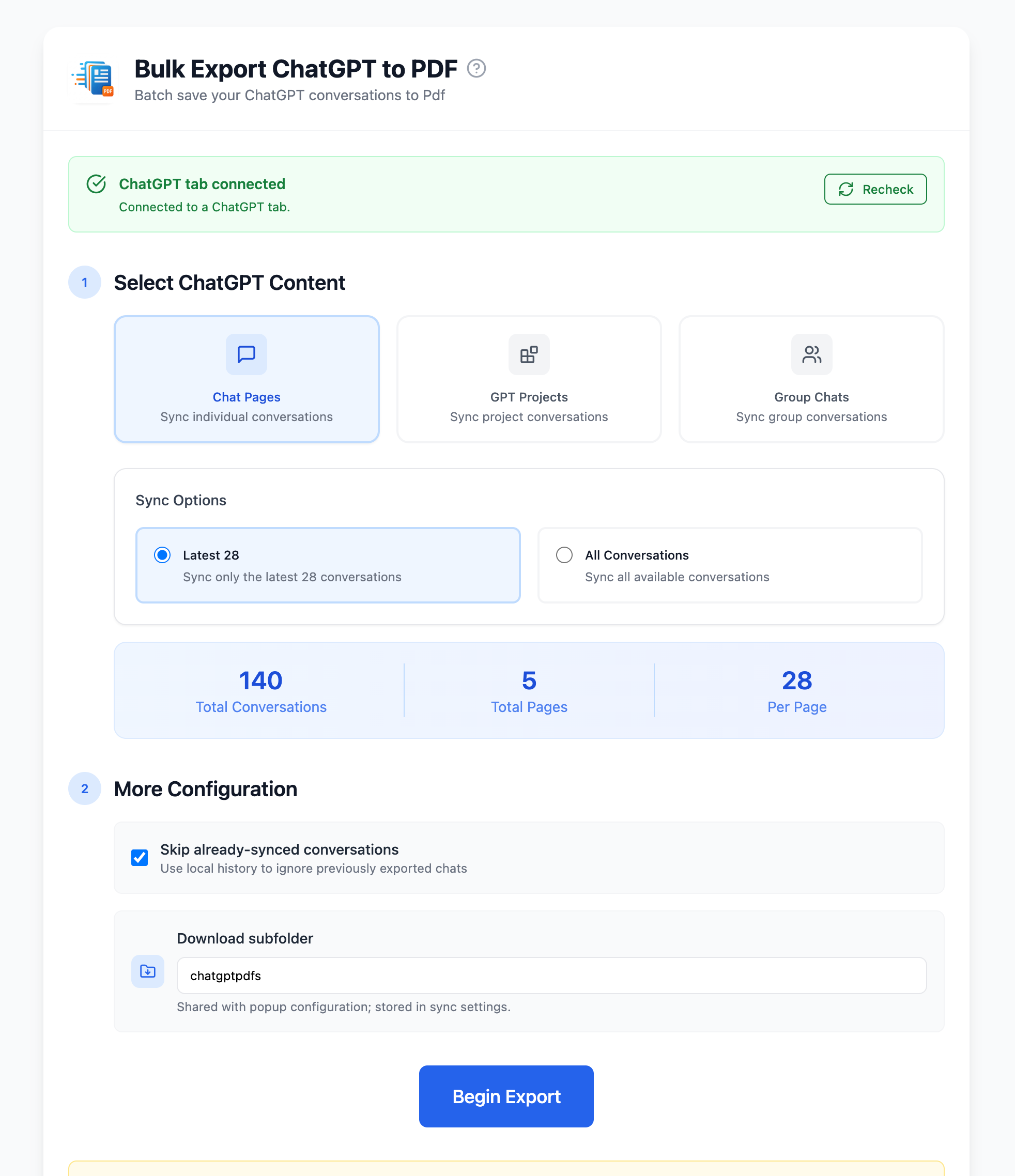
The extension will automatically check if you have a ChatGPT tab open and connected.
Status Indicators:
- ✅ Connected: At least one ChatGPT tab is ready for export
- ⚠️ No Tab: Open https://chatgpt.com/ in a tab
- ❌ Disconnected: Refresh your ChatGPT tab and recheck
Click “Recheck” to verify the connection status.
Step 2: Select Content to Export
The extension supports three export modes:
Chat Pages (Default)
Export regular ChatGPT conversations from your chat history.
Options:
- Latest 28: Export the most recent conversations (approximately 28 items)
- All Conversations: Export your entire chat history by reading all pages
Projects
Export conversations from ChatGPT Projects (workspace feature).
Options:
- Select specific project: Choose one project from the dropdown
- All Projects: Export conversations from all your projects
- Export Mode:
- All Pages: Export all conversations in the project
- First Page Only: Export only the first page (approximately 5 conversations)
Group Chats
Export ChatGPT group chats (/gg/ URLs).
Options:
- Latest 5: Export the 5 most recent group chats
- All: Export all group chats (capped at 500 rooms)
Step 3: Configure Export Settings
Download Folder
Organize your PDFs into subfolders:
- Enter a folder name in the “Download Folder” field
- Default:
chatgptpdfs - PDFs will be saved to:
Downloads/[your-folder-name]/
Skip Synced Records
Enabled (Recommended):
- Skips conversations that have already been exported
- Prevents duplicate PDFs
- Faster export process
- Default behavior
Disabled:
- Re-exports all conversations in the selected range
- Creates new PDFs even if they already exist
- Use when you need fresh copies
Step 4: Start Export
- Review your configuration
- Click “Begin Sync” button
- Monitor the progress bar and status messages
- Wait for export to complete
Important:
- Keep the export page open during the process
- Do not close the browser or navigate away
- You may see a yellow banner during PDF generation (this is normal)
Export Results
After export completes, you’ll see a summary:
- Success Count: Conversations exported successfully
- Failed Count: Conversations that failed to export
- Skipped Count: Already-exported conversations (if skip enabled)
- Total Time: Duration of the export operation
Export History
View all past export operations:
- Scroll down to “Sync History” section
- See details for each export:
- Timestamp
- Export mode (Chat Pages / Projects / Group Chats)
- Success/failed/skipped counts
- Available actions:
- View details
- Delete individual records
- Clear all history
- Clear failed records only
Performance & Limits
Free Tier:
- Chat pages: 10 exports per day
- Group chats: 2 exports per day
- Quotas reset daily at midnight UTC
Subscribed Users:
- Unlimited exports
- Priority support
Performance Tips:
- Average: ~5-10 seconds per conversation (depending on length)
- Keep ChatGPT tab active during export
- Stable internet connection required
- For large batches (100+), consider exporting in smaller chunks
- Close unnecessary browser tabs to improve performance
PDF File Naming
Exported PDFs are automatically named using:
[conversation-title]-[timestamp].pdfSpecial characters are sanitized automatically for file system compatibility.
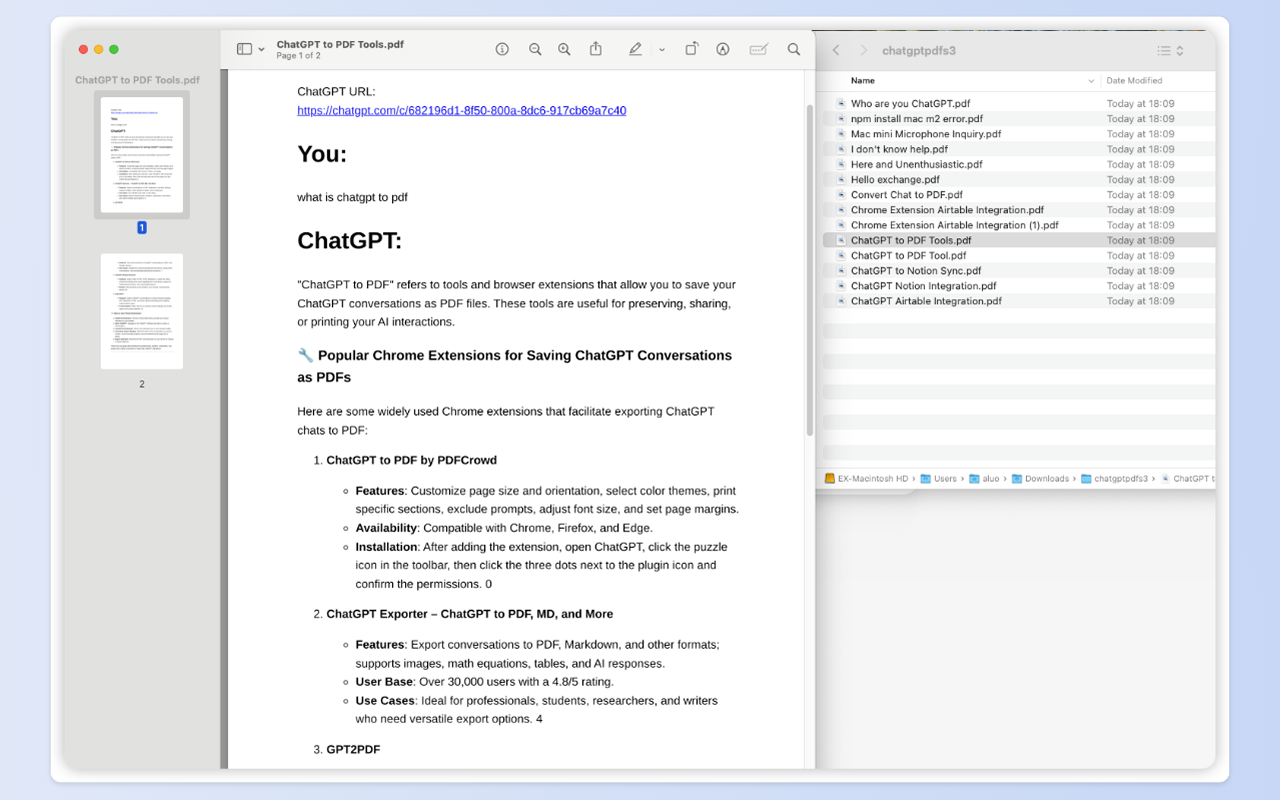
Find Your PDFs
After export completes, find your PDFs in:
Downloads/[download-folder]/Default location: Downloads/chatgptpdfs/
Troubleshooting
“ChatGPT page required”:
- Open https://chatgpt.com/ in a tab
- Refresh the page
- Click “Recheck” in the export page
“ChatGPT is open, but the extension can’t connect”:
- Refresh your ChatGPT tab
- Wait a few seconds
- Click “Recheck”
“Export failed for some conversations”:
- Check export history for error details
- Failed items can be retried individually
- May be due to rate limits or network issues
Export stops midway:
- Check internet connection
- Ensure ChatGPT tab is active
- Refresh ChatGPT page and retry
- Try exporting in smaller batches
“Daily limit reached”:
- Free users have daily export limits
- Upgrade to premium for unlimited exports
- Quota resets at midnight UTC
PDFs are blank or incomplete:
- Ensure conversations are fully loaded before export
- Try reducing batch size
- Check available disk space
Yellow banner appears during export:
- This is normal and expected
- The banner says “Chrome is being controlled by automated test software”
- It appears because we use Chrome’s debugger for local PDF generation
- The banner disappears automatically after export completes
Best Practices
- Start small: Test with “Latest 28” first
- Use skip mode: Prevents duplicate PDFs
- Monitor progress: Don’t close browser during export
- Check results: Review export history after completion
- Regular backups: Schedule periodic exports to keep your archive up to date
- Organize folders: Use different folders for different topics or time periods
Cancel Export
If you need to stop an export in progress:
- Click the “Cancel Sync” button
- Already-exported PDFs will remain in your Downloads folder
- You can resume later by starting a new export with “Skip Synced Records” enabled
FAQ
Q: Can I export while using ChatGPT? A: Yes, but keep the ChatGPT tab active. Don’t navigate away during export.
Q: How long does batch export take? A: Approximately 5-10 seconds per conversation, depending on length and complexity.
Q: Can I export only new conversations? A: Yes. Enable “Skip Synced Records” and select your desired range. Already-exported items will be skipped automatically.
Q: Can I cancel a running export? A: Yes, click the “Cancel Sync” button. Already-exported PDFs will remain in your Downloads folder.
Q: Do I need to keep the export page open? A: Yes, the export process requires the page to remain open. Closing it will stop the export.
Q: What happens if my computer goes to sleep during export? A: The export will pause. Wake your computer and the export should resume. If not, restart the export with “Skip Synced Records” enabled.
Q: Can I export conversations from Team accounts? A: Yes, the extension works with both personal and Team ChatGPT accounts.
For more help, contact [email protected]
Ready to try Chatgpt To Pdf?
Open the product page for feature details, screenshots, pricing, and the Chrome Web Store install link.