
One-Click Export
Export any ChatGPT conversation to PDF with a single click
Export any ChatGPT conversation to a professional PDF document with a single click. Perfect for quick archiving, sharing, or offline reference.
Prerequisites
- Extension installed and permissions granted
- ChatGPT conversation open in your browser
Step 1: Open a ChatGPT Conversation
Navigate to any ChatGPT conversation you want to export:
- Regular 1:1 conversations
- Group chats
- Project conversations
- Deep Research reports
Step 2: Click the Extension Icon
Click the ChatGPT to PDF extension icon in your Chrome toolbar. The popup will open showing the current conversation details.
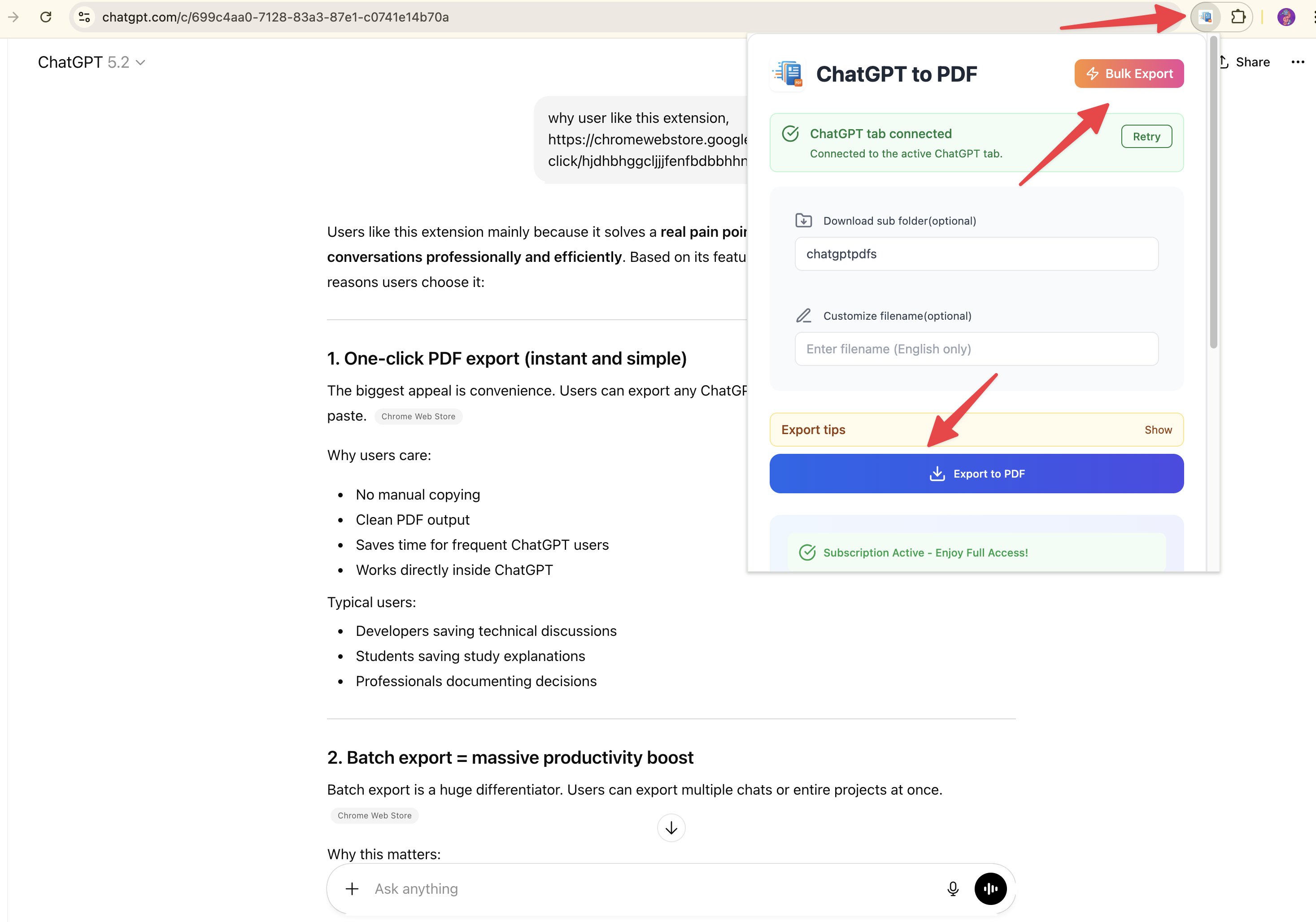
Step 3: Configure Export Settings (Optional)
Rename Filename
By default, PDFs are named using the conversation title. To customize:
- Check the “Rename Filename” checkbox
- Enter your custom filename (without .pdf extension)
- The filename will be sanitized automatically
Download Folder
Organize your PDFs into subfolders:
- Enter a folder name in the “Download Folder” field
- Default:
chatgptpdfs - PDFs will be saved to:
Downloads/[your-folder-name]/
Your settings are saved automatically for future exports.
Step 4: Export to PDF
Click the “Export to PDF” button. The extension will:
- Capture the conversation content
- Generate a PDF locally in your browser
- Save it to your Downloads folder
- Show a success message with the filename
Note: You may see a yellow banner saying “Chrome is being controlled by automated test software” during export. This is normal and disappears automatically when complete.
What’s Included in the PDF
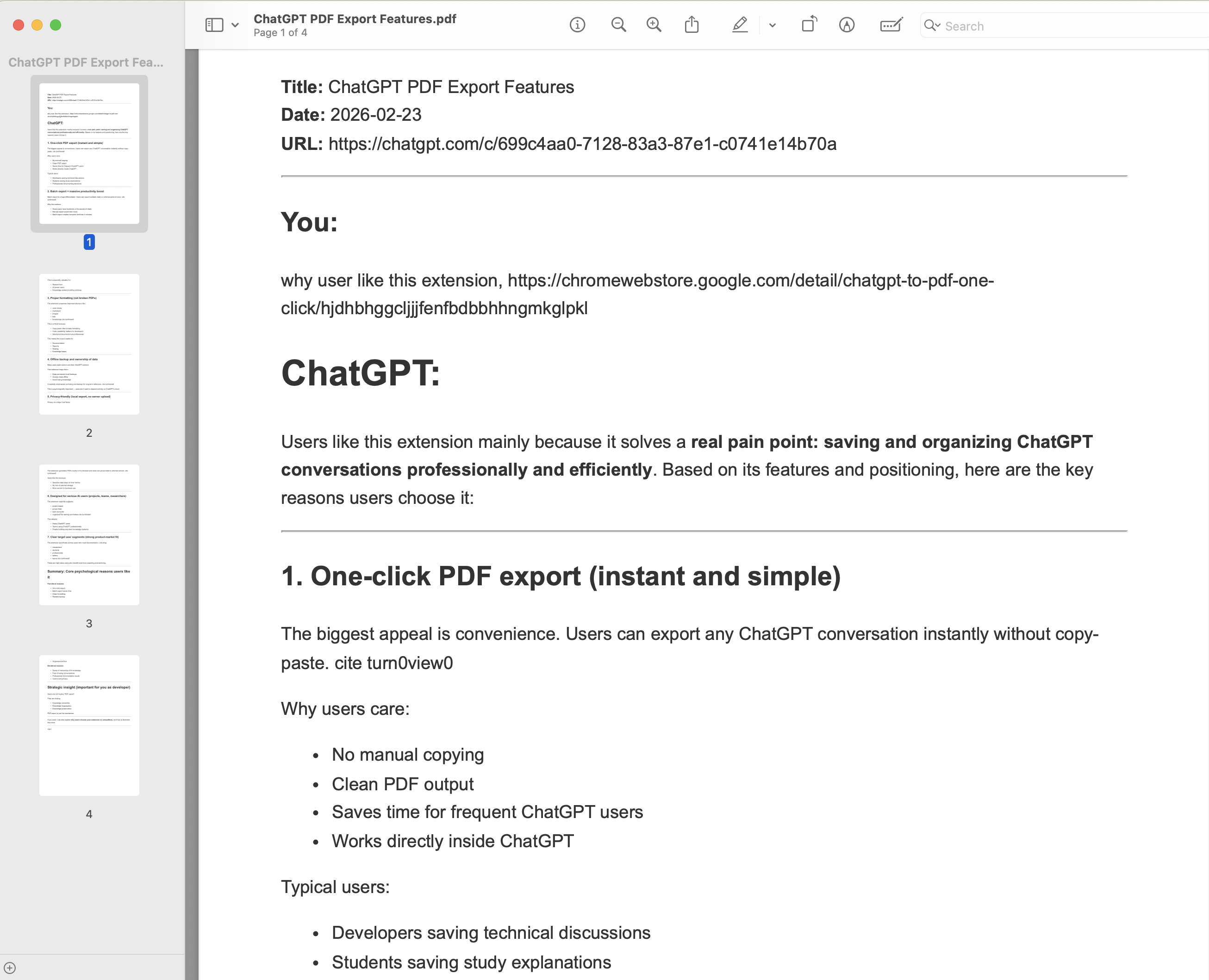
Each exported PDF contains:
Header Metadata
- Title: Conversation title
- Date: Export timestamp
- URL: Source ChatGPT conversation link
- Project Name: (if applicable)
Content
- Full conversation with all messages
- Preserved formatting (bold, italic, lists)
- Code blocks with syntax highlighting
- Embedded images with source links
- Tables and structured data
Export Limits
Free Users:
- 10 exports per day
- Quota resets daily
Subscribed Users:
- Unlimited exports
- Priority support
Find Your PDF
After export completes, find your PDF in:
Downloads/[download-folder]/[filename].pdfDefault location: Downloads/chatgptpdfs/
Troubleshooting
“ChatGPT page required”:
- Make sure you have a ChatGPT conversation open
- Refresh the ChatGPT page
- Try again
“Extension cannot reach the ChatGPT tab”:
- Refresh your ChatGPT page
- Wait a few seconds for the extension to connect
- Click the extension icon again
“Export failed”:
- Check your internet connection
- Ensure you have enough disk space
- Try refreshing the page and exporting again
“Daily limit reached”:
- Free users can export 10 conversations per day
- Upgrade to premium for unlimited exports
- Quota resets at midnight UTC
PDF is blank or incomplete:
- Wait for the conversation to fully load before exporting
- Try scrolling through the entire conversation first
- Refresh the page and try again
Tips for Best Results
- Wait for loading: Ensure the conversation is fully loaded before exporting
- Scroll through: For long conversations, scroll to load all content first
- Check images: Images may take a moment to embed in the PDF
- Custom names: Use descriptive filenames for easy organization
- Folder structure: Create different folders for different topics or projects
Next Steps
Want to export multiple conversations at once? Learn about Batch Export.
For questions, contact [email protected]
Ready to try Chatgpt To Pdf?
Open the product page for feature details, screenshots, pricing, and the Chrome Web Store install link.