
ChatGPT Export to Obsidian
Learn how to export ChatGPT conversations to Obsidian as clean Markdown notes for local-first knowledge management, research archives, and reusable prompt libraries.
Guide summary
- Search intent
- High commercial intent: PKM users want Markdown and Obsidian export.
- Best next step
- Try ChatGPT to Obsidian
- Topics
- ChatGPTObsidianMarkdownPKM
The best way to export ChatGPT to Obsidian is to save selected conversations as Markdown files, then place them inside a clear vault structure with useful filenames, tags, and backlinks. Obsidian is strongest when you want local ownership, plain-text portability, and connections between ideas. Instead of keeping valuable answers in ChatGPT history, export them into notes you can search, link, edit, and back up like the rest of your knowledge base.
Table of contents
- Why export ChatGPT to Obsidian
- What should become an Obsidian note
- Step-by-step workflow
- Vault structure
- Troubleshooting
- FAQ
Why Obsidian is a strong ChatGPT destination
ChatGPT is excellent for generating explanations and drafts, but it is not a personal knowledge management system. Obsidian is built for long-term notes. It gives you local Markdown files, backlinks, graph connections, tags, search, and full control over where your files live.
Exporting ChatGPT to Obsidian makes sense when you want:
- Local files instead of cloud-only pages
- Markdown that can be edited in any text editor
- Backlinks between AI conversations and permanent notes
- A research archive that works offline
- Code snippets and technical explanations in plain text
- A prompt library connected to your projects
Use ChatGPT to Obsidian when the exported conversation should become a Markdown note in your vault. Use ChatGPT to Notion when team sharing and database properties matter more.
What should you export?
Do not send every short chat into your vault. Obsidian works best when notes are intentional. Export conversations that contain:
- Research summaries
- Book or paper notes
- Coding explanations
- Debugging sessions
- Reusable prompts
- Learning plans
- Deep explanations worth revisiting
- Personal knowledge frameworks
For small one-off answers, it may be better to copy the useful paragraph into an existing note instead of exporting the whole conversation.
Step-by-step workflow
1. Prepare your vault folder
Create a folder such as:
AI/ChatGPT/InboxAI/ChatGPT/ResearchAI/ChatGPT/CodeAI/ChatGPT/PromptsAI/ChatGPT/Archive
Start with an inbox if you are not ready to categorize every export immediately. Then review the inbox weekly.
2. Choose a filename rule
Good filenames make exported conversations easier to find outside Obsidian too. Use a pattern like:
2026-06-16 - ChatGPT - Topic.mdProject - Topic - ChatGPT.mdPrompt - Use Case - Version.md
Avoid vague filenames like chat.md, export.md, or conversation.md.
3. Export the conversation as Markdown
Open the ChatGPT conversation and export it with a Markdown/Obsidian workflow. ChatGPT to Obsidian is the relevant AI Export Hub product for this destination.
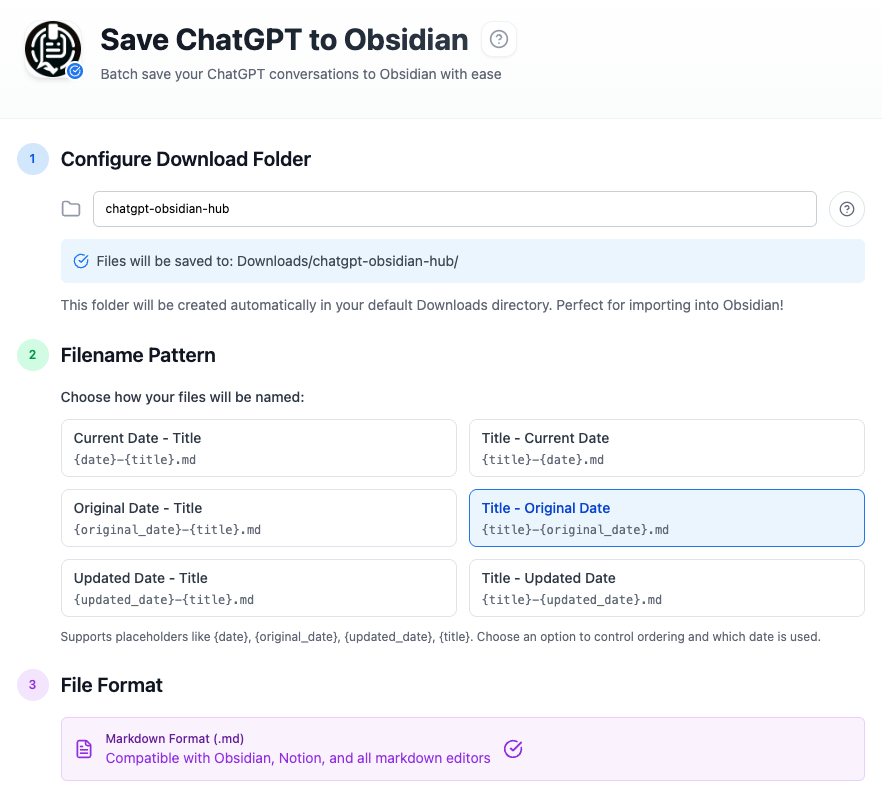
After export, open the Markdown file in Obsidian and confirm the structure is readable.
4. Add frontmatter or tags
You do not need heavy metadata, but a small amount helps. Example:
---
source: ChatGPT
type: ai-conversation
project: SEO
topic: export guides
created: 2026-06-16
status: captured
---
If frontmatter is too much, use tags such as #chatgpt, #research, #prompt, or #project.
5. Link the exported chat to permanent notes
An exported transcript is useful, but a linked summary is even better. Create or update a permanent note and link back to the exported conversation. For example:
[[ChatGPT export workflows]][[AI knowledge base architecture]][[Content operations]]
This turns the transcript into supporting context instead of isolated storage.
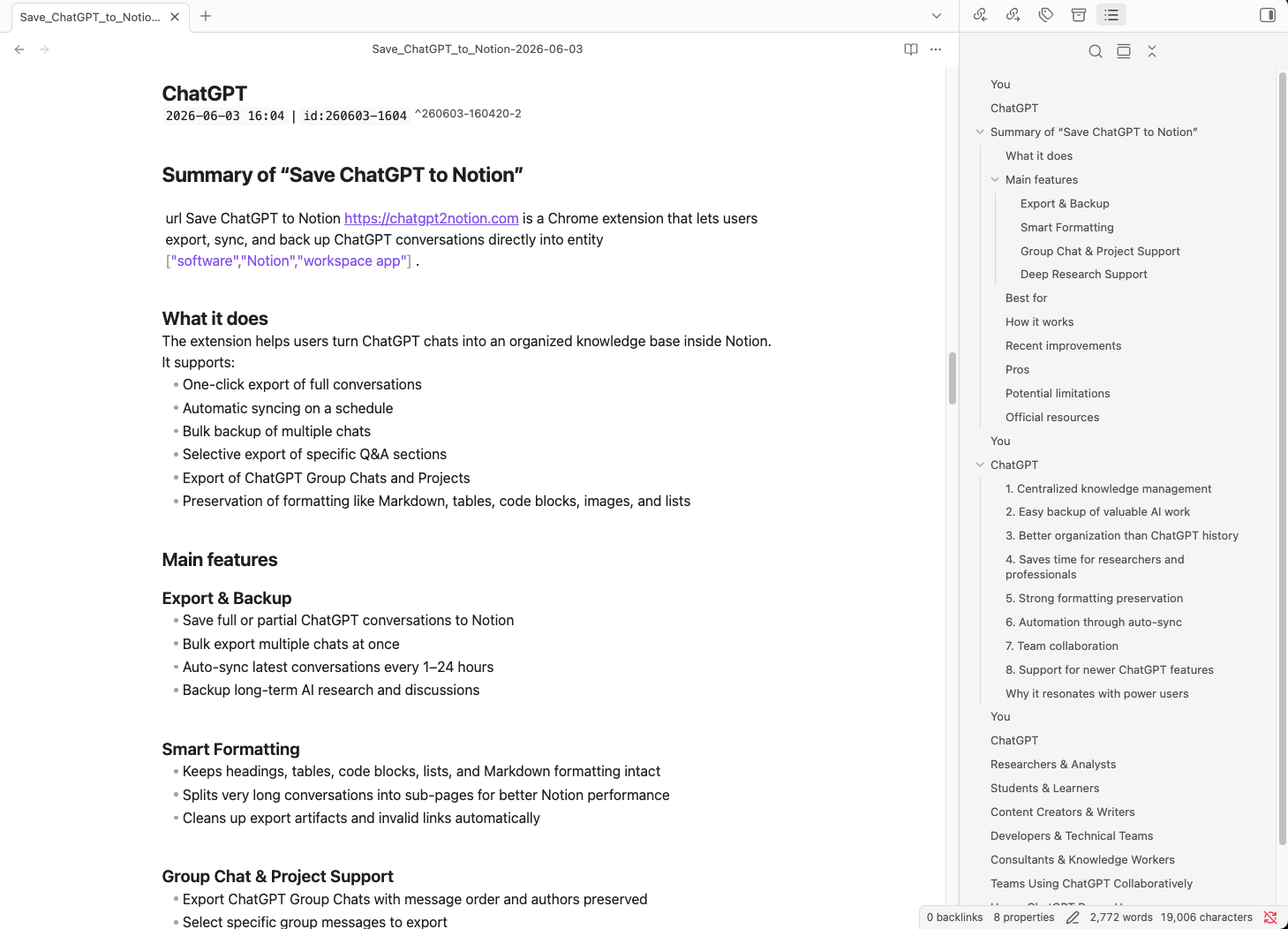
Suggested vault structure
| Folder | Use |
|---|---|
AI/ChatGPT/Inbox | New exports waiting for review |
AI/ChatGPT/Research | Source-heavy conversations |
AI/ChatGPT/Code | Debugging, architecture, snippets |
AI/ChatGPT/Prompts | Prompt templates and examples |
AI/ChatGPT/Archive | Older conversations kept for reference |
Keep the structure small. Obsidian search and backlinks can do much of the work.
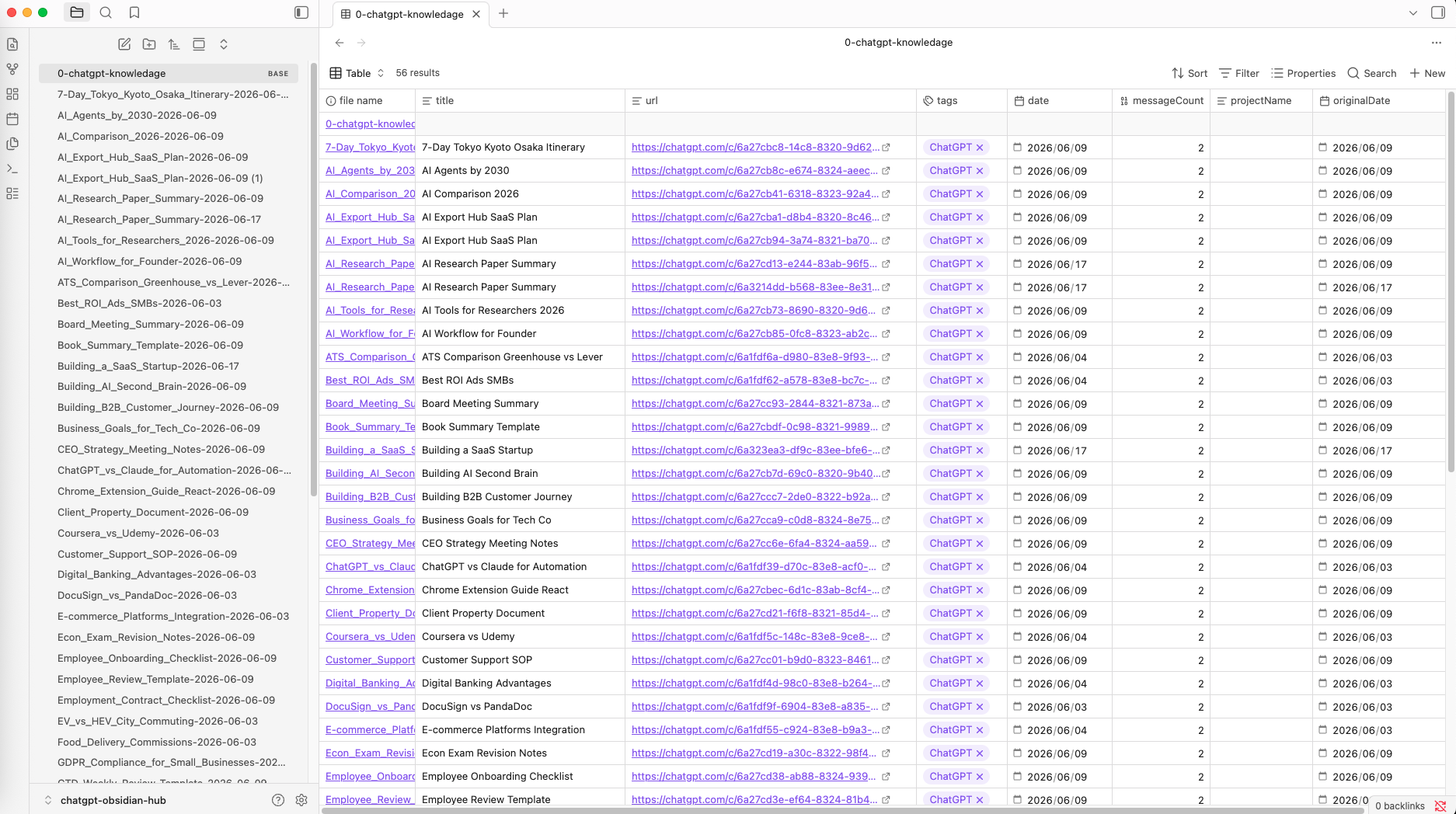
A weekly review workflow
Exporting is capture. Review is where the system becomes useful. Once a week, open your AI/ChatGPT/Inbox folder and process each exported file:
- Rename vague files with project and topic.
- Add tags or frontmatter only if they help retrieval.
- Move the file into the right folder.
- Extract the durable insight into a permanent note.
- Link the raw conversation from that permanent note.
- Delete exports that were only temporary scratch work.
This keeps your vault from becoming a second version of ChatGPT history. The raw export remains available when context matters, but the best ideas graduate into normal Obsidian notes. For research-heavy users, this habit is more important than the export itself.
Best for section
ChatGPT to Obsidian is best for users who already think in notes, files, and links. It is especially strong for developers, researchers, students, writers, consultants, and PKM users who want long-term control over their AI material.
It is less ideal when the main goal is team review, permissioned collaboration, or database reporting. In those cases, ChatGPT to Notion may be the better first destination. If the conversation must be sent as a fixed file, keep a ChatGPT to PDF copy too.
Troubleshooting
The file is saved outside the vault
Check your browser download folder and extension settings. Move the file into the vault or configure the download folder to point closer to your Obsidian structure.
Images are missing
Markdown workflows handle text very well, but image handling depends on the export method and source content. If visual fidelity matters, use ChatGPT to PDF as a companion export.
Code blocks look wrong
Check whether the Markdown fence language is present. If it is missing, add the language manually for important snippets, such as ts, js, python, or bash.
The vault gets noisy
Use an inbox folder and review exports weekly. Promote only the best insights into permanent notes.
FAQ
Can I export ChatGPT to Obsidian?
Yes. Export the conversation as a Markdown file and place it inside your Obsidian vault. ChatGPT to Obsidian is built for this workflow.
Is Markdown the best format for Obsidian?
Yes. Obsidian is based on Markdown, so plain .md files are the most natural and portable format.
Should I export full conversations or summaries?
Export full conversations when context matters. Create a separate summary note for the final insight or decision.
Can I use backlinks with exported chats?
Yes. After export, add links from project notes or permanent notes to the saved conversation.
Is Obsidian better than Notion for ChatGPT export?
Obsidian is better for local-first Markdown and personal knowledge management. Notion is better for team databases and shared workflows.
Build a local AI knowledge base
If you use ChatGPT for research, coding, or learning, Obsidian gives those conversations a durable home. Export important chats with ChatGPT to Obsidian, review them weekly, and link the best ideas into your permanent notes.