
Checked November 3, 2026. Gemini is replacing Gems with Skills. Google plans to migrate Gems automatically, but you should still keep a separate copy of the conversations, instructions, and reference material your work depends on.
If you mainly need to save your Gem conversations, start with AI Exporter Hub or the plugins on our Gemini Export page. They support exporting Gemini Gem conversations so you can move the work into a durable archive while preparing the new Skill.
Gems-to-Skills migration dates: check your account first
| Account | What changes | When |
|---|---|---|
| Personal Google account, age 18+ | Gems become read-only: accessible, but cannot be used, edited, or newly created | November 17, 2026 |
| Personal Google account, age 18+ | Gems are removed from Gemini Apps | December 17, 2026 |
| Workspace business and enterprise | Gems retire and remaining Gems migrate to draft Skills | No sooner than March 1, 2027 |
| Workspace education | Corresponding retirement and draft-Skill migration | No sooner than June 1, 2027 |
The personal-account dates come from Gemini Apps Help. Google has not yet specified the equivalent date for personal accounts under 18.
Workspace users should not use the personal-account deadline. On November 17, their Gems move into Settings and remain usable and editable. Skills in the Gemini app and Workspace apps do not currently sync; cross-app workflows may need manual rebuilding. See the Workspace transition schedule, including your organization’s edition and administrator guidance.
Back up three different parts of a Gem
Our recommended archive separates what the assistant does from the work it has already produced:
| Asset | What to keep | How you will use it |
|---|---|---|
| Instructions | Name, description, full instructions, intended use | Rebuild and review the Skill |
| Reference material | Original knowledge files and a list of connected sources | Compare against the new Skill’s available files |
| Conversations | Useful prompts, answers, decisions, code, and available attachments | Search past work and test future outputs |
A conversation export helps you migrate your knowledge to Notion, Obsidian, or local files. It does not by itself recreate a functioning Gemini Skill. Keep the instruction and file backups alongside the transcript archive.
Export Gemini Gems conversations with AI Exporter Hub
AI Exporter Hub supports exporting available Gems and selecting conversations inside a Gem. It also supports ordinary Gemini history and selective exports, with Notion, Markdown, Obsidian-compatible Markdown, and PDF destinations.
- Open Gemini in the browser and confirm you are signed in to the account that owns the Gems.
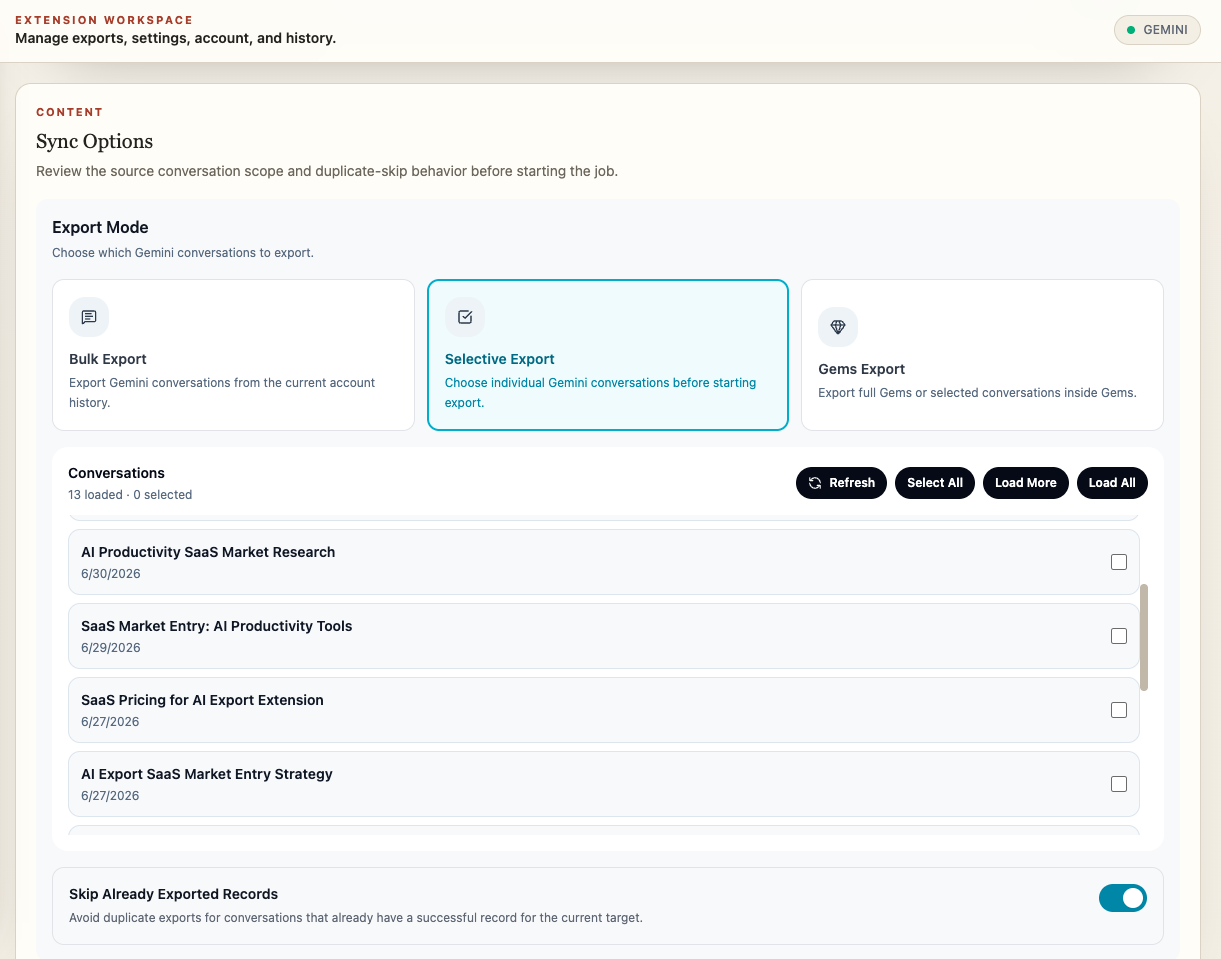
- Open AI Exporter Hub, select Gemini as the source, and choose Gems Export.
- Choose the Gem or its available conversations. Begin with one representative conversation.
- Select the destination and run the export. Keep the source tab connected during the job.
- Open the saved result and check the first and last messages, tables, code, and any important media before exporting the remaining conversations.
The screenshot above shows the Gemini export workspace, including Bulk Export, Selective Export, and Gems Export. More scope details are in the Gems and selective-export documentation.
If you only need Gemini, use the Gemini Export plugin comparison to choose an exporter for your destination. Markdown suits an editable Obsidian archive; PDF suits a readable handoff; Notion suits a searchable project database. Media support varies by plugin: the standalone Gemini to Notion plugin does not export images, so check the comparison before choosing it for image-heavy work.
Export scope: Gems export preserves available conversations and supported conversation assets. Save Gem instructions and original knowledge files separately. An export is not a promise that every Gem setting, source file, or future Skill behavior has been preserved.
Recreate one important Gem as a Skill before moving everything
Google’s Skills introduction describes reusable instructions that can be combined and used within chats. Rather than redesigning all your Gems at once, choose a frequently used one as a pilot.
Open its editor, keep a copy of its name, description, and instructions, and download its knowledge files. In Gemini, open Customize → Skills, create a Skill, and transfer the instruction fields. Google’s manual migration walkthrough explains how to download the new Skill’s ZIP, place its SKILL.md alongside supported reference files, and replace the Skill with the matching folder.
Follow the upload flow currently shown in your account. The Skills management guide documents file and folder requirements; a folder upload needs SKILL.md at its root and the prescribed lowercase, hyphenated naming.
File and workflow risks to check
Google’s transition notice sets a 100 MB total file limit per Skill. During automatic migration, oversized Gems lose the largest files first until they fit. Unsupported material—including GitHub files, audio, video, old Office formats such as .doc, and compressed archives—does not carry over. Save originals and check the current transition file rules rather than assuming every attachment moved.
Also test the task itself. The notice lists current gaps for features such as Canvas and Deep Research. A copied prompt is not enough to prove your old workflow still works.
Use your archive to verify the new Skill
These are our suggested acceptance checks:
- Compare the old and new instructions, including formatting rules and exceptions.
- Match file names and sizes against your saved inventory; open important files.
- Run a familiar prompt from an exported Gem conversation, then one edge case that previously needed correction.
- Check factual grounding and output structure instead of expecting identical wording.
- Keep the original archive until you have used the new workflow successfully in real work.
For example, a writing Gem might need a style guide, a required outline, and examples of approved articles. Preserve all three, then test whether the Skill applies the style and outline to a fresh brief. A readable transcript gives you a reference for that review without relying on memory.
Frequently asked questions
Do I have to migrate every Gem manually?
Google says it will migrate Gems automatically. Manual preparation lets you review important workflows and save material that may not transfer.
Can I export Gem conversations before migrating?
Yes. AI Exporter Hub includes Gems export and selection within a Gem. The Gemini Export page helps you choose a Gemini-focused exporter. Start with a small sample and verify the saved result.
Will removing Gems delete every Gemini conversation?
Do not interpret the Gem removal date as a blanket deletion notice for all Gemini chats. The transition guide says Skill chats appear in the side panel instead of a dedicated Gem-style recent-chat page. Save important work for independent access and easier retrieval.
Does exporting a conversation create a working Skill?
No. The exported transcript preserves past work; the Skill needs its instructions, supported files, and a successful workflow test. Use AI Exporter Hub or a Gemini exporter for the conversation archive, then complete and verify the Skill in Gemini.