
Your exporter finishes a bulk backup. The progress bar reaches the end. But one conversation you deliberately locked is absent from the archive.
That scenario is a reason to check the backup’s scope. It does not, by itself, establish a ChatGPT bug or an exporter failure.
OpenAI announced the gradual rollout of Locked Chats on October 20, 2026. For anyone who saves important AI conversations, the practical question is whether those conversations actually reach the backup.
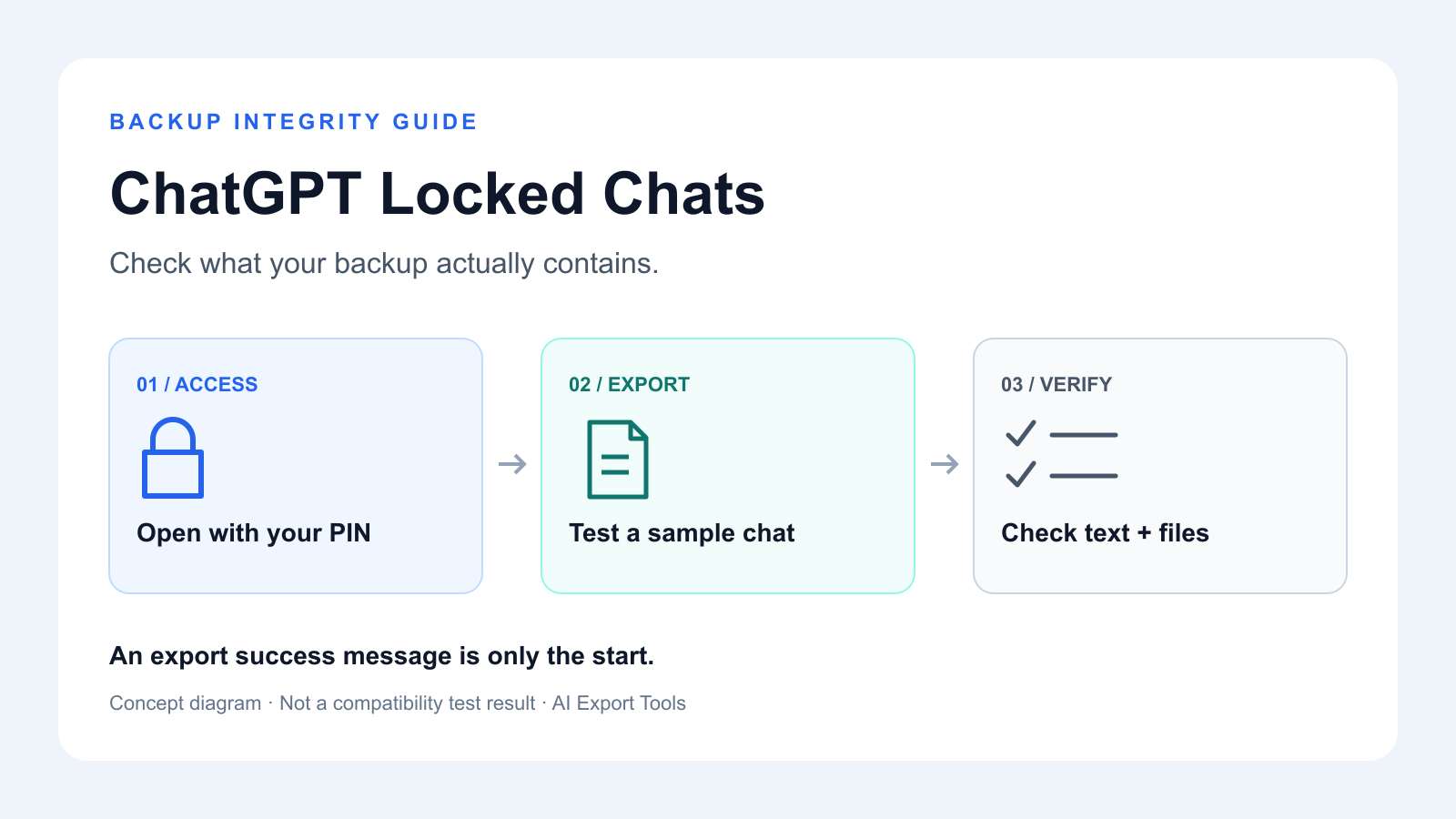
Start with a harmless sample, open it using your own authorization, test current-chat and bulk export separately, and inspect the resulting text and files. A completion message alone is insufficient evidence.
Sources checked November 3, 2026. This is a verification workflow, not a published compatibility test of AI Exporter Hub or another extension. The cover is a concept diagram.
What changes when a chat is locked?
Locked chats disappear from ordinary history and search. Opening one temporarily does not restore it to those lists. See OpenAI’s guide to finding chats.
This creates a possible discovery gap for tools that enumerate ordinary history. Whether a particular extension encounters that gap needs testing; the official documentation does not describe every exporter’s implementation.
Keep three distinctions in mind:
- PIN change versus reset: changing a known PIN preserves chats; resetting it deletes locked chats and memories stored only there.
- Opening versus permanent unlock: temporary access and returning a chat to ordinary history are different states.
- Locking versus revoking sharing: an existing shared link survives locking and must be deleted separately to revoke access.
These rules come from OpenAI’s Locked Chats documentation. Never reset a PIN as a backup test.
Protected files are another checkpoint: files uploaded or created in a locked chat are hidden from Library and available in their originating chat. PIN reset deletes files protected only by that PIN, and Support cannot recover the deleted content. See OpenAI’s file guidance.
Test a sample before trusting a large backup
Create a disposable conversation named Locked backup test 2026-11-03. Include a unique phrase such as backup-check-7Q4, a short code block, a table, and a small non-sensitive attachment. Keep your own copy of the attachment.
Record the browser and extension versions, date, export format, and expected messages and files. Use separate output folders for each stage so a previous copy cannot hide a missing export.
For the authenticated stages, open Projects → Locked chats, enter your own PIN or use supported device authentication, then select the sample. Run the current-chat test in that authorized tab. For permanent unlock, use the sample’s ••• → Unlock chat action; this is different from merely opening it. These controls are described in the official instructions.
| Test stage | Try | Evidence to record |
|---|---|---|
| Ordinary chat, before locking | Current-chat export and a small bulk job | A baseline containing the unique phrase, final reply, and expected formatting |
| Locked, without granting access | Inspect the exporter’s selection or scope | Whether the chat is absent, skipped, or explicitly reported as inaccessible |
| Locked, opened with your PIN | Current-chat export in the authorized tab | Whether the saved output contains the latest messages and expected files |
| Same temporarily opened chat | A separate small bulk job | Whether the job actually discovers and exports this chat |
| Permanently unlocked disposable sample | Repeat the baseline | Whether returning to ordinary history changes discovery |
These are test cases, not results. Only permanently unlock a sample you are comfortable returning to ordinary history. Do not weaken a sensitive chat’s protection just to make an exporter discover it.
If a tool cannot access the conversation, stop that attempt. Do not provide your PIN to an extension, copy session credentials, or try to bypass authentication.
Check the output, not just the export log
A useful integrity check has three parts:
- Discovery: is every conversation in your own expected inventory represented by an output file or destination page?
- Content: does each saved chat contain the unique phrase, beginning and final messages, code, and tables you expected? Where comparable message counts are available, check them too.
- Files: did you receive original attachments, previews, remote links, or filenames only? Record each category separately.
Open local documents without depending on the original ChatGPT tab. For Notion, inspect the destination page directly. A PDF showing an attachment’s name does not contain the original attachment. A Markdown image URL is not evidence that the image was downloaded.
For important originals, compare file size and, when possible, a checksum against your source copy. If the export only contains links, save the originals separately while you have authorized access and verify those copies.
Treat saved conversation text as a record of messages, not a backup or restoration mechanism for ChatGPT’s separate memory system.
Copy this backup record
| Conversation / test stage | Expected content | Saved text | Original files | Result / next action |
|---|---|---|---|---|
| Sample / PIN-opened | Unique phrase + final reply + 1 file | To inspect | To inspect | Unverified |
| Sample / bulk job | Same sample, separate output | To inspect | To inspect | Unverified |
| Important chat / chosen scope | Your own message and file inventory | To inspect | To inspect | Unverified |
Use verified, partial, missing, or unverified per item. Report verified conversations against the number you expected, not merely the number discovered by the exporter. If you cannot establish the total, say the overall coverage is unknown. Keep this inventory private; chat titles can contain sensitive information.
Where AI Exporter Hub and official export fit
AI Exporter Hub is an existing export option to evaluate. As of this guide, we have not established its Locked Chats support through hands-on testing. Current-chat export, automatic discovery of the locked list, bulk coverage, and original-file preservation remain separate checks. This article does not announce a new checker feature.
For a second backup route, eligible accounts can request an archive through Settings → Data Controls → Export Data, as described in OpenAI’s export instructions. Those instructions do not establish Locked Chats or protected-file coverage. Inspect the delivered archive against the same inventory; do not assume it fills every gap.
If you need to save an accessible conversation immediately and extension export fails, copy its readable messages into a local document and download available originals separately. Label any gaps. This preserves what you can verify without claiming a complete account backup or a way to restore data after PIN reset.
For ordinary export workflows, continue with ChatGPT to Markdown, ChatGPT to PDF, or the ChatGPT export options. Apply the same output checks to whichever format you choose.
Frequently asked questions
Does a successful bulk export prove that my locked chats are backed up?
No. Compare the exported conversations against your own inventory, then inspect the saved messages and original attachments. A job can succeed within a scope that excludes locked chats.
What should I do if a locked chat is missing from my backup?
Mark it as missing or unverified. While you still have authorized access, save the readable content and available original files separately, then verify those copies.