
One-Click & Open-Tabs Export
Save the active Claude conversation or sync several open Claude tabs to Notion
Use the popup for the fastest export paths: one active conversation or a group of Claude chats already open in Chrome.
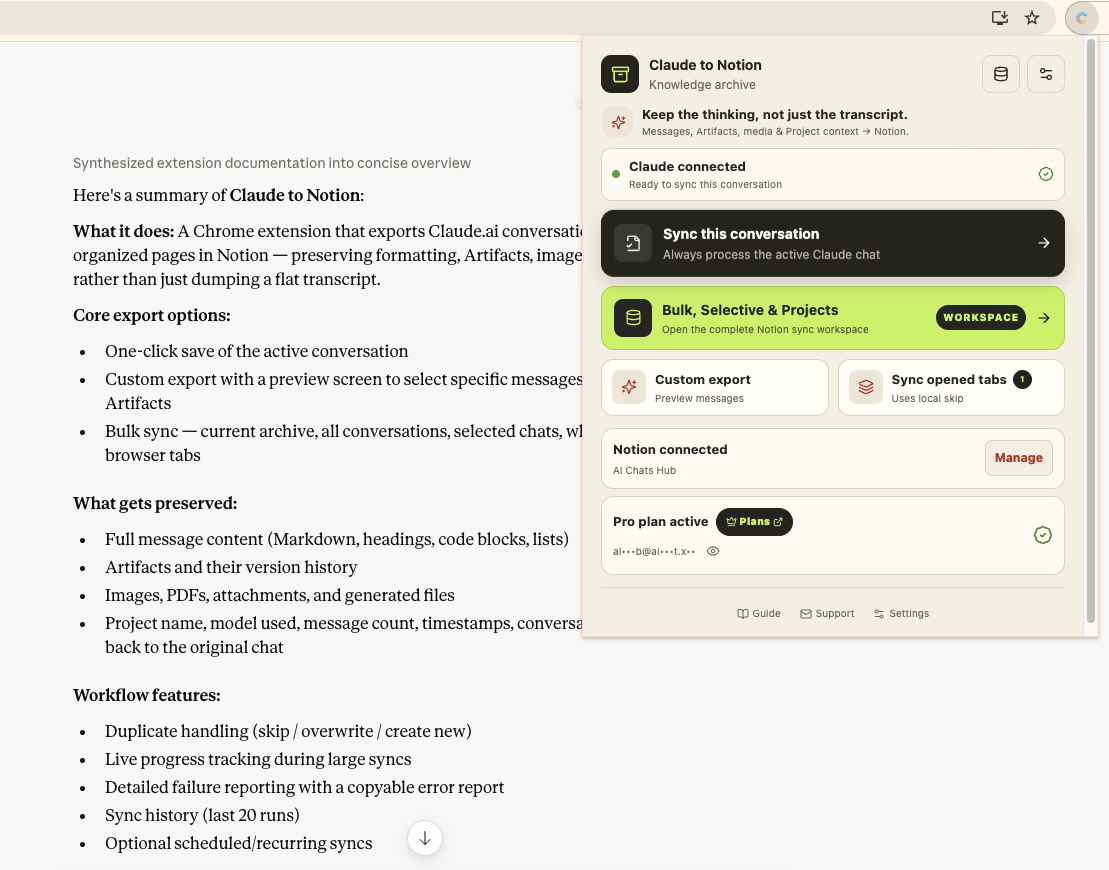
Save the active conversation
- Open the conversation at
claude.aiand wait for its content to finish loading. - Select the Claude to Notion icon.
- Confirm Claude connected and Notion connected.
- Select Sync this conversation.
- Follow the progress until the save completes.
- Open the resulting Notion page from the success link.
This route saves the complete active conversation using the destination and content preferences already configured in the extension.
Sync opened tabs
Use Sync opened tabs when a work session spans several Claude conversations:
- Keep every conversation you want to save open in the same Chrome profile.
- Open the extension popup from one of those tabs.
- Check the number shown beside Sync opened tabs.
- Start the run and keep the extension workspace open until it finishes.
Only valid Claude conversation tabs are processed. Other websites and non-conversation Claude pages are ignored.
What gets saved
Based on your content policy, the export can include:
- Complete user and Claude messages
- Markdown, headings, lists, links, and code blocks
- Artifact content and available version history
- Supported images, SVG, PDFs, attachments, and generated files
- Project, model, message count, timestamps, conversation ID, and source URL
When to use Custom Export instead
Choose Custom Export when you need to remove false starts, private details, repeated prompts, or selected Artifacts before writing the page to Notion.
Duplicate behavior
Opened-tab sync can use local sync tracking to avoid processing a known conversation again. The configured Skip, Overwrite, or New mode still controls what happens when an existing export is found in Notion.
For a set of chats that are not already open, use Selective Sync.
Ready to try Claude To Notion?
Open the product page for feature details, screenshots, pricing, and the Chrome Web Store install link.