
Connect Notion & Select a Database
Authorize Midjourney to Notion, share the intended destination, select a database, and let the extension prepare the required properties.
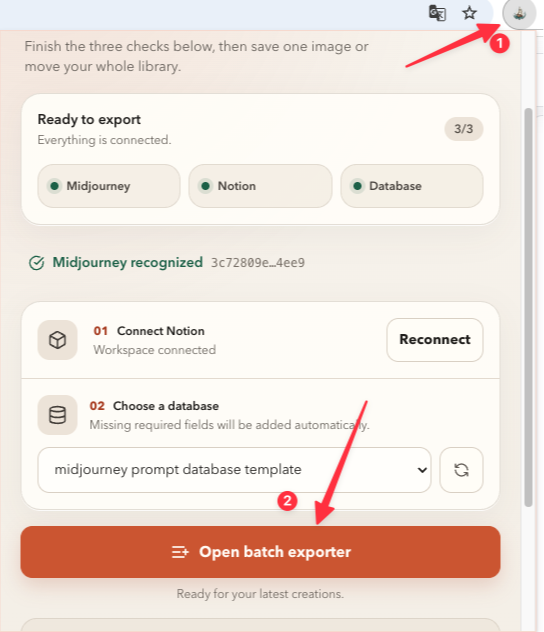
Connect the workspace
- Open the extension popup.
- Click Connect to Notion or Reconnect to Notion.
- In Notion, select the page or database the exporter may access.
- Confirm the authorization.
- Return to the popup and wait for the connection status.
The extension can only discover databases included in the Notion authorization. If a database is missing, reconnect and include it.
Choose the destination
- Open the database selector.
- Choose the database for the Midjourney archive.
- If the list is stale, use the refresh action beside the selector.
- Confirm the popup reports Database selected.
Automatic property preparation
Before export, the extension checks the selected database for the fields required by its current page structure. These fields support details such as:
- Prompt and attributes
- Midjourney version
- Source and media URLs
- Creation date
- Image and video information
You can add your own Notion properties, views, filters, and tags after the required fields are ready.
Troubleshooting
If Notion is connected but no database is available:
- Reconnect Notion.
- Include the exact database or its parent page.
- Refresh the database list.
- Select the database again.
After the destination is ready, continue to Batch Export.
Ready to try Midjourney To Notion?
Open the product page for feature details, screenshots, pricing, and the Chrome Web Store install link.