
Batch Export Perplexity to Notion
Use the v3.2 Batch Export page for history, Spaces, computer tasks, date filters, progress, failures, and export history
Batch Export is the full-page workspace for saving Perplexity data to Notion. It loads data through a signed-in, refreshed www.perplexity.ai tab.
Open Batch Export
Use either entry:
- Click Batch in the popup header.
- Click Open Batch Export in the popup.
- Open the extension’s Options page from Chrome.
Keep Batch Export open until a manual or scheduled run finishes.
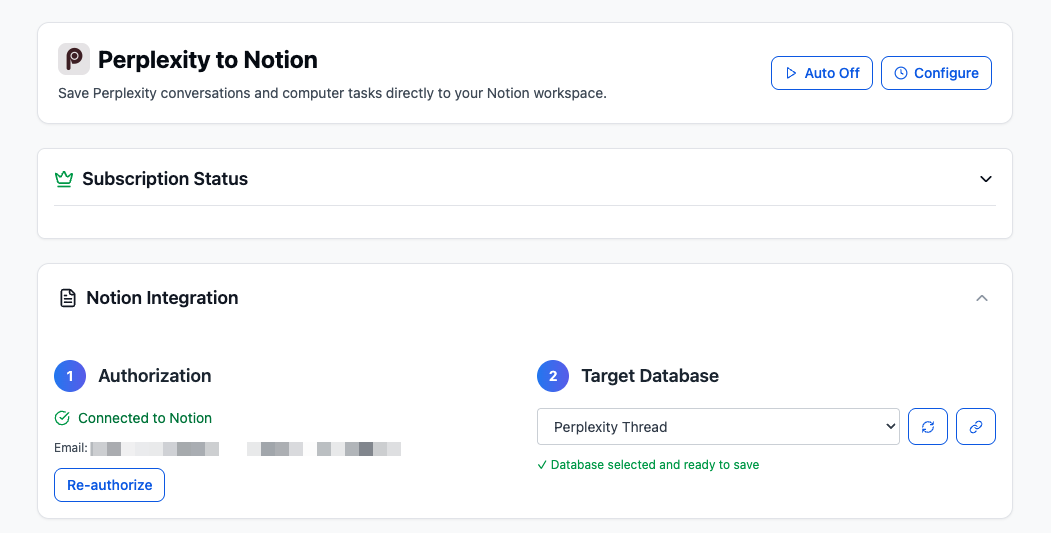
Batch Export provides Auto-Sync, subscription, Notion authorization, database selection, sync, and data-source controls.
1. Confirm Notion Integration
The Notion Integration card shows:
- Authorization status
- Notion email/workspace when available
- Re-authorize action
- Target Database selector
- Refresh database list
- Open selected database
See Connect Notion for the required database properties.
2. Choose Sync Configuration
Pages are matched by their Perplexity URL:
- Skip if exists: leave the existing Notion page unchanged.
- Overwrite if exists: move all matching pages to trash, then create the current export.
- Always insert new: create a new Notion page without checking for a match.
The separate Skip exported records option uses locally cached Perplexity IDs. Disable it before trying to overwrite or duplicate a locally recorded item.
Other controls:
- Enable metadata tracking
- Include Sources & Related Questions
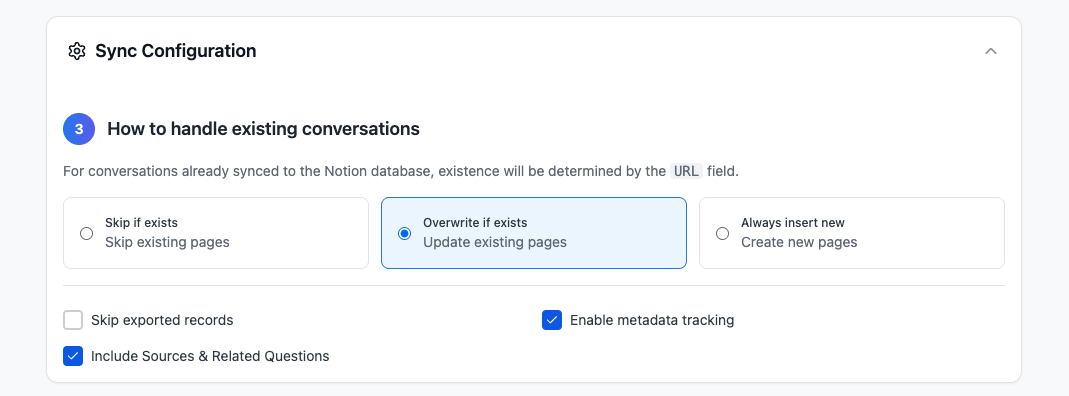
Choose a URL-based repeat-export rule separately from the local exported-record cache.
3. Choose a Data Source
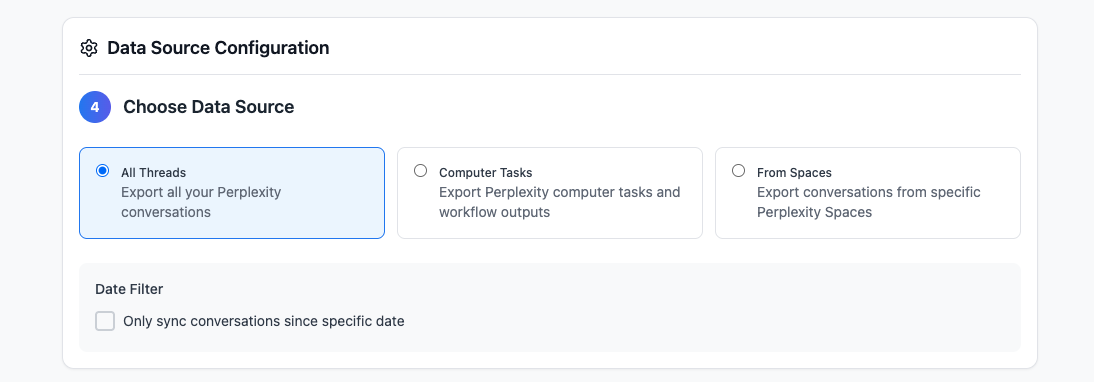
Batch Export supports regular threads, computer tasks, and one or more Perplexity Spaces.
All Threads
Loads normal Perplexity conversation history.
Computer Tasks
Loads Perplexity computer-task threads and workflow output. This mode uses the task-list endpoint and marks exported items with a Task tag.
From Spaces
Loads conversations from one or more Perplexity Spaces:
- Select From Spaces.
- Click Refresh.
- Select at least one Space.
- Load or export its conversations.
The extension paginates the user’s Space list and then loads each selected Space.
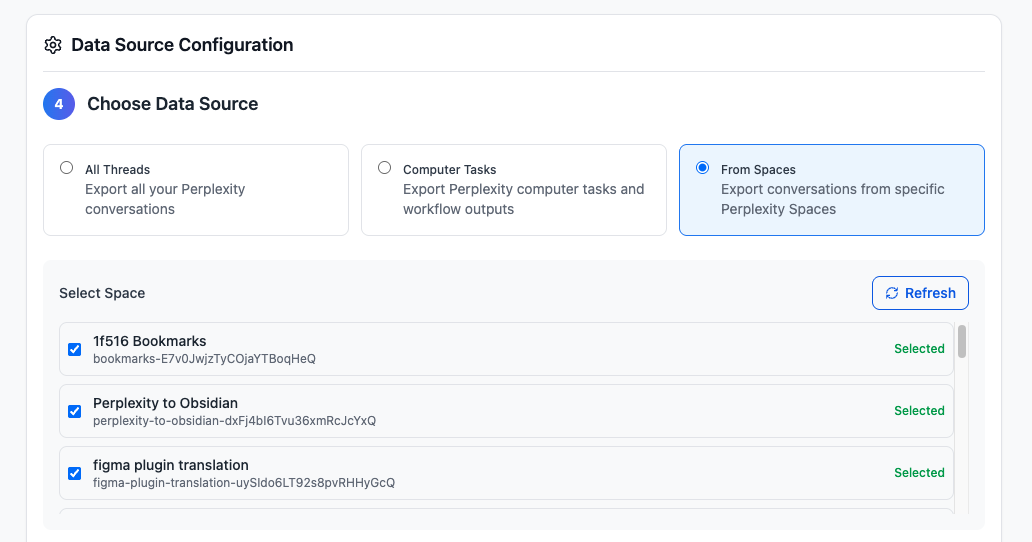
Space mode can load and export conversations from several selected Spaces.
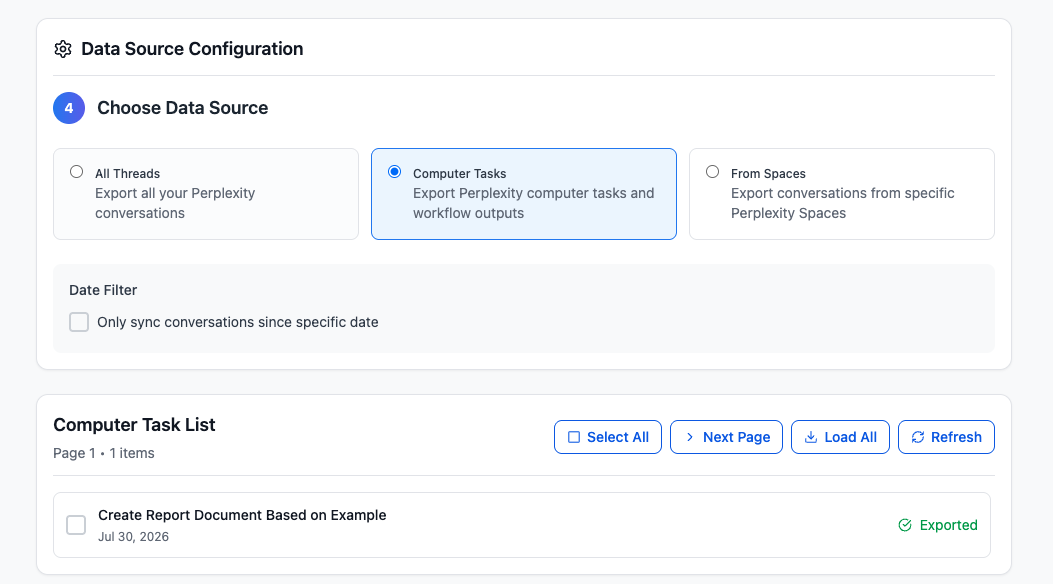
Computer Tasks uses its own loaded task list and records the local Exported state.
4. Apply the Date Filter
Enable Only sync conversations since specific date and choose a date. The filter uses each item’s last-activity timestamp and keeps items on or after that date.
The date filter is applied during export. The loaded list can still display older items, and the list shows date filter enabled (export only).
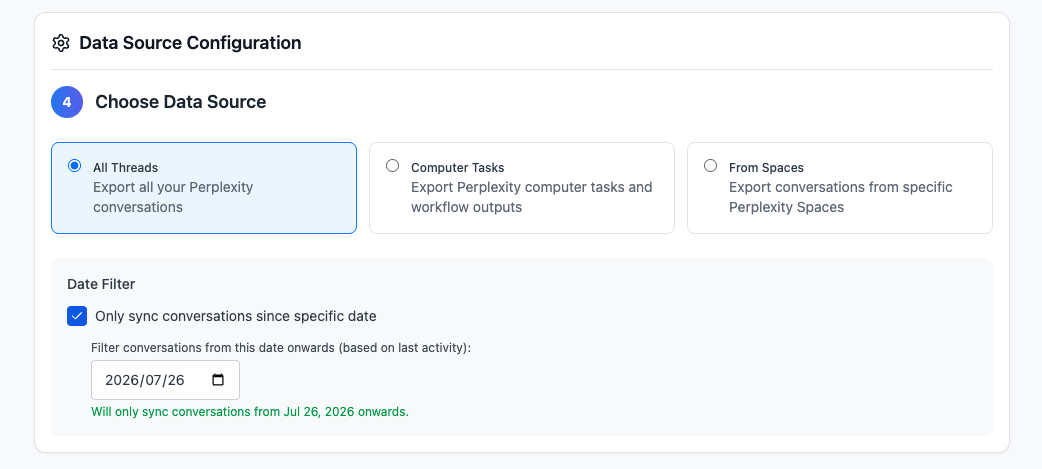
The date filter keeps items active on or after the selected date during export.
5. Load and Select Items
The list loads 20 items per page and provides:
- Select All / Deselect
- Next Page
- Load All
- Refresh
- Per-item checkbox
- Last activity date
- Space label when available
- Exported status for IDs in the local cache
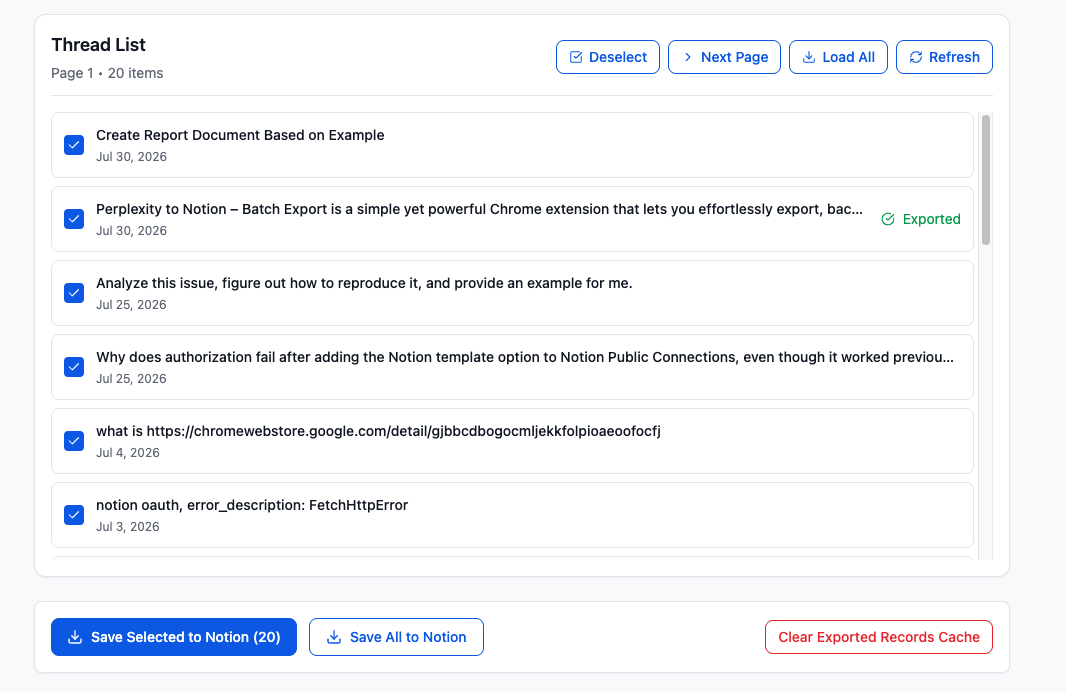
Select individual rows or use the list actions before starting the Notion export.
6. Start the Export
Save Selected
Choose rows and click Save Selected to Notion (N). Date filtering, local skip status, Notion URL behavior, and the free allowance are applied before export.
Save All
Click Save All to Notion to request pages until the selected data source returns no more items. Space mode processes every selected Space.
Free Limit
Free users can batch-save at most five successful items per day. If more are selected, v3.2 exports only the allowed first items and shows a warning. Premium removes the batch limit.
Progress and Cancellation
During export, the page shows:
- Processing count and percentage
- Current item title
- Status message
- Cancel
Cancellation takes effect between item operations. Completed pages stay in Notion, and the canceled run is added to history.
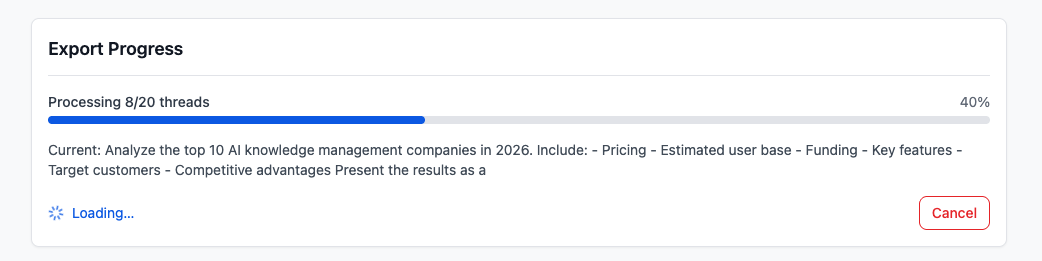
Export Progress shows the current item, completed count, percentage, status, and Cancel action.

A completed run reports the number of conversations successfully saved to Notion.
Export Failures
When failures exist, Export Failures shows:
- Title and abbreviated UUID
- Timestamp
- Fetch Failed, Notion API Error, or Unknown Error
- Error message
- Expandable Notion error details
- Download and Clear actions
Export History
History stores up to 50 recent runs in Chrome storage and records:
- Total, success, failed, and skipped
- Selected Items, All History, or Current Page scope
- Export Successful, User Cancelled, Free Limit Reached, or Auto Sync remark
- Duration
- Auto-Sync marker
- Date-filter count when applicable
Use Clear to remove history. Export JSON currently exports the extension’s stored configuration data in addition to history, so treat the file as sensitive and do not publish or send it without reviewing its contents.
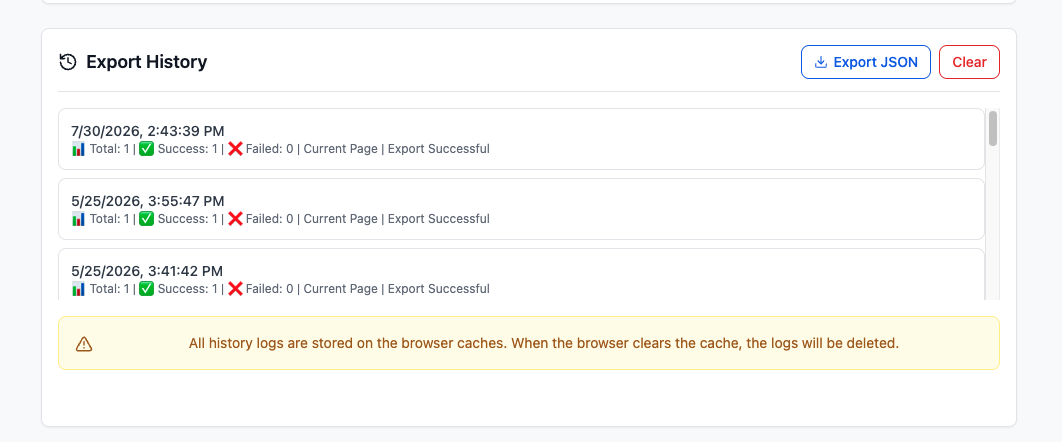
Export History records recent run counts and scope in local Chrome storage.
Clear Exported Records Cache
This action clears only the local exported-ID list. It does not delete Notion pages or export history. After clearing it, previously exported rows can be selected again.
Practical Defaults
For the first test:
- Data source: All Threads
- Date filter: recent date
- Sync rule: Skip if exists
- Skip exported records: On
- Include Sources & Related Questions: On
- Selection: one safe test item
For a repeated backup:
- Keep both skip layers enabled.
- Use a recent date.
- Review history and failures before clearing any records.
Ready to try Perplexity To Notion?
Open the product page for feature details, screenshots, pricing, and the Chrome Web Store install link.