
How to Export Grok to Obsidian as Clean Markdown
Export Grok conversations to Obsidian as clean Markdown with a practical vault structure, selective export workflow, image handling, and review checklist.
Guide summary
- Search intent
- High commercial intent: users want to export Grok chats to Obsidian as readable, local Markdown files.
- Best next step
- Export Grok to Obsidian
- Topics
- GrokObsidianMarkdownLocal ArchiveAI Export
The best way to export Grok to Obsidian is to save the conversation as clean Markdown into a vault structure that matches how you actually search and review notes later. Start with an inbox folder, keep generated images beside the note or in a shared images folder, and clean the note before it becomes part of your permanent vault. If the export is readable on day one, it stays useful months later.
Why Obsidian is a strong destination for Grok
Grok chats often contain fast research, idea maps, coding notes, and current-topic analysis. Those conversations become more useful when they live in a local note system where you control:
- file structure
- naming
- backlinks
- tagging
- offline access
- long-term ownership
That is why Obsidian is a better destination than a random downloads folder. It turns Grok output into part of a working knowledge base.
What a useful Grok-to-Obsidian export should preserve
For Obsidian users, success is not only “the file exists.” Success means the file can actually be read and linked.
At minimum, keep:
- a clear note title
- readable headings and lists
- message order
- code blocks
- generated images where relevant
- source URL or context
- export date
If the file is messy on arrival, it rarely becomes a good evergreen note later.
The best vault structure for Grok exports
A small amount of structure prevents future chaos.
Use something like:
AI Chats/
  Grok Inbox/
  Grok Evergreen/
  Grok Archive/
  Grok Images/
Grok Inbox
The landing zone for fresh exports. Do not link these notes into the rest of your vault until they pass a quick review.
Grok Evergreen
Cleaned notes with durable value:
- frameworks
- reusable research
- decision memos
- prompt patterns
- code explanations
Grok Archive
Useful but not central notes. Keep them searchable without letting them clutter active work.
Grok Images
If the conversation includes generated images, keep them in one predictable place or beside the note if your vault style prefers that.
Why Markdown is better than HTML for Obsidian workflows
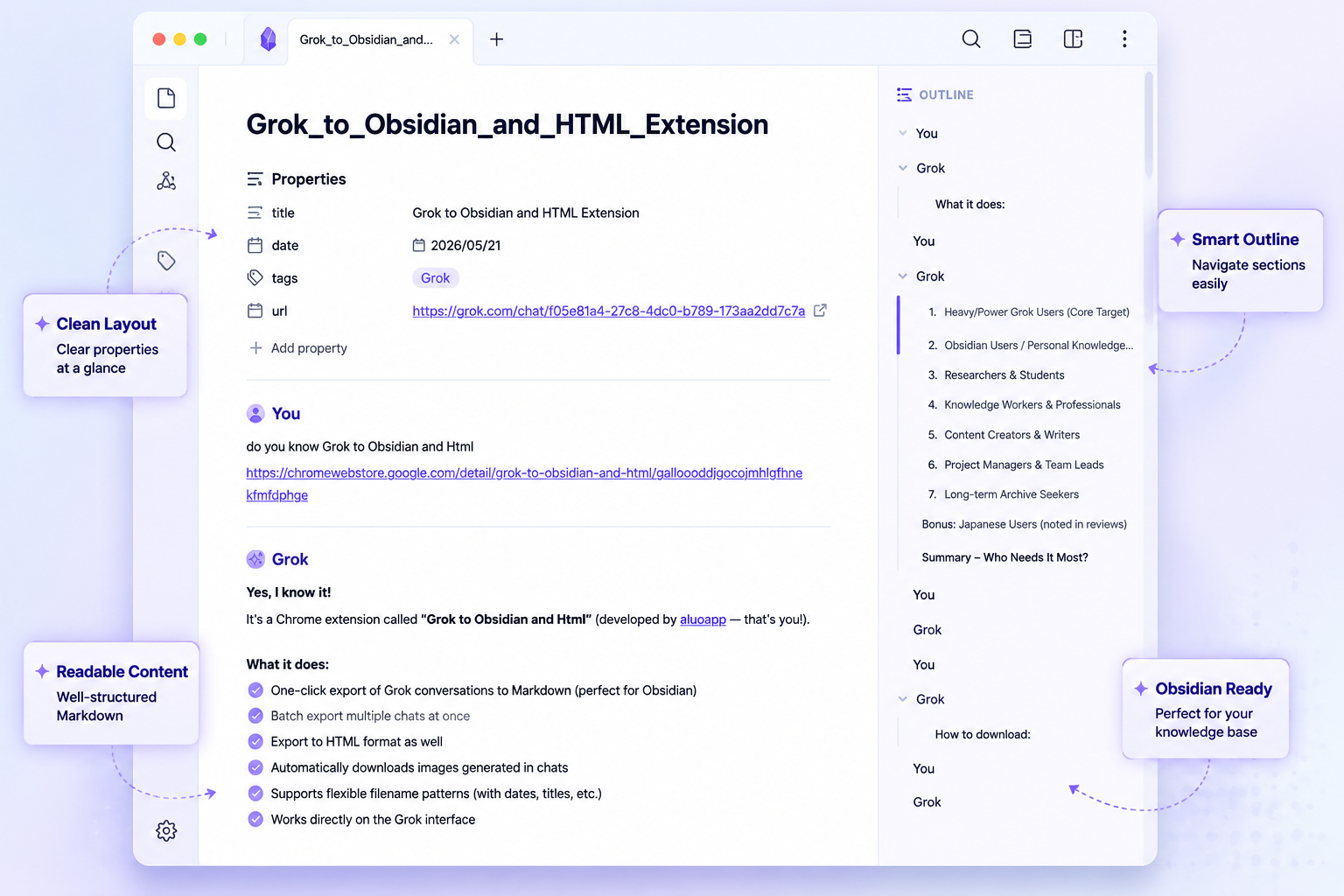
HTML can be a fine archive, but Obsidian works best when the note is native to your system.
Choose Markdown when you want:
- editing
- linking
- embedding
- graph connections
- future migration to another note app
Choose HTML only when you mainly need a readable static copy. For real PKM, Markdown is the stronger default.
Step by step: how to export Grok to Obsidian
1. Prepare an import folder first
Create a dedicated import folder before your first export:
AI Chats/Grok Inbox/
This matters because batch-exported files can become noisy if they land directly inside your main vault structure.
2. Export one representative Grok conversation as Markdown
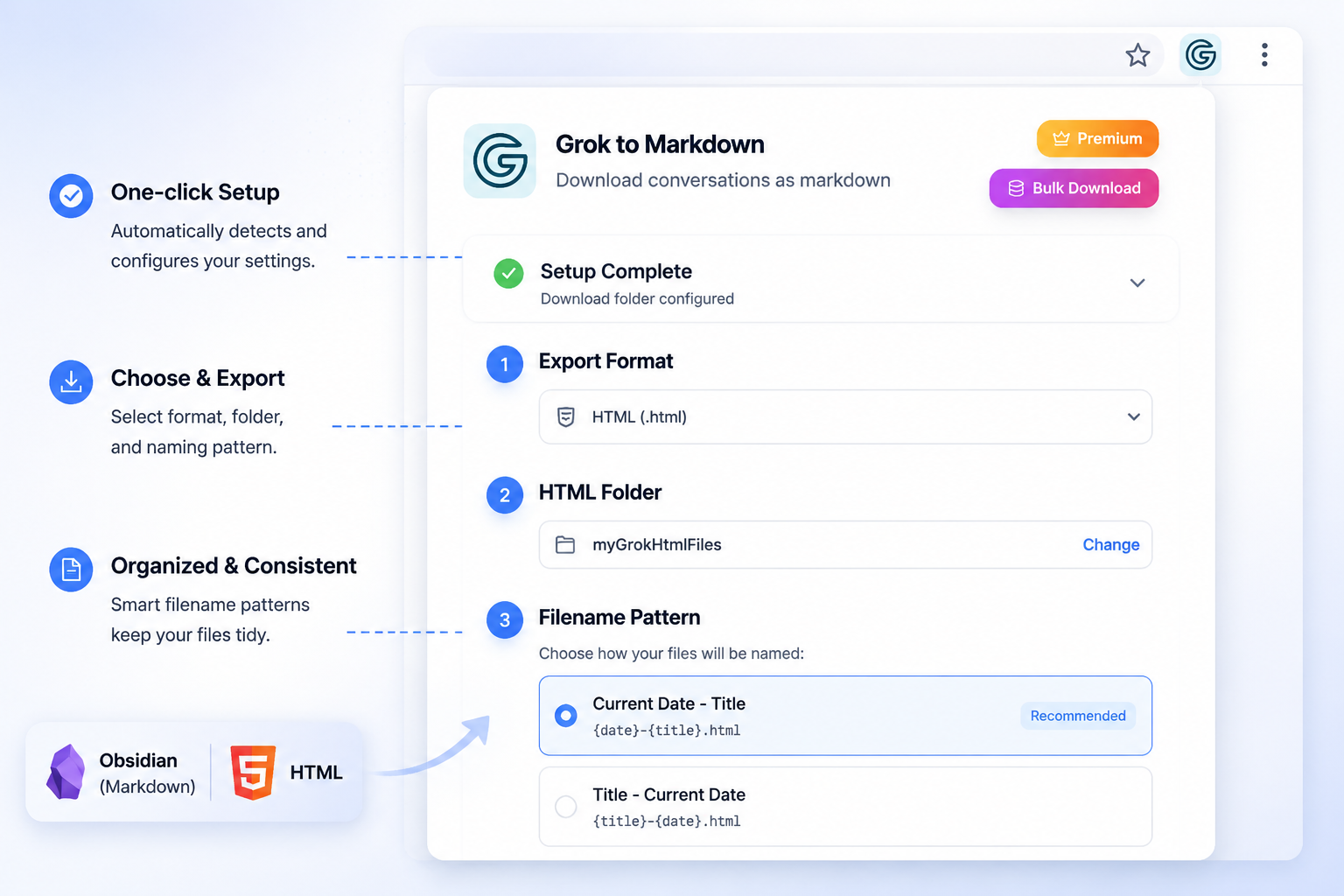
Use Grok to Obsidian and HTML and choose Markdown first.
The current product documentation describes support for:
- one-click export
- batch export
- selective export
- image downloading
- local-first storage
3. Inspect the note before importing more
Check:
- title clarity
- heading structure
- code block formatting
- image references
- conversation completeness
If you dislike the result from one sample, do not continue with a full batch yet.
4. Add lightweight frontmatter
Once the note lands in Obsidian, add minimal frontmatter if you use metadata:
---
source: grok
type: ai-chat
topic: research
exported: 2026-06-24
status: inbox
---
You do not need a complicated schema. A few stable fields are enough.
5. Trim the note into a usable shape
Not every exported message deserves permanent storage. During review:
- delete dead-end prompts
- keep the strongest answer blocks
- preserve the key reasoning and outputs
- move the final note to Evergreen or Archive
This is where selective export helps. If the tool already lets you choose only the useful messages, cleanup gets easier.
6. Handle generated images intentionally
The product page states that generated images can be downloaded with the export. Decide whether your vault should:
- store images in one shared folder
- keep images beside each note
Both can work. The important part is consistency.
A Markdown hygiene checklist for Grok exports
This is what makes the note durable.
Title hygiene
Avoid vague titles like:
- Grok chat
- ideas
- question
Use:
grok-market-map-ai-video-toolsgrok-pricing-research-competitor-notesgrok-code-debug-api-timeout
Structure hygiene
Keep:
- one H1 title
- logical H2 sections
- readable lists
- code blocks intact
Context hygiene
Preserve:
- source URL where available
- export date
- topic or project label
Volume hygiene
Do not dump every raw chat into the permanent vault. Inbox first, permanent folder second.
Batch export strategy for Obsidian users
Batch export is helpful, but only after you define review rules.
Use this sequence:
- Export a small batch.
- Review the best notes inside the inbox folder.
- Rename and clean the keepers.
- Move them to Evergreen or Archive.
- Delete or ignore low-value notes.
This is a better workflow than forcing every exported note into the same permanent folder.
Common Grok-to-Obsidian mistakes
Dumping notes straight into the main vault root
That makes cleanup harder and discourages review.
Keeping raw titles
Search quality gets much worse later.
Saving HTML when you really want a note
HTML is readable, but it is not the most natural format for Obsidian workflows.
Importing low-value chatter
A second brain filled with throwaway prompts stops being useful.
Ignoring images or attachments
If the conversation includes important generated visuals, keep them with the note.
When to use Notion instead of Obsidian
Obsidian is best when:
- you want private local files
- you care about Markdown portability
- you want note linking and editing
Notion is better when:
- you need team collaboration
- you want database filters
- you track review status or projects centrally
If the note needs shared workflow management, Grok to Notion may be the better path.
FAQ
Is Grok export to Obsidian the same as plain Markdown export?
In practice, yes. The Obsidian path is the Markdown export path, but the workflow matters because Obsidian users care about foldering, linking, and long-term note quality.
Should I keep a separate inbox for Grok notes?
Yes. An inbox folder makes it easier to review raw exports before they become permanent notes.
Can I export generated images from Grok into Obsidian too?
Yes. The product page states that generated images can be downloaded with the export, which is useful for image-heavy conversations.
Is batch export safe for an Obsidian vault?
Yes, if you review a small sample first and use an inbox workflow. It becomes messy only when raw batches land directly in permanent folders without cleanup.
When should I choose HTML instead of Markdown?
Choose HTML when you mostly want a readable archive. Choose Markdown when you want a real note you can edit, link, and reuse.
Final takeaway
Grok export to Obsidian works best when you treat the result like note intake, not like finished knowledge. This guide is deliberately narrower than a general Grok export overview: it focuses on Markdown hygiene, vault placement, and the review step that keeps local archives usable. Use Grok to Obsidian and HTML to get clean local Markdown, route exports through an inbox folder, keep images organized, and only promote the strongest notes into your long-term vault. That is what turns saved Grok chats into a usable second brain.