
Grok to Notion — Export & Backup Grok Chats
Export the current Grok chat, select specific messages, or back up conversations in bulk to Notion—with images, files, timestamps, and formatting kept together.
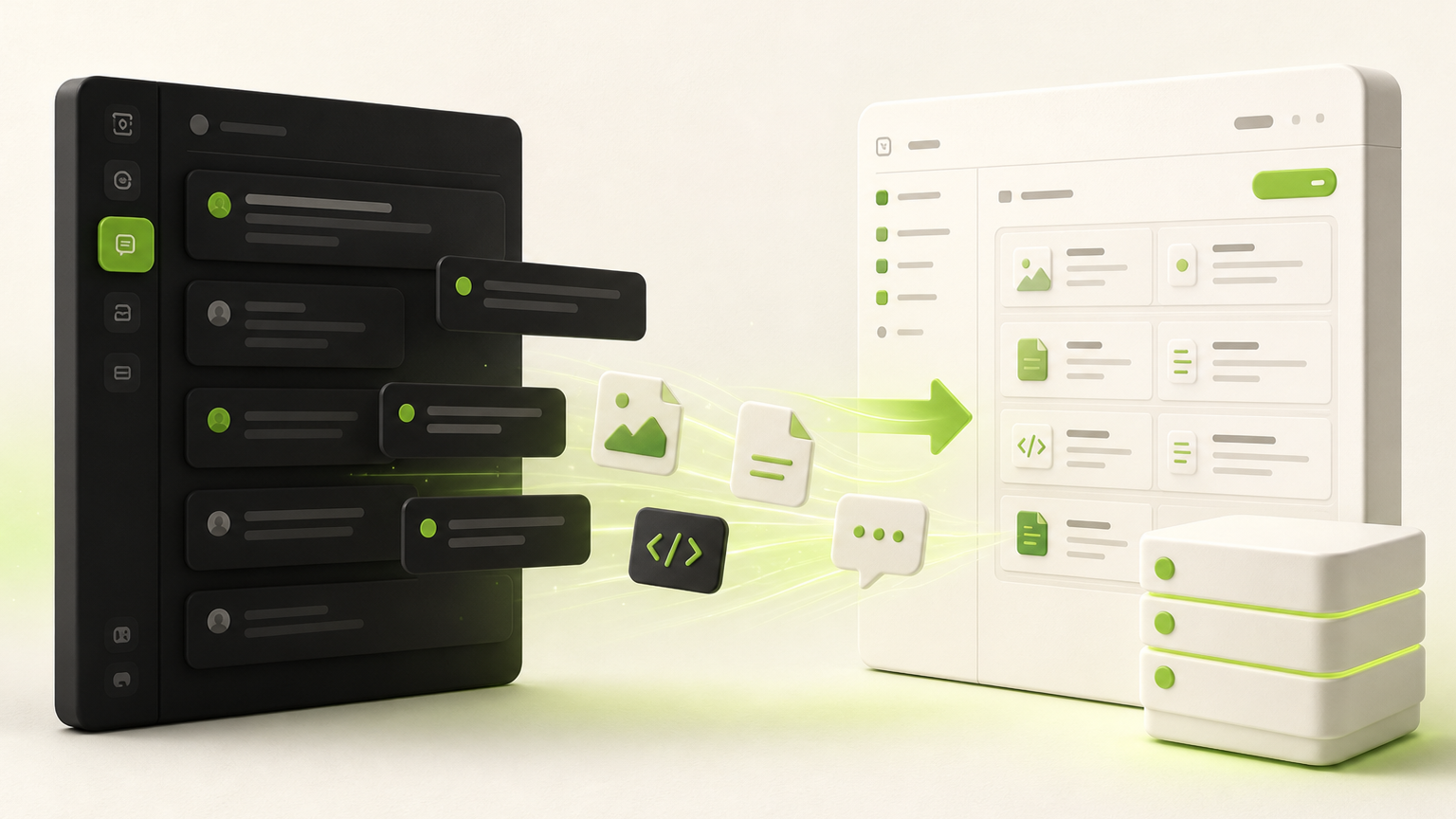
Version 4.0 turns Grok to Notion from a one-chat saver into a complete, reviewable backup workflow.
Compatibility matrix
What Grok to Notion — Export & Backup Grok Chats can export
A practical support table for real content types and destination behavior.
| Content type | Support | Export result | Notes |
|---|---|---|---|
| Prompts and Grok responses | Supported | Structured Notion page content in conversation order | Includes message roles and optional timestamps. |
| Markdown, lists, tables, and code | Supported | Converted into native Notion blocks | Formatting is normalized for Notion instead of pasted as one text blob. |
| Generated and uploaded images | Supported · opt-in | Native Notion image blocks at the original message position | Protected Grok images require explicit permission for a brief Chrome debugger attachment. |
| PDF attachments | Supported | Native Notion PDF block with filename | Subject to Notion's 20 MB direct-upload limit. |
| Markdown, HTML, and code files | Supported | Native downloadable Notion file blocks | Generated text files can use embedded content without an extra network download. |
| Grok Projects | Planned | Not available in version 4.0.0 | The Sync Center shows Projects as coming soon. |
Key Features
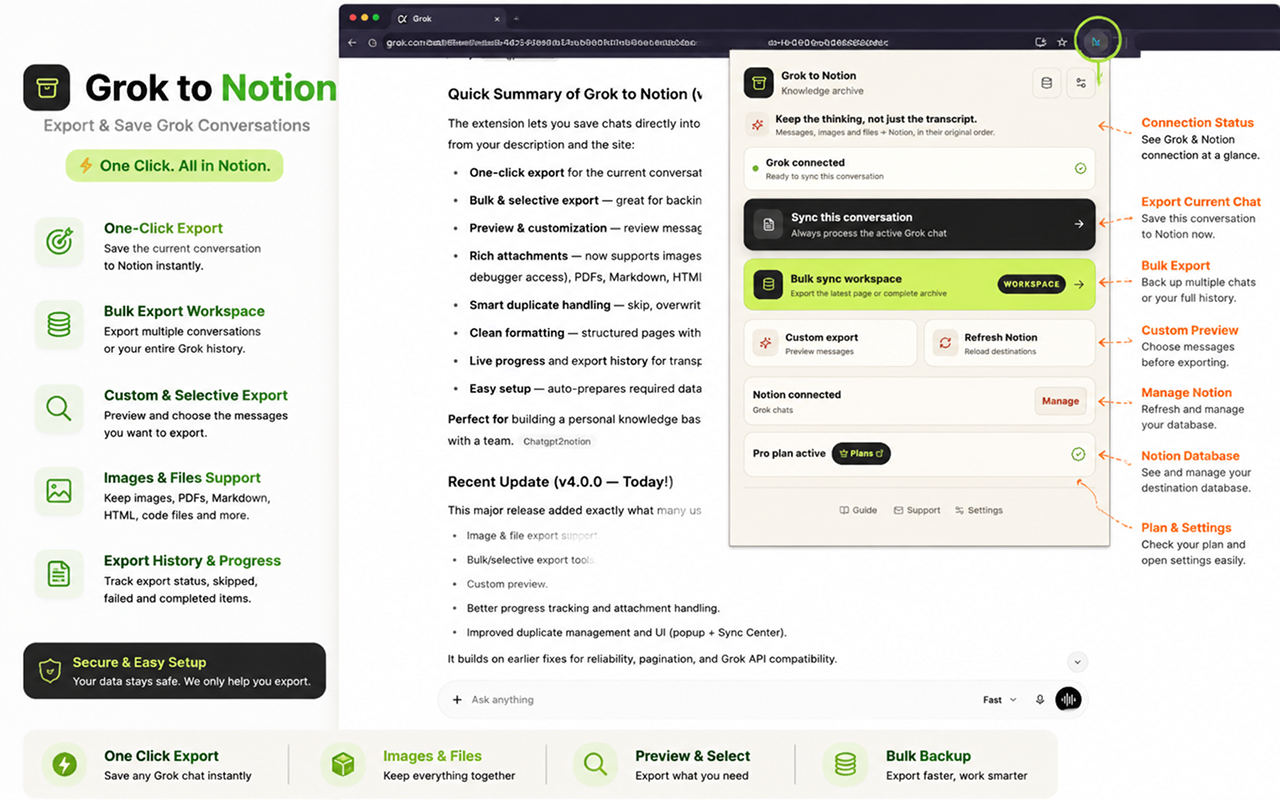
Export the chat already open in Grok
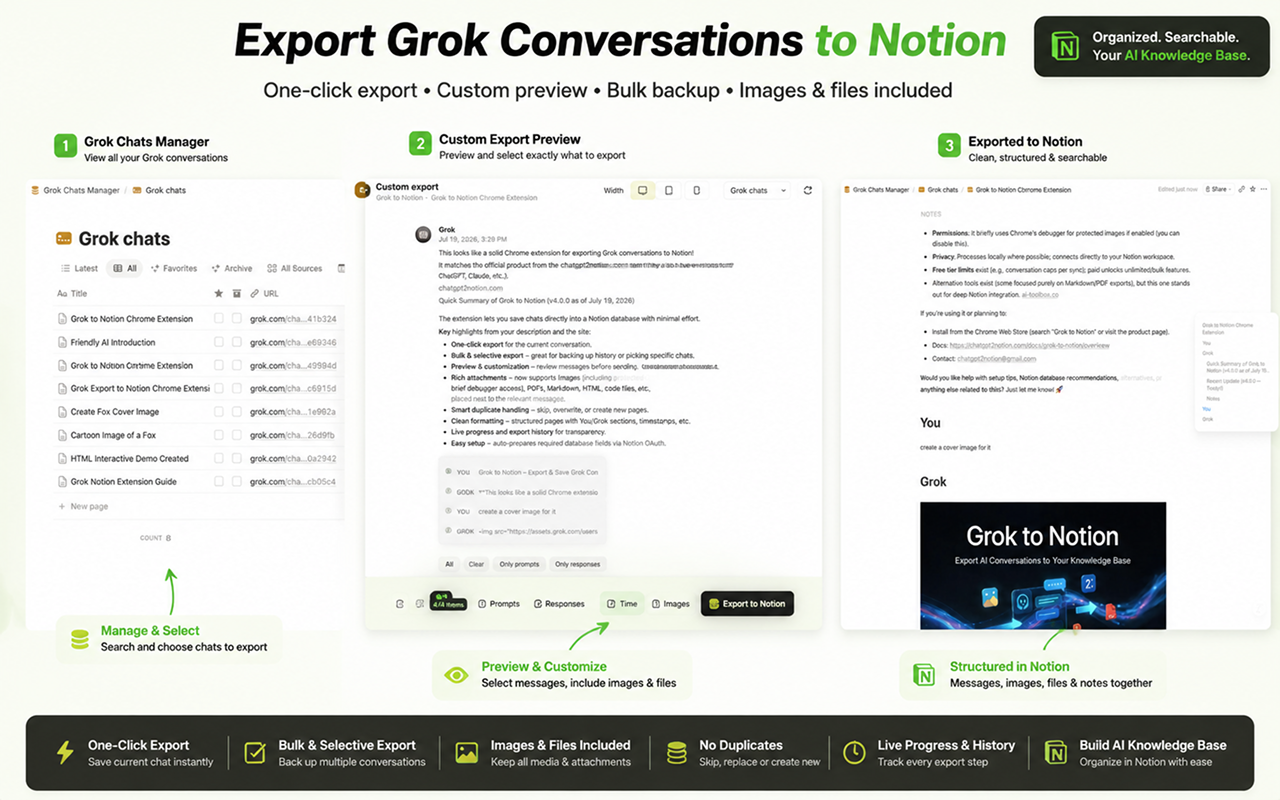
The redesigned popup confirms the Grok connection, shows the selected Notion destination, and lets you save the active conversation without leaving Grok.
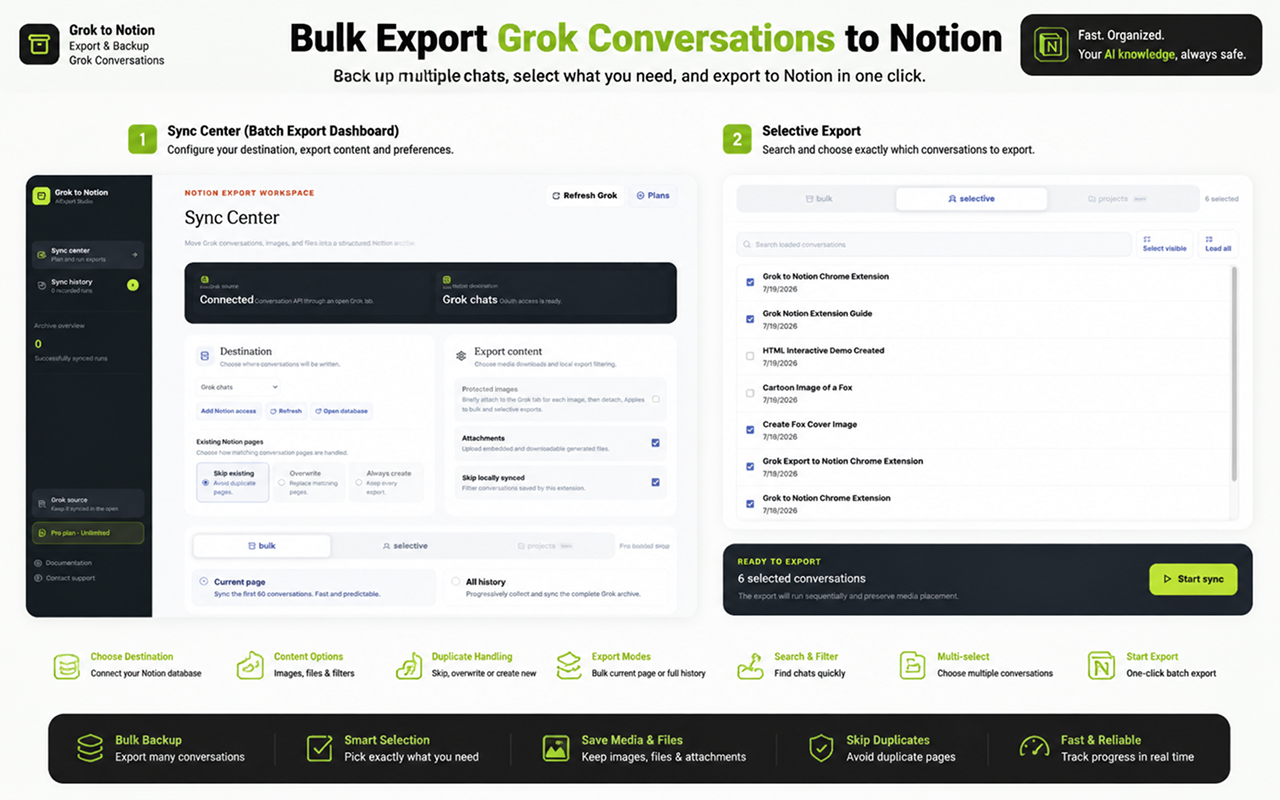
Back up history in bulk—or choose exact chats
Use Bulk mode for the first 60 loaded conversations or the complete paginated archive. Use Selective mode to search loaded chats, choose individual conversations, and export only that set.
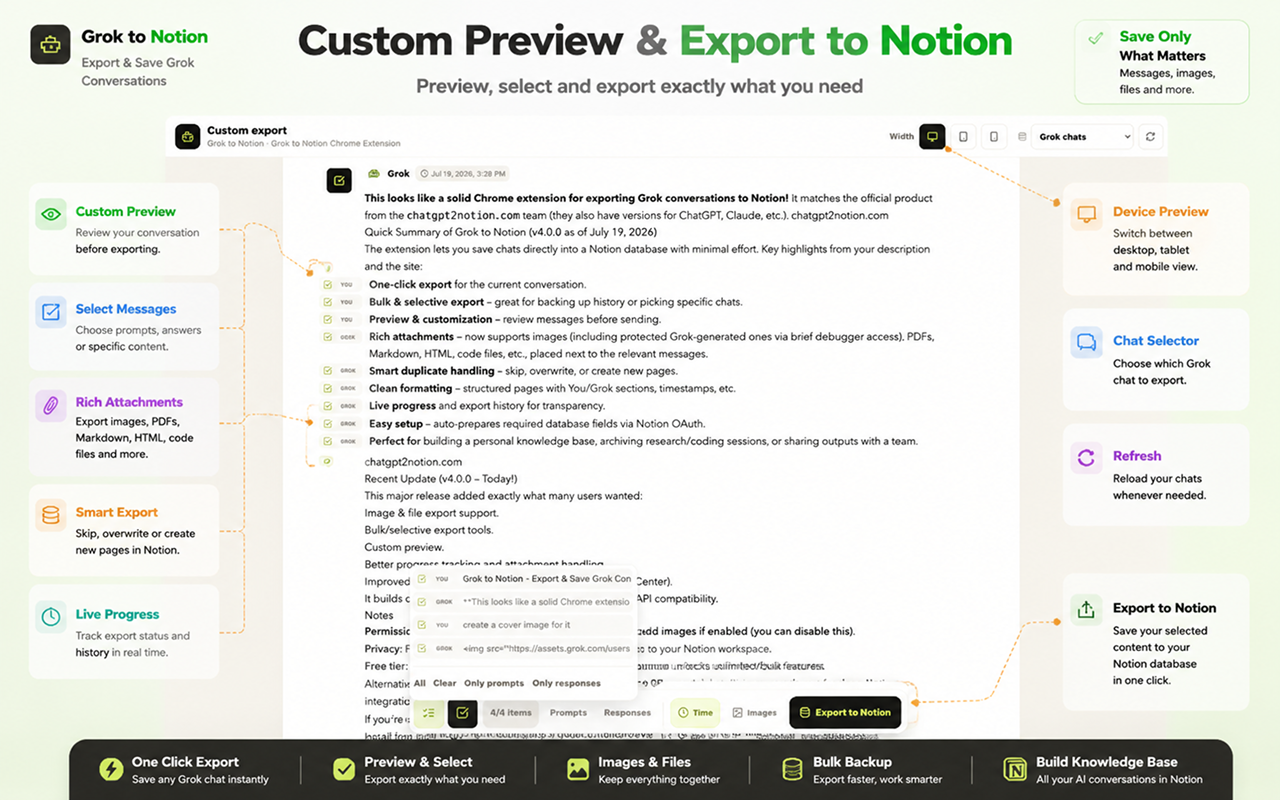
Preview and select messages before export
Open a full-page preview, switch between desktop, tablet, and mobile widths, keep only prompts or responses, toggle timestamps and protected images, then export the curated result.
Keep the conversation and its media together
Messages, generated images, uploaded images, PDFs, Markdown, HTML, code files, and other supported attachments are placed beside the message that produced them in Notion.
Built for complete, reviewable Grok backups
Keep message order, rich media, duplicate handling, and export status visible from Grok to Notion.
Images in context
Generated and uploaded images stay at their original message position instead of being collected at the bottom.
File uploads to Notion
Supported PDFs and regular files are uploaded with Notion's native file-upload flow, up to Notion's 20 MB direct-upload limit.
Conflict controls
Skip an existing page, replace the matching page, or always create a new copy for versioned archives.
Local duplicate filtering
Skip conversation IDs already recorded by the extension before a large export begins.
Live progress
Follow page creation, content processing, image capture, file upload, skipped chats, and failures as the export runs.
Export history
Review completed bulk and selective runs, including saved, skipped, and failed counts.
Automatic database setup
The connected Notion database is prepared with the fields the exporter needs for titles, source URLs, timestamps, and content.
Failure-safe media handling
If a media upload fails, the conversation still exports and an actionable warning is placed where the attachment belonged.
Known limits
Export boundaries and fixes
Clear limits build trust. These are the cases to check before running large exports.
Protected images are off by default
Some Grok-generated images cannot be downloaded with an ordinary browser request. The extension does not capture them until you explicitly enable Protected images.
After consent, Chrome briefly attaches its debugger to the open Grok tab for each protected image and detaches automatically.
Troubleshooting guideFiles larger than 20 MB cannot use direct upload
Notion's direct file-upload API rejects a single image or attachment larger than 20 MB.
Download the large file separately or reduce its size, then retry the conversation export.
Troubleshooting guideKeep Grok open during export
The extension reads conversations through an open grok.com tab. Closing or refreshing that tab can interrupt a running bulk export.
Keep both the Grok tab and Sync Center open until the run completes.
Troubleshooting guideHow it Works
Related resources Grok to Notion — Export & Backup Grok Chats
Use these guides and docs to solve common export, backup, and troubleshooting workflows.
What's New
Version 4.0.0: added image and file export, Bulk and Selective workflows, Custom Preview, live media progress, local export history, automatic Notion database setup, and a redesigned popup and Sync Center.
Updated Grok conversation loading for the new response-node and load-responses API flow, added conversation timestamps, and improved open-tab connection detection.
Frequently Asked Questions About Grok to Notion — Export & Backup Grok Chats
Have another question? Contact us on Discord or by email.
Can Grok to Notion export my complete conversation history?
Yes. Open Sync Center, choose Bulk, then select All history. The extension progressively loads the paginated Grok archive and exports each conversation to your selected Notion database.
Can I choose individual chats instead of exporting everything?
Yes. Selective mode lets you load conversations, search by title, select individual chats, and export only the selected set.
Can I export only part of one Grok conversation?
Yes. Custom preview lets you select individual messages or keep only prompts or responses before exporting. You can also toggle timestamps and protected images.
Does it export Grok-generated images and files?
Yes. Version 4.0.0 supports generated and uploaded images, PDFs, Markdown, HTML, code files, and other supported attachments. Protected images are optional and require explicit browser permission.
Why does Chrome mention debugger access?
Some protected Grok images cannot be retrieved with a normal request. If you enable Protected images, the extension briefly attaches Chrome's debugger to your open Grok tab while copying each image, then detaches automatically. The feature is off by default.
What happens if a file upload fails?
The conversation continues exporting. A warning with the attachment name and source link is inserted at the original media position so one failed file does not discard the whole chat.
How are duplicate Notion pages handled?
Choose Skip existing, Overwrite, or Always create. You can also enable the local-history filter to avoid processing conversation IDs already saved by the extension.
Is my conversation data stored on an intermediate server?
Conversation processing happens in the browser and export data is sent to the Notion workspace you authorize. Protected image capture is optional and operates on the open Grok tab only while the image is being copied.
Is there a free version?
Yes. The published version allows free users to export up to 5 conversations per sync. A paid plan removes the per-run bulk limit.
Back up more than one Grok chat at a time
The free plan supports up to 5 conversations per sync. Upgrade for unrestricted bulk and selective export runs.
View Grok to Notion Plans