
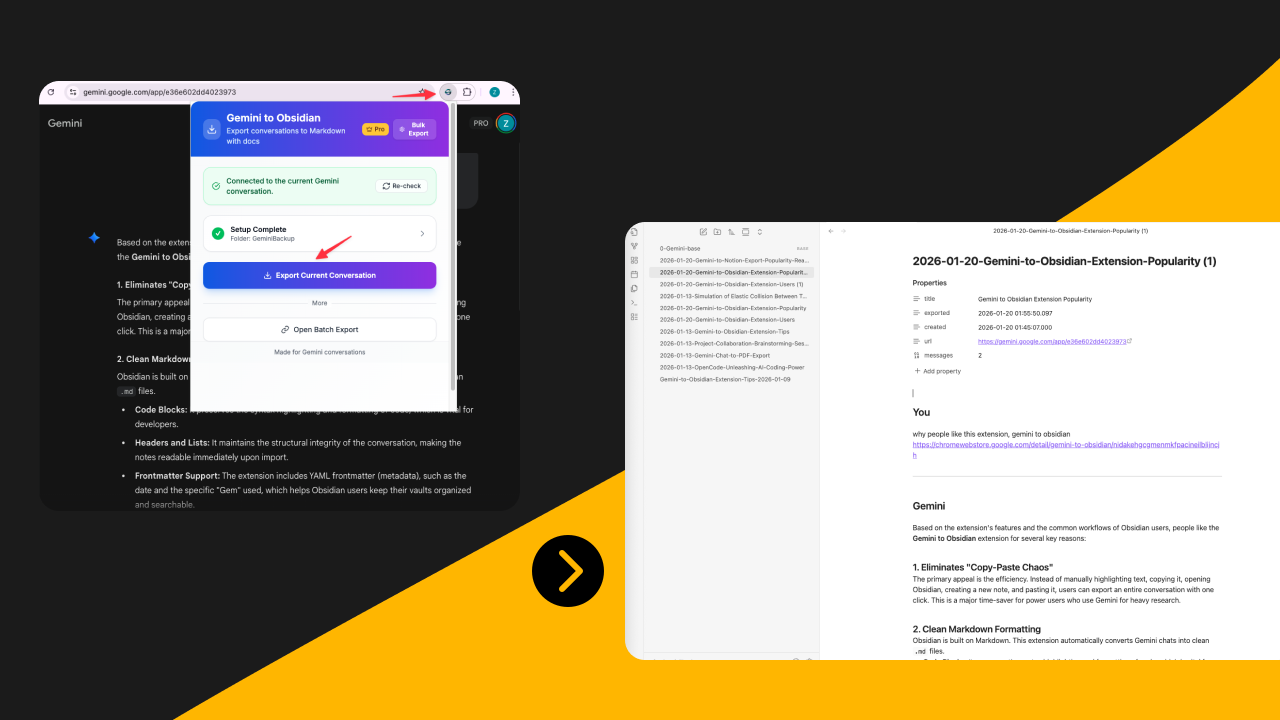
How to Save Gemini Gem Conversations to Obsidian
If you want to save Gemini Gems to Obsidian, export the Gem conversations as Markdown and give each note enough metadata to explain what the Gem was doing. Obsidian works best when Gem sessions become linked assets such as research notes, prompt references, decision logs, and reusable outlines. The goal is not to collect raw chats. It is to turn your best Gemini Gem runs into a searchable second brain that stays useful after the conversation ends.
Last tested: 2026-07-12
Why Obsidian is a strong destination for Gemini Gems
Gemini Gems often produce outputs that still need to evolve:
- research summaries
- content briefs
- study notes
- checklists
- comparison tables
Those are better as editable notes than locked snapshots. Obsidian is strong because it gives you:
- Markdown files you control
- links between related Gem runs
- frontmatter for filtering
- flexible folder structures
That makes it one of the best destinations for long-term Gem work.
Value block 1: use an Obsidian schema built for Gem outputs
The first strong value block is the schema. Do not just save the conversation as a file and move on.
Use a note template like this:
source_tool: gemini
artifact_type: gem_conversation
gem_name: research-memo-builder
task_type: vendor-comparison
topic: ai-export-tools
checkpoint: reusable
status: active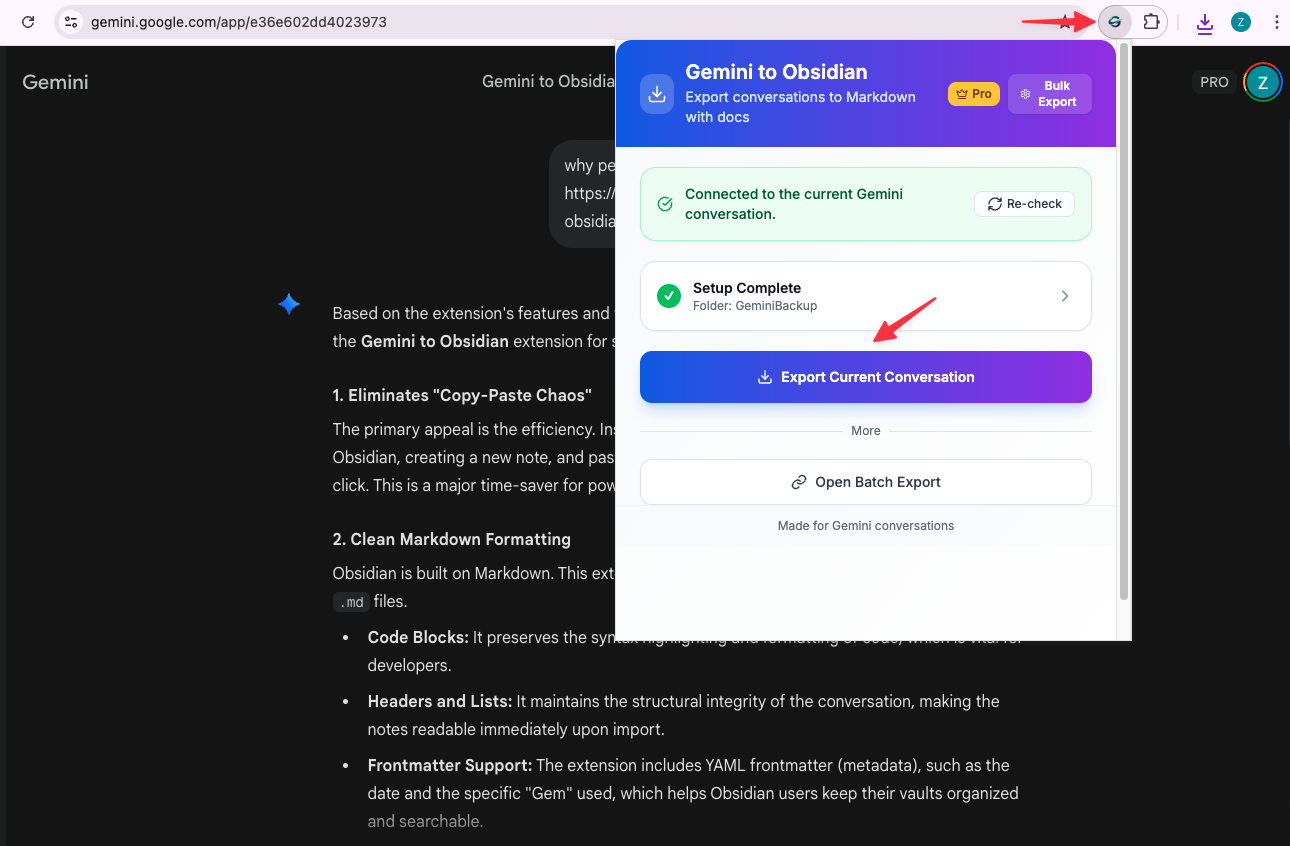
This metadata answers the questions you will ask later:
- Which Gem produced this?
- What kind of task was it?
- Is it still active?
- Is it a reusable reference?
Recommended note types
Create four note types:
Gem runsRaw but important exported conversations.Prompt referencesSmall notes that capture a reusable prompt pattern or benchmark request.Decision logsNotes for conclusions, tradeoffs, or selected actions.Project assetsPolished outputs such as briefs, plans, or outlines.
That taxonomy keeps the vault navigable.
How to export Gemini Gem conversations to Obsidian
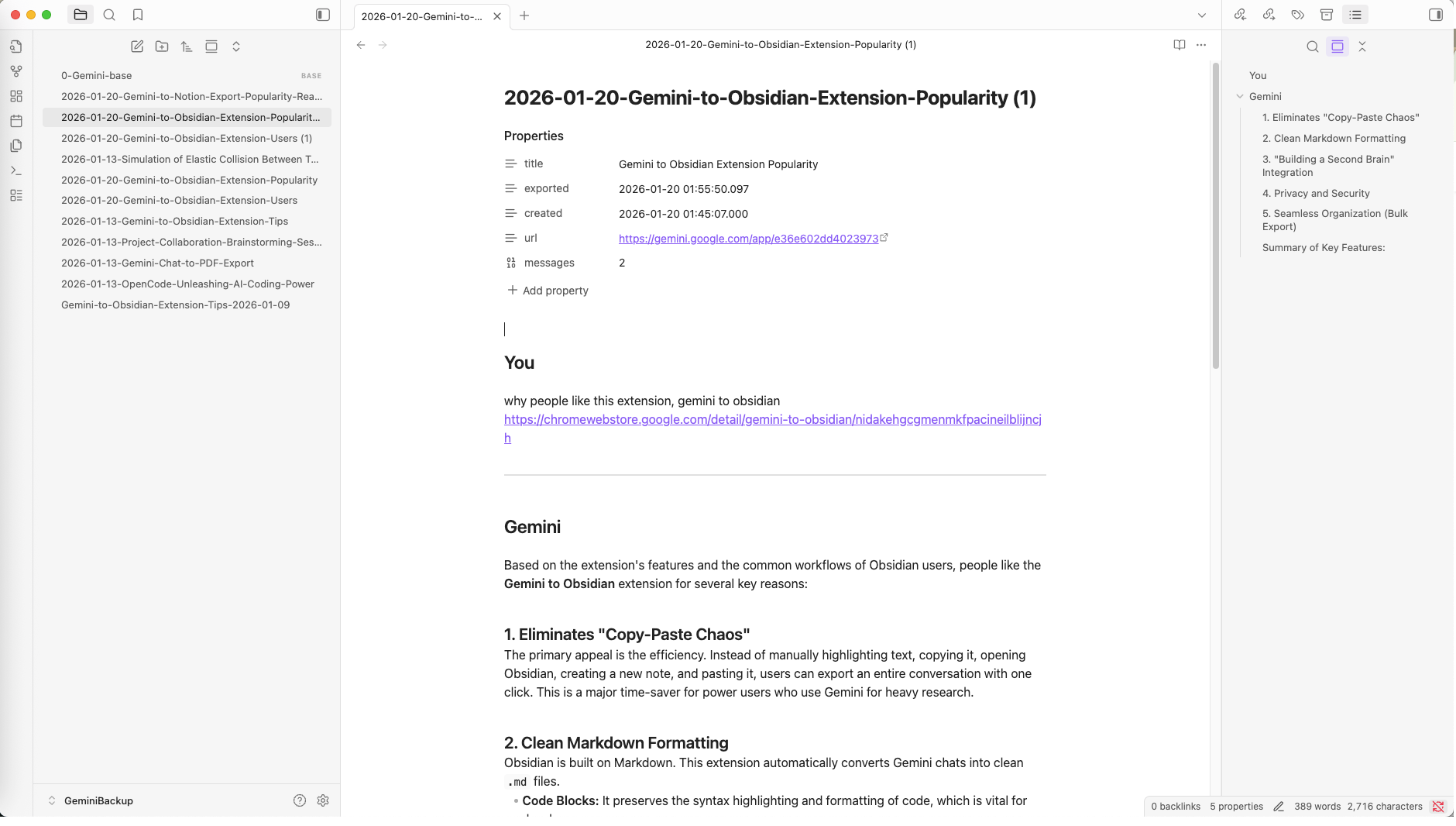
Use Export Gemini to Obsidian when you want Gemini and Gem conversations turned into clean Markdown files. For a broader destination comparison, read How to Export Gemini Chats to Notion, Obsidian, or PDF or the focused Export Gemini Chats to Obsidian Markdown.
Use this workflow:
- Run the Gem until the output is worth keeping.
- Confirm the task type and topic.
- Export the conversation as Markdown.
- Add frontmatter if needed.
- Link the note to a project, prompt reference, or decision log.
Value block 2: turn Gem sessions into linked second-brain assets
The second strong value block is the post-export workflow. A Gem conversation becomes much more valuable when it links to other notes.
Link exported Gem runs to a project note
If the Gem helped with a larger project, connect the exported conversation to the project home note.
Example:
Project: AI Export Hub SEO
Linked notes:
- research memo
- competitor comparison
- content outline
Link benchmark prompts to the best outputs
If one prompt pattern consistently creates good Gem results, make that a reusable note and connect it to the strongest exported examples.
Promote final conclusions into decision logs
Do not leave important recommendations hidden in a long transcript. Create one short decision note and link back to the source conversation.
A folder structure that scales
Use something like:
Gemini/
  Gems/
    Runs/
    Prompt-Refs/
    Decisions/
    Assets/
This is simple enough to maintain and clear enough to search.
When Obsidian is better than Notion or PDF
Choose Obsidian when:
- you want local Markdown
- the output will keep evolving
- the conversation should connect to other notes
- your second brain already lives in Markdown
Choose Notion instead when the output needs status or team-facing database properties. Choose PDF instead when the result is final and ready to share.
Common mistakes when saving Gemini Gems to Obsidian
Treating the note as a dead transcript
The note should become a living asset. Add links, tags, and follow-up context.
Skipping frontmatter
Without metadata, Gem runs become hard to filter and compare later.
Saving too many low-value conversations
Keep the vault selective. Save the sessions that become references, decisions, or reusable assets.
Not separating note types
If raw exports, final documents, and prompt snippets all live in one flat folder, retrieval gets messy quickly.
A practical example
Imagine a research Gem that compares export tools. One Gem session produces:
- a comparison table
- open questions
- a recommendation
In Obsidian, you could:
- save the full conversation in
Runs/ - create a short prompt note in
Prompt-Refs/ - create one decision note in
Decisions/ - turn the best summary into a polished note in
Assets/
Now one conversation becomes four reusable knowledge objects.
A repeatable review loop for Gem notes
The most reliable workflow is to keep the first export deliberately small. Export one representative Gem run, open the Markdown file in Obsidian, and check the title, headings, code blocks, links, and any generated images before exporting a larger group. This sample-first approach catches a bad folder choice or an unwanted filename pattern while the correction is still easy.
Use the following review loop for every batch:
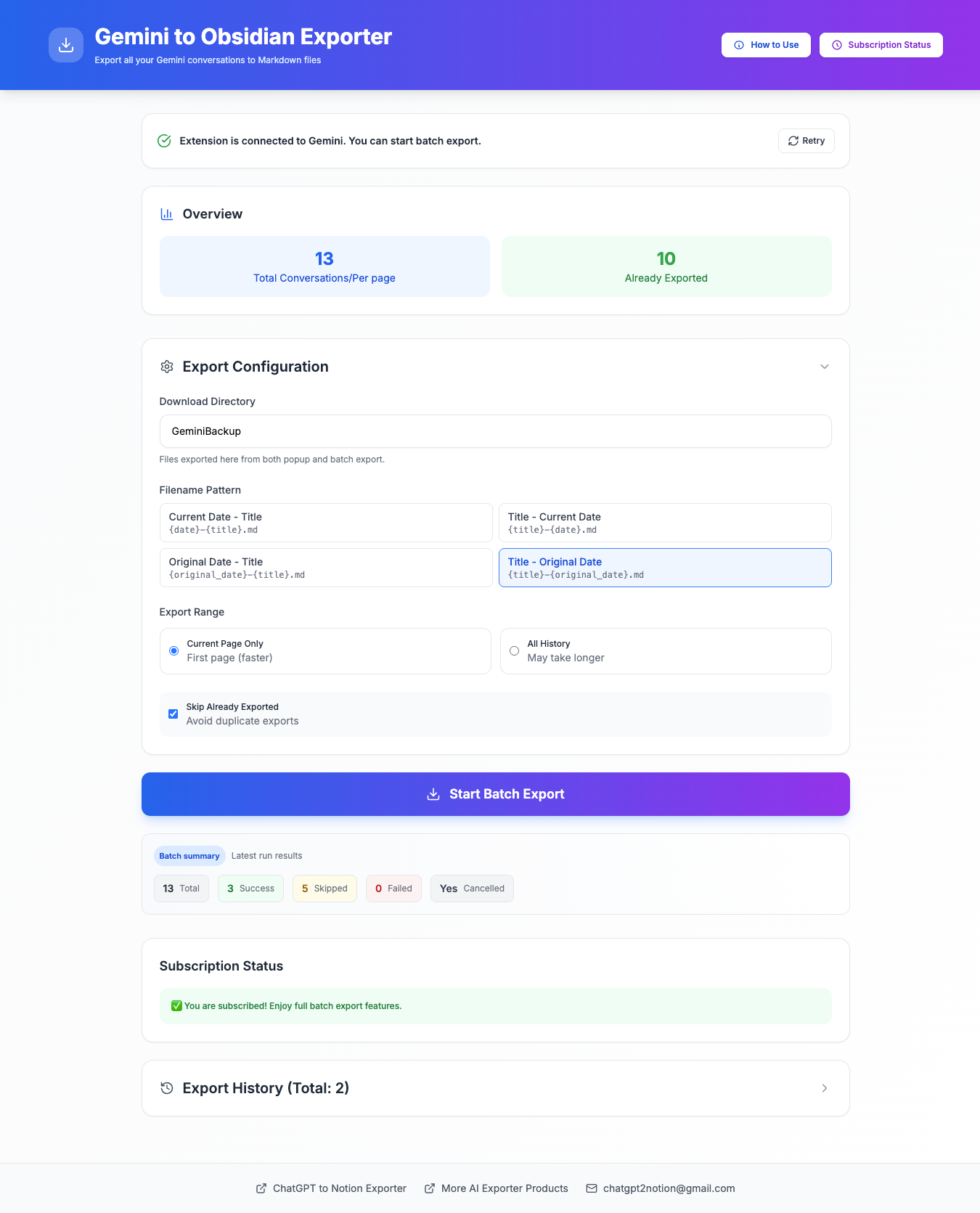
- Capture: export the selected Gem conversations into
Gems/Runs/. - Verify: open a sample note and confirm that the conversation is complete and readable.
- Classify: add the Gem name, task type, topic, and status to frontmatter.
- Link: connect the run to a project note, prompt reference, or decision log.
- Promote: move only the reusable output into
Assets/and leave the raw run available for context.
This keeps the vault useful without forcing every Gem session into a polished note. It also creates a clear boundary between an export that is preserved for evidence and an output that has been reviewed enough to guide future work.
If a run contains sensitive research, keep the local vault folder protected and avoid putting private source material into a public note or shared workspace. Obsidian gives you local file control, but the security of the vault and its sync provider still depends on how you configure them.
FAQ
Can Gemini Gem conversations be saved to Obsidian as Markdown?
Yes. Treat the Gem run as a Gemini conversation export and save it as Markdown, then add metadata so the note remains understandable later.
What metadata should I include?
At minimum: Gem name, task type, topic, checkpoint, and status.
Is Obsidian better than Notion for Gemini Gems?
Obsidian is better for editable local Markdown and linked note systems. Notion is better for searchable database workflows and team-level tracking.
Should I save every Gem run to Obsidian?
No. Save the runs that become references, reusable outputs, or decision evidence.
What is the biggest advantage of Obsidian for Gemini Gems?
You can turn exported Gem conversations into linked notes rather than leaving them trapped inside a chat interface.
Gemini Gems become far more useful when their best runs enter a note system that supports linking, metadata, and reuse. Save the right conversations, give them a clear schema, and promote the strongest parts into project assets. If your second brain is built on Markdown, Export Gemini to Obsidian can help move selected Gem conversations into a vault format that stays usable long after the original chat is gone. Use the product page to verify the current export options before a large batch.