
Custom Export Preview
Preview a ChatGPT conversation, select individual prompts or responses, control chat-time display, and save the selection as Markdown
Custom Export Preview opens a local extension page where you can review a conversation before downloading it.
Open Custom Preview
- Open a specific ChatGPT conversation.
- Open the ChatGPT to Obsidian popup.
- Click Custom Preview.
- Wait while the extension loads the conversation into a new tab.
Custom Preview works with standard ChatGPT conversations and Group Chats. If you are on the ChatGPT home page instead of a specific conversation, the popup asks you to open a conversation first.
Preview Layout
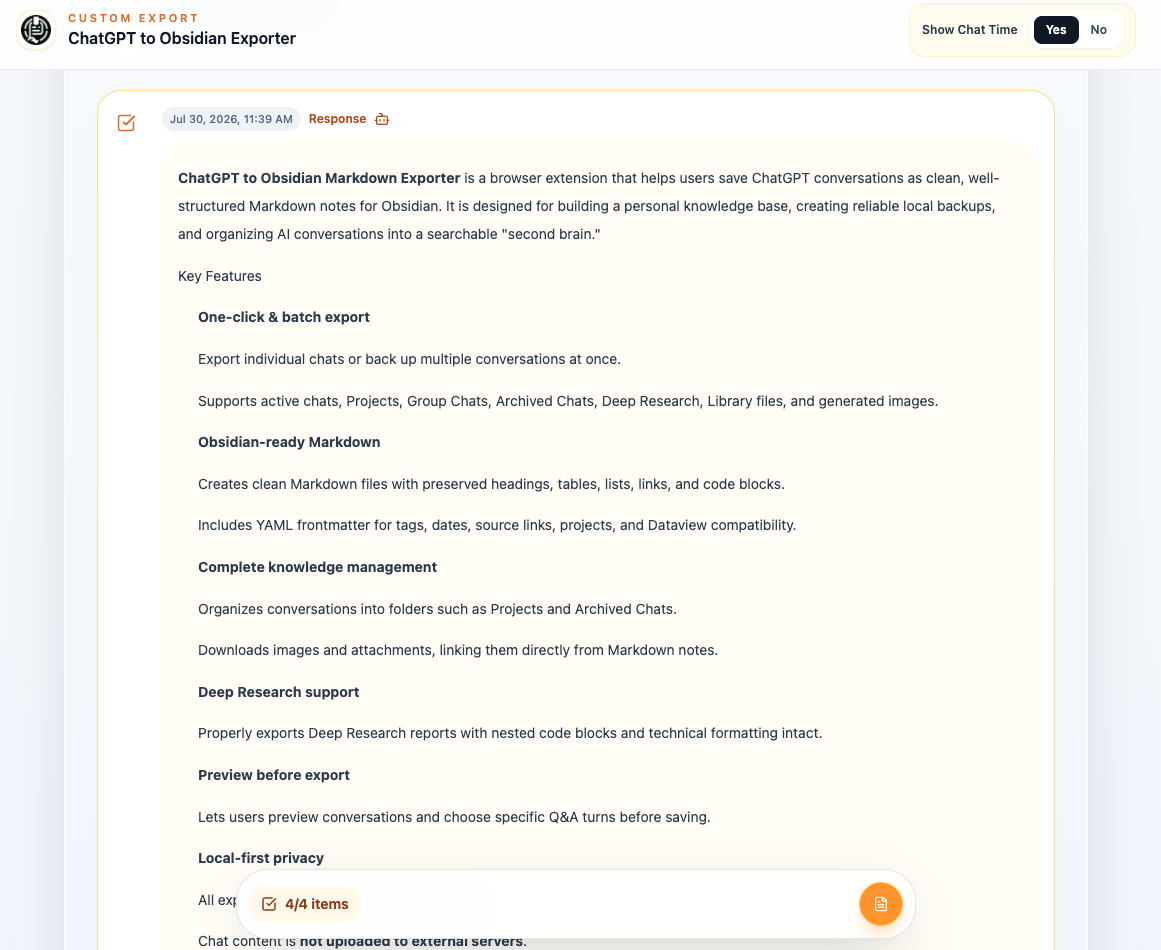
The preview shows:
- The conversation title
- Prompt and Response labels
- Rendered Markdown content
- One checkbox per message
- An optional timestamp beside each message
- A fixed selection and save bar
All messages are selected when the preview first opens.
Select Messages
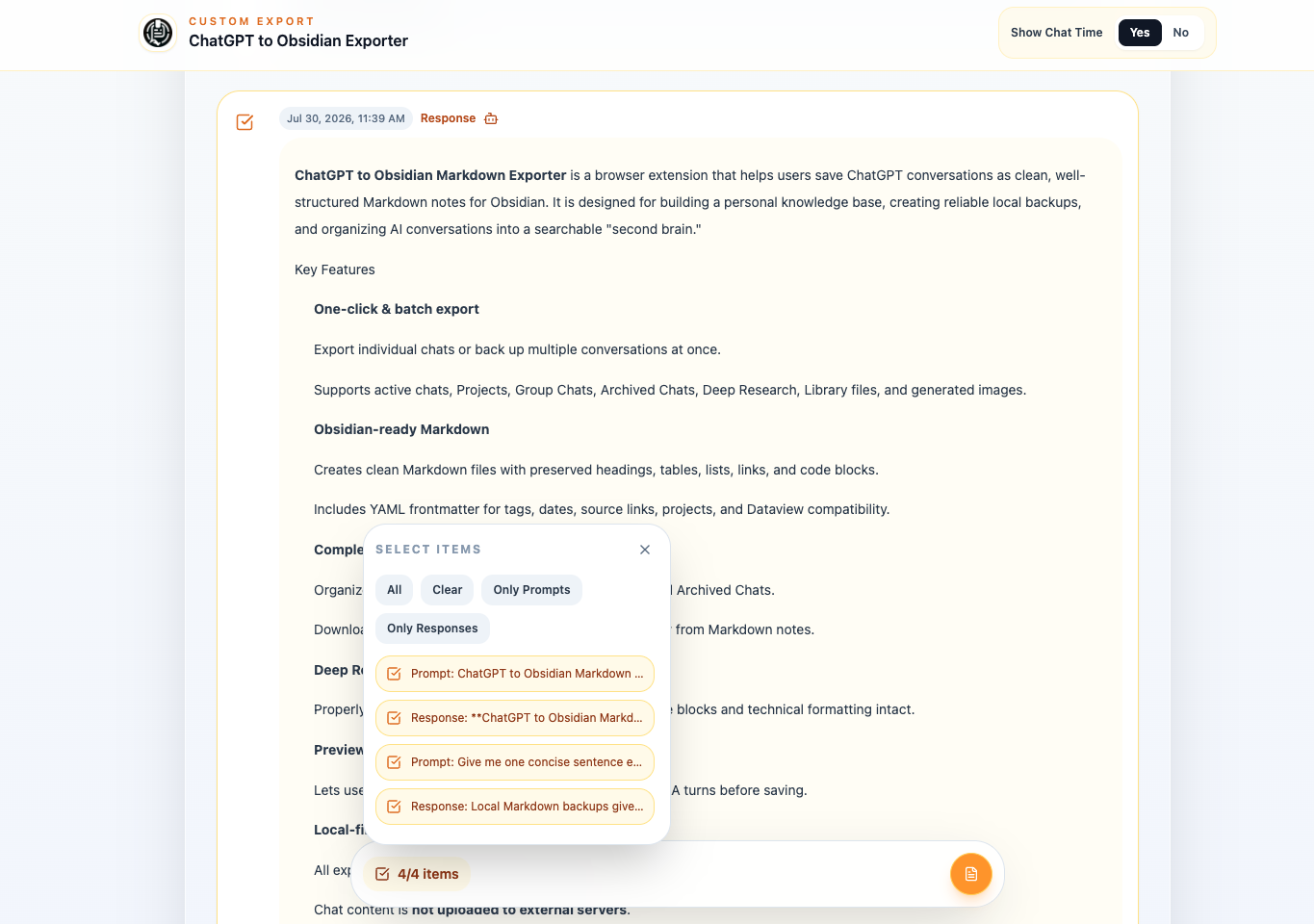
Click a message checkbox to include or exclude it. Unselected messages remain visible but appear dimmed.
Open the selected/total items menu for shortcuts:
- All
- Clear
- Only Prompts
- Only Responses
The menu also lists each message. Clicking its text scrolls to that message in the preview.
Show or Hide Chat Time
Use Show Chat Time → Yes / No in the sticky header. This controls timestamps in the preview so you can review the conversation with more or less metadata.
The saved Markdown still uses message timestamps and IDs when the selected source messages provide them.
Save the Selection
- Select at least one message.
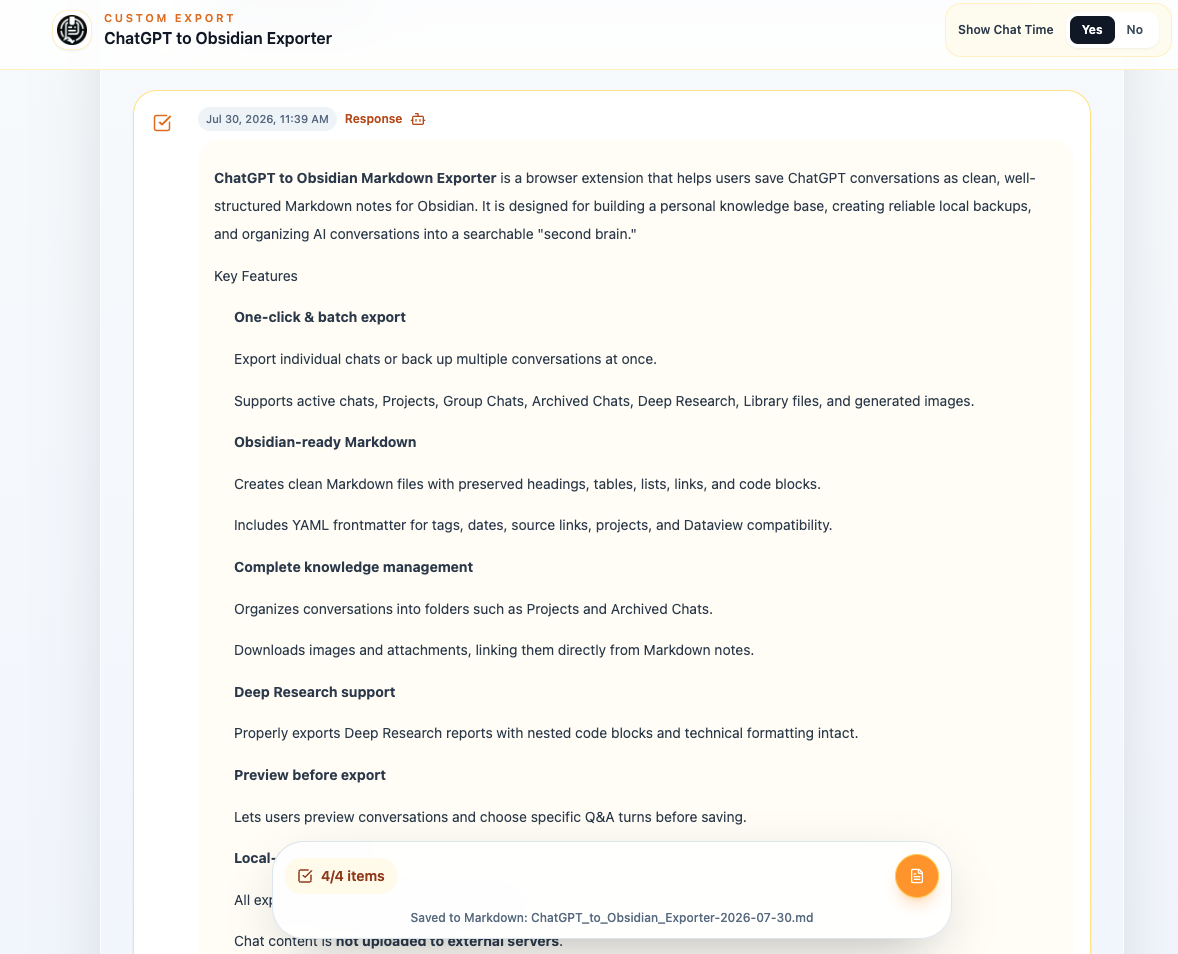
- Click the circular Markdown file button in the bottom-right of the save bar.
- Wait for the status to change from preparing to saved.
The preview uses your current:
- Download Folder
- Filename Pattern
- Download Images setting
If images are enabled, only generated images referenced by selected messages are downloaded. Artifacts linked to selected messages are kept; unrelated artifacts are excluded.
Custom Preview does not currently download conversation attachments through Download Files. Use Save Markdown for the complete current conversation or a conversation-based mode on Bulk Download when you need uploaded or generated non-image files saved alongside the note.
Free Plan Limit
Saving from Custom Preview counts as one general export. Free users can make up to 5 general exports per day. Premium users have unlimited export access.
Troubleshooting
Preview ID Is Missing or Data Was Not Found
Close the preview, return to a specific ChatGPT conversation, and open Custom Preview again.
The Preview Contains No Messages
Refresh the ChatGPT tab and retry. Make sure the conversation has finished loading before opening the popup.
Save Is Disabled
Select at least one message.
Images Were Not Downloaded
Check that Download Images is on and that the selected messages actually reference generated images.
Related Guides
Ready to try Chatgpt To Obsidian?
Open the product page for feature details, screenshots, pricing, and the Chrome Web Store install link.