
Downloading Individual Chats
Save a full ChatGPT conversation with images and files, export opened tabs, copy Q&A pairs, or download selected messages with ChatGPT to Obsidian v8.4
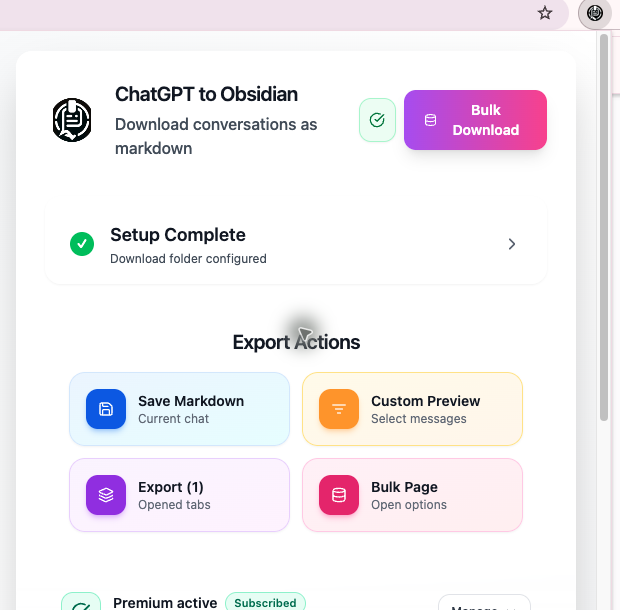
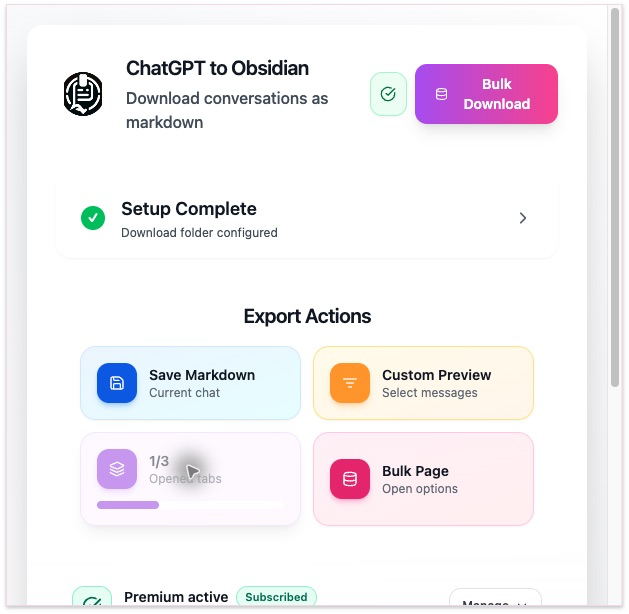
ChatGPT to Obsidian provides four popup actions plus inline controls on supported ChatGPT messages.
Before You Export
Confirm that:
- You are signed in to ChatGPT
- A specific conversation is open
- The ChatGPT tab has been refreshed since the extension was installed or updated
- Download Folder shows a valid relative path
Method 1: Save the Current Conversation
- Open a ChatGPT conversation.
- Open the extension popup.
- Click Save Markdown under Export Actions.
- Keep the ChatGPT page open while the extension fetches the conversation.
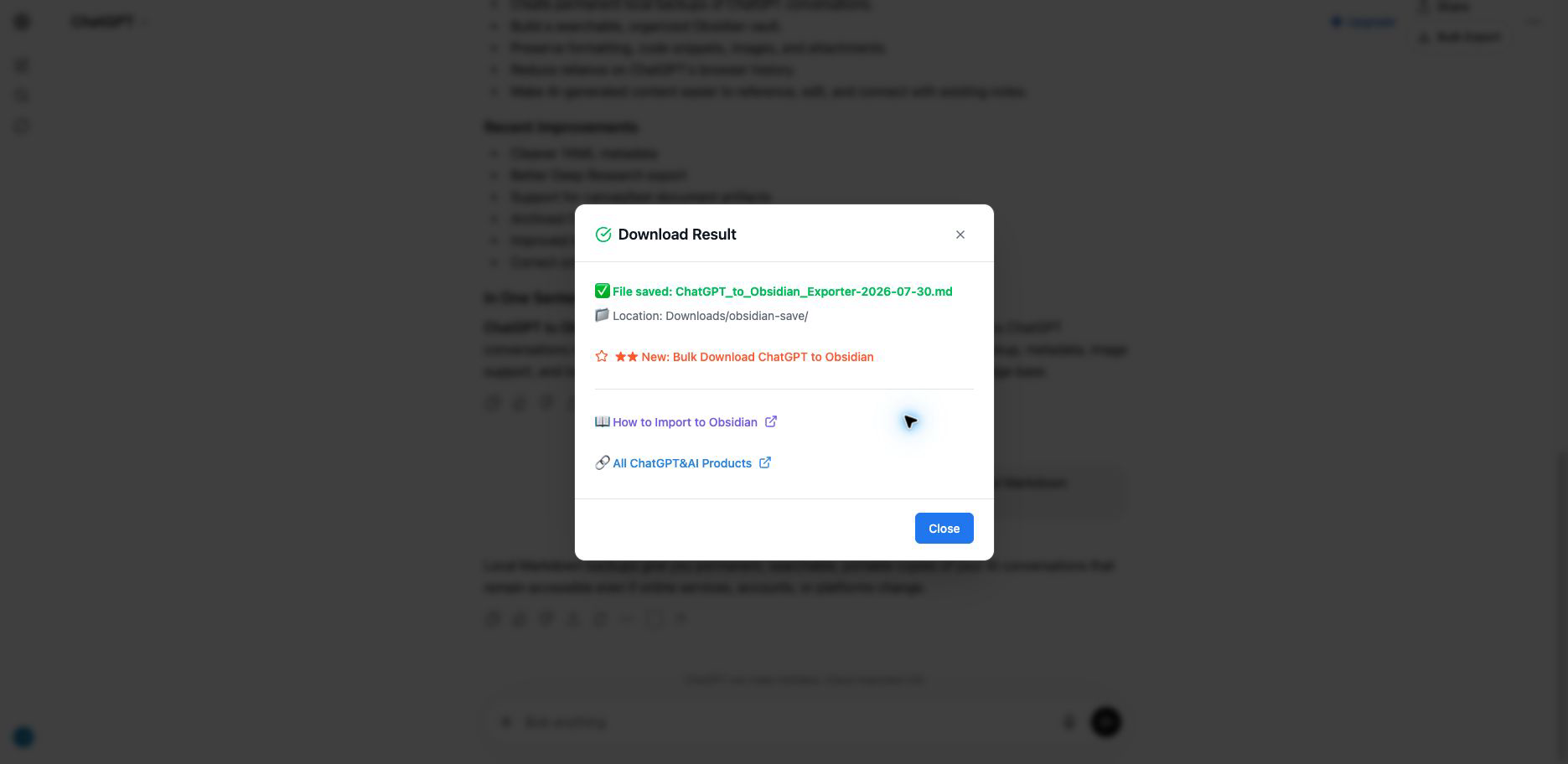
The popup closes after it starts the page action. A result dialog appears inside the ChatGPT page.
Progress, Images, and File Downloads
The page dialog first shows Processing, please wait. If image download is enabled, it can change to Downloading N image(s) before saving the Markdown.
If Download Files is enabled and the conversation contains supported non-image attachments, the dialog can also show Downloading N file(s). Uploaded and generated files are saved under Downloads/{configured-folder}/files/, and the Markdown links are updated to point to the local filenames.
This state is usually brief. Keep the page open until the dialog changes to the saved-file result or reports an error.
Successful Result
The success dialog shows:
- The saved filename
Downloads/{configured-folder}/- A shortcut to Bulk Download
Method 2: Export Selected Q&A Turns
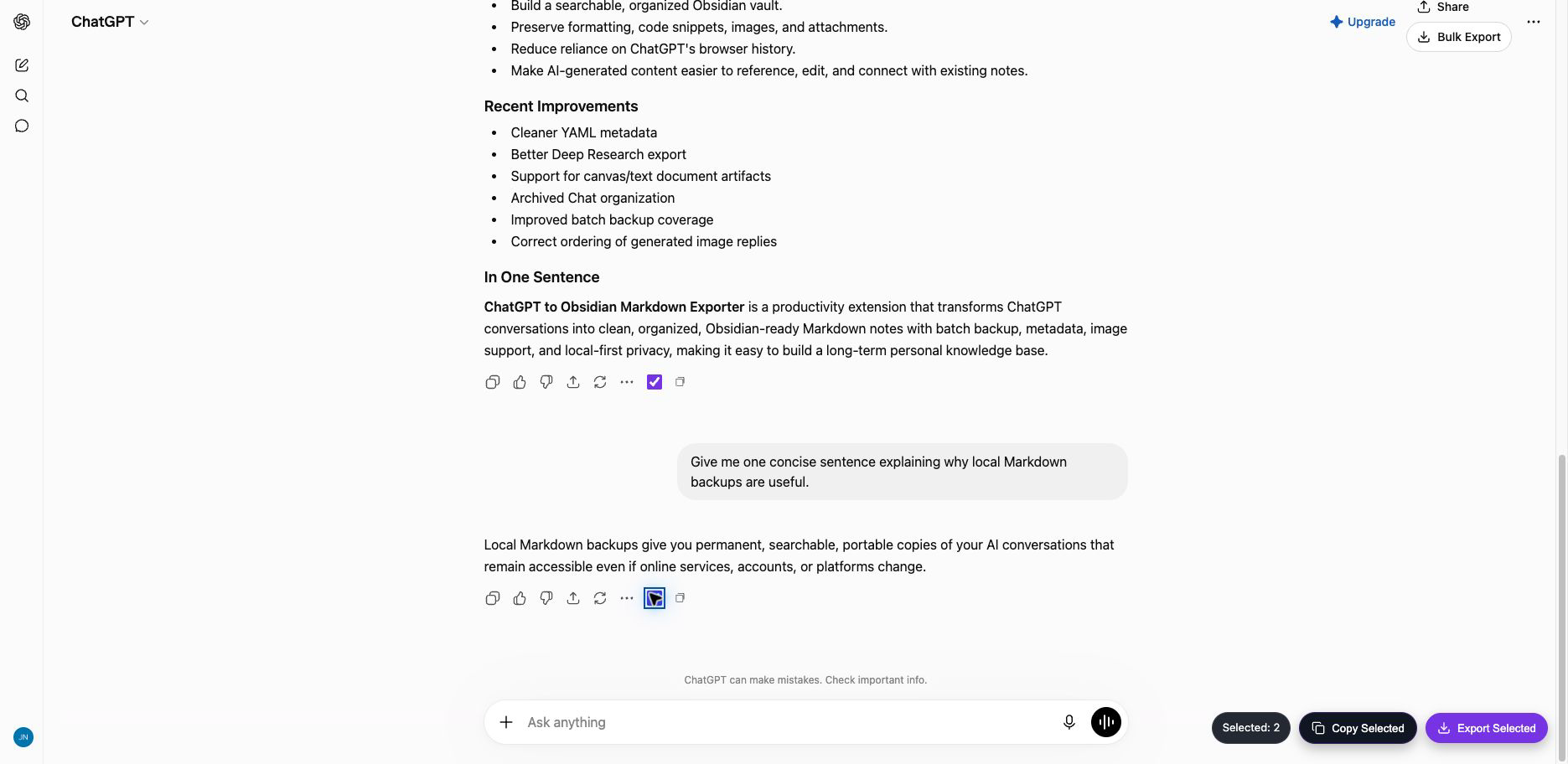
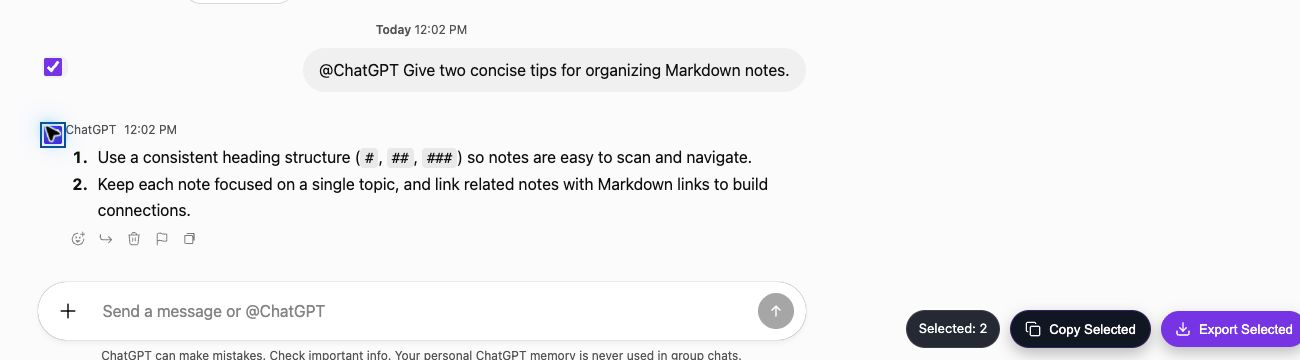
For standard /c/ conversations, the extension adds a checkbox beside each assistant turn.
- Select one or more assistant turns.
- Confirm the floating Selected: N count.
- Choose Copy Selected or Export Selected.
Each selected assistant response is exported with its preceding user prompt. The extension keeps the selected turns in page order and adds a Selection tag. Downloaded filenames end in -selected.md.
Method 3: Copy One Q&A Pair
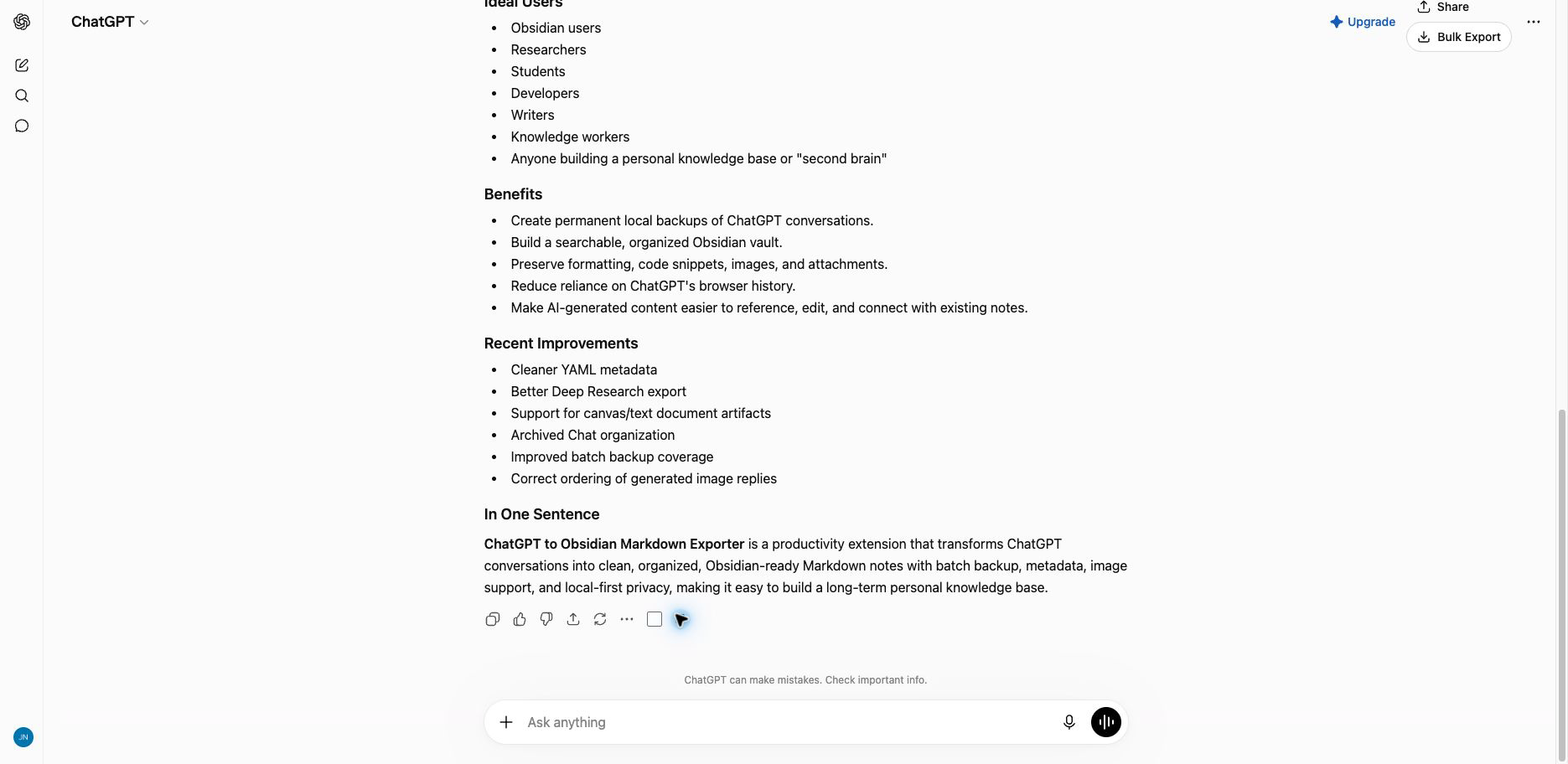
The extension adds a second copy action beside a supported assistant response.
Clicking it copies:
## You
The preceding prompt

## ChatGPT
The assistant response
This action copies text to the clipboard; it does not create a file.
Method 4: Export Opened ChatGPT Tabs
The popup scans the current Chrome window for unique conversation URLs, including regular chats and /gg/ Group Chats.
- Open the conversations you want in separate tabs in the same Chrome window.
- Refresh at least one ChatGPT tab so the extension can use it for data requests.
- Reopen the popup.
- Click Export (N).
The button changes to current/total and shows a progress bar. Duplicate conversation IDs are exported once.
Opened-tabs export currently saves conversation Markdown and artifacts but does not download conversation attachments through Download Files. Use Save Markdown for an individual chat or a conversation-based mode on Bulk Download when you need the related files.
Group Chat Support
On /gg/ pages, the extension can:
- Save the entire Group Chat from Save Markdown
- Add per-message copy buttons
- Select individual messages
- Copy or export the selected messages
- Preserve available author names
- Add
GroupChatandSelectiontags where appropriate
Output Format
Conversation Markdown includes:
- YAML properties
## Youand## ChatGPTheadings- Message timestamps and block IDs when available
- Project or Group Chat metadata when applicable
- ChatGPT-generated image links when image download is enabled
- Local links to uploaded and generated non-image files when Download Files is enabled for a supported workflow
- Related text, canvas, or code artifacts when available
Troubleshooting
Save Markdown Is Disabled
Expand the setup card and correct the Download Folder.
ChatGPT Page Required
Open https://chatgpt.com/, select a conversation, and reopen the popup.
The Extension Cannot Connect
Refresh the ChatGPT tab, wait a few seconds, and try again.
Chrome Asks Where to Save Every File
Follow How to Disable the Download Location Prompt.
Files Go to the Root Folder or Get UUID Names
Follow Download Saved to Root Folder or Renamed to UUID.
Related Guides
Ready to try Chatgpt To Obsidian?
Open the product page for feature details, screenshots, pricing, and the Chrome Web Store install link.