
Preview & Selective Export
Use the custom preview page and selective export to keep only the parts of a Grok conversation you need.
The custom preview flow is useful when a conversation is long, noisy, or only partially relevant.
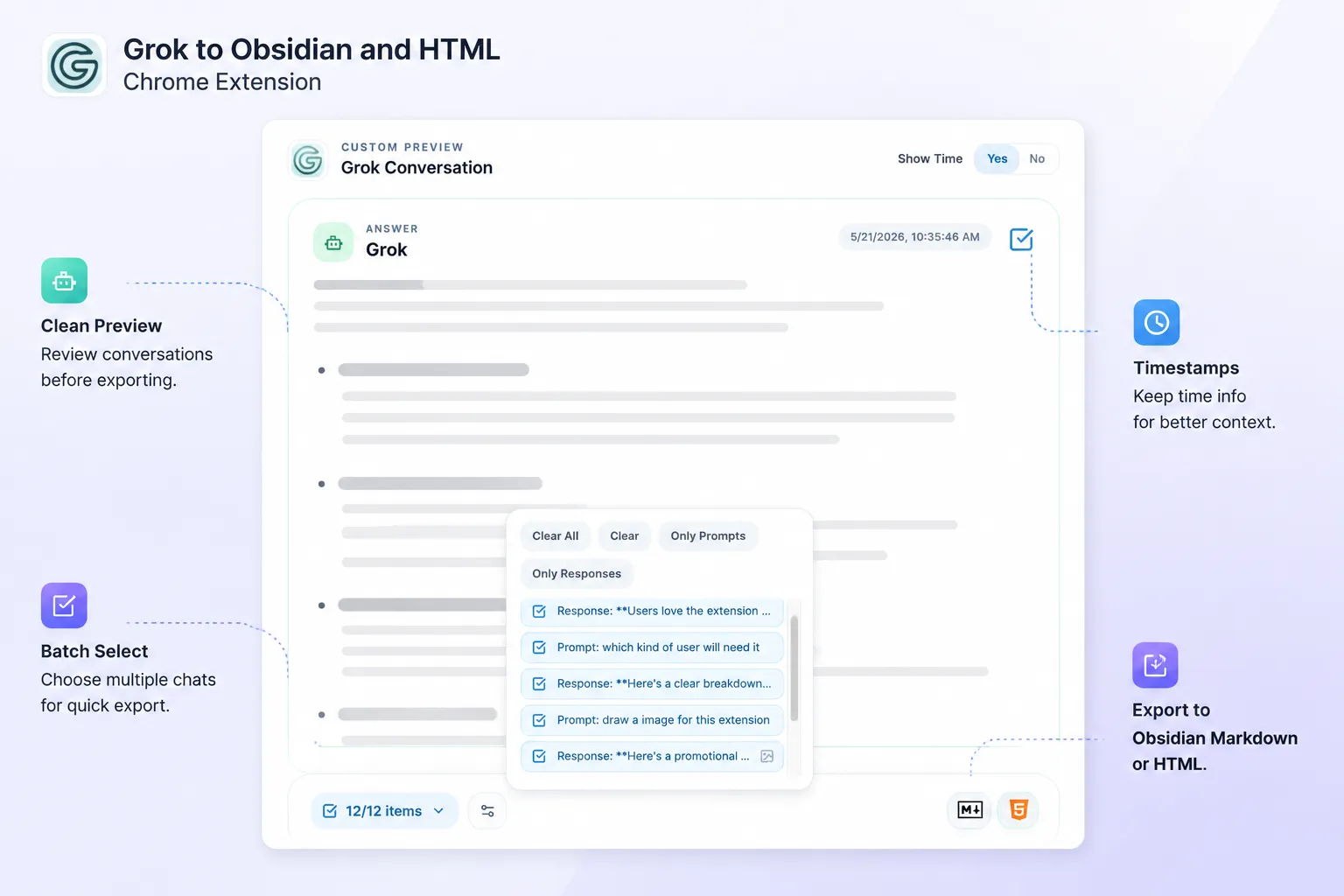
What preview helps with
- Check the exported structure before download
- Confirm the content looks right in your chosen format
- Avoid saving unnecessary messages
- Build cleaner notes for Obsidian
Selective export use cases
Save only the best answers
Keep the useful assistant responses and skip setup chatter.
Build topic-specific notes
If one conversation covers several ideas, export only the section that belongs to your project or note.
Reduce cleanup work
Selective export means you do less editing after the file lands in Obsidian.
Recommended workflow
- Open the preview/export flow
- Review the conversation content
- Choose the messages you want to keep
- Confirm the output format
- Download the final file
Best practice
If you use Obsidian heavily, combine selective export with clear filenames so each note has one focused purpose.
Ready to try Grok to Obsidian and Html?
Open the product page for feature details, screenshots, pricing, and the Chrome Web Store install link.