
Exporting Individual Conversations
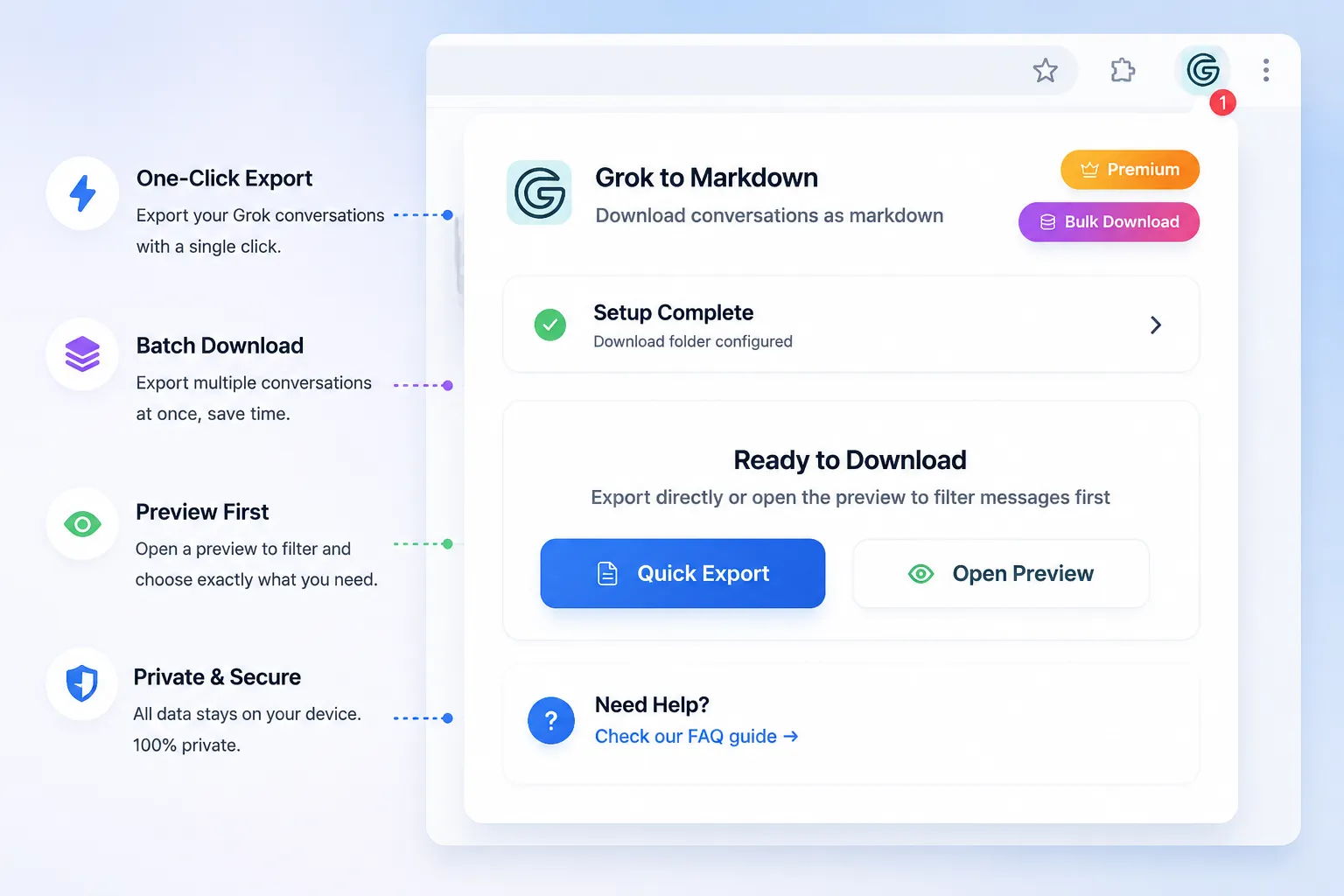
Use one-click export to save a single Grok conversation as Markdown with supported media.
Quick export flow
- Open the Grok conversation you want to save
- Click the extension icon
- Review the Markdown export settings
- Start the export
- Find the downloaded file on your device
Available formats
Markdown
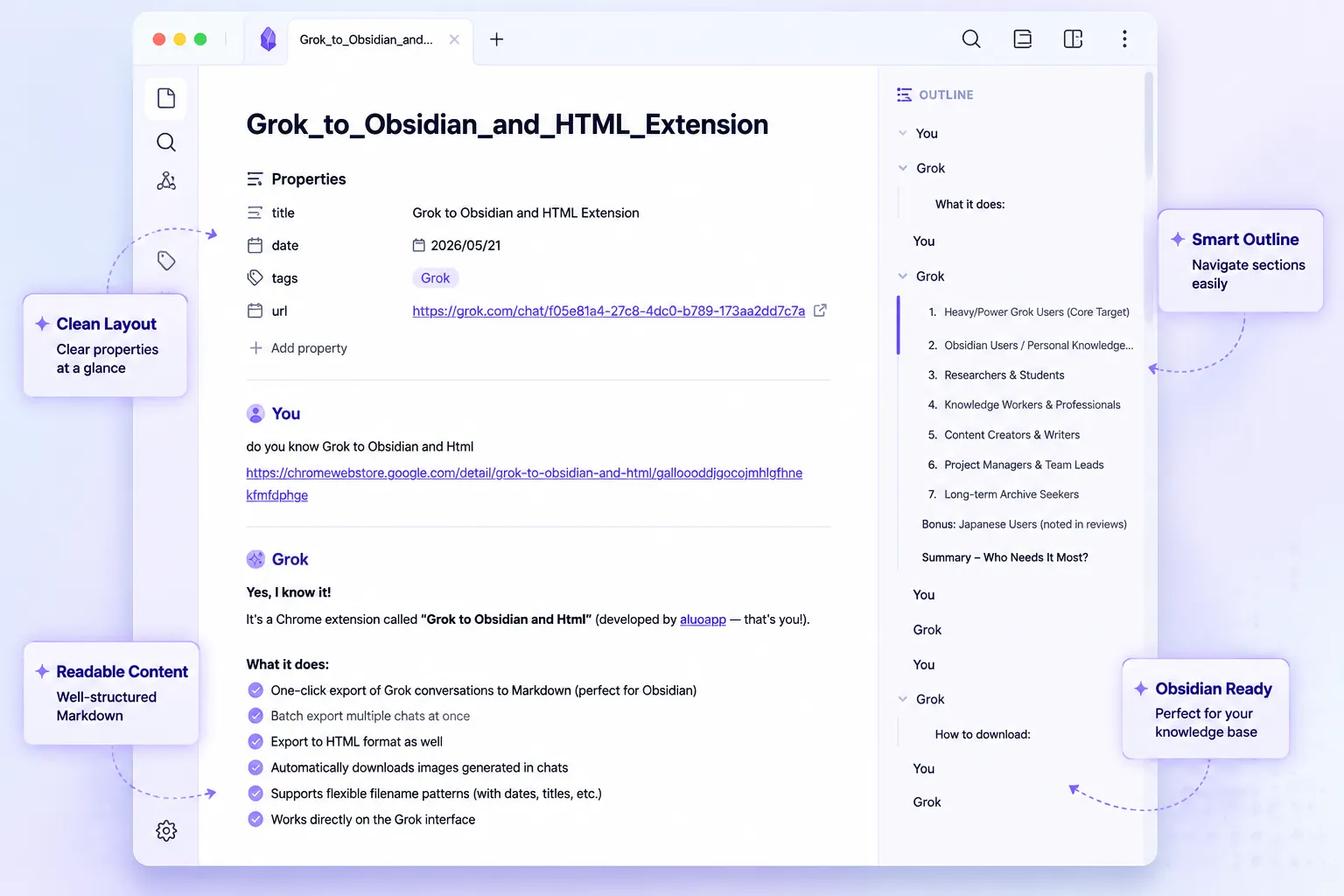
Use this when you want to move the conversation into Obsidian or another markdown-based notes app.
The current workflow does not provide HTML or TXT conversation output. Older screenshots or release notes may show options from previous versions.
What gets captured
Exports include the conversation title, message content, and timestamps used by the extension for file generation. For supported conversations, generated images can also be downloaded.
Reading the result
- Open the
.mdfile in Obsidian or another Markdown editor. - Keep downloaded media beside the note so local links continue to work.
Helpful tip
If you plan to store exports in Obsidian, keep all Markdown files in a dedicated folder such as Downloads/grok-exports/ and move them into your vault in batches.
Next step
If you want to back up more than one conversation, continue with Batch Export & Backup.
Ready to try Grok to Obsidian and Html?
Open the product page for feature details, screenshots, pricing, and the Chrome Web Store install link.