
Batch Export & Backup
Back up multiple Grok conversations in one session with the batch export workflow.
Batch export is the best workflow when you want a real archive instead of a few manual downloads.
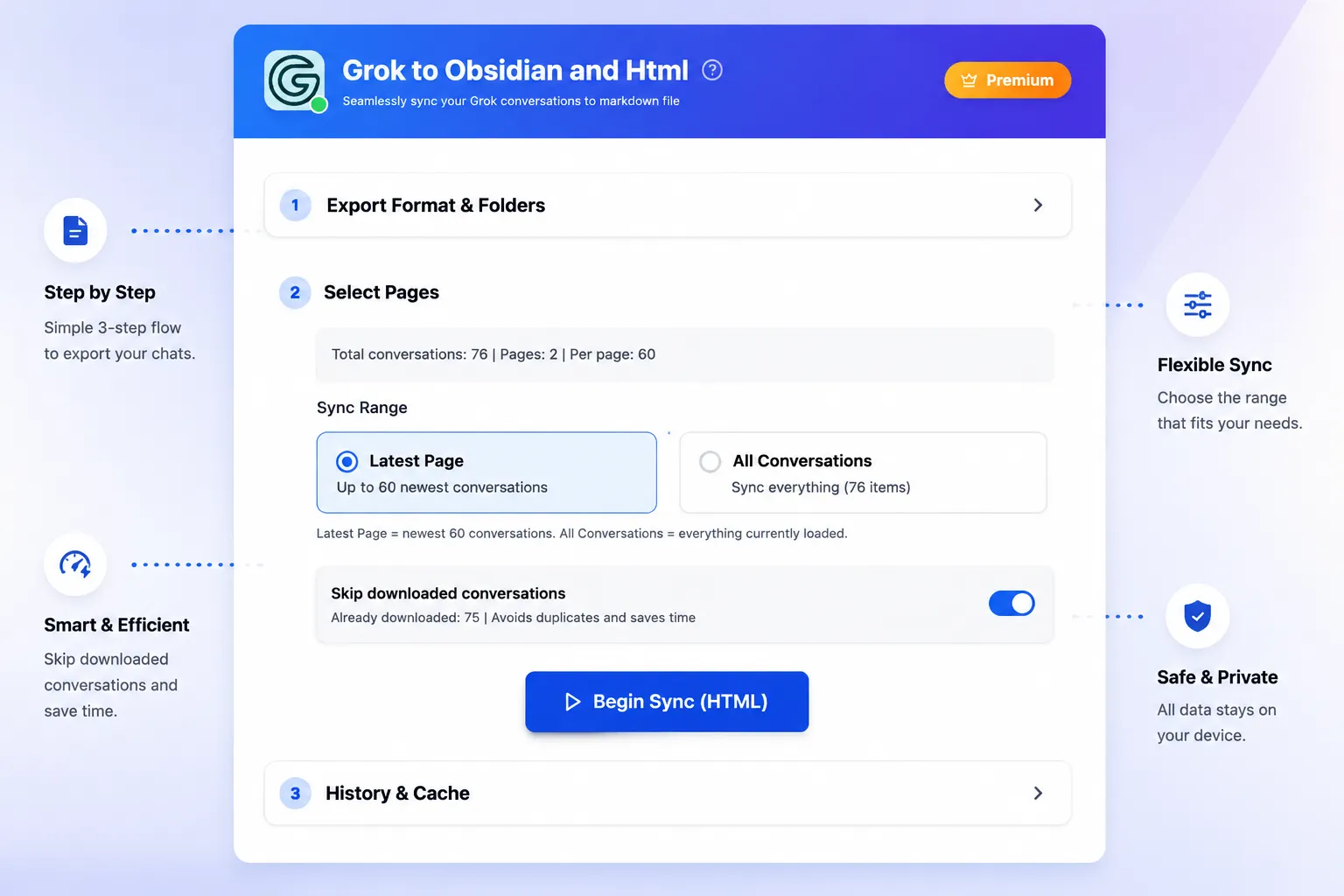
When to use batch export
- You want to back up a large set of Grok conversations
- You are migrating research notes into Obsidian
- You want a recurring habit of exporting recent chats locally
- You need a copy of your history before reorganizing or deleting anything
Typical flow
- Open the extension options or batch export entry point
- Load your conversation list
- Select the conversations you want
- Choose the export format
- Start the batch run
- Monitor success and failure progress
Good batch export habits
Export in manageable groups
If you have a very large history, export in smaller batches first so it is easier to confirm filenames and organization.
Keep one folder per project
For example:
Grok/
  Product Research/
  Coding Sessions/
  Writing Drafts/
Use Markdown for long-term notes
Markdown is usually the best default if your final destination is Obsidian.
Expected results
After export completes, you should have a set of local files ready to review, move, or import into your notes system.
Next step
If you want more control before download, read Preview & Selective Export.
Ready to try Grok to Obsidian and Html?
Open the product page for feature details, screenshots, pricing, and the Chrome Web Store install link.