
Connect Google Sheets
Authorize Google, add allowed spreadsheet files, select a destination, and prepare the first worksheet tab for Midjourney rows.
Authorize Google
- Open the extension’s bulk export workspace.
- Click the Google authentication action.
- Sign in to the intended Google account.
- Review the requested spreadsheet and
drive.fileaccess. - Complete the authorization and return to the extension.
The extension stores the access and refresh information in Chrome storage so it can refresh an expired access token.
Add a spreadsheet
- Open the authorized-file picker.
- Select the spreadsheet you want the extension to update.
- Confirm the file appears in the authorized list.
- Choose it as the active destination.
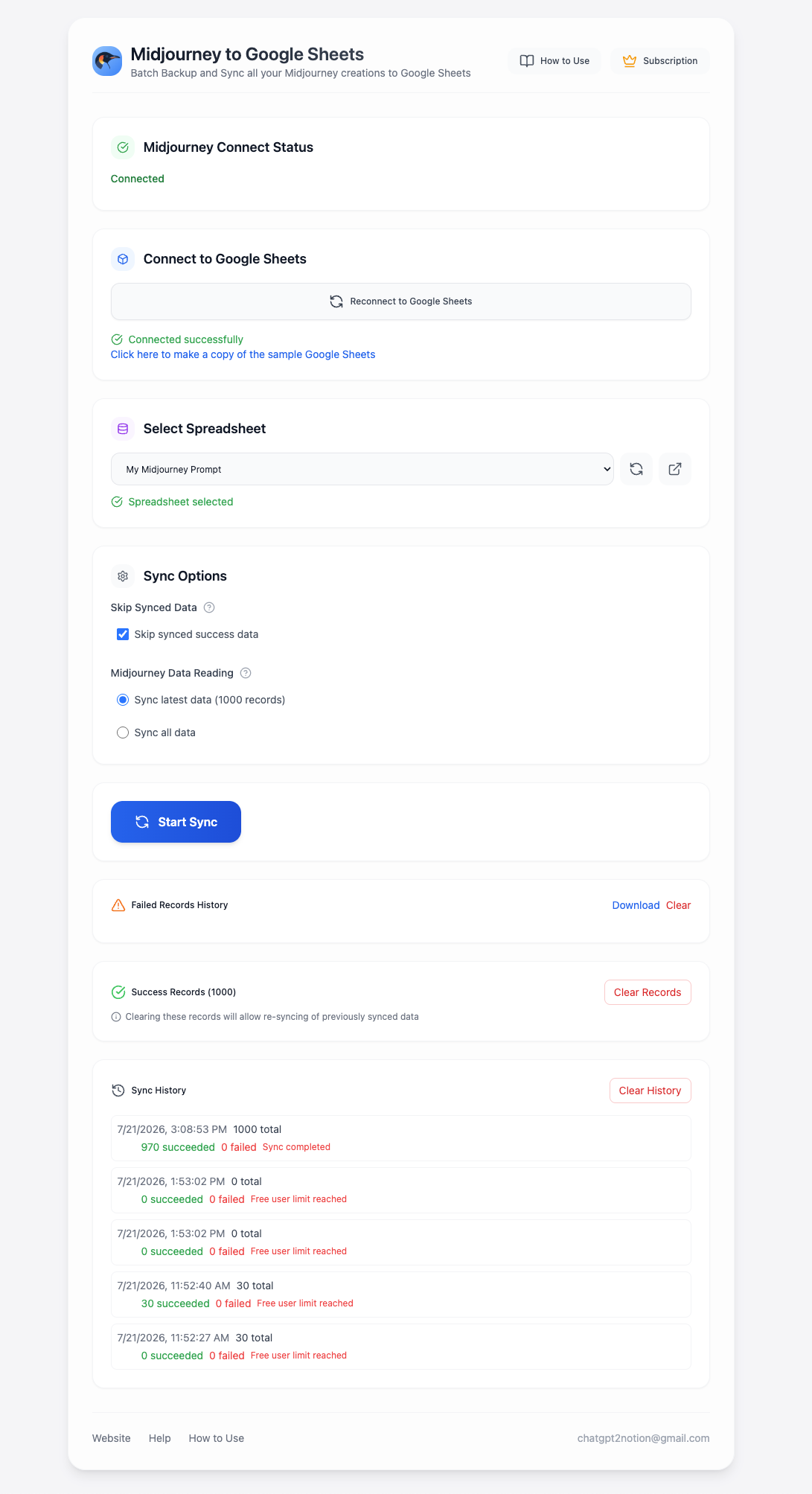
Only files added through this workflow are accepted as destinations.
Prepare the worksheet
The current v1.3 implementation writes to the first worksheet tab in the selected spreadsheet. Before syncing:
- Move the intended destination tab to the first position.
- Optionally create headers matching:
Prompt,Attributes,URL,ImageUrl,ImageUrlPreview,CreatedAt. - Keep columns A through F available for the exported row structure.
The extension appends after the current used range and expands the sheet grid when necessary.
Reconnect after expiration
If Google reports an expired or invalid authorization, use the workspace’s reconnect/sign-in action and select the spreadsheet again.
Ready to try Midjourney To Google Sheets?
Open the product page for feature details, screenshots, pricing, and the Chrome Web Store install link.