
10 Best AI Chat Exporter Tools in 2026 (Compared)
Compare 10 AI chat exporter tools for ChatGPT, Claude, Gemini, Perplexity, Grok, and TypingMind across Notion, Obsidian, Markdown, PDF, and HTML.
Guide summary
- Search intent
- Commercial investigation intent: users want to compare AI chat exporter tools by source platform, archive destination, export scope, and workflow requirements.
- Best next step
- Compare All AI Export Tools
- Topics
- AI Chat ExportExporter ToolsNotionObsidianMarkdownPDFHTML
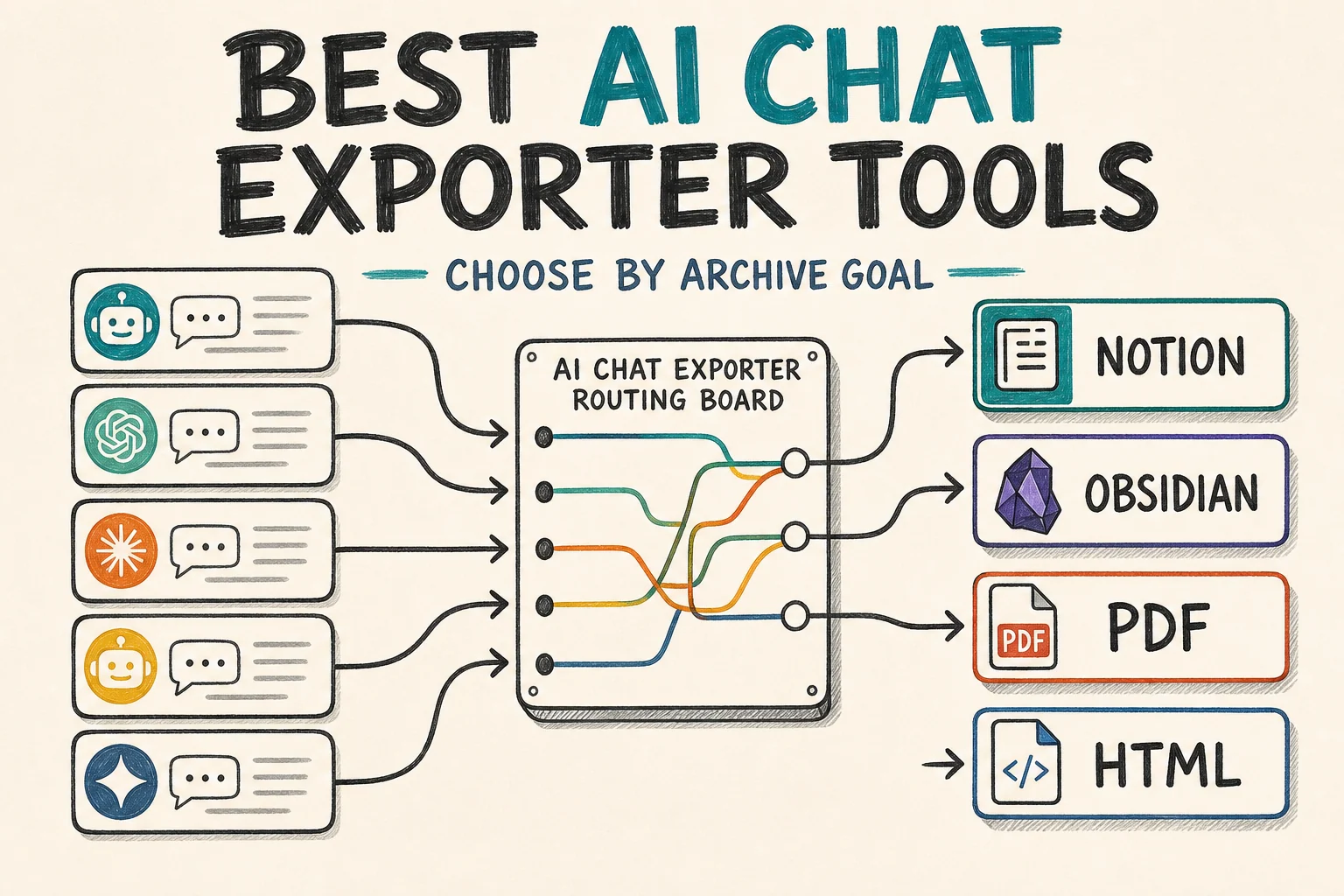
The best AI chat exporter for most multi-platform users is AIExportHub because it covers ChatGPT, Claude, Gemini, and Perplexity and exports to Notion, Markdown, Obsidian-ready files, and PDF. A dedicated exporter is often better when you use only one source and destination: ChatGPT to Notion for a searchable workspace, Gemini to Obsidian for a local vault, or Grok to Obsidian and HTML for a private Grok archive. The comparison below helps you choose by workflow rather than by an arbitrary overall ranking.
Disclosure: Every product in this comparison is part of the AI Export Hub product ecosystem. This is a transparent guide to choosing among our tools, not an independent market-wide ranking. Capabilities were checked against the current product pages and documentation on August 13, 2026. Source platforms can change their interfaces, so test one representative conversation before a large export.
The 10 best AI chat exporter tools at a glance
| Tool | Source | Export destination | Best for | Main tradeoff |
|---|---|---|---|---|
| AIExportHub | ChatGPT, Claude, Gemini, Perplexity | Notion, Markdown, Obsidian-ready files, PDF | One workflow across several AI platforms | A connected, signed-in source tab is required |
| ChatGPT to Notion | ChatGPT | Notion | Searchable team or project knowledge bases | Does not insert ChatGPT images into Notion |
| ChatGPT to Obsidian | ChatGPT | Markdown and local assets | Local-first ChatGPT archives | You must maintain the vault and its backups |
| ChatGPT to PDF | ChatGPT | Stable records, review packets, and handoffs | PDF is harder to edit and reorganize later | |
| Claude to Notion | Claude | Notion | Claude Projects, Artifacts, and attachments | Requires an authorized Notion destination |
| Gemini to Notion | Gemini | Notion | Gemini conversations in a structured database | Not designed as a local-first archive |
| Gemini to Obsidian | Gemini | Markdown and Obsidian-ready files | Gemini Gems, images, and local knowledge work | Does not sync to Notion or create PDFs |
| Perplexity to Notion | Perplexity | Notion | Source-backed research, Spaces, and Computer Tasks | Scheduled sync needs Chrome and the relevant pages open |
| Grok to Obsidian and HTML | Grok | Markdown, HTML, text | Private, browser-readable Grok archives | Supports Grok rather than multiple source platforms |
| AIExportHub for TypingMind | TypingMind | Notion, Markdown, Obsidian-ready files, PDF | Users running several models inside TypingMind | Built specifically for TypingMind conversations |
This list is ordered from the broadest multi-platform option to increasingly specialized workflows. A lower position does not mean lower quality. For example, a Grok-only exporter is a better choice for a Grok archive than a highly rated tool that does not support Grok at all.
How we compared these tools
We evaluated each exporter against the decisions that affect the usefulness of the final archive:
- Source coverage: which AI platform and platform-specific collections it supports
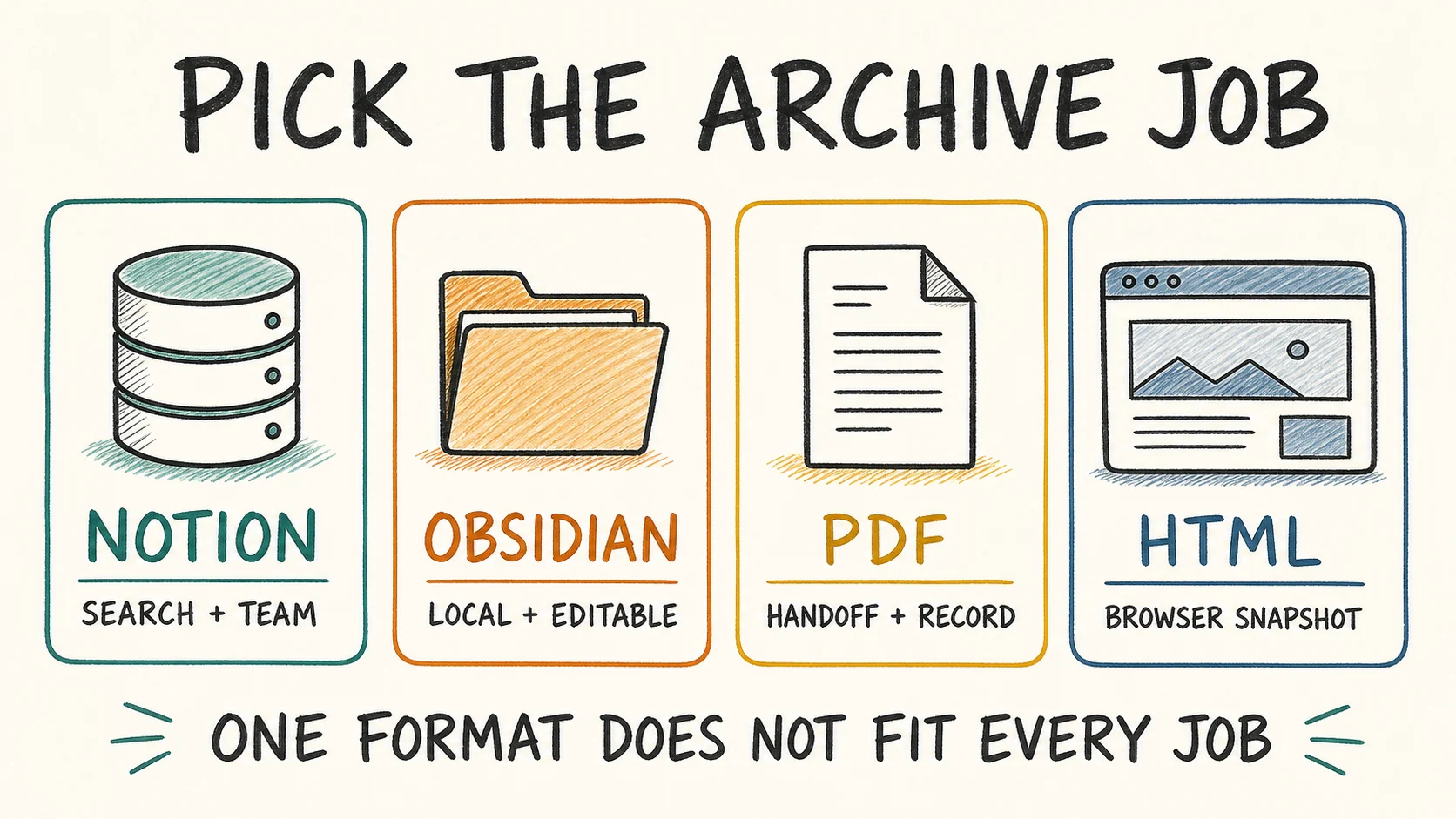
- Destination fit: searchable Notion workspace, editable local Markdown, fixed PDF, or browser-readable HTML
- Export scope: current conversation, selected messages, selected conversations, or batch history
- Content preservation: headings, code, citations, images, files, and platform-specific assets where supported
- Archive control: metadata, folders, duplicate handling, progress visibility, and retry behavior
- Workflow limitations: required open tabs, destination authorization, format constraints, and manual maintenance
We did not score products primarily by Chrome Web Store ratings or user counts. Those figures change and do not tell you whether a tool supports your source, destination, or critical content type.
1. AIExportHub: best all-in-one AI chat exporter
Best for: People who use ChatGPT, Claude, Gemini, and Perplexity and do not want a separate export workflow for every platform.
AIExportHub supports current-chat, selective, collection, and bulk workflows across four AI platforms. It can send structured content to Notion or create local Markdown, Obsidian-ready, and PDF output. It also recognizes platform context such as ChatGPT and Claude Projects, Gemini Gems, and Perplexity Spaces where supported.
Its main advantage is consistency. You can define one archive policy, such as Notion for active research and Markdown for the durable local copy, then apply it across several sources. Media and generated-file handling varies by source because the original platform controls asset access, so image-heavy or attachment-heavy chats should be included in your first test.
Choose it when: your AI work is spread across multiple platforms or you need more than one destination format.
Look elsewhere when: you use only Grok or TypingMind, or you want the smallest possible extension for one fixed route.
2. ChatGPT to Notion: best for a searchable ChatGPT workspace
Best for: Teams, consultants, students, and researchers who want ChatGPT conversations organized as Notion pages.
ChatGPT to Notion handles current conversations and larger history workflows, including supported Projects, Group Chats, Deep Research reports, and archived chats. Notion properties make the result easier to filter by project, topic, date, or review status than a folder of static files.
The important limitation is image handling: the dedicated ChatGPT to Notion product does not insert ChatGPT images into Notion pages. If generated images or local ownership are central to your archive, use ChatGPT to Obsidian or test the broader AIExportHub workflow instead.
Choose it when: conversations should remain active, searchable knowledge in a shared Notion workspace.
Look elsewhere when: you need an offline archive, image assets, or files suitable for Git and local backup tools.
3. ChatGPT to Obsidian: best local-first ChatGPT exporter
Best for: Obsidian users, developers, researchers, and anyone who wants portable files under local control.
ChatGPT to Obsidian creates Markdown notes with useful metadata and local asset workflows. It supports standard chats as well as supported Projects, Group Chats, Deep Research, archived conversations, generated images, and Library files. YAML properties can make exports usable with Obsidian search, Properties, Dataview, or Bases.
Markdown reduces future lock-in, but local files still require operations discipline. Decide where attachments live, use predictable filenames, and back up the vault to a second location. A local download folder without another copy is not a backup system.
Choose it when: editability, portability, local search, and long-term ownership matter more than team collaboration.
Look elsewhere when: colleagues expect a Notion database or a polished document they can review without opening a vault.
4. ChatGPT to PDF: best for stable ChatGPT records
Best for: Client handoffs, review packets, offline reading, and conversations that should retain a fixed reading order.
ChatGPT to PDF exports individual or multiple ChatGPT conversations as PDF documents. It is useful for supported Projects, Group Chats, and Deep Research when the deliverable should be read rather than reorganized. PDF generation occurs in the browser, and the result can be stored with normal project records.
PDF is a finishing format, not a flexible knowledge base. Searching a folder of PDFs is less structured than filtering Notion properties, and extracting reusable notes is harder than editing Markdown. Important working knowledge may need both a PDF record and an editable copy.
Choose it when: visual stability and easy sharing matter more than future editing.
Look elsewhere when: you want backlinks, metadata-driven views, or frequent reuse of individual answers.
5. Claude to Notion: best for Claude Projects and Artifacts
Best for: Claude users whose work includes Projects, Artifacts, images, attachments, or generated files.
Claude to Notion can save the current conversation, selected messages, opened Claude tabs, selected history, complete history, or supported Project conversations. Its strongest use case is keeping the conversation and its working context together instead of flattening everything into plain text.
Notion export requires authorization to a workspace and a compatible destination. Source assets must also remain available from the signed-in Claude session. For large archives, start with one Project containing representative Artifacts and files before processing the rest of the history.
Choose it when: Claude output should become structured, collaborative project knowledge.
Look elsewhere when: the archive must stay entirely local or the final deliverable should be a fixed PDF.
6. Gemini to Notion: best for a structured Gemini database
Best for: Gemini users who want conversations collected in Notion with controlled repeat-sync behavior.
Gemini to Notion supports one-click and batch workflows for moving Gemini conversations into a selected Notion database. Skip, overwrite, and new-page behavior helps control what happens when a conversation is exported again. Progress and export history are useful when processing more than a few chats.
Choose this route because the destination is Notion, not simply because the source is Gemini. If the real requirement is local Markdown, generated-image files, or an Obsidian vault, the next tool is a better fit.
Choose it when: Gemini conversations need tags, database views, shared access, and an ongoing review workflow.
Look elsewhere when: local ownership or Gemini Gem organization inside a vault is the primary goal.
7. Gemini to Obsidian: best for Gemini Gems and local Markdown
Best for: People turning Gemini research, technical chats, Gems, and generated images into a local knowledge base.
Gemini to Obsidian creates Markdown files designed for an Obsidian workflow. Supported Gem context, generated images, and YAML frontmatter make it more useful than copying transcript text into an empty note. It is also a better match for users who want to search files locally, sync a vault with their own provider, or version notes in Git.
The specialization is intentional: this product creates Markdown and Obsidian-ready output rather than syncing to Notion or generating PDF documents.
Choose it when: Gemini content should remain editable, portable, and connected to an existing local vault.
Look elsewhere when: a team needs Notion views or recipients need a finished PDF rather than source notes.
8. Perplexity to Notion: best for source-backed research
Best for: Researchers and knowledge workers who need Perplexity answers, sources, related questions, Spaces, and Computer Tasks in Notion.
Perplexity to Notion is built around research context rather than transcript text alone. It supports current-page saving and batch selection from history, Spaces, and Computer Tasks. Optional sources and related questions help retain the evidence trail behind an answer, while duplicate rules control repeat exports.
Scheduled auto-sync is page-based: Chrome, the batch page, and a connected Perplexity tab must remain available. It is not a background cloud backup that continues after the browser closes.
Choose it when: Perplexity research should be tagged, reviewed, and reused in a Notion database.
Look elsewhere when: you want local Markdown files; use Perplexity to Obsidian for that workflow.
9. Grok to Obsidian and HTML: best for a private Grok archive
Best for: Grok users who want local Markdown, browser-readable HTML, or lightweight text files.
Grok to Obsidian and HTML supports one-click, selective, and batch export for Grok conversations. Markdown works well for an Obsidian vault, while HTML creates a snapshot that can be opened in a normal browser without importing it into a note app. Supported generated images can be saved with the archive.
This is a source-specific tool, which is a benefit if Grok is the only gap in your archive and a limitation if you need one extension for several AI platforms.
Choose it when: your priority is a local Grok backup with more than one readable file format.
Look elsewhere when: the destination must be Notion or the source is ChatGPT, Claude, Gemini, or Perplexity.
10. AIExportHub for TypingMind: best for multi-model TypingMind users
Best for: People who use several AI models through TypingMind and want to preserve the resulting conversations outside that workspace.
AIExportHub for TypingMind exports the current chat, selected content from a preview, or multiple conversations to Notion, Markdown, Obsidian-ready files, and PDF. That makes it useful when the source interface is TypingMind, even if the conversations were powered by different underlying models.
The distinction between source interface and model matters. Choose the TypingMind exporter for chats stored in TypingMind; choose the platform-specific products above for conversations stored directly in ChatGPT, Claude, Gemini, Perplexity, or Grok.
Choose it when: TypingMind is your primary AI workspace and you need both local and Notion destinations.
Look elsewhere when: the original conversations live in the first-party AI platform rather than TypingMind.
Which AI chat exporter should you choose?
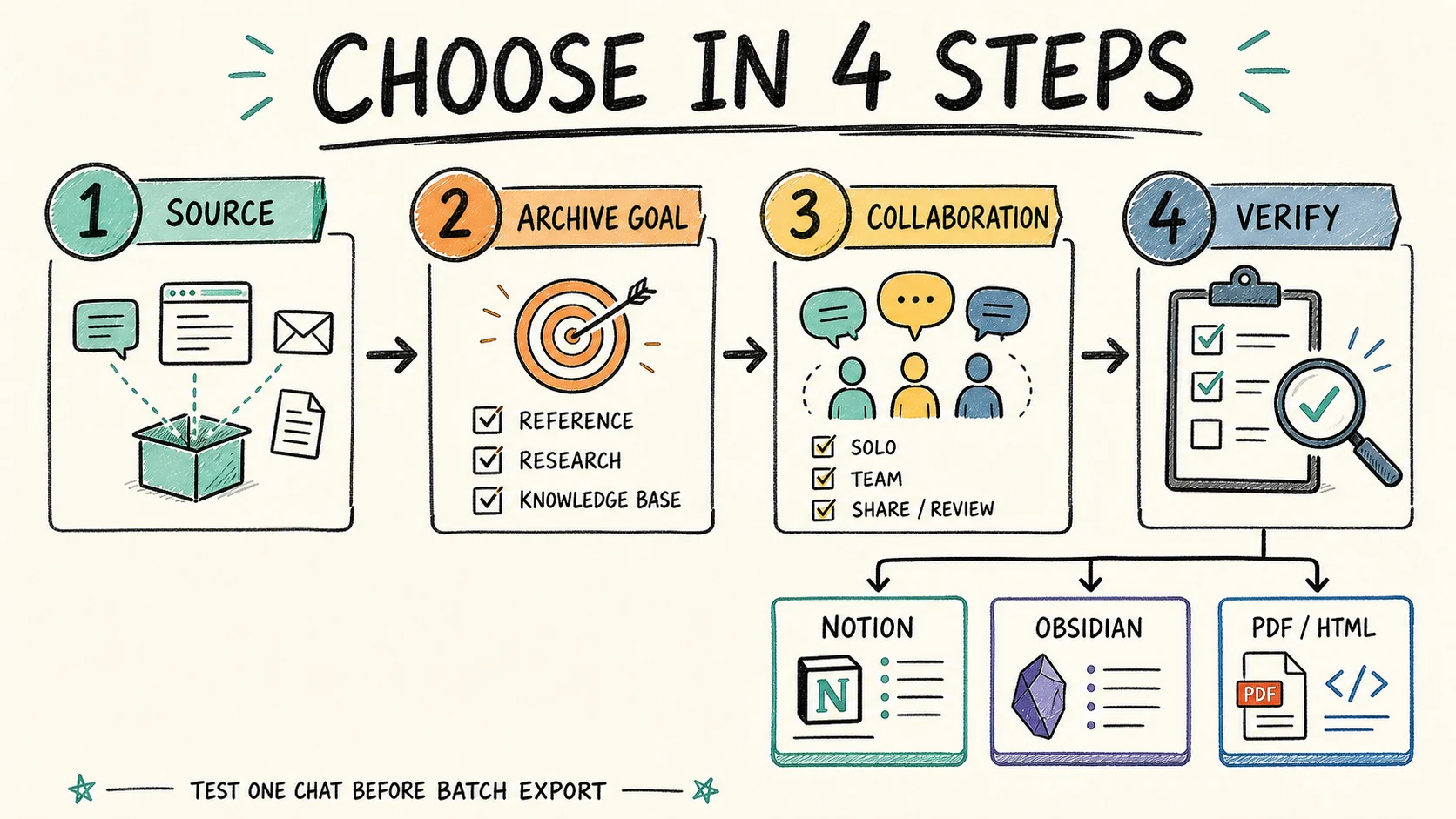
Use this decision sequence:
- Choose the source first. An excellent Gemini exporter cannot retrieve a Grok archive.
- Choose the archive job. Decide whether the result is working knowledge, a durable local copy, or a fixed handoff.
- Choose the destination. Use Notion for searchable collaboration, Markdown or Obsidian for editable local ownership, PDF for fixed records, and HTML for browser-readable snapshots.
- Test difficult content. Use a chat containing the code, citations, images, files, tables, or formulas that normally matter to you.
- Scale after verification. Check the exported result before running a complete-history job or deleting anything from the source.
A practical export verification checklist
After a sample export, confirm:
- the title, message order, roles, and source URL are correct
- headings, lists, tables, code blocks, citations, and formulas remain readable
- required images, attachments, Artifacts, or generated files are present
- filenames, folders, Notion properties, or YAML metadata follow your archive convention
- exporting the same chat again has predictable skip, overwrite, or duplicate behavior
- the destination can still be searched and understood without opening the source app
Before removing original conversations, follow the complete AI chat export checklist. Keep at least two verified copies of material that would be difficult to recreate.
FAQ
What is the best AI chat exporter overall?
AIExportHub is the broadest option in this product ecosystem for users exporting ChatGPT, Claude, Gemini, and Perplexity to several destinations. A dedicated exporter may be better when you use only one route, such as ChatGPT to Notion or Grok to HTML.
What is the best format for exporting AI chats?
Use Notion for searchable collaboration, Markdown or Obsidian for editable local ownership, PDF for stable sharing, and HTML for a browser-readable local snapshot. Important archives may use more than one format.
Can I bulk export all my AI conversations?
Several tools support batch or complete-history workflows, but the exact scope depends on the source platform. Test a small selection, keep the required signed-in source tab open, and use controlled delays for large histories.
Which exporter is best for images and attachments?
Choose based on both source and destination. Local Markdown workflows often store images as sidecar files, PDFs can embed supported images, and some Notion workflows upload supported assets. Check the relevant product compatibility table because asset availability varies by platform.
Are browser-based AI chat exporters private?
Local Markdown and PDF workflows can generate files in the browser, while Notion export sends selected content to the Notion workspace you authorize. Review the exact product workflow and destination before exporting sensitive material.
Should I delete the original chats after exporting?
Not immediately. Open the exported files, verify difficult content, search the destination, and keep a second backup. Delete source conversations only after the archive passes those checks and you understand what metadata or assets may not have transferred.
Build an archive, not another content dump
The best AI chat exporter is the one that moves a conversation into a system you will maintain. Start with the source platform, choose the destination by future use, and validate one realistic export before scaling.
Browse all AI Export Hub products to compare every available route. If you regularly use ChatGPT, Claude, Gemini, and Perplexity, start with AIExportHub. If your workflow is narrower, choose the dedicated exporter that matches the source and destination instead of paying for breadth you do not need.