
Notion
Sync TypingMind chats into a structured database with title, platform, source URL, timestamps, tags, folder context, and message count.
 TypingMind exporter
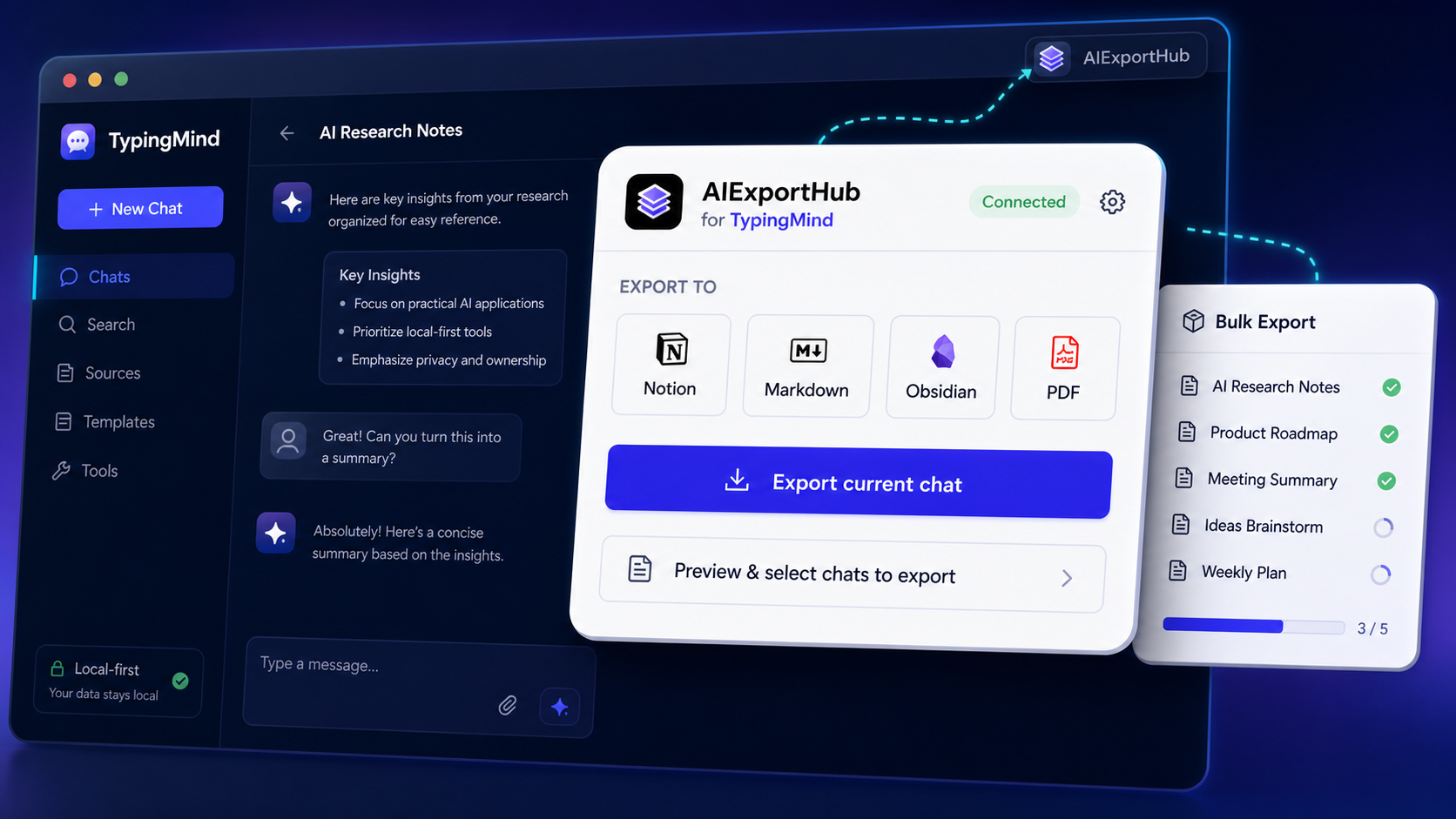
 Export TypingMind conversations to Notion, Markdown, Obsidian-ready local files, and PDF. Back up current chats, run bulk exports, preserve folder and tag context, and keep local file exports in your browser.
4
export targets
Bulk
TypingMind backup
Local
Markdown and PDF
Why it exists
TypingMind users often work across GPT, Claude, Gemini, OpenRouter, and custom models. AIExportHub turns that history into structured notes, databases, and files you can search, share, and reuse outside the chat interface.
Export targets
Sync TypingMind chats into a structured database with title, platform, source URL, timestamps, tags, folder context, and message count.
Download clean .md files with readable conversation structure and metadata for long-term local archives.
Use Obsidian-friendly Markdown and folder-aware organization for private knowledge vaults.
Create stable, readable documents for offline review, sharing, documentation, and compliance records.
Direct current chat export
When you only need the current conversation, open the extension popup, choose Notion, Markdown, Obsidian, or PDF, then click the direct export button. This is the fastest path for saving one active TypingMind chat without opening the preview workflow.
Learn direct export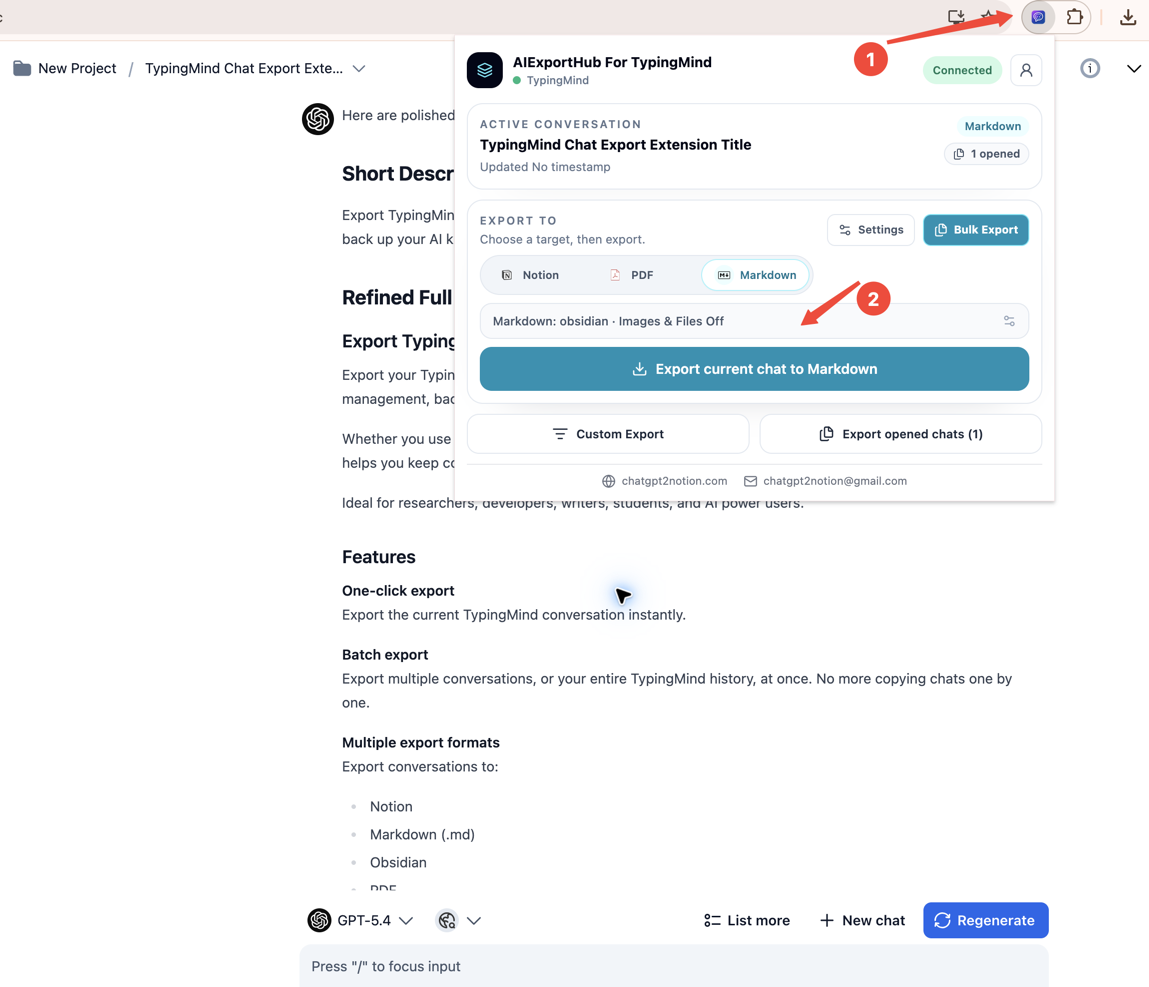
Selective preview export
Custom Export is a separate workflow for cases where you want to inspect the conversation first. Preview the content, select prompts or responses, choose the output format, then export only the items you need.
Learn custom export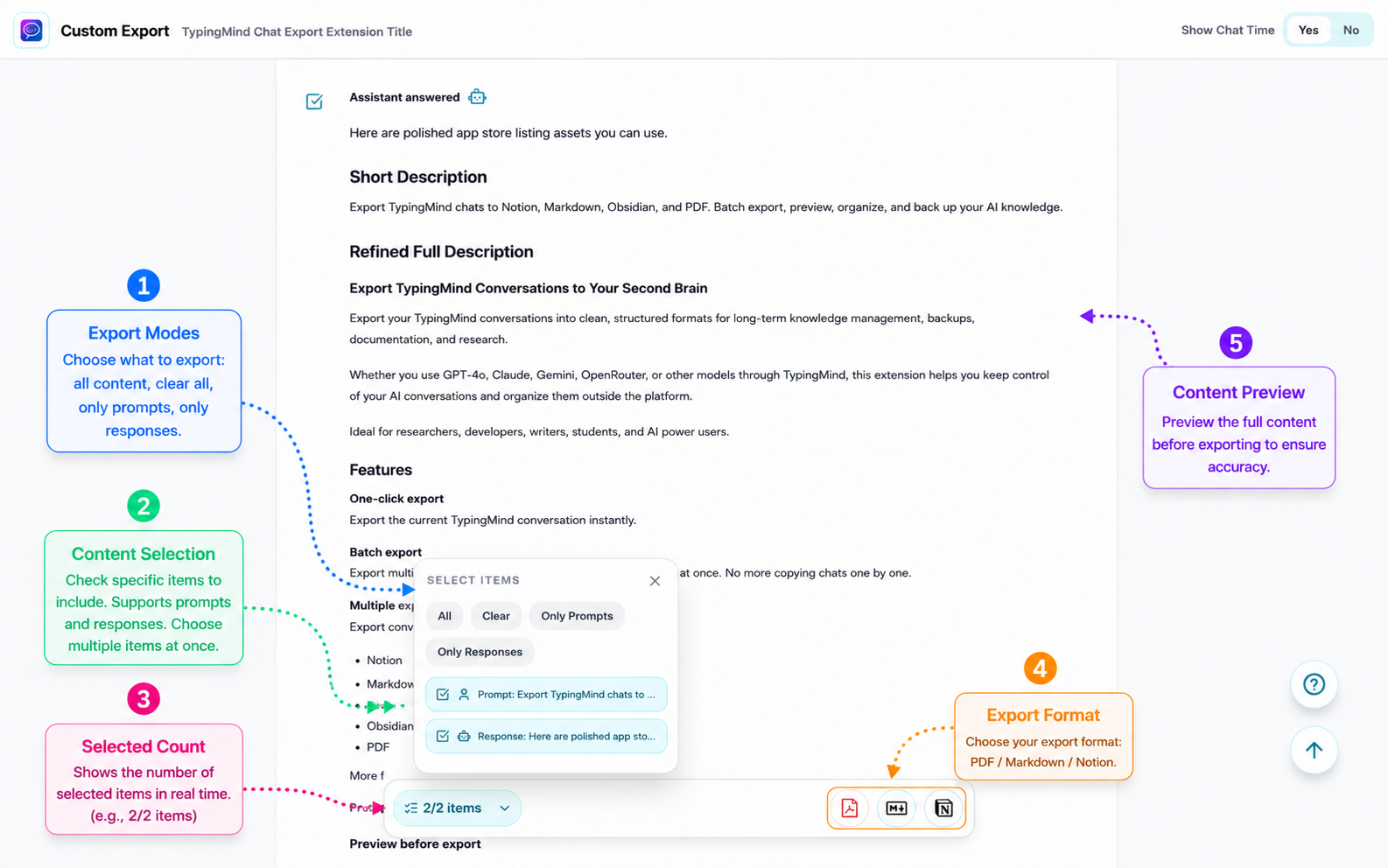
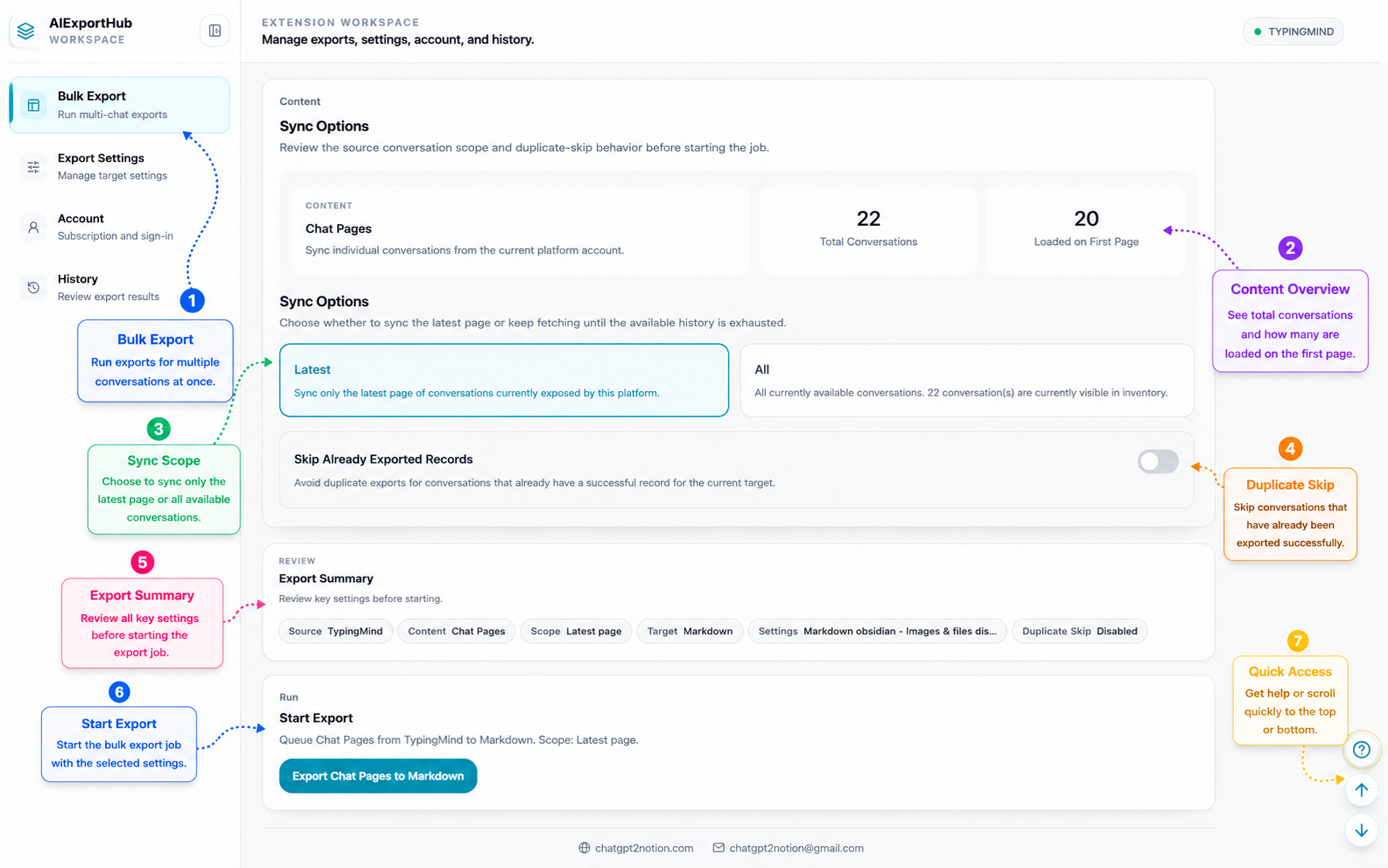
Bulk backup
Use the workspace for archive jobs, periodic backups, or migrating a research library. Choose latest or all available conversations, skip records that already exported successfully, and review the run summary before starting.
Read bulk export docsStructured archive
Notion export creates clean pages with useful fields for filtering and review. Keep platform, source URL, created time, tags, folder context, workspace, and export metadata where available.
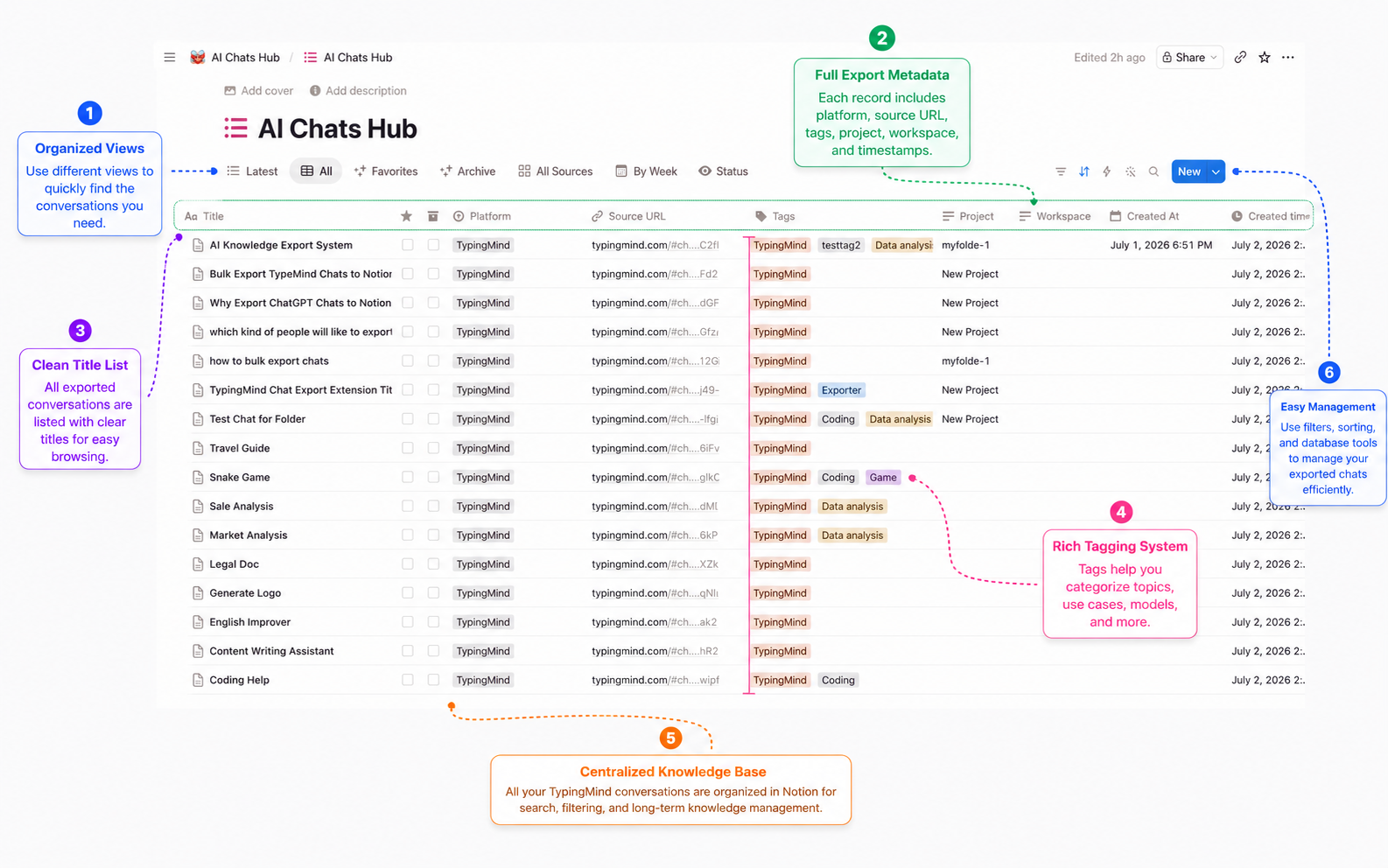
Workflow
1
Sign in to TypingMind and open the conversation or workspace you want to export.
2
Pick Notion, Markdown, Obsidian, or PDF from the AIExportHub popup or workspace.
3
Export the current chat immediately, or open Custom Export to preview and select specific messages first.
4
Use the workspace when you need to export many TypingMind conversations at once.
Video walkthrough
The walkthrough shows how the extension connects to TypingMind, chooses export formats, previews content, and runs export actions.
FAQ
Yes. The workspace can read TypingMind conversation data exposed in the browser and run a bulk export job for many chats.
No. Markdown and PDF exports are generated in the browser and saved through Chrome downloads. Notion sync only runs after you connect your own Notion workspace.
The exporter keeps folder and tag context in export metadata where TypingMind exposes it. Local file exports can use folder-named subdirectories.
Yes. The extension is approved and available from the Chrome Web Store link on this page.
Start with the installation guide, then test a single chat before running a larger bulk export.