
Export the Current TypingMind Chat
Export one active TypingMind conversation to Notion, Markdown, Obsidian-ready Markdown, or PDF.
Use current chat export when you want to save one TypingMind conversation without running a full archive job.
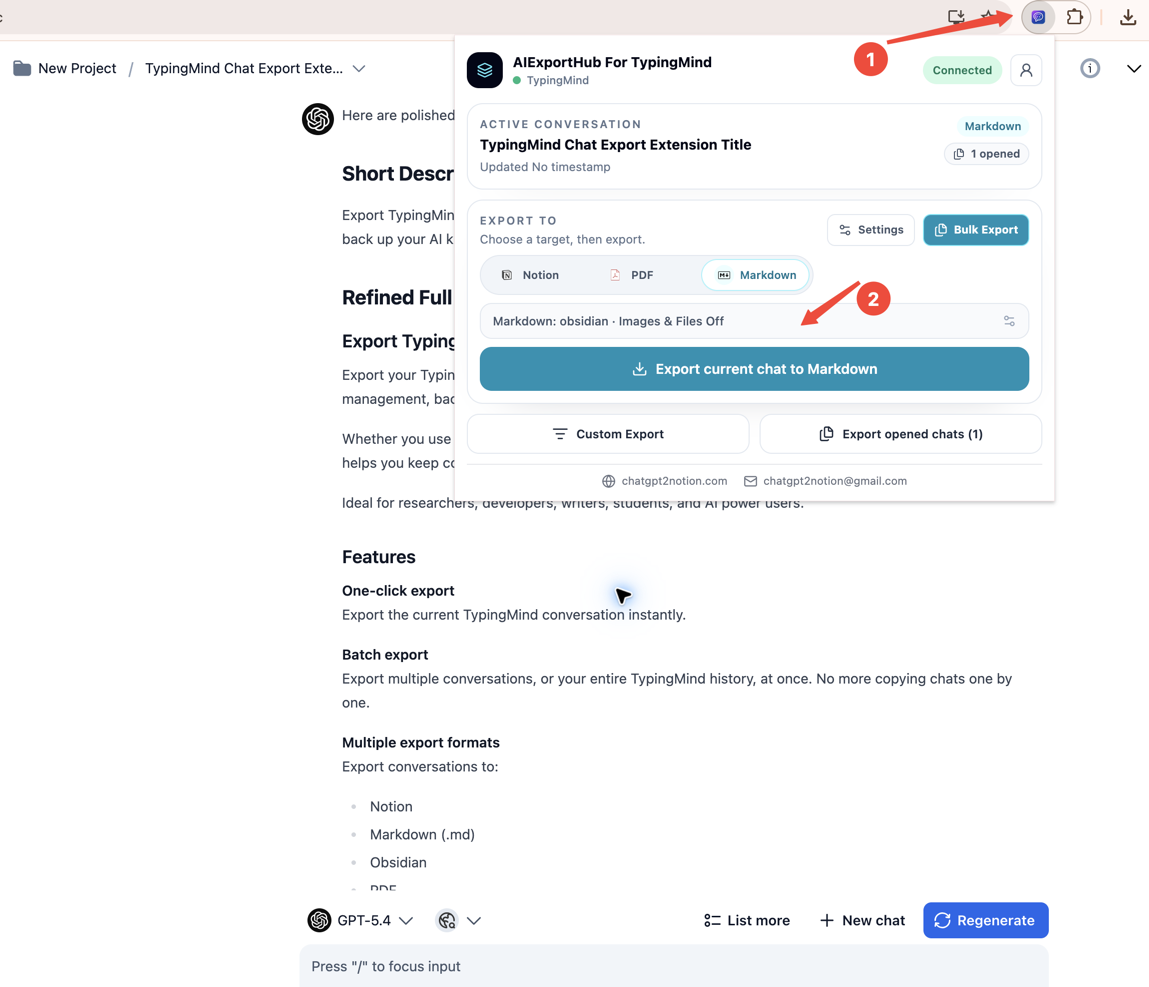
AIExportHub gives you two single-conversation workflows:
- Direct export: choose a target and export the active chat immediately.
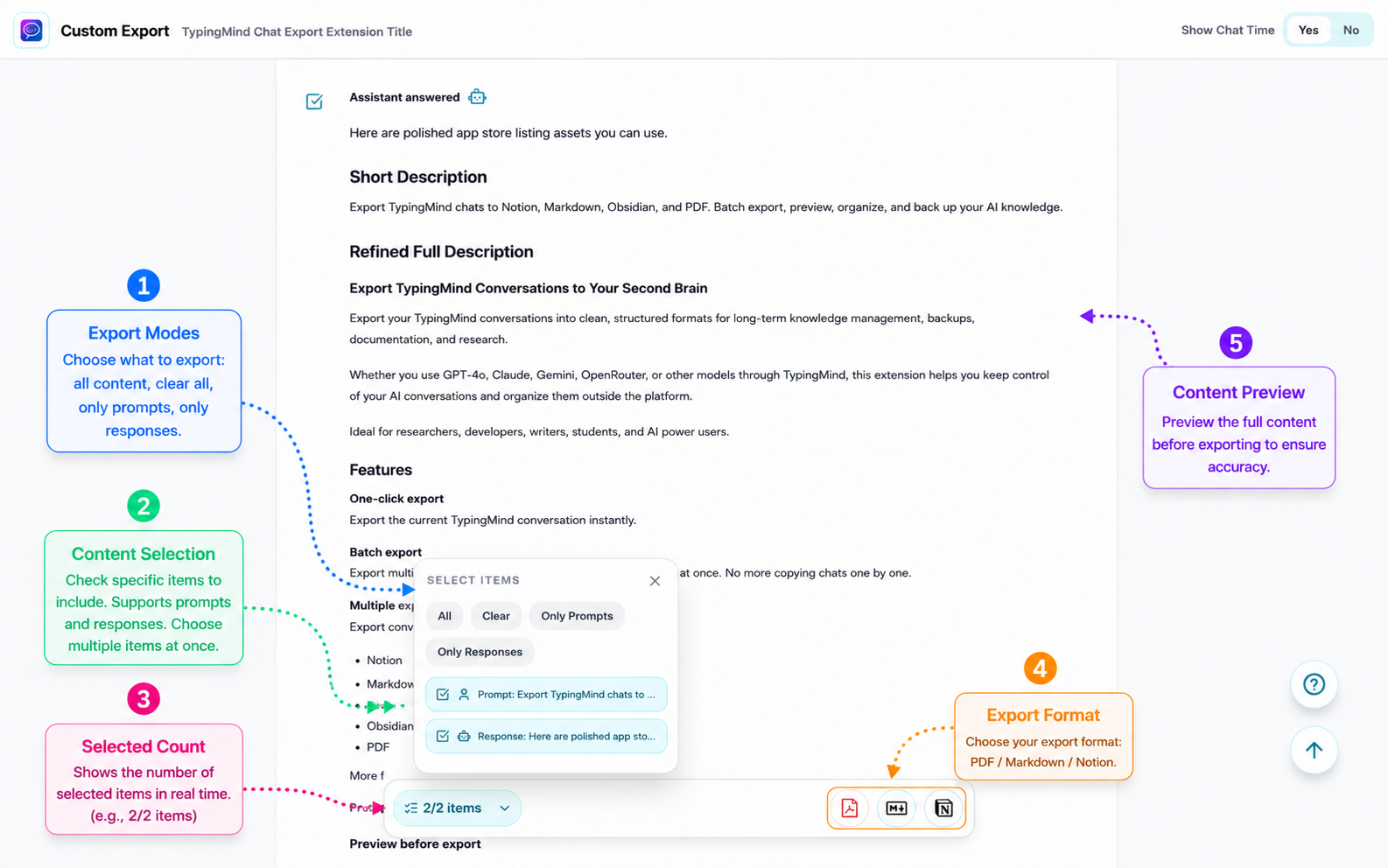
- Custom Export: preview the conversation, select specific items, then export.
Before you start
Make sure:
- AIExportHub for TypingMind is installed.
- You are signed in to TypingMind.
- A TypingMind conversation is open in the active tab.
- For Notion exports, Notion is connected and a database is selected.
Step 1: Open the conversation
Open the TypingMind chat you want to export. A conversation URL may look like this:
https://www.typingmind.com/#chat=Ps1XnPNp1AStep 2: Open the extension popup
Click the AIExportHub icon in Chrome. The popup should show TypingMind as connected.
Step 3: Choose an export target
Choose one of the available targets:
- Notion for structured database pages.
- Markdown for local
.mdfiles. - Obsidian for vault-ready Markdown.
- PDF for stable documents.
Step 4: Export directly
Click Export current chat for the selected target.
This path does not require opening the preview screen. It is best when you already want to save the full active conversation.
For Markdown, Obsidian, and PDF, Chrome downloads the generated file locally. For Notion, AIExportHub sends the selected conversation to the Notion database you configured.
Optional: Preview and select content
Use Custom Export when you want to check the content before exporting.
You can review the conversation and select the items you want to include. This is useful when you only need prompts, only assistant responses, or a specific subset of the conversation.
What to verify after export
After the export finishes, check:
- The title is readable.
- Prompt and assistant response line breaks are preserved.
- Code blocks and tables remain readable.
- Tags and folder context appear where available.
- The exported file or Notion page contains the complete conversation you intended to save.
When to use bulk export instead
Use Bulk Export when you need to back up many TypingMind conversations, migrate a full archive, or run recurring exports.
Ready to try Typingmind Export?
Open the product page for feature details, screenshots, pricing, and the Chrome Web Store install link.