
Overview & Getting Started
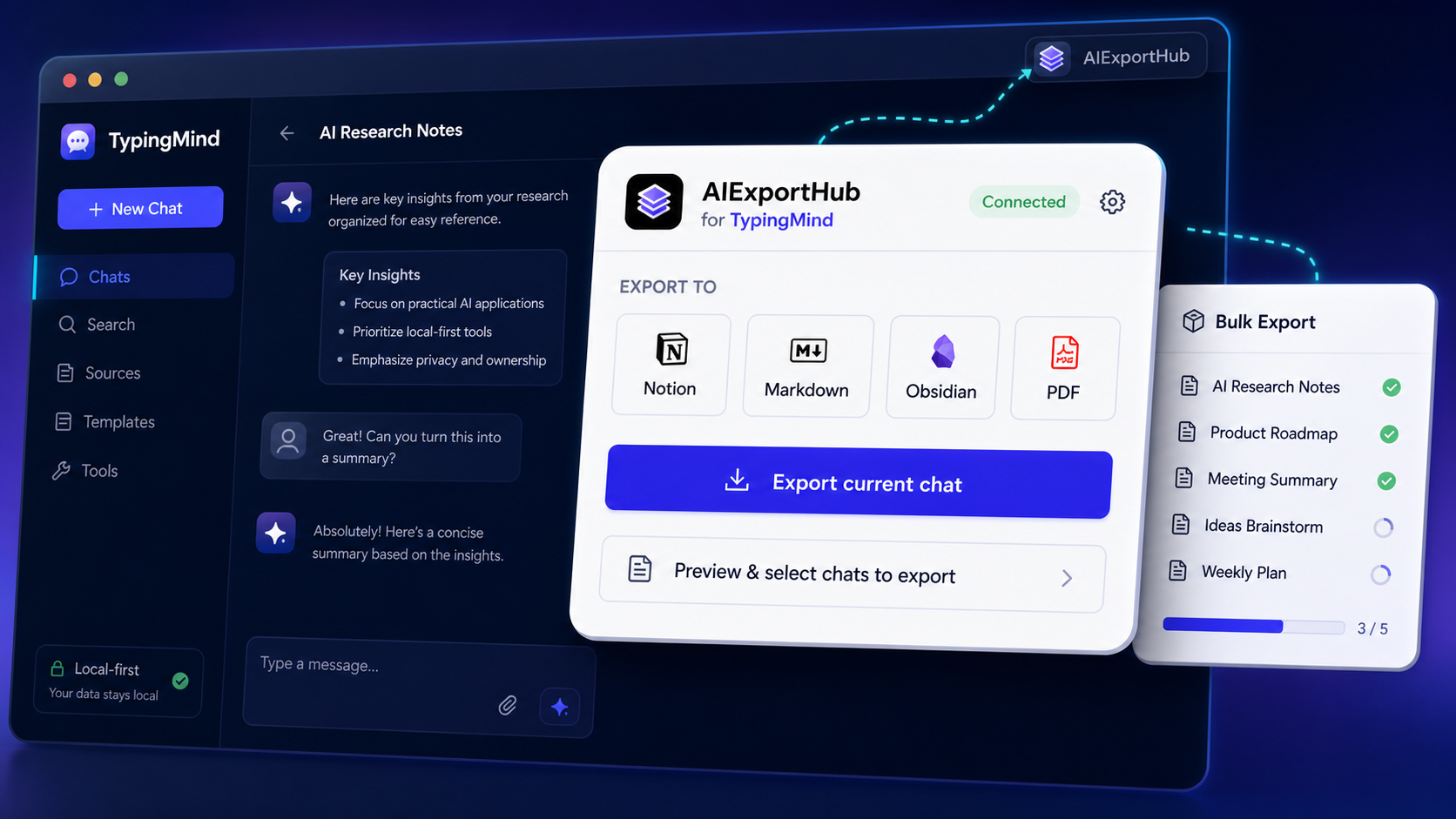
Use AIExportHub for TypingMind to export TypingMind conversations to Notion, Markdown, Obsidian-ready files, and PDF.
AIExportHub for TypingMind is a Chrome extension for backing up TypingMind conversations and turning them into structured knowledge assets.
It supports:
- Direct current chat export from the extension popup.
- Custom export with preview and message selection.
- Bulk export from the extension workspace.
- Notion database sync.
- Markdown files for local archives and Obsidian vaults.
- PDF exports for offline reading, sharing, and compliance records.
Main export workflows
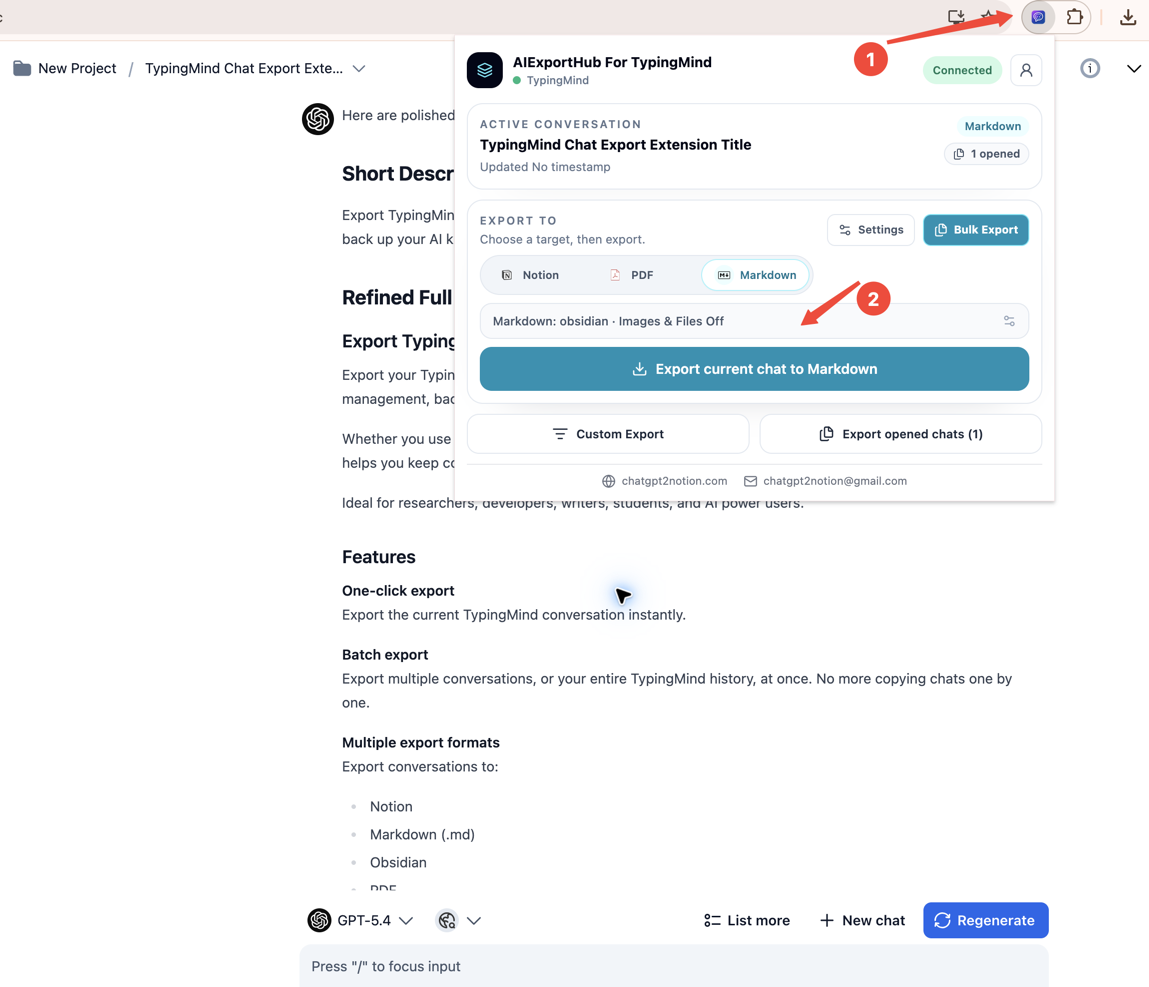
Direct current chat export
Use the popup when you want to export the active TypingMind conversation immediately. Choose Notion, Markdown, Obsidian, or PDF, then click the direct export button.
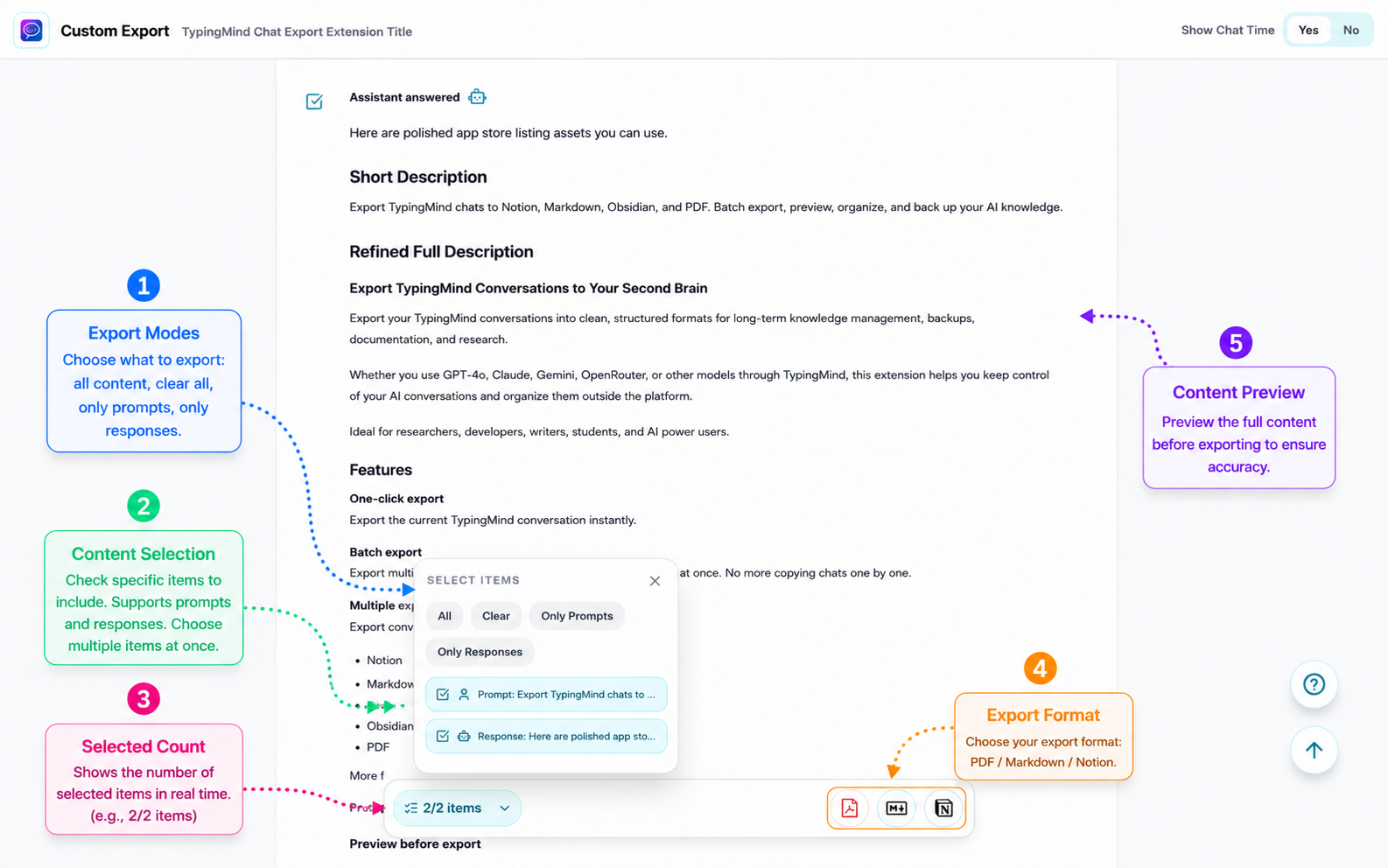
Custom preview export
Use Custom Export when you want to preview the conversation, select specific prompts or responses, and then export only those items.
Bulk export
Use the workspace when you need to export many TypingMind conversations in one run.
What it exports
TypingMind conversations can contain prompts, model responses, research notes, code, tables, and project context. AIExportHub is designed to keep that material readable after export.
Where available, exports can include:
- Conversation title.
- Platform value:
TypingMind. - Source URL.
- Created and exported timestamps.
- Message count.
- Tags.
- Folder or workspace context.
- Prompt and assistant response content.
Export targets
| Target | Best for |
|---|---|
| Notion | Searchable databases, team review, structured research archives |
| Markdown | Local backup, Git repositories, portable notes |
| Obsidian | Private second-brain vaults and Markdown knowledge systems |
| Offline reading, documentation, client delivery, and stable records |
Privacy model
Markdown and PDF exports are generated in your browser and saved through Chrome downloads. No middleman server is required for local file exports.
Notion export only runs when you explicitly connect your own Notion workspace and choose Notion as the target.
Recommended first workflow
- Install the extension.
- Open a TypingMind conversation.
- Export one current chat directly to Markdown.
- Review the file formatting.
- Try Custom Export if you need preview and item selection.
- Configure Notion or local folder settings.
- Run a small bulk export before exporting a full archive.
Next steps
Ready to try Typingmind Export?
Open the product page for feature details, screenshots, pricing, and the Chrome Web Store install link.