
Installation
Install AIExportHub for TypingMind, pin it in Chrome, and confirm that TypingMind is detected.
This guide helps you install AIExportHub for TypingMind and confirm that the extension can detect an active TypingMind tab.
Step 1: Open the Chrome Web Store listing
Open the AIExportHub for TypingMind listing:
Open AIExportHub for TypingMind on Chrome Web Store
The listing is approved and available for installation from the Chrome Web Store.
Step 2: Add the extension to Chrome
Click Add to Chrome, then confirm the install prompt.
The extension asks for permissions needed to detect TypingMind tabs, save local settings, and generate local downloads.
Step 3: Pin the extension
After installation:
- Click the Chrome extensions icon.
- Find AIExportHub for TypingMind.
- Pin it to the toolbar.
Pinning is optional, but it makes current chat export easier.
Step 4: Open TypingMind
Open TypingMind and sign in.
For current chat export, open a specific conversation. TypingMind URLs can include a chat id like:
https://www.typingmind.com/#chat=Ps1XnPNp1AAIExportHub uses the active TypingMind context to locate the conversation data exposed in the browser.
Step 5: Confirm the popup state
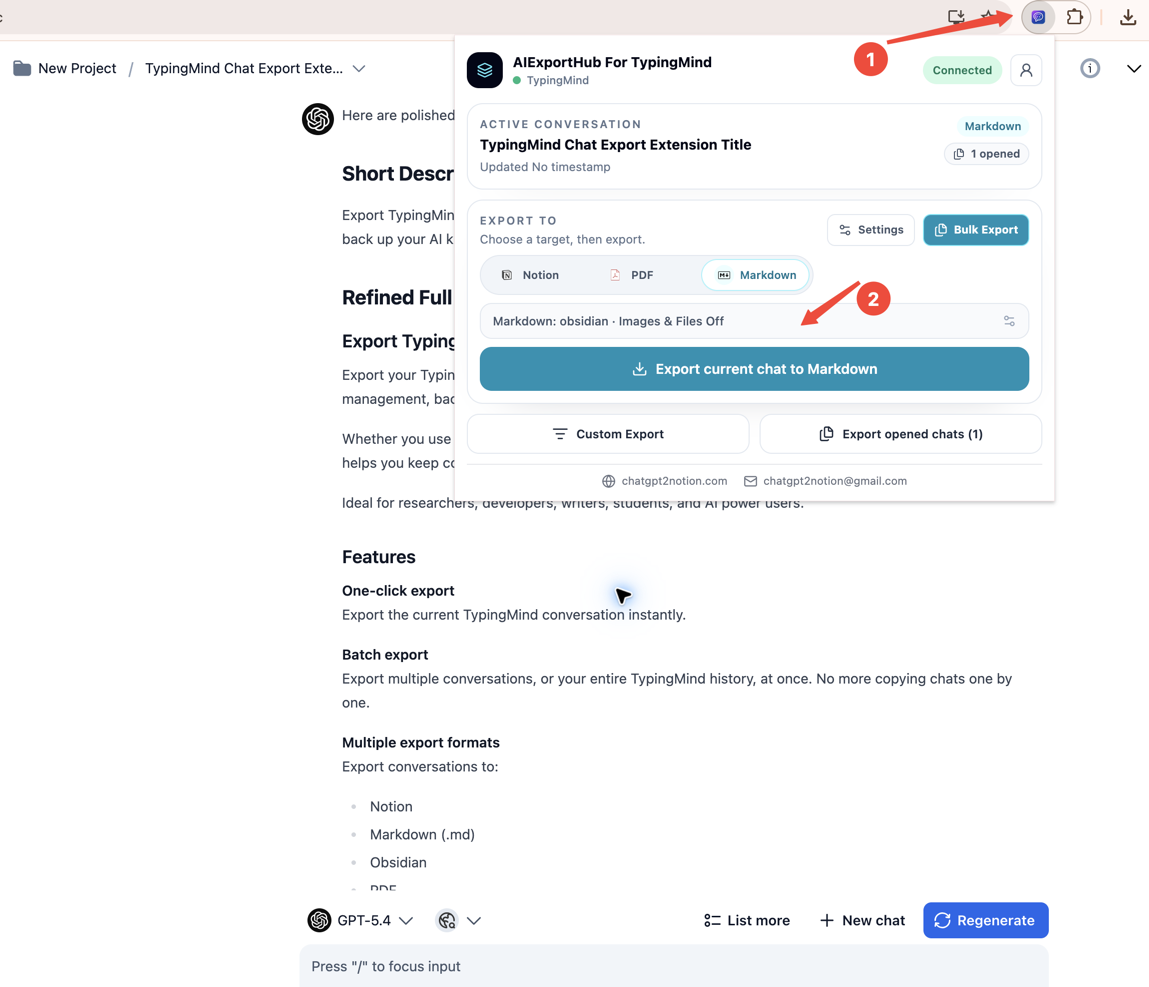
Click the AIExportHub icon. When the active tab is supported, the popup should show a connected TypingMind state and export targets.
Troubleshooting
If the popup does not detect TypingMind:
- Make sure the active tab is
typingmind.comorwww.typingmind.com. - Refresh the TypingMind tab.
- Open an actual conversation, not only the homepage.
- Reload the extension from Chrome extension settings if you just installed or updated it.
- Reopen the listing above to install the latest approved version if Chrome has not refreshed the extension state yet.
Ready to try Typingmind Export?
Open the product page for feature details, screenshots, pricing, and the Chrome Web Store install link.