
Bulk Export TypingMind Chats
Use the AIExportHub workspace to export many TypingMind conversations to Notion, Markdown, Obsidian-ready files, or PDF.
Bulk export is for full backups, research archives, workspace migration, and recurring knowledge-base maintenance.
Prerequisites
- AIExportHub for TypingMind is installed.
- TypingMind is open and signed in.
- The extension workspace can detect TypingMind.
- The selected export target is configured.
- For Notion, your workspace is connected and a database is selected.
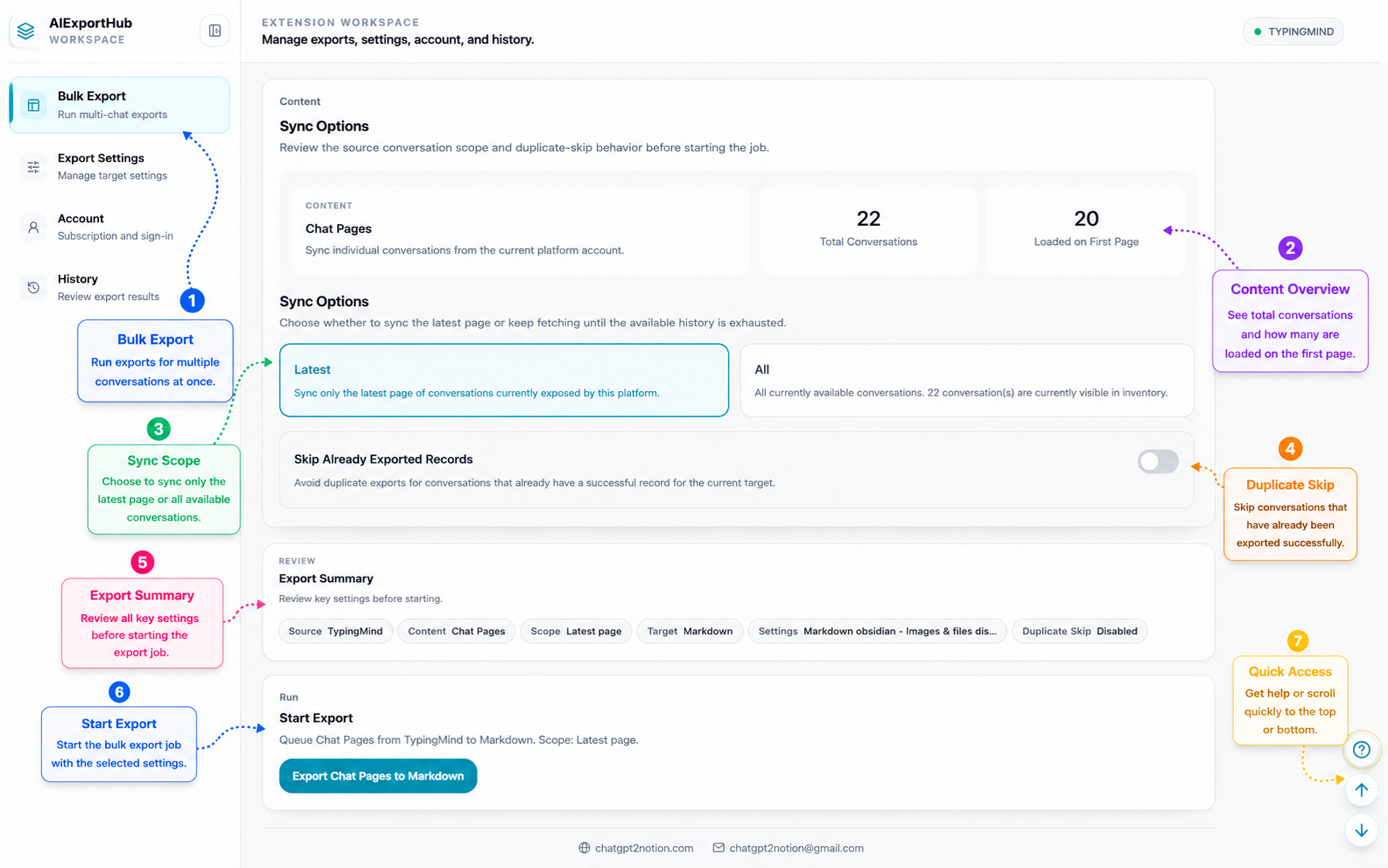
Step 1: Open the workspace
Open the extension popup and choose the bulk export or workspace entry.
The workspace is where you manage exports, settings, account state, and history.
Step 2: Confirm the source platform
Make sure the top-right source indicator shows TypingMind.
If it does not:
- Open a TypingMind tab.
- Refresh TypingMind.
- Return to the workspace.
- Reopen the popup if needed.
Step 3: Choose the content scope
For TypingMind, the workspace can export conversation records exposed from the current browser context.
Choose:
- Latest when you want to test the current loaded set first.
- All when you want to export all available conversations.
For large archives, start with Latest to validate formatting and settings.
Step 4: Choose the export target
Pick:
- Notion for searchable databases.
- Markdown for local archives.
- Obsidian for vault-ready Markdown.
- PDF for stable documents.
Step 5: Enable duplicate skip when needed
Turn on duplicate skip when you do not want AIExportHub to export records that already have a successful export for the same target.
This is useful for recurring backups.
Step 6: Review the summary
Before starting, review:
- Source: TypingMind.
- Content scope.
- Target.
- Local folder and filename settings.
- Duplicate skip state.
Step 7: Start export
Click the start export button and keep the TypingMind tab open while the job runs.
During the job, AIExportHub tracks progress and records successful, skipped, and failed items.
Best practices
- Test with Markdown before exporting a large archive.
- Use Notion for structured project records and tags.
- Use Obsidian-ready Markdown for private local knowledge bases.
- Use PDF for review copies and stable snapshots.
- Keep folder-aware organization enabled when TypingMind folder context is available.
- Retry failed records instead of restarting a large job from zero.
Ready to try Typingmind Export?
Open the product page for feature details, screenshots, pricing, and the Chrome Web Store install link.