
Destination, Formatting, and Media
Configure the Notion data source, conflict behavior, message appearance, metadata, images, attachments, and Artifacts.
Select a Notion data source
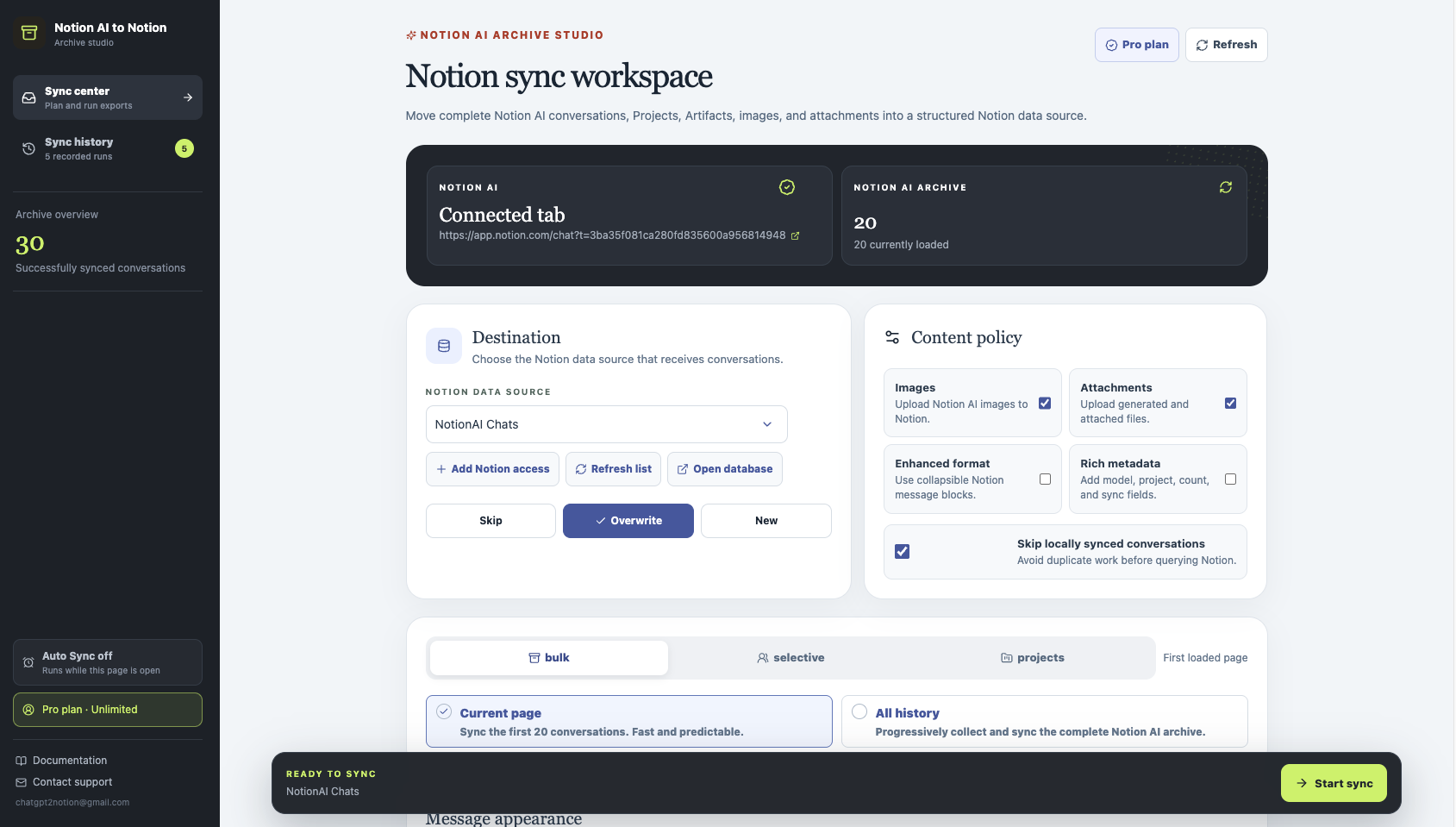
The Sync Center’s Destination card lists the Notion data sources available to the authorized integration. Choose the copied NotionAI Chats Manager template or another data source that the integration can edit.
Use Add Notion access to start OAuth, Refresh list after changing permissions, and Open database to verify the destination in Notion. A data source must be selected before Start sync becomes available.
Conflict behavior
Choose one policy for pages that already contain the same Notion AI ID:
- Skip keeps the existing page unchanged.
- Overwrite updates the existing page and its content.
- New always creates a new page.
The Skip locally synced conversations toggle avoids re-querying conversations already recorded in the extension’s local success cache. Turn it off when you need a deliberate re-check of previously synced content.
Content policy
The default policy includes images and attachments, keeps standard formatting, and skips locally synced conversations. You can change each option before a run:
- Images uploads Notion AI images when the source session exposes their bytes or a public URL.
- Attachments uploads generated files and attached files.
- Enhanced format groups each message into a collapsible Notion toggle while preserving role labels and timestamps.
- Rich metadata adds Model, Notion AI Project, Message Count, Last Synced At, and Sync Source properties.
Public images may be linked directly. Other media is uploaded to Notion; if a direct upload fails, the extension preserves readable content as a child page when possible and records a warning in the run details. Direct uploads are limited by Notion’s 20 MB file limit.
Message appearance
The appearance panel controls the visible role label, preview length (30, 60, or 120 characters), and background colors for user and Notion AI messages. These settings affect the headings and previews written into the exported page, not the source conversation.
What lands in Notion
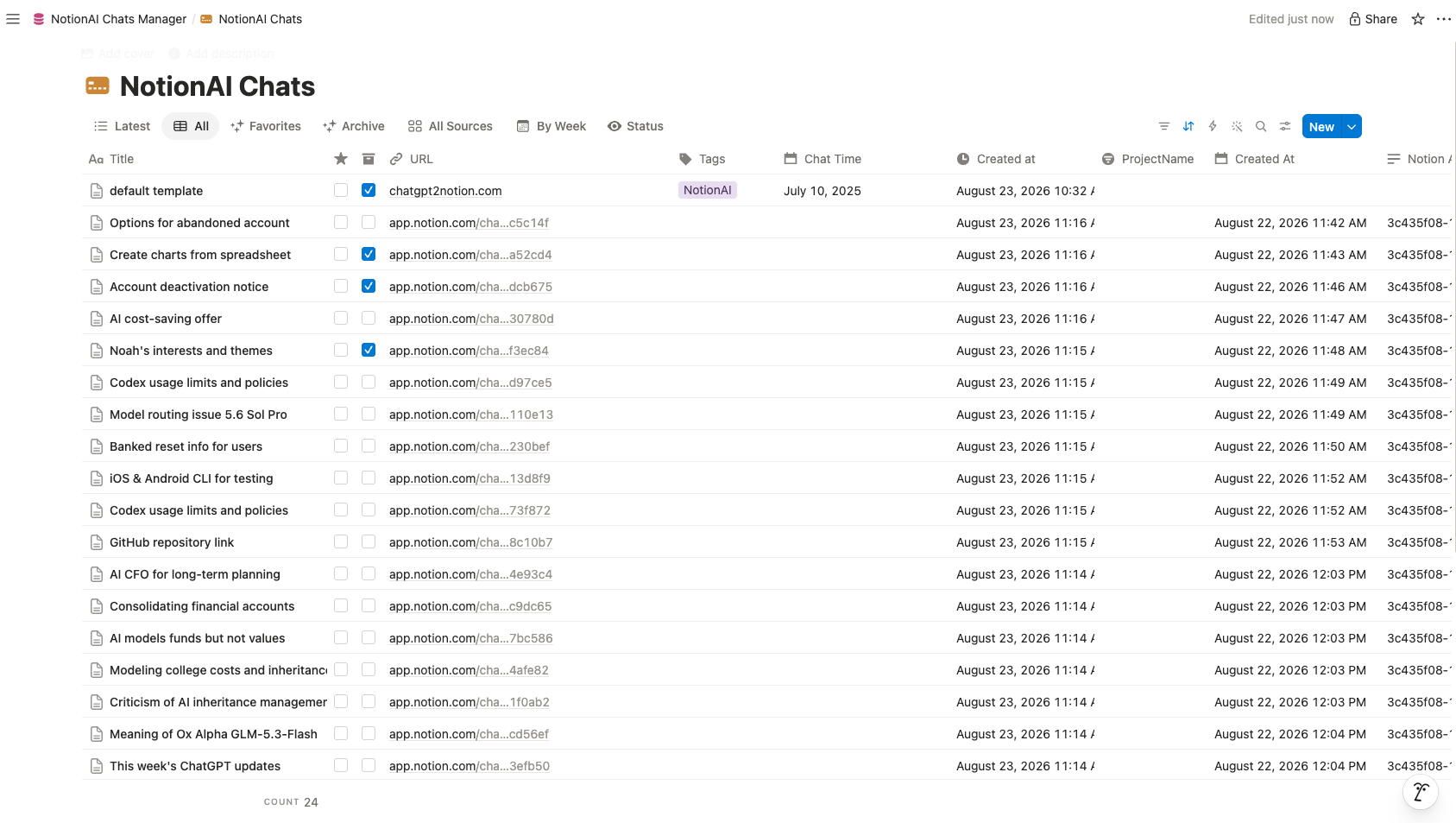
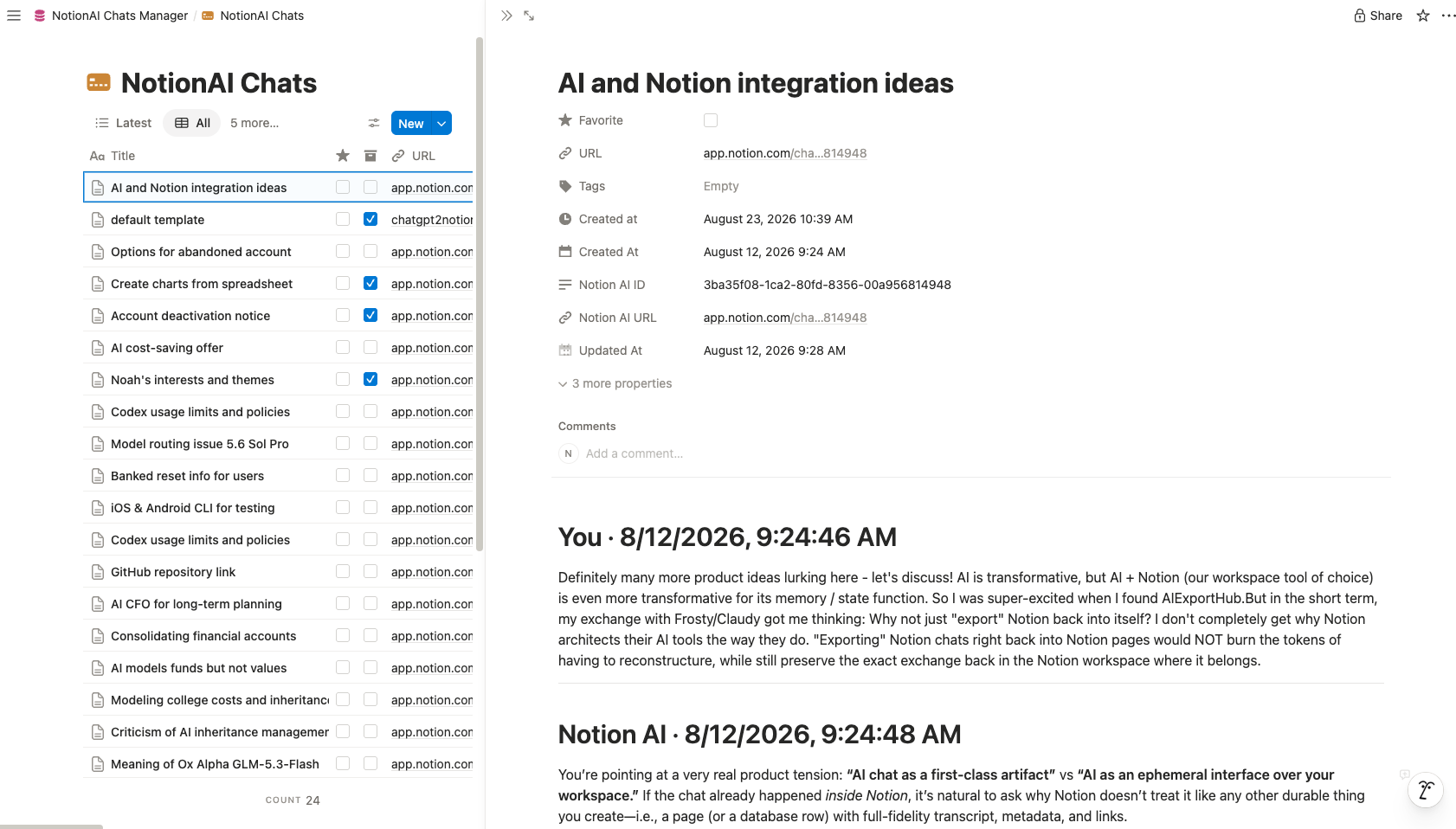
Each conversation becomes a database page with its title, Notion AI ID, source URL, Created At, Updated At, and ProjectName when available. Rich metadata adds the optional fields above. The page body preserves message order, code, headings, lists, timestamps, media blocks, and links to any generated Artifacts.
Ready to try Notionai Export?
Open the product page for feature details, screenshots, pricing, and the Chrome Web Store install link.