
Choose an Export Mode
Learn when to use current-chat, opened-tab, bulk, selective, and Projects exports in NotionAI Exporter.
NotionAI Exporter has a quick path for the conversation you are reading and a full Sync Center for larger archive jobs. Keep the Notion AI tab open and connected while the extension loads conversation details.
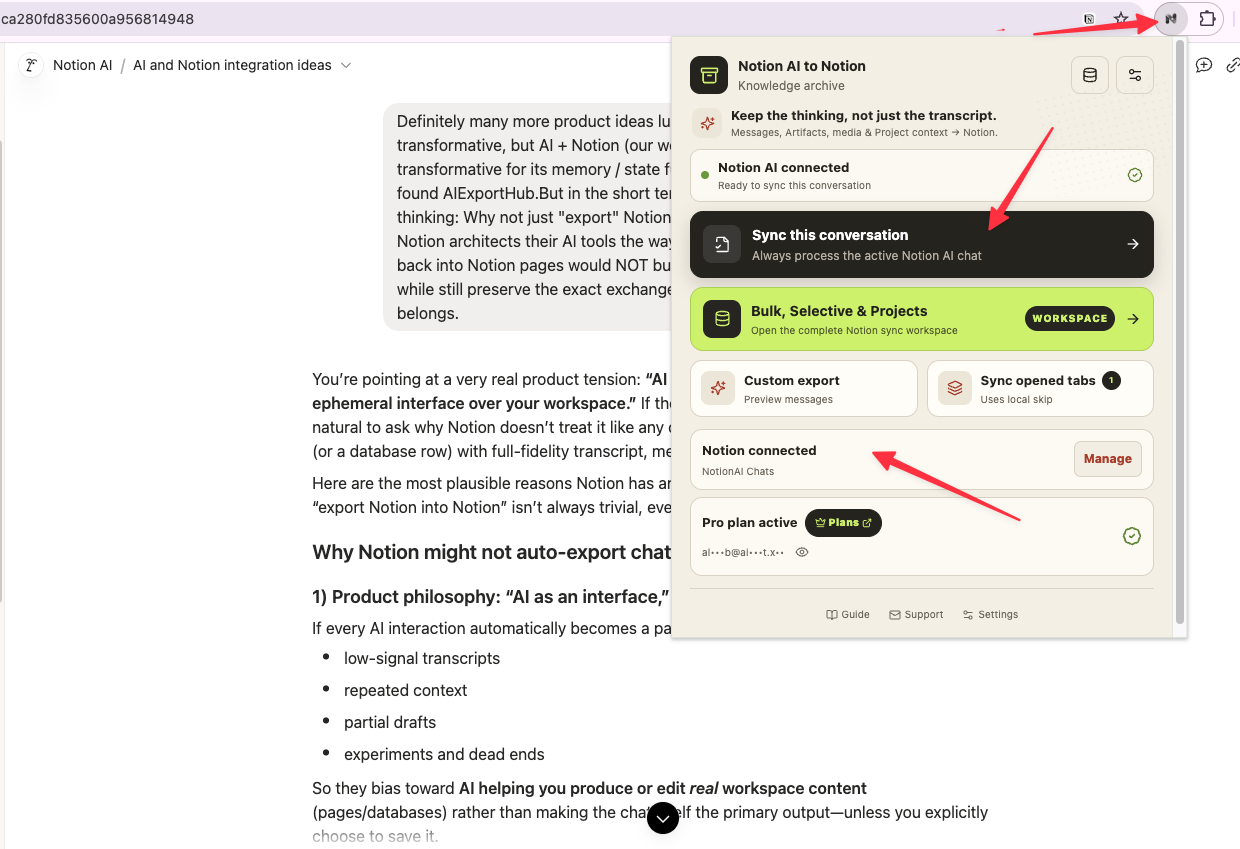
Current conversation
Use Sync this conversation in the browser popup when you only need the active Notion AI thread. This mode reads the conversation from the currently detected tab and intentionally ignores the usual local skip preference so you can re-export the page on demand.
The popup also shows the connected Notion destination and exposes Custom export for a preview workflow. If the popup cannot see the chat, refresh the Notion AI tab and then reopen the popup.
Opened conversation tabs
The popup’s Sync opened tabs action finds open Notion AI conversation tabs and sends them together. This is useful when you have a small working set spread across tabs and do not want to load the complete archive.
Bulk history
Open the Sync Center and choose bulk for a predictable archive run:
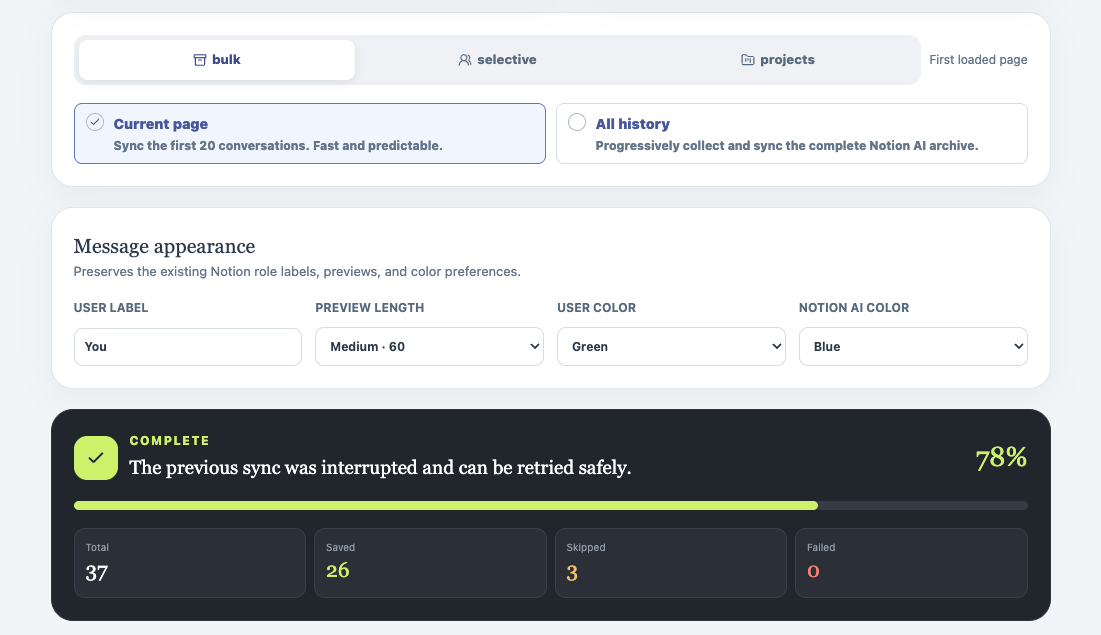
- Current page syncs the first 20 loaded conversations.
- All history progressively loads every conversation page before syncing.
The runner throttles detail requests between conversations and reports the current loading stage. For a large archive, leave the tab open until the progress panel reaches a completed state.
Selective conversations
Choose selective to search the loaded conversation list by title. Use Select visible to select the filtered results, Load more conversations to fetch another page, or Load all before selecting. Each selected conversation is deduplicated by its Notion AI ID before details are requested.
Previously synced conversations are marked Synced when the local cache or destination lookup finds the same ID. You can still choose a different conflict policy before starting the run.
Projects
Choose Projects to load Notion AI Projects and inspect the conversations inside the active Project. Select an entire Project, select individual conversations, or use Select loaded for the current Project view. Load more Projects and Load more Project conversations extend the list without losing your current selection.
Project names and IDs are carried into the exported page when Notion AI returns that context. A Project selection is resolved to conversation IDs before the sync starts, so the final run summary still reports saved, skipped, and failed conversations.
Choosing the right mode
| Goal | Recommended mode |
|---|---|
| Save the chat currently on screen | Current conversation |
| Export a handful of tabs already open | Opened conversation tabs |
| Back up the newest loaded page | Bulk → Current page |
| Build a complete archive | Bulk → All history |
| Pick by title or date | Selective |
| Back up a workspace Project | Projects |
Ready to try Notionai Export?
Open the product page for feature details, screenshots, pricing, and the Chrome Web Store install link.