
Custom Export Preview
Preview rendered Perplexity Markdown and select prompts or responses independently before downloading a focused note
Custom Export Preview opens the current Perplexity conversation in a dedicated extension page. It is the most precise workflow when you want to inspect the Markdown and choose individual prompts or responses before download.
Open the preview
- Open a supported Perplexity conversation or Computer Task.
- Click the extension icon.
- Wait until the current item is ready.
- Click Custom Export Preview.
The extension fetches the current item, stores a temporary local preview cache, and opens the preview in a new tab.
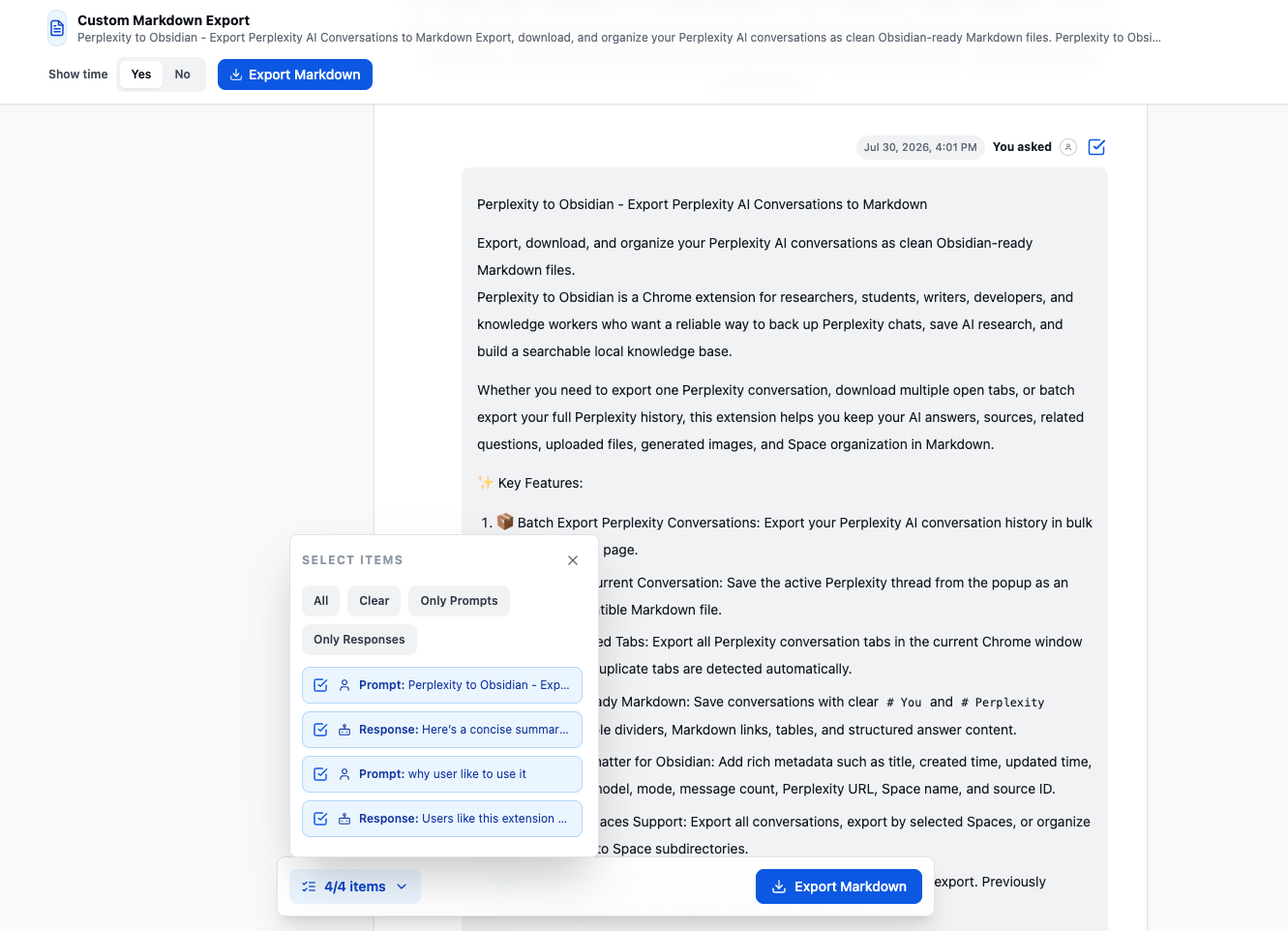
Independent message selection
Each user prompt and Perplexity response has its own checkbox. You can export:
- a prompt and its response
- the prompt only
- the response only
- any mixture of messages from the thread
This is different from inline Selective Export, where one checkbox selects a complete Q&A entry.
Select Items menu
The bottom menu lists every prompt and response and provides:
- All
- Clear
- Only Prompts
- Only Responses
- individual message toggles
- navigation to the corresponding preview item
The count is message-based. A two-turn conversation normally has four selectable items.
Rendered Markdown preview
The preview renders common Markdown before you download it, including:
- headings
- lists
- links
- tables
- code blocks
- blockquotes
This helps verify research-heavy answers and tables without first opening the file in Obsidian.
Show time
With Show time enabled, the exported message headings include browser-time-zone timestamps:
# You (2026-07-30 10:12:00)

...

# Perplexity (2026-07-30 10:13:20)
With it disabled, headings remain # You and # Perplexity.
Preview settings
The left panel controls the current preview export:
- Save Path
- YAML frontmatter
- combined Sources and Related Questions
- organize by Space
- the active filename pattern
The filename pattern is displayed from the extension configuration; the preview does not expose the four-option filename selector.
Save Path must be relative to Chrome’s configured Downloads location, such as:
perplexity/researchDo not enter absolute macOS or Windows paths, network shares, or ...
Export Markdown
- Select the messages you want.
- Review the rendered result.
- Check Show time and the left-panel settings.
- Click Export Markdown.
The extension builds a Markdown note from only the selected items, downloads it through Chrome Downloads, marks the source item as exported, and adds a local history record.
Companion-file limitation
Custom Export Preview downloads the Markdown file but does not call the separate attachment/image downloader.
When uploaded files or generated images must also exist locally, use:
- current-thread export
- opened-tabs export
- Batch Export
Those standard workflows download supported companion files into attachments/ and images/ when the setting is enabled.
Sources and Related Questions
Sources and Related Questions are controlled by one combined switch. They are generated only for selected Perplexity responses whose source data contains them.
Selecting only prompts produces no response Sources section.
Custom Preview vs inline Selective Export
| Capability | Custom Export Preview | Inline Selective Export |
|---|---|---|
| Selection | Individual prompts and responses | Complete Q&A entries |
| Rendered preview | Yes | No |
| Show message time | Yes | No |
| Copy to clipboard | No | Yes |
| Download Markdown | Yes | Yes |
| Download companion assets | No | No |
| Computer Task entry point | Supported by popup detection | Not injected |
Troubleshooting
Preview does not open
- Confirm the current URL is a supported
/search/or/computer/tasks/item. - Refresh Perplexity after installing or updating the extension.
- Wait until the popup identifies the current item.
- Reopen the popup and retry.
Export says the path or filename is invalid
Use a simple relative path such as perplexity/research. Do not use a drive letter, leading slash, network path, empty segment, parent-directory segment, or unsupported special characters.
A prompt or response is missing
Open Select Items and verify its checkbox. Only selected items are exported.
Sources are missing
Enable Include Sources and Related Questions and ensure the matching Perplexity response is selected.
Related: Selective Export, Individual Export, and Batch Export.
Ready to try Perplexity To Obsidian?
Open the product page for feature details, screenshots, pricing, and the Chrome Web Store install link.