
How to Activate Your Subscription
Activate Perplexity to Obsidian 3.1 from the Batch Export page with the email used at checkout
Activation uses the email address from checkout. It does not require a separate password or a license key.
Open Subscription Status
- Click the extension icon.
- Click Go Bulk Export.
- Expand Subscription Status on the Batch Export page.
You can also right-click the extension icon and open Options.
Free Plan
The current Batch Export page describes the free plan as:
- up to five conversations per batch
- activation by purchase email for unlimited batch export
Version 3.1 also contains a locally stored daily-operation check in the popup’s current-thread and opened-tab paths. This is separate from the five-per-batch check.
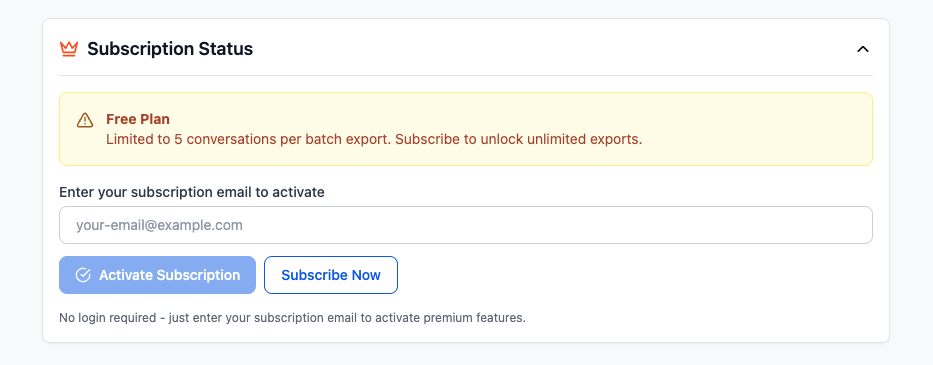
Activate
- Enter the exact email used for purchase.
- Click Activate Subscription.
- Wait for the subscription service to verify the email.
- Refresh or reopen the Batch Export page if the active status does not update immediately.
Activation requires an internet connection because the extension checks the subscription with the product service. The validated status is cached in Chrome storage.
Confirm the active state
A successful activation changes the section to Subscription Active and shows the activated email and unlimited status.
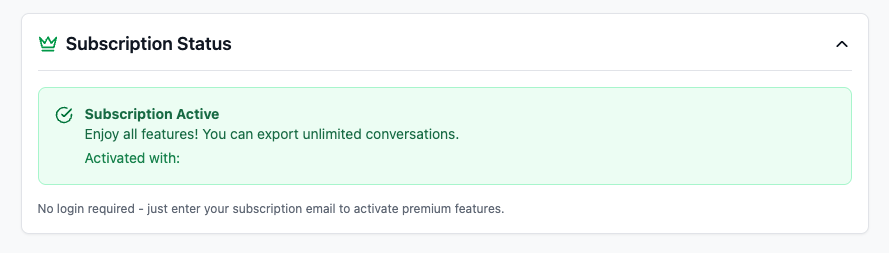
Activation removes the free batch-size limit. It does not change Perplexity rate limits, Chrome Downloads path rules, or which page types each workflow supports.
Troubleshooting
No active subscription found
- Confirm the address exactly matches checkout.
- Remove leading or trailing spaces.
- Wait a few minutes after a newly completed payment.
- Confirm the payment completed successfully.
Request fails or keeps loading
- Check the internet connection.
- Refresh the Batch Export page.
- Reopen it from Go Bulk Export.
- Retry after a few minutes.
Active status is shown but a limit remains
- Refresh both the Batch Export page and the Perplexity tab.
- Close and reopen the popup.
- Enter the same purchase email and activate again.
- Confirm the message is an extension plan limit rather than a Perplexity 429 rate limit.
If activation still fails, contact [email protected] with the purchase email and order details. Do not send payment credentials or your exported storage JSON.
Ready to try Perplexity To Obsidian?
Open the product page for feature details, screenshots, pricing, and the Chrome Web Store install link.