
Batch Export & Backup
Use Perplexity to Obsidian 3.1 to bulk export All Threads, Computer Tasks, or multiple Spaces with date filters, incremental skip logic, progress, and history
Batch Export downloads multiple Perplexity records as separate Markdown files. Version 3.1 can load regular conversation history, Computer Tasks, or conversations from selected Spaces.
Before you start
- Sign in to Perplexity in Chrome.
- Keep at least one refreshed
https://www.perplexity.ai/tab open. - Open Go Bulk Export from the extension popup.
- Test a small selection before exporting all records.
- Keep both the Batch Export page and the Perplexity tab open during the run.
1. Choose a data source
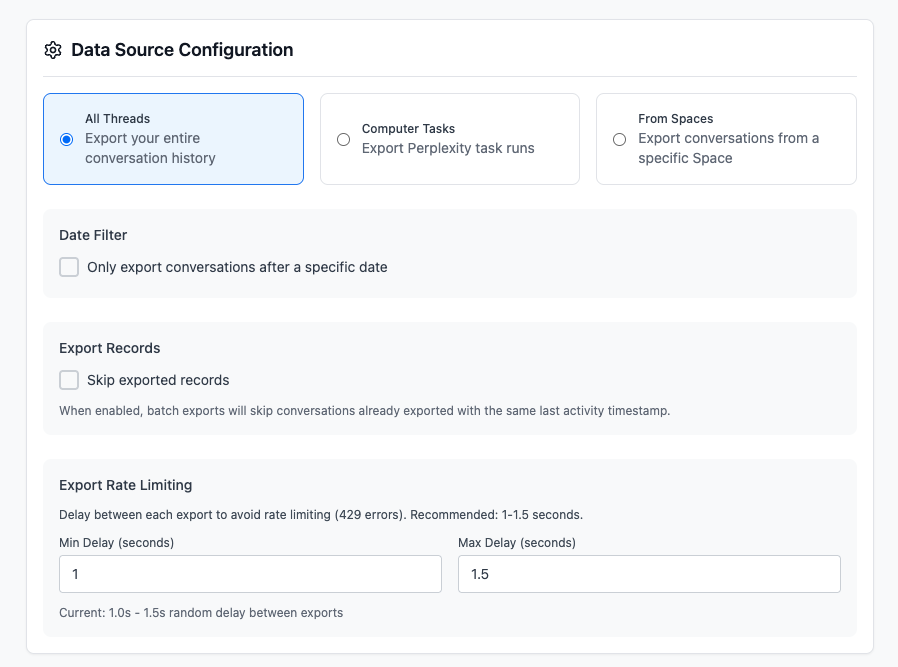
All Threads
Loads standard Perplexity conversation history. Use this for a general backup that can include conversations belonging to Spaces.
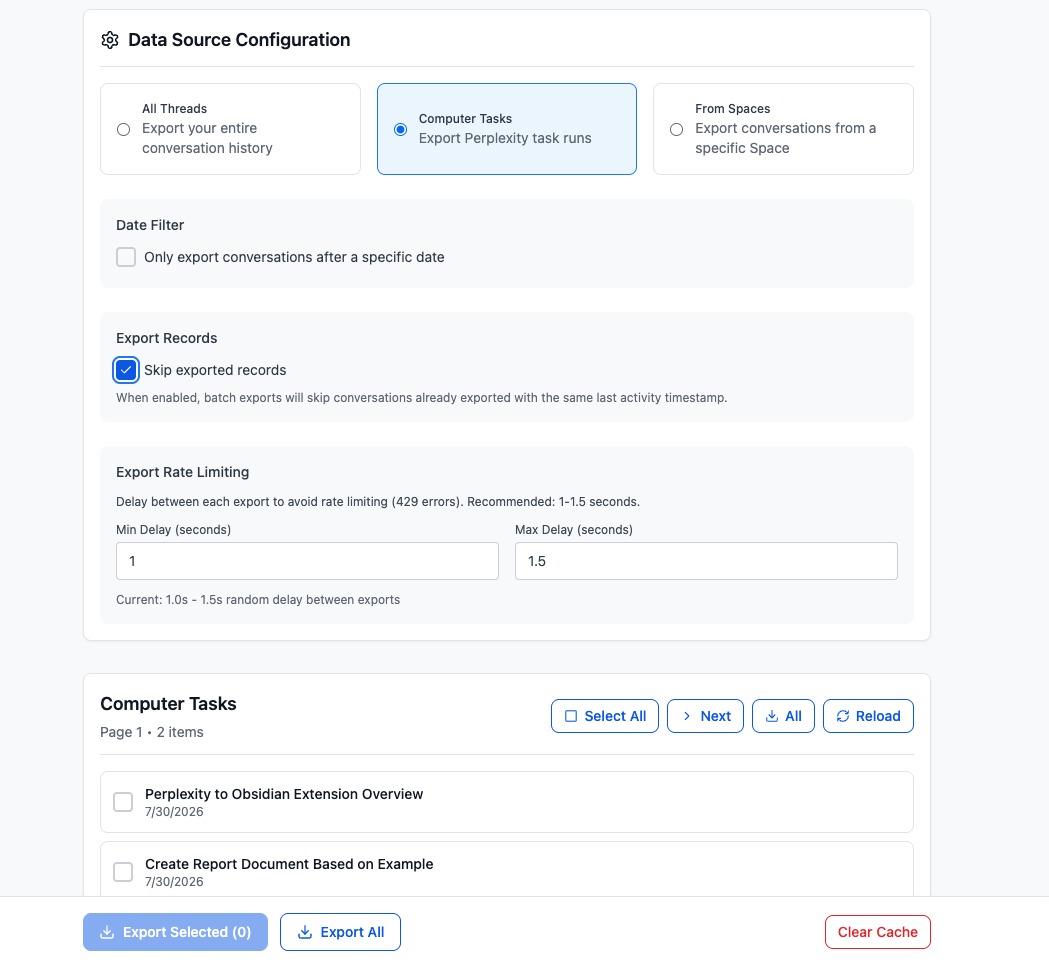
Computer Tasks
Loads supported Perplexity Computer Task runs separately from standard threads.
From Spaces
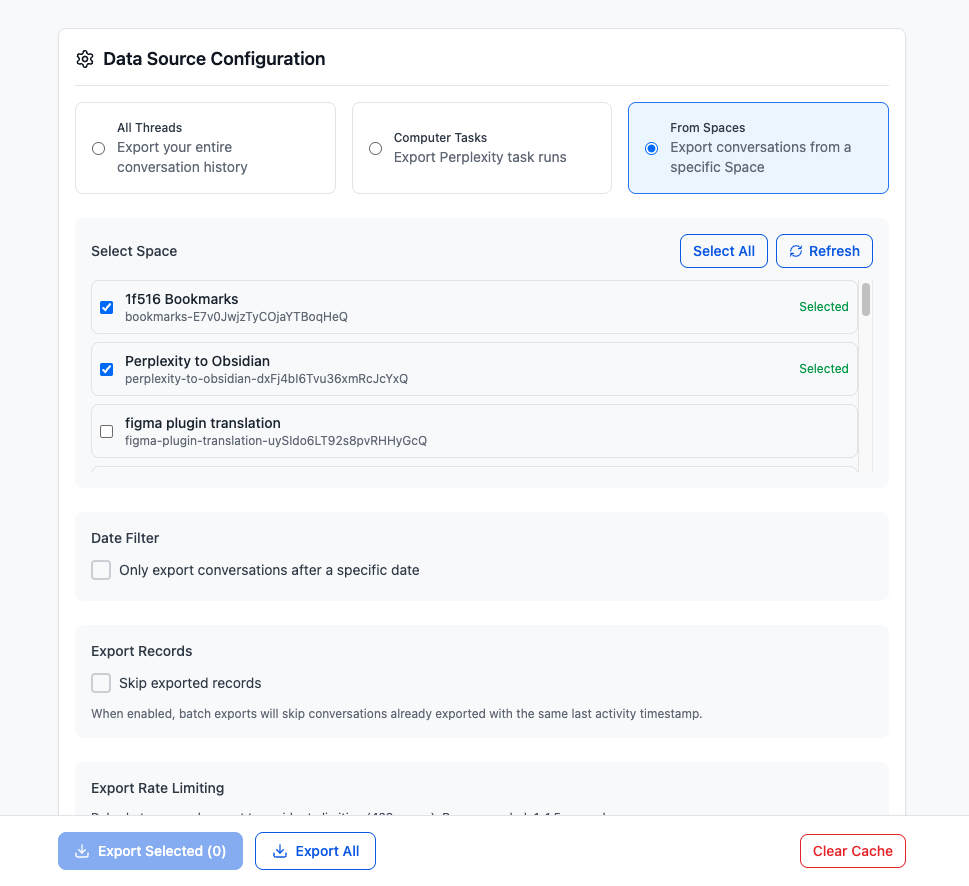
Loads conversations from one or more Perplexity Spaces.
- Select From Spaces.
- Refresh the Space list if needed.
- Check one or more Spaces, or use Select All.
- Load or export the resulting conversations.
When every available Space is selected, version 3.1 uses the all-Spaces export workflow instead of the normal selectable thread-list flow.
2. Configure the data filter
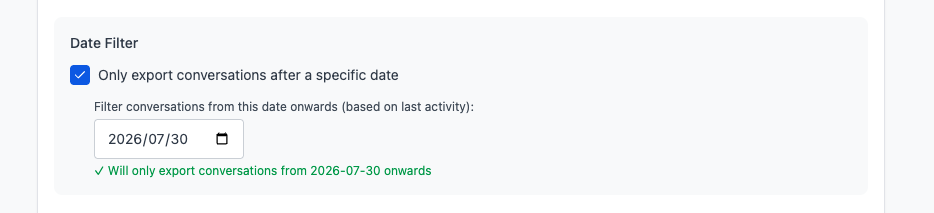
Date filter
The date filter compares each record’s latest activity date, not only its original creation date. It is applied to export and list-loading utilities so that older unchanged records can be omitted from an incremental backup.
Skip exported records
With Skip exported records enabled:
- a record that has never been exported is eligible
- a record with newer activity than the stored export marker is eligible again
- a record with the same or older last-activity value is skipped
This is change-aware deduplication, not a permanent “export once only” rule.
Export delay
Set a minimum and maximum delay between records. The defaults are:
- minimum: 1.0 second
- maximum: 1.5 seconds
Both controls accept values from 0.5 to 10 seconds. A random value inside that range is used between downloads.
3. Configure output
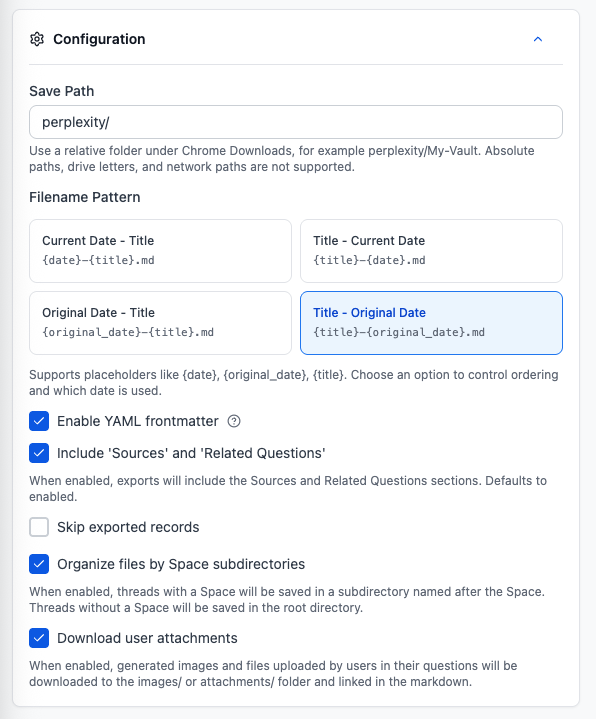
The page uses the same core settings as the popup:
- relative Save Path under Chrome Downloads
- four current-date/original-date and title filename orders
- YAML frontmatter
- combined Sources and Related Questions toggle
- Space subdirectories
- uploaded-file and generated-image downloads
Space folders and attachment downloads are enabled by default in the current configuration.
4. Load and select records
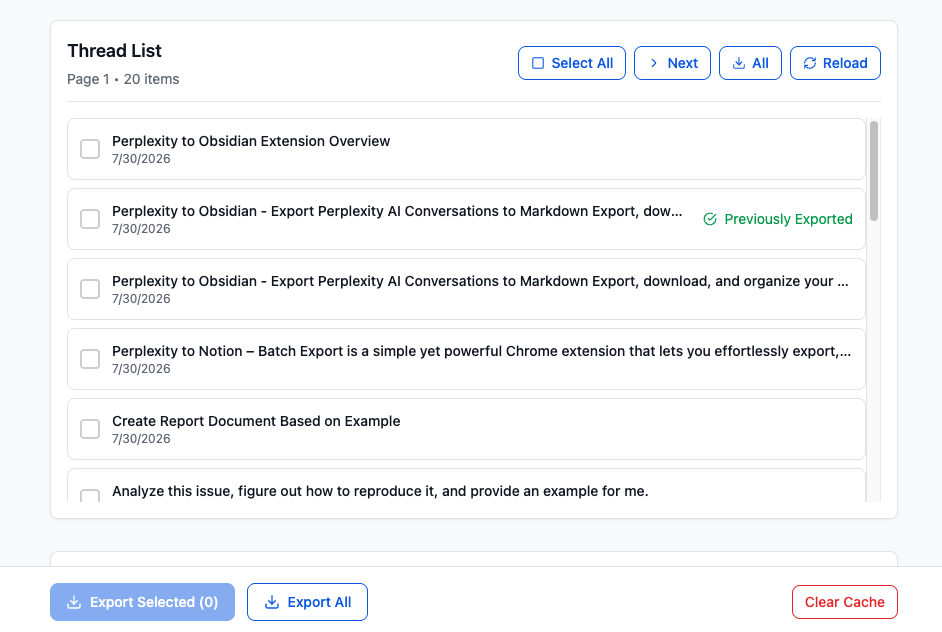
The thread list loads 20 records per page and provides:
- row checkboxes
- Select All and Deselect
- next-page navigation
- load-all action
- reload
- Export Selected
- Export All
There is no “Latest Page / All Pages” mode switch in the current interface.
5. Run, monitor, or cancel
Use Export Selected for checked rows or Export All for the full eligible source.
The progress panel reports the current item, completed count, total, percentage, and status. Cancel stops future records; files already downloaded remain on disk.
Rate limits and retry behavior
Version 3.1 has two different paths:
- Regular selected/all-thread processing stops when a record returns 429 and asks you to wait before trying again.
- The multi-Space wrapper can wait 60 seconds and retry the current Space up to three attempts. It also waits roughly 3–5 seconds between Spaces.
Some history-list page requests also have short retry handling, but that does not mean every failed conversation is automatically retried.
To reduce 429 errors:
- keep the default 1.0–1.5 second delay or increase it
- export smaller selections
- use All Threads when From Spaces repeatedly triggers rate limiting
- wait several minutes before restarting after a 429
History, failures, and cache
Export History
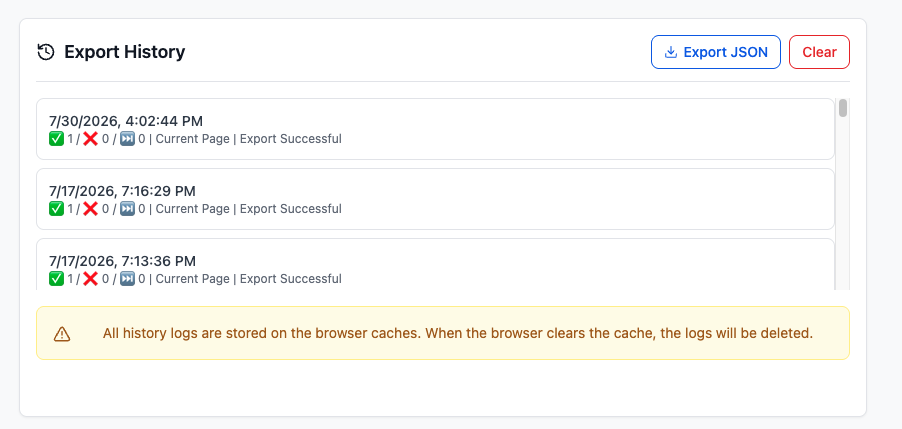
The extension keeps up to 50 recent export-history records in Chrome storage. Entries can include scope, total, success, failure, skipped count, duration, and completion remark.
Export Failures
Failure records are stored locally, capped at 200 entries, and can be downloaded or cleared. The error type can identify fetch, download, rate-limit, or unknown failures.
Because failure details may contain conversation titles and IDs, inspect them before sharing.
Clear Cache
Clear Cache removes the exported-record markers used by skip logic. It does not delete downloaded Markdown files and is not the same as clearing export history or failure records.
Export JSON
Export JSON exports extension storage data, not only a human-readable history report. It may contain settings, email or subscription state, IDs, titles, URLs, and other local or synced extension values.
Treat this file as sensitive. Do not attach it to public issues without reviewing and redacting it.
Free-plan behavior
The Batch Export page limits free users to five conversations per batch. A subscribed account removes this extension-side batch cap, but Perplexity rate limits still apply.
Output layout
With Save Path perplexity/, Space organization enabled, and assets present, a download may look like:
Chrome Downloads/
└── perplexity/
    └── Example Research/
        ├── 2026-07-30-example-thread.md
        ├── attachments/
        │   └── reference.pdf
        └── images/
            └── generated-chart.png
Chrome’s configured Downloads folder is the root. To place files in a vault automatically, configure Chrome’s download location accordingly; otherwise move the completed folder into Obsidian.
Ready to try Perplexity To Obsidian?
Open the product page for feature details, screenshots, pricing, and the Chrome Web Store install link.