
Settings & Configuration
Reference for every Perplexity to Obsidian 3.1 output, filename, folder, attachment, skip, date, and delay setting that is actually available
Version 3.1 exposes its main output settings in the popup’s expandable Configuration section and on the Batch Export page.
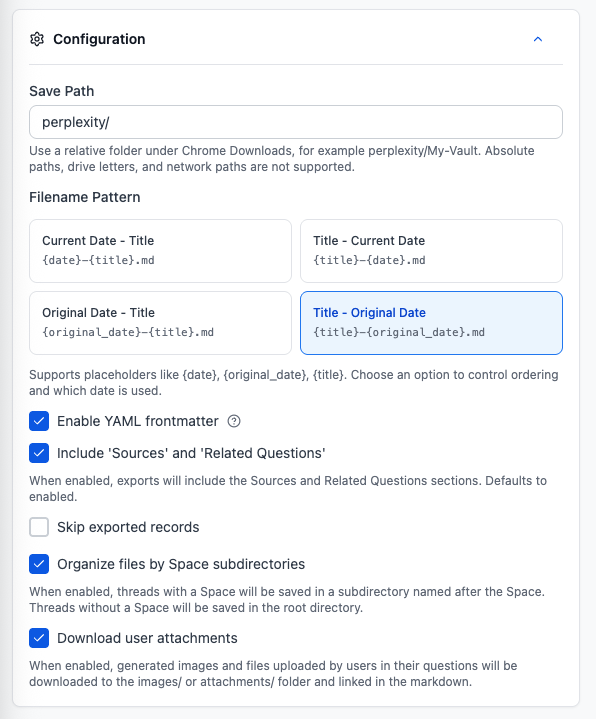
Current defaults
| Setting | Default |
|---|---|
| Save Path | perplexity/ |
| Filename | Current Date – Title |
| YAML frontmatter | Enabled |
| Sources and Related Questions | Enabled |
| Skip exported records | Enabled |
| Organize files by Space | Enabled |
| Download user attachments | Enabled |
| Minimum export delay | 1.0 second |
| Maximum export delay | 1.5 seconds |
Save Path
Save Path is relative to Chrome’s configured Downloads folder.
Valid:
perplexity
perplexity/research
perplexity/AI-Notes
Invalid:
/Users/name/Documents/Obsidian
C:\Users\name\Obsidian
\\server\share\Obsidian
../Obsidian
The validator rejects absolute paths, Windows drive prefixes, network paths, .., empty path segments, and unsupported special characters.
The extension does not have a separate arbitrary attachment path or a direct “Open in Obsidian” setting. To land inside a vault automatically, set Chrome’s download location to the vault and keep the extension path relative.
Filename options
The current UI exposes four choices:
| UI option | Pattern |
|---|---|
| Current Date – Title | {date}-{title}.md |
| Title – Current Date | {title}-{date}.md |
| Original Date – Title | {original_date}-{title}.md |
| Title – Original Date | {title}-{original_date}.md |
The filename utility also understands {uuid} and {timestamp} for stored legacy/custom patterns, but version 3.1 does not expose a free-form pattern editor in the popup or Batch Export interface.
Names are sanitized and capped at a safe length. Chrome Downloads uses uniquify, so an existing filename normally receives a numeric suffix rather than being overwritten.
Browser time zone
Current date, original date, frontmatter dates, and filename preview use the browser’s detected time zone. There is no manual time-zone selector.
YAML frontmatter
YAML can be enabled or disabled as a whole. There is no per-field frontmatter editor in the current UI.
Depending on available source data, version 3.1 can emit:
titlecreatedupdatedexportedplatformurlsourceUrlsourceIdtagsmessagesmessageCountuuidmodelmodespacespace_slug
Sources and Related Questions
Version 3.1 uses one combined switch: Include Sources and Related Questions.
You cannot independently enable Sources while disabling Related Questions from the current UI.
Sources are deduplicated by URL when possible. Internal pplx:// links are normalized to usable Perplexity URLs or readable labels.
Skip exported records
The extension stores an exported marker and the last activity timestamp.
- never exported: export
- newer activity since previous export: export again
- same or older activity: skip
Clear Cache removes these markers. It does not delete the Markdown already on disk, export history, or failure records.
Organize files by Space
When enabled and a thread belongs to a Space, the Markdown and its companion asset folders are saved beneath a sanitized Space subdirectory.
When disabled, files use the configured Save Path without the additional Space folder.
Download user attachments
For standard current-thread, opened-tabs, and bulk workflows, this setting allows:
- uploaded and returned files under
attachments/ - generated images under
images/ - relative Markdown links to those files
These links use standard Markdown syntax, not Obsidian wiki links.
Perplexity document-style content may be embedded under Attached Documents rather than downloaded as a separate file.
Important: Custom Export Preview and inline Selective Export produce Markdown only and do not call the companion asset downloader.
Date filter
The Batch Export page can include records active on or after a selected local date. The comparison is based on latest activity when available, making it suitable for incremental backup.
Export delay
Batch Export accepts separate minimum and maximum values from 0.5 to 10 seconds. A randomized delay within the range is inserted between records.
Use the default 1.0–1.5 seconds for a small first run. Increase it if Perplexity begins returning rate-limit errors.
There is no user-facing retry-count, exponential-backoff, debug-mode, Markdown code-style, heading-style, list-style, overwrite, import-settings, reset-all, or automatic-update setting in version 3.1.
Export History, Failure Records, and Export JSON
- Export History retains up to 50 recent operation records.
- Failure Records retains up to 200 local failure entries and can be downloaded or cleared.
- Export JSON exports extension storage, not merely the visible history list.
The JSON may contain settings, activation information, email values, IDs, URLs, titles, and other local or synced data. Review and redact it before sharing.
Subscription settings
Activation uses the checkout email on the Batch Export page. Version 3.1 does not use a license-key field.
Ready to try Perplexity To Obsidian?
Open the product page for feature details, screenshots, pricing, and the Chrome Web Store install link.