
Installation
NotebookLM Hero is currently under Chrome Web Store review. Learn what to prepare before the extension becomes available.
NotebookLM Hero is currently under Chrome Web Store review. The public install link will be added after the listing is approved.
Current status
Status: Chrome Web Store review pending.
While the listing is under review, you can prepare your NotebookLM workspace and review the export/import workflows in these docs. After approval, this page will include the public Chrome Web Store install link.
Open NotebookLM
After the extension is available, export workflows will start from NotebookLM:
- Go to NotebookLM.
- Sign in with the Google account that owns the notebook.
- Open the notebook you want to export.
- Click the NotebookLM Hero extension icon after installation.
Confirm permissions
NotebookLM Hero uses permissions for user-started workflows:
- downloads: save generated export files to your computer.
- storage: remember settings, workflow state, and local history.
- debugger: generate PDF exports through Chrome’s print-to-PDF flow.
- contextMenus: enable right-click and selection-based import actions.
- host permissions: read supported NotebookLM and source pages when you start an export or import.
First test after approval
After the extension is approved and installed, run a small export before trying a large backup:
- Open one NotebookLM notebook.
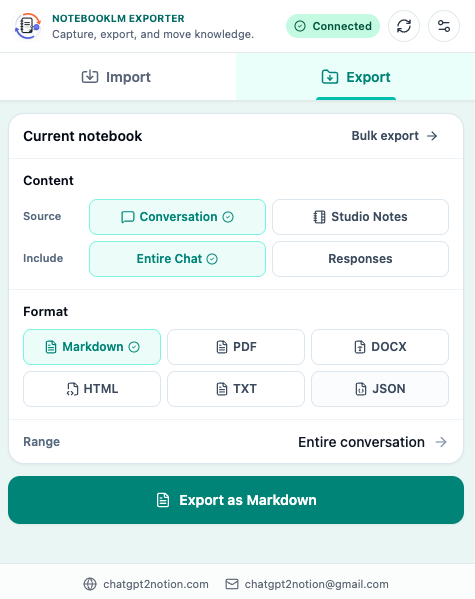
- Choose Export in the popup.
- Select a small target such as conversation export.
- Choose Markdown or TXT.
- Download the file and inspect the result.
If the test export works, move on to Export NotebookLM Content.
Ready to try NotebookLM Hero?
Open the product page for feature details, screenshots, pricing, and the Chrome Web Store install link.