
Bulk and Selective Export
Back up the first 60 Grok conversations, the complete paginated archive, or an exact selection of chats from Sync Center.
Sync Center handles multi-conversation exports. Keep the Sync Center and an open grok.com tab available until the run completes.
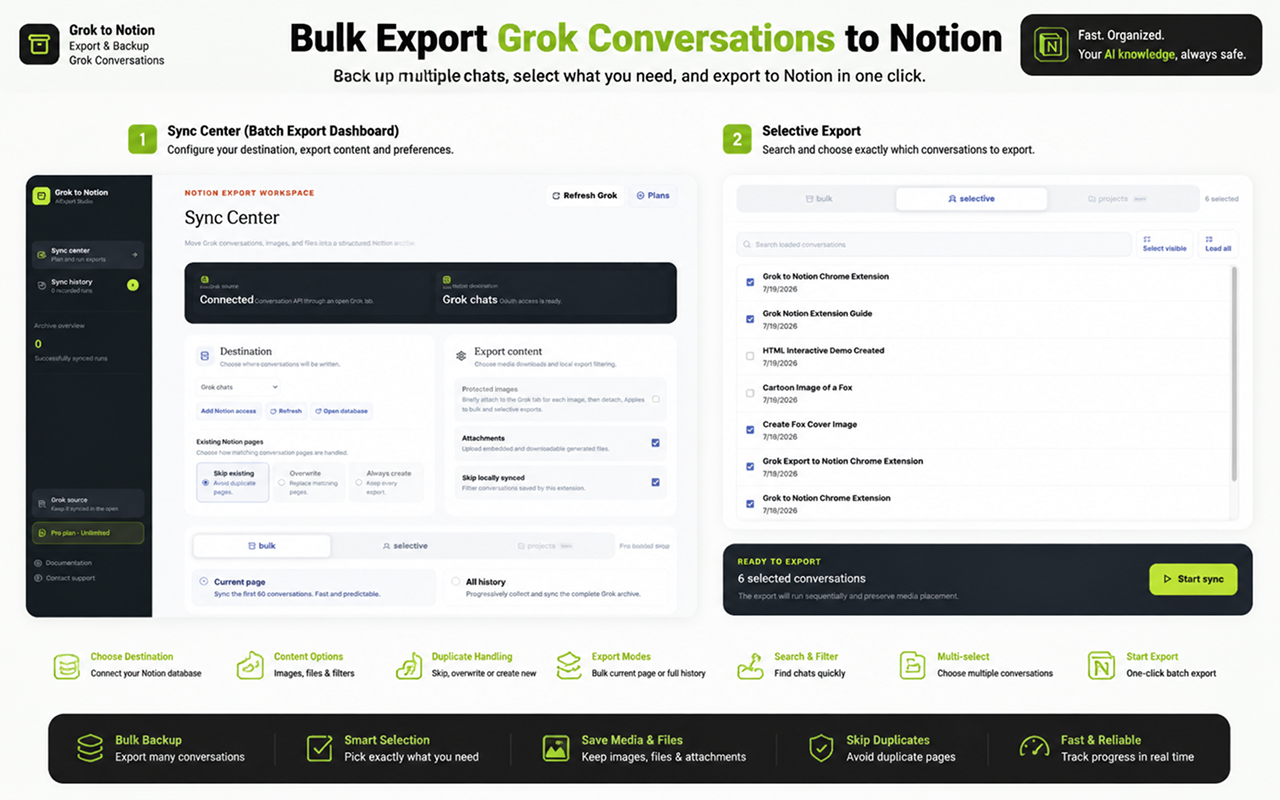
Configure the destination and content
Before choosing a scope:
- Select the destination Notion database.
- Choose Skip existing, Overwrite, or Always create.
- Decide whether to include protected images and attachments.
- Decide whether to skip conversation IDs already recorded locally.
Protected images require explicit consent. Attachments and protected images are separate settings.
Bulk mode
Bulk mode offers two scopes:
- Current page exports the first 60 loaded conversations. Use it for a predictable recurring backup.
- All history progressively follows Grok pagination and collects the complete available archive. Use it for an initial or full backup.
Choose the scope, review the ready state, then click Start sync.
Selective mode
Selective mode is useful when the desired conversations are spread across history.
- Open the Selective tab.
- Search loaded conversations by title.
- Check individual conversations or choose Select visible.
- Use Load more conversations or Load all if the desired chats are not loaded yet.
- Review the selected count and click Start sync.
A Synced indicator marks conversation IDs already present in the extension’s local export history.
Projects status
The Projects tab is disabled and labeled as coming soon in version 4.0.0. Bulk and Selective work with regular Grok conversation history only.
Monitor and cancel a run
Live progress reports the current conversation and media stage. A completed history record contains saved, skipped, and failed counts.
If you cancel, pages already written to Notion remain there. You can start another run later with Skip existing and Skip locally synced to avoid repeating completed items.
Reliability tips
- Test one representative chat before a complete backup.
- Keep the Grok tab open and avoid refreshing it.
- Keep Sync Center open until the run completes.
- Enable protected images only after reading the permission explanation.
- Review failures before clearing export history.
For a failed run or media upload, see API and Export Errors.
Need more help? Contact Support